
FonePaw Data Recovery Review: Is It Worth It?
Losing critical files due to accidental deletion, a formatted drive, or a sudden system crash can be incredibly stressful. In your urgent search for a solution, you likely stumbled upon FonePaw Data Recovery. Marketing campaigns widely advertise it as a powerful desktop utility for recovering lost photos, videos, and documents. However, before you download the installer or purchase a premium license, you need to know if it truly delivers on its promises.
Therefore, this comprehensive FonePaw Data Recovery review will evaluate the software’s real-world performance, usability, and technical limitations. Furthermore, we will introduce a highly effective free data recovery software alternative, Magic Data Recovery, that might better fit your budget and hard drive recovery needs.
Supports Windows 7/8/10/11 and Windows Server
Table of Contents
What Is FonePaw Data Recovery?
Fundamentally, FonePaw Data Recovery is a dedicated desktop utility designed to scan storage devices and retrieve lost files. The software supports both Windows and macOS environments. Consequently, it targets common data loss scenarios, such as emptying the Recycle Bin, virus infections, and unexpected partition corruption.
Supported File Types and Systems
Fortunately, the tool supports more than 1,000 file formats. This extensive list includes standard images (JPEG, PNG), videos (MP4, MOV), office documents (DOCX, XLSX, PDF), and compressed archives (ZIP, RAR). Additionally, users can deploy it across various storage devices, including internal hard drives, external SSDs, and USB flash drives.
Performance Test Results: FonePaw Data Recovery Review
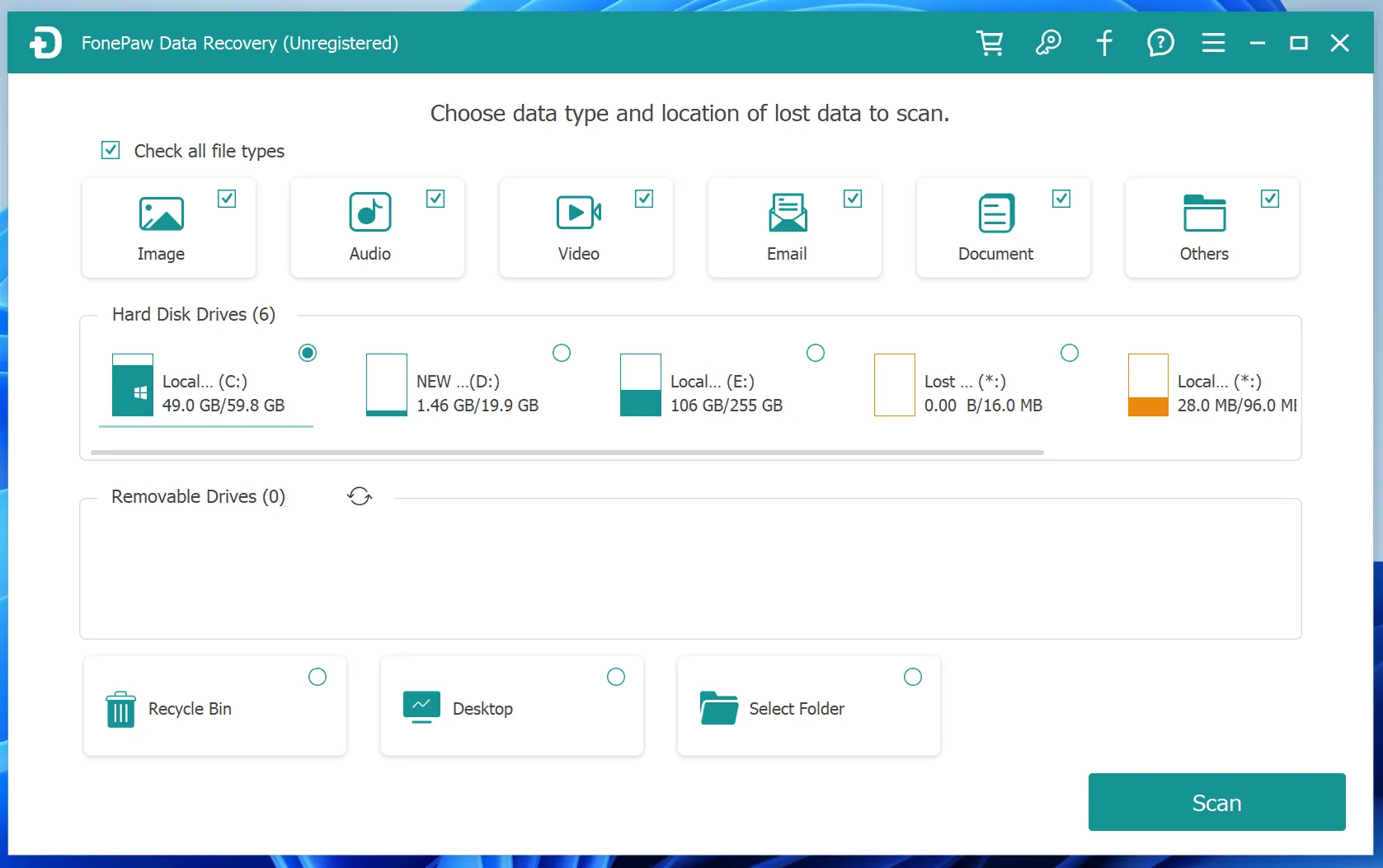
To provide an authentic FonePaw Data Recovery review, we thoroughly tested the tool on a standard Windows 11 setup. Specifically, we focused on standard deleted files and compared its two primary scanning modes.
Dual Scanning Modes
Initially, the software offers a quick scan and a deep scan. The quick scan finishes within seconds, which makes it ideal for recently deleted items. In contrast, the deep scan searches the drive sector by sector. Although the deep scan finds older files, it takes significantly longer on larger storage drives.
File Preview Capabilities
Before exporting any data, the software allows you to preview found images and documents. As a result, this feature helps verify whether the files are intact or corrupted before you proceed with the recovery process.
Resource Allocation During Scans
During our live tests, the deep scan consumed a noticeable amount of CPU and RAM. Therefore, if you are using a mid-range or older computer, you might experience system slowdowns while the software runs in the background.
The Pros and Cons of FonePaw Data Recovery
Every software utility has its strengths and weaknesses. To maintain an objective perspective, let us analyze the specific advantages and limitations we discovered during our evaluation for this FonePaw Data Recovery review.
The Pros:
- Intuitive User Interface: The straightforward three-step wizard guiding you from selection to scan is exceptionally easy to navigate.
- Diverse File Filtering: Users can easily sort through thousands of scanned files by format or creation date.
- Broad Device Compatibility: It works reliably with most standard external memory cards and USB storage devices.
The Cons:
- No Free Data Recovery Limit: This is the biggest drawback. Although FonePaw offers a free trial, it only allows you to scan and preview your files. If you actually want to save or export even a single kilobyte of data, you must buy a premium subscription.
- Performance Drop on Large Drives: The deep scanning process can stall or slow down drastically when handling external hard drives larger than 2TB.
- Struggles with Inaccessible Drives: When faced with severe logical corruption, RAW file systems, or encrypted volumes, FonePaw frequently fails to rebuild the original directory structure. Consequently, recovered files may end up permanently broken or corrupted.
Is FonePaw Data Recovery Pricing Worth It?
Because FonePaw does not provide a true free data recovery software tier, you must carefully consider its pricing structure. The software is available via monthly, yearly, or lifetime licenses. For individual home users who only need to rescue a few urgent files one time, the entry barrier is relatively high. Paying a premium price for a one-off emergency can feel restrictive, especially when you are unsure if the files will restore correctly. Thus, exploring alternatives is a logical next step.
The Best FonePaw Alternative: Magic Data Recovery
If you are hesitant about the costly entry fees or the lack of free exporting options after reading our FonePaw Data Recovery review, a powerful alternative is available. We highly recommend Magic Data Recovery, a professional-grade Windows utility developed by Amagicsoft.
Why Magic Data Recovery Outperforms FonePaw
Unlike FonePaw’s restrictive trial model, Magic Data Recovery addresses the primary pain points of regular users by offering a transparent, problem-solving approach.
- True 500MB Free Recovery Limit: The most significant advantage of this tool is its genuine free tier. You can scan, preview, and successfully recover up to 500MB of data completely free of charge. No credit card or upfront payment is required. This feature allows you to rescue urgent documents or photos immediately without spending a dime.
- Advanced Recovery for Inaccessible Drives: Standard software often fails when a storage device becomes unreadable. Magic Data Recovery features advanced, read-only algorithms designed to safely recover inaccessible drives, RAW partitions, and corrupted USB flash memory. It bypasses OS logical errors to read data directly from the storage sectors.
- Lightweight and Efficient Architecture: The software is highly optimized for Windows desktop environments. It runs smoothly without draining your system resources, minimizing the risk of computer crashes during deep sector scans.
Common Use Cases for Magic Data Recovery
Imagine you accidentally formatted a USB thumb drive containing your final university project, or perhaps your external hard drive suddenly displays a “RAW” file system error. In these scenarios, Magic Data Recovery serves as a reliable solution. It reads the damaged partition structure, lets you preview the intact files, and allows you to export them safely to a healthy drive.
How to Use Magic Data Recovery to Rescue Your Files
Restoring your lost data with this utility is incredibly straightforward. You can complete the entire process by following these simple, risk-free steps:
Step 1: Download and Install the Software
Initially, download the setup file for Magic Data Recovery. You must install the utility on a local drive that is completely different from the affected partition containing your lost files. This vital approach successfully prevents accidental overwriting and protects your vulnerable data.
Supports Windows 7/8/10/11 and Windows Server
Step 2: Select the Target Partition to Scan
Subsequently, launch the program on your computer. From the clean main user interface, choose the specific drive or partition where your files were originally deleted, and then click to start the scanning process immediately.

Step 3: Scan the Storage Device for Deleted Files
The software automatically performs an Advanced Scan on your selected storage sector. Meanwhile, it systematically lists all recoverable files in real time on your screen as the scanning progress advances.

Step 4: Preview Deleted Files Before Recovery
Next, you can utilize the integrated preview function to confirm the exact content of your images or documents. This quality check ensures that you restore only the healthy files you actually need.

Step 5: Recover Files to a Safe Location
Finally, mark the checkboxes next to your target files and save them securely to a different drive or backup storage device. Never restore your data to the original damaged partition, because doing so risks permanent data corruption.

Side-by-Side Comparison: FonePaw vs. Magic Data Recovery
To help you make an informed choice, this table highlights the technical and operational differences between these two best Windows data recovery tools.
Feature | FonePaw Data Recovery | Magic Data Recovery |
Free Recovery Limit | 0 MB (Scan & Preview Only) | 500 MB (Fully Functional) |
Handling Inaccessible Drives | Average; files sometimes corrupt | Excellent; advanced RAW recovery |
System Resource Strain | Low CPU and RAM usage | Low; lightweight footprint |
Pre-Recovery Preview | Available | Available |
Primary Value Focus | Subscription-based commercial | User-centric, free-to-try model |
Conclusion
Selecting the right data recovery program depends entirely on your specific situation and budget. You might choose FonePaw if you already own a commercial license or if you only need to check if a deleted file is still technically detectable on a healthy partition.
However, Magic Data Recovery is clearly the superior option for the vast majority of users. It removes the financial anxiety of data loss by providing a real 500MB free recovery allowance. Furthermore, its technical superiority in handling hard drive recovery ensures that your data remains safe, intact, and fully readable. It delivers a seamless, professional experience without forcing an immediate purchase.
Supports Windows 7/8/10/11 and Windows Server
FAQs About FonePaw Data Recovery Review
Can I recover data for free with FonePaw Data Recovery?
No, you cannot export files for free using FonePaw. Although the free trial version allows you to scan your storage device and preview the recoverable items, you must purchase a paid license key to save the files onto your computer. Therefore, it serves only as a tool for visual verification.
What is the best free alternative to FonePaw Data Recovery?
The best choice is Magic Data Recovery by Amagicsoft. It stands out because it offers a genuine 500MB free data recovery allocation. Consequently, users can restore important files without any financial commitment, making it much more flexible for small, urgent data rescue tasks than FonePaw.
Is it safe to use software to recover inaccessible drives?
Yes, using professional utilities like Magic Data Recovery is perfectly safe. The software operates in a strict read-only mode. As a result, it will never alter, overwrite, or damage the existing data on your corrupted drive during the scanning process, ensuring complete data integrity throughout the procedure.
How can I improve my data recovery success rate?
You should stop using the affected drive immediately after discovering data loss. For instance, installing new software or saving new files onto the same drive can overwrite the deleted data. Therefore, this action makes it permanently unrecoverable. Always save your recovered files to a completely separate storage device instead.
Why does the deep scan take so long in FonePaw Data Recovery?
The deep scan searches your storage device sector by sector to find fragmented files. Consequently, the process requires significant time and heavy system resources. If you are scanning a large external hard drive over 2TB, the scan might take several hours and temporarily slow down your computer's performance.
Can I trust the file previews shown during the FonePaw Data Recovery review?
Yes, the preview function displays the actual data blocks retrieved from the drive sectors. If a photo or document opens correctly in the preview window, it means the file structure is intact. However, if the preview fails, the file is likely corrupted due to partition overwriting.

Vasilii is a data recovery specialist with around 10 years of hands-on experience in the field. Throughout his career, he has successfully solved thousands of complex cases involving deleted files, formatted drives, lost partitions, and RAW file systems. His expertise covers both manual recovery methods using professional tools like hex editors and advanced automated solutions with recovery software. Vasilii's mission is to make reliable data recovery knowledge accessible to both IT professionals and everyday users, helping them safeguard their valuable digital assets.