
A Safe and Practical Guide to Disk Partition Recovery
Losing a disk partition can be alarming. One moment your files are accessible, and the next, an entire partition disappears or becomes unreadable. Many users immediately search for disk partition recovery tools, hoping to restore the partition as quickly as possible. However, rushing into the wrong partition recovery solution may cause permanent data loss.
The truth is that disk partition recovery is not always about restoring the partition structure itself. In many real-world scenarios, the safer and more reliable approach is to recover the data first, without modifying the disk. This guide explains practical recovery options, common mistakes to avoid, and why tools like Magic Data Recovery are often recommended to minimize risk—especially when free disk partition recovery methods fall short.
Supports Windows 7/8/10/11 and Windows Server
Wondering if your files can be recovered? Find out in seconds with our quick check below.
Data Recovery Assessment
Answer 3 quick questions to estimate your recovery chances
Table of Contents
What Is Disk Partition Recovery and Why It Can Be Risky
It refers to the process of restoring a lost, deleted, or inaccessible disk partition so it becomes visible and usable again. This may involve repairing the partition table, rebuilding disk metadata, or reassigning partition information.
While this sounds straightforward, it carries inherent risks:
- Partition recovery often modifies disk structures
- Incorrect operations may overwrite file system records
- One wrong action can turn recoverable data into permanent loss
From professional recovery experience, the highest risk appears when users attempt direct partition restoration without first securing their files. This is why understanding recovery order is critical.
Common Reasons Why Disk Partitions Get Lost or Deleted
In practice, most cases fall into predictable scenarios:
- Accidental deletion during disk management
- Formatting the wrong partition
- Operating system crashes or failed updates
- Virus or malware damage to the partition table
- Power outages during disk operations
- Improper use of third-party partition tools
Although the causes differ, the result is similar: the partition becomes invisible, unallocated, or inaccessible. At this stage, unnecessary disk writes should be avoided.
Disk Partition Recovery Solutions to Try (Without Software)
Before turning to recovery software, several built-in solutions are worth checking. These methods are free, low-risk, and often overlooked.
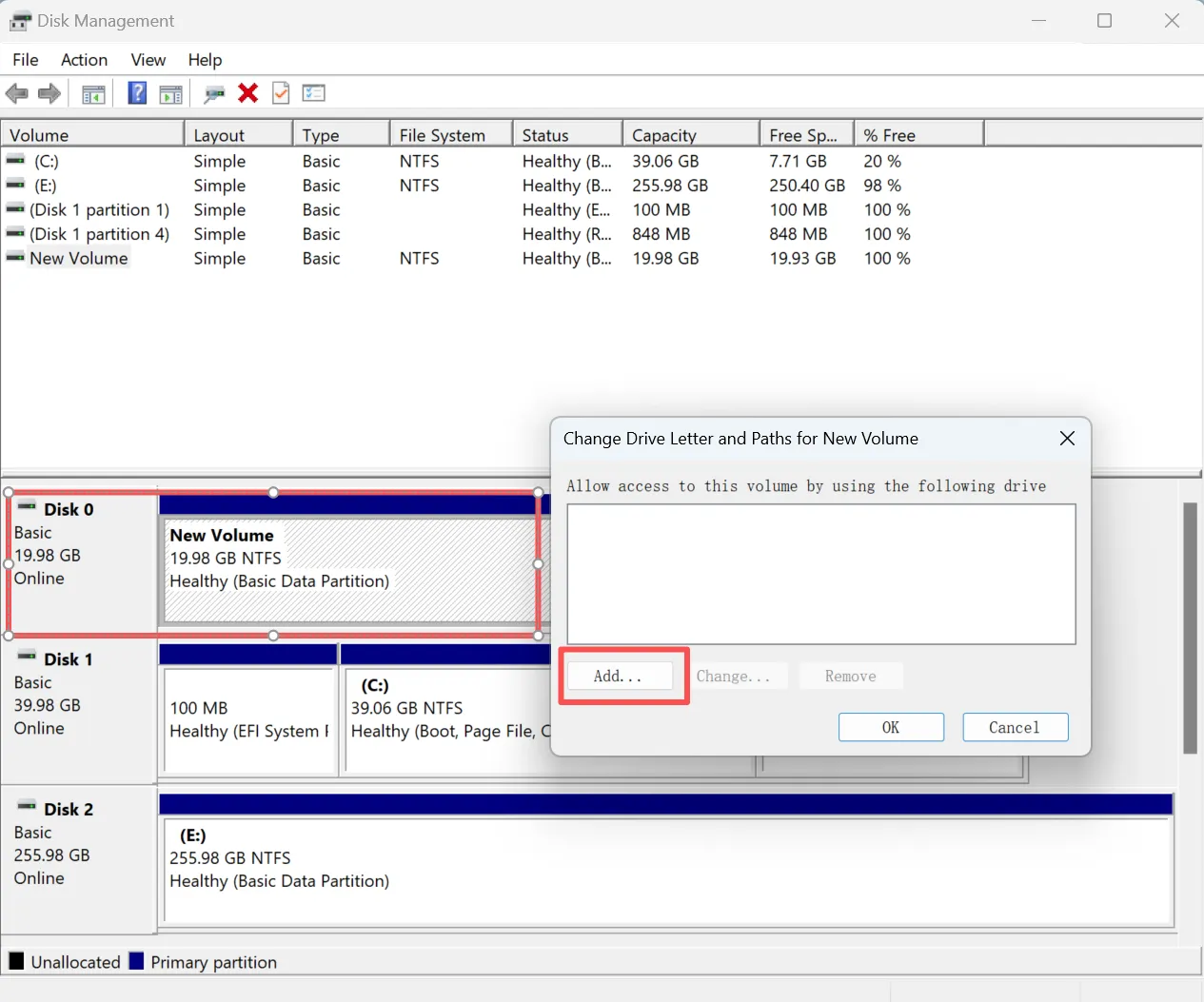
Check Disk Management
Sometimes the partition still exists but lacks a drive letter.
- Open Disk Management
- Locate the affected partition
- Assign a new drive letter if available
Verify File System Recognition
If the partition appears as RAW, the file system may be corrupted. Windows built-in tool like CHKDSK may fix the issue. But it may lead data loss even it can repair the partition error.
Why Recovering Data First Is Safer Than Restoring the Partition
This is where many existing guides fall short. Direct partition restoration changes disk metadata. In contrast, data recovery tools typically perform read-only scans, meaning they do not alter the original disk structure.
From a risk-management perspective:
- Partition recovery = structural modification
- Data recovery = information extraction
Professionals often recommend securing critical files first. Once the data is safe, users can decide whether rebuilding the partition is still required. This approach is particularly relevant when exploring free disk partition recovery options, which may lack advanced safeguards.
Free Disk Partition Recovery: What “Free” Really Means
Many users search for free disk partition recovery expecting a complete solution. In reality, free options usually involve trade-offs:
- Free scans but limited recovery
- No guarantee of partition reconstruction
- Minimal protection against secondary damage
Free tools are useful for diagnosis. However, when important files are involved, relying solely on free partition recovery may increase uncertainty rather than reduce it.
How Magic Data Recovery Helps Reduce Risks
Magic Data Recovery takes a data-first approach that aligns with professional best practices. While it does not directly rebuild disk partitions, it offers a safer alternative when dealing with disk partition recovery scenarios.
Core Problems It Solves
- Files trapped inside lost or deleted partitions
- Data inaccessible due to partition table corruption
- Risk of overwriting during manual recovery attempts
Key Advantages
- Read-only scanning that does not modify the disk
- Ability to detect lost partitions and file systems
- Preview recoverable files before restoration
- Recovery process focused on data safety
Real-World Use Case
For example, when a partition disappears after a system crash, Magic Data Recovery can scan the disk surface, locate recoverable files, and allow users to restore them to a secure location. Once data is protected, users can confidently decide whether to recreate the partition.
This method is often more reliable than direct free disk partition recovery tools that attempt immediate structural changes.
If you are looking for a safer solution, Magic Data Recovery provides a practical balance between effectiveness and risk control.
How to Use Magic Data Recovery for Disk Partition Recovery
Step 1: Download and Install the Software on a Safe Drive
Begin by downloading Magic Data Recovery and installing it on a disk that is separate from the affected partition. Installing on a different drive helps prevent overwriting lost data from the target partition and increases the chances of a successful recovery.
Supports Windows 7/8/10/11 and Windows Server
Step 2: Select the Target Disk or Lost Partition for Scanning
Choose the partition where the lost or corrupted partition was located. If the specific partition is not visible, select the entire physical disk to enable the software to search for and identify the missing partition structure.

Step 3: Initiate an Advanced Scan for Lost Partition Data
Once you start the scan, the software will automatically perform a comprehensive, in-depth scan. Recoverable files from the lost partition are displayed in real-time as the scan progresses, allowing you to monitor results without waiting for the process to complete.

Step 4: Preview Files to Assess Recoverability
After the scan finishes, utilize the built-in preview feature to open and verify the integrity of found files. This step ensures you can accurately identify data belonging to the lost partition and avoid restoring unnecessary or damaged files.

Step 5: Restore Recovered Partition Data to a Different Location
Select the files you wish to recover and save them to a storage device other than the original disk. It is not recommended to save recovered data back onto the source disk, as this action could overwrite remaining data that might still be recoverable.

When to Restore a Partition—and When Not To
Understanding timing is essential for successful disk partition recovery.
Consider Restoring the Partition When:
- The partition table damage is minimal
- No new data has been written
- You have already backed up important files
Avoid Partition Restoration When:
- Files have not been recovered yet
- The disk shows signs of physical failure
- Free tools cannot clearly identify the partition layout
In uncertain cases, recovering data from lost partition first remains the safer strategy.
Best Practices to Prevent Future Partition Loss
While no system is immune to failure, these habits reduce risk:
- Maintain regular backups
- Avoid unnecessary repartitioning
- Use reliable disk management tools
- Safely eject external drives
- Monitor disk health periodically
Preventive measures significantly reduce the need for disk partition recovery in the future.
Conclusion
Effective disk partition recovery is not about acting fast—it is about acting wisely. Many data loss cases worsen when users trying to fix the corrupted partition or recover lost partition. By prioritizing data recovery first, users protect what matters most.
Magic Data Recovery supports this safer workflow by enabling users to recover files without modifying the disk. Compared with traditional free disk partition recovery solutions, it offers greater control, transparency, and reliability. If your partition is missing and your data is still valuable, choosing a data-first recovery approach can make all the difference.
Supports Windows 7/8/10/11 and Windows Server
FAQs About Disk Partition Recovery
Can disk partition recovery cause data loss?
Is free disk partition recovery reliable for important data?
What should I do first after a partition is deleted or lost?
Can I recover files without restoring the lost partition?
Why do experts recommend recovering data before partition recovery?
Does disk partition recovery work if the partition table is corrupted?
How does Magic Data Recovery help with partition-related data loss?
When should I avoid trying to restore a partition?

Vasilii is a data recovery specialist with around 10 years of hands-on experience in the field. Throughout his career, he has successfully solved thousands of complex cases involving deleted files, formatted drives, lost partitions, and RAW file systems. His expertise covers both manual recovery methods using professional tools like hex editors and advanced automated solutions with recovery software. Vasilii's mission is to make reliable data recovery knowledge accessible to both IT professionals and everyday users, helping them safeguard their valuable digital assets.