
SSD File Recovery: How to Recover Lost Data
Losing data from an SSD can be stressful, whether it’s work documents, photos, or personal projects. Unlike traditional hard drives, SSDs store data differently, making recovery more challenging. This guide covers ssd file recovery techniques, including practical steps and best practices. We will also explore how Magic Data Recovery provides a reliable solution to retrieve lost files from SSDs, even for non-technical users. Following this process increases recovery success and minimizes risks.
Supports Windows 7/8/10/11 and Windows Server
Table of Contents
Common Causes of SSD File Loss
Understanding the reasons for data loss helps prevent permanent damage. Common causes include:
- Accidental deletion: Removing files unintentionally or emptying the Recycle Bin.
- Formatting errors: Reformatting an SSD may leave data recoverable with the right software.
- Firmware or software glitches: System crashes or firmware issues can make files inaccessible.
- TRIM function: While optimizing SSD performance, TRIM may permanently erase deleted files.
- Physical damage: Overheating or mechanical faults can corrupt files.
Recognizing these scenarios allows immediate action, which improves the likelihood of successful ssd file recovery.
Why SSD File Recovery Can Be Difficult — and When It’s Still Possible
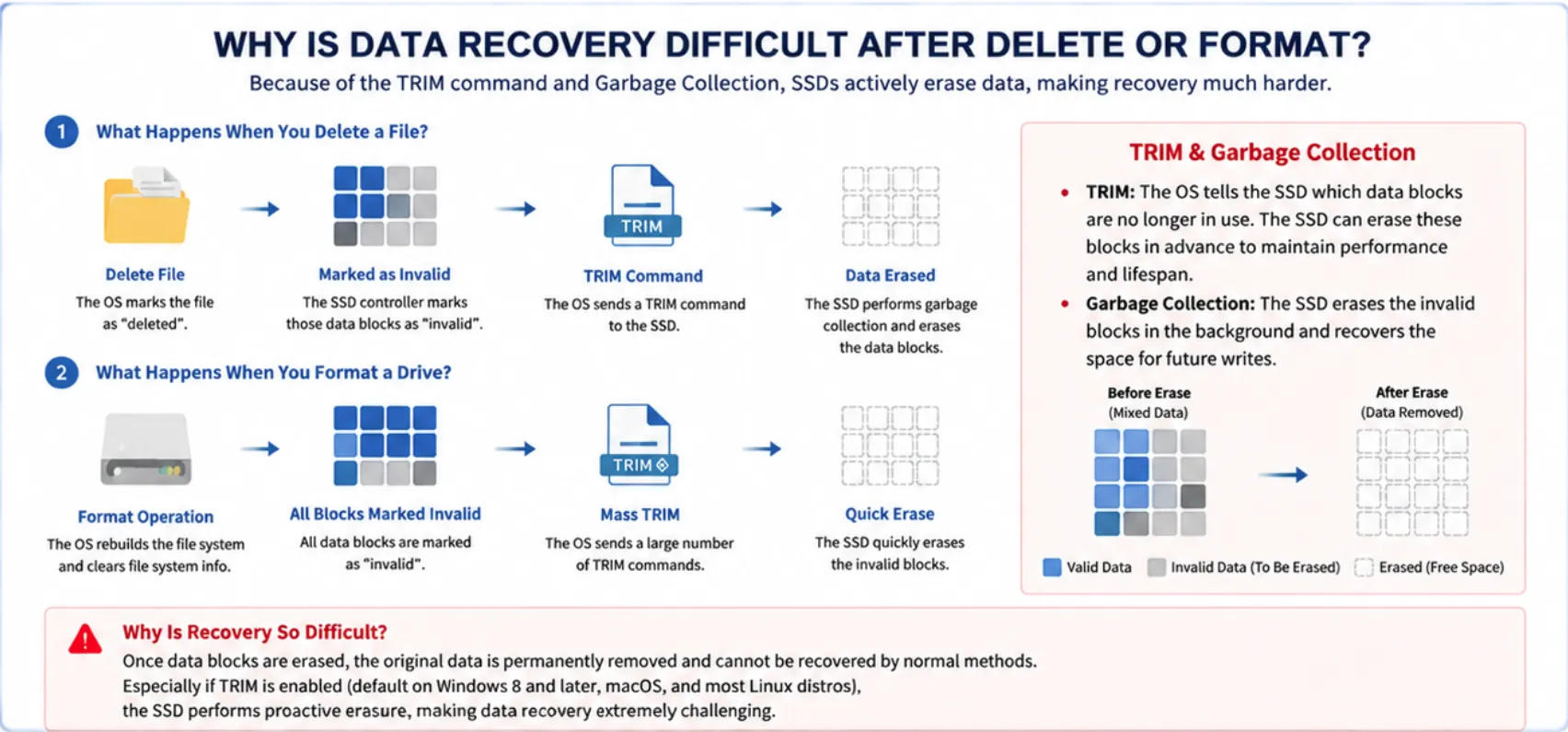
SSDs store data in NAND flash memory cells using pages and blocks, and they maintain speed and lifespan through mechanisms like TRIM and garbage collection. When a file is deleted or a drive is formatted, these mechanisms may actively erase data, making recovery with standard methods extremely difficult.
TRIM marks deleted data blocks as available and clears them to optimize performance, while garbage collection reorganizes blocks in the background, further reducing the chance of restoring erased files. As a result, typical recovery attempts on recently deleted or formatted SSDs may fail.
However, not all data loss scenarios are hopeless. In cases of logical damage—such as a disk showing as RAW, inaccessible partitions, corrupted file systems, or accidental formatting without TRIM—many of the original data blocks remain intact. In these situations, professional SSD recovery software can often successfully retrieve lost files. Users can scan the drive safely, preview recoverable files, and restore them even when deletion or formatting seems irreversible.
Comparison of Popular SSD Recovery Software
| Product Name | Key Features | Pros | Cons |
| Magic Data Recovery | Quick & Advanced scan, file preview, multi-language, multiple file formats | High recovery rate, easy interface, broad file type support | Paid version required for large file recovery |
| Disk Drill | Quick scan, partition recovery, multiple file formats | User-friendly, free version available | Deep scan slower, some features locked in free version |
| Handy Recovery | Simple interface, supports common file types | Lightweight, easy to install | Limited advanced recovery options, no NVMe support |
| R-Studio | Professional data recovery, RAID support | Very powerful, technical options | Complex for beginners, not free |
Choosing the Right Software for SSD File Recovery
Selecting reliable software ensures safe and effective recovery. Key considerations include:
- Preventing overwriting of lost files
- Supporting multiple file types and SSD models
- Offering user-friendly interfaces for non-experts
The table objectively compares features, pros, and limitations. Magic Data Recovery combines ease-of-use with advanced recovery options, supporting more SSD types and scenarios than many alternatives.
How to Recover SSD Files Using Magic Data Recovery
Step 1: Download and Install
Download Magic Data Recovery and install it on another drive. This does not alter existing data and avoid overwriting lost files.
Supports Windows 7/8/10/11 and Windows Server
Step 2: Connect and Scan
Connect your SSD, then select the SSD and start a scan. Magic Data Recovery runs Advanced Scan automatically and lists all the files on the SSD after the scan.

Step 3: Preview Files
Use the preview function to verify files before recovery. Filters by type, size, or date help locate important data efficiently.

Step 4: Recover Files Safely
Select files to restore and save them to a different drive to avoid overwriting. Your lost files can now be recovered quickly and securely.

Tips to Improve SSD File Recovery Success
- Stop using the SSD immediately after data loss
- Avoid installing software on the affected SSD
- Use read-only scan modes when possible
- Back up recovered files promptly
- Update SSD firmware regularly to prevent errors
Acting quickly, especially on TRIM-enabled drives, greatly improves ssd file recovery success rates.
Situations Where SSD File Recovery May Fail
While professional software is highly effective, some scenarios make ssd file recovery extremely difficult or even impossible:
- TRIM-enabled SSDs: When the TRIM command is active, deleted files may be immediately overwritten at the hardware level. Once this happens, recovery becomes nearly impossible.
- Overwritten Data: If new files have replaced the deleted ones, the original data cannot be restored.
- Severe Physical Damage: SSDs with hardware-level failures, burnt-out chips, or broken connectors may prevent any software-based recovery.
- Secure Erase or Encryption: Data erased using secure wipe methods or encrypted drives without the key cannot be recovered.
Being aware of these limitations helps set realistic expectations and ensures users understand that no software can guarantee 100% recovery in all situations.
Alternative Methods for Deleted or Formatted SSD Files
Sometimes, SSD files cannot be recovered using software due to TRIM or overwrite issues. In these cases, Windows provides built-in features that may help restore lost data:
Restore from File History
File History is a Windows backup tool that periodically saves copies of files in your libraries, desktop, contacts, and favorites.
Steps to Restore:
- Press Control Panel – System and Security – File History.
- Browse through folders or use the search bar to locate the lost file.
- Select the file(s) you want to restore.
- Click the Restore personal files button to return files to their original location.

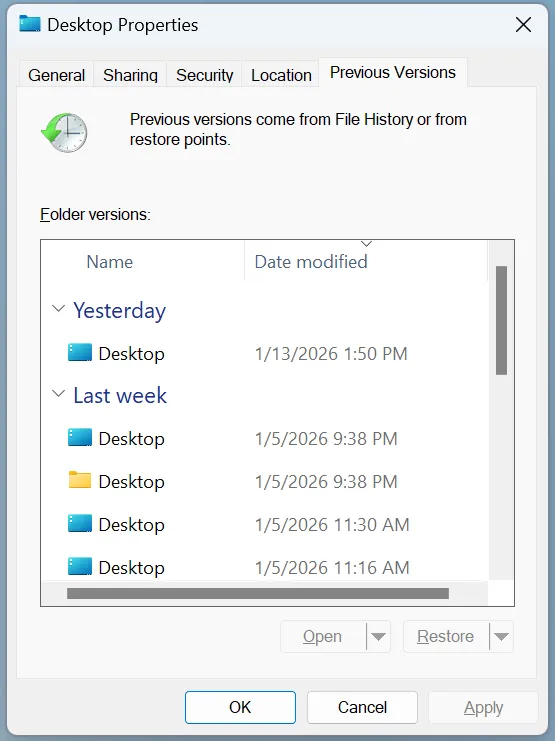
Restore from Previous Versions
Windows automatically creates restore points that may include previous versions of your files or folders.
Steps to Restore:
- Navigate to the folder where the lost file was located.
- Right-click the folder and select Properties.
- Go to the Previous Versions tab.
- Browse through the available versions, check the modified dates, and select the version that contains your file.
- Click Restore to recover the file to a different location.
Tip: If the SSD was recently formatted, recovery is possible only if System Protection or File History was enabled before data loss.
Cloud Backups as a Safety Net
Even if SSD recovery fails, files stored in cloud services like OneDrive, Google Drive, or Dropbox may still be retrievable. Ensure automatic backup settings are enabled to avoid permanent loss.
Conclusion
SSD file recovery can be stressful, but using the right tool simplifies the process. Magic Data Recovery detects even hidden or deleted files, supports multiple SSD types and file formats, and provides a user-friendly interface with advanced features. Compared to manual recovery or less capable software, it is faster, safer, and more reliable.
If you want an efficient way to restore lost SSD data, try Magic Data Recovery today and regain your important files with confidence.
Supports Windows 7/8/10/11 and Windows Server
FAQs About SSD File Recovery
Can I recover files from a TRIM-enabled SSD?
Recovery is often difficult on TRIM-enabled SSDs because the command permanently removes deleted files. Immediate action may help, but in many cases, lost data cannot be restored.
Does TRIM affect SSD file recovery?
TRIM can permanently remove files after deleting or formatting, making recovery nearly impossible. Acting immediately may recover few files.
How long does SSD file recovery take?
Recovery time depends on SSD size and condition. Quick scans typically take a few minutes, while deep scans may take longer. Magic Data Recovery provides clear progress indicators for both scan types.
Which SSD types are supported?
Magic Data Recovery supports SATA, NVMe, and M.2 SSDs. It recovers documents, photos, videos, and archives, providing flexibility for diverse recovery needs.
Are there tips for increasing recovery success?
Stop using the affected SSD, select a safe recovery location, use read-only scan modes, and back up recovered files promptly. Following these steps maximizes successful ssd file recovery.
Are all deleted or formatted SSD files recoverable?
No. Files deleted or formatted on SSDs with active TRIM, or overwritten by new data, are often irrecoverable. Recovery software can only restore files that remain intact on the drive.

Vasilii is a data recovery specialist with around 10 years of hands-on experience in the field. Throughout his career, he has successfully solved thousands of complex cases involving deleted files, formatted drives, lost partitions, and RAW file systems. His expertise covers both manual recovery methods using professional tools like hex editors and advanced automated solutions with recovery software. Vasilii's mission is to make reliable data recovery knowledge accessible to both IT professionals and everyday users, helping them safeguard their valuable digital assets.