
How to Recover Formatted Data from Pen Drive
Formatting a pen drive by mistake can make documents, photos, videos, and project files disappear within seconds. However, the data may still remain on the device, especially after a quick format. This guide explains how to recover formatted data from pen drive, how formatting affects recovery, and which actions protect your files. It also shows when Magic Data Recovery offers a practical pen drive recovery solution and when a backup or professional service makes more sense. The safest recover formatted pen drive workflow always begins by protecting the source device.
Supports Windows 7/8/10/11 and Windows Server
Table of Contents
Can You Recover Data from a Formatted Pen Drive?
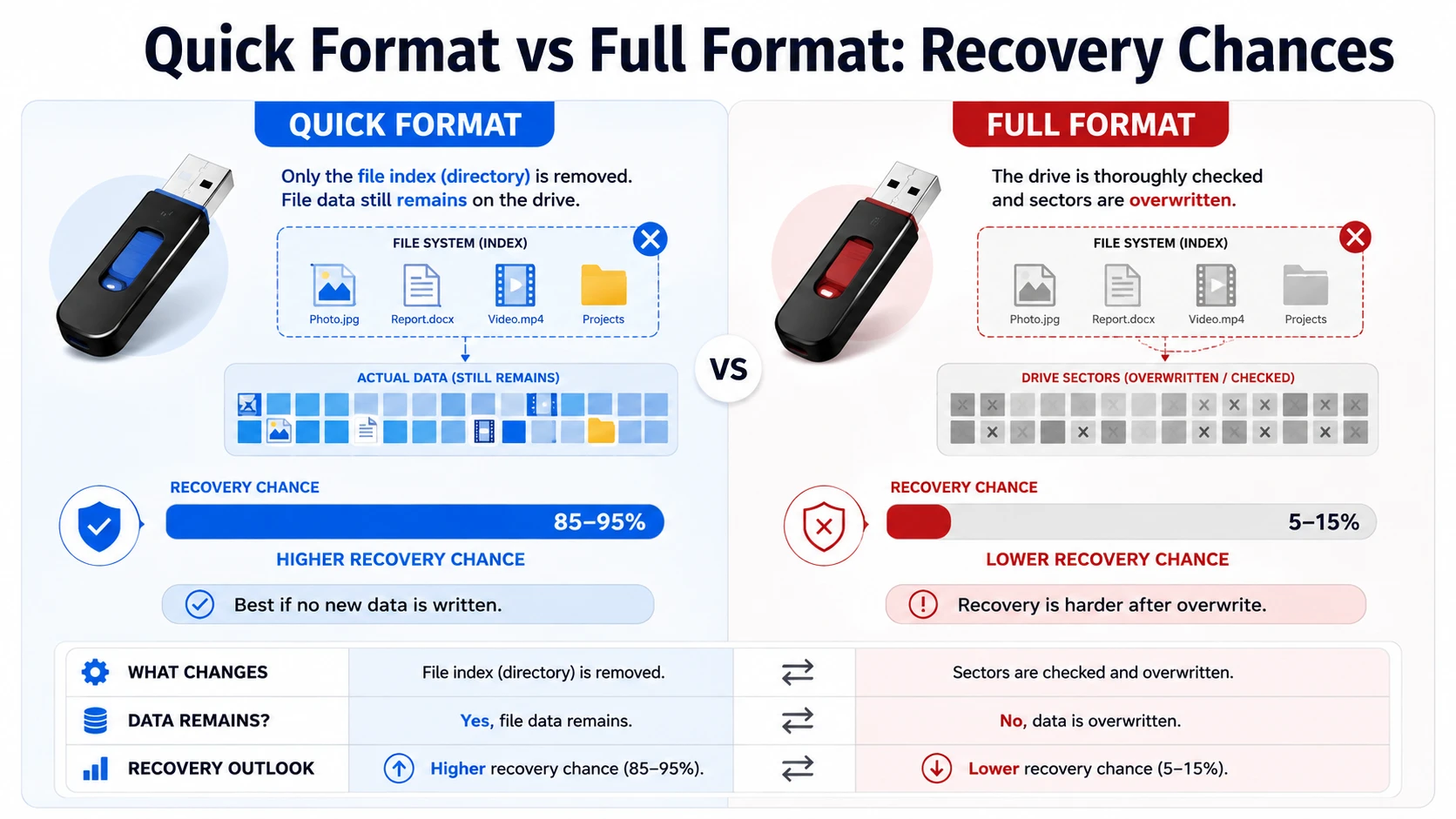
In many cases, you can recover at least some files. A quick format removes the file table and root directory, yet it does not run the same sector-by-sector process as a standard format. Therefore, file content may remain until new data overwrites those storage areas. Microsoft documents this difference in its Windows format command guidance.
Your recovery result mainly depends on the format type, new data written afterward, the physical condition of the device, and whether Windows still detects it. For example, a quick-formatted pen drive that received no new files usually offers a better recovery opportunity than one that you continued to use.
What to Do Before You Recover Formatted Pen Drive Data
First, stop using the affected pen drive. Every new write can replace part of a deleted photo, document, archive, or video. As a result, even good recovery software may find only damaged fragments.
Follow these precautions:
- Do not copy files to the pen drive.
- Do not format the device again.
- Do not install recovery software on it.
- Do not save recovered files back to it.
- Do not run CHKDSK before securing important files.
- Disconnect it if it overheats or reconnects repeatedly.
These steps matter because software can only retrieve data that still exists and remains readable. Therefore, careful handling should come before any scan or repair attempt.
Quick Format vs Full Format: Recovery Chances
The format type directly affects whether you can recover formatted pen drive files.
Situation | Recovery Outlook | Recommended Action |
Quick format with no new data | Usually the best scenario | Scan immediately |
Quick format followed by limited use | Partial recovery may remain possible | Stop using the drive and scan it |
Full format or secure erase | Recovery may be difficult | Check backups or contact a specialist |
Windows asks you to format the drive | The file system may be damaged | Recover data before repairing it |
Windows cannot detect the device | Hardware failure may exist | Seek professional help |
Consequently, the best way to recover formatted data from pen drive starts with identifying the data-loss scenario before choosing a tool.
Best Way to Recover Formatted Data from Pen Drive
When Windows still detects the pen drive, dedicated recovery software usually provides the clearest solution. Unlike a repair command, recovery software searches for remaining file-system records and recognizable file signatures.
Magic Data Recovery supports formatted USB drives and uses a simple select, scan, preview, and recover workflow. In addition, it supports more than 5,000 file formats, including common documents, photos, videos, and archives.
For instance, suppose you format a pen drive containing JPG photos, MP4 videos, PDF contracts, and DOCX reports. Instead of running repair commands, you can scan the device, filter the results, preview key files, and save selected items to your computer.
Therefore, Magic Data Recovery offers a more suitable way to recover formatted pen drive data than commands that only change attributes or repair file-system errors.
How to Recover Formatted Data from Pen Drive with Magic Data Recovery
Follow these five steps to learn how to recover formatted data from pen drive without writing new files to the affected device.
Step 1: Download and Install Magic Data Recovery
First, download Magic Data Recovery and install it on your computer. Do not install the program on the formatted pen drive because the installation files could overwrite recoverable data.
Supports Windows 7/8/10/11 and Windows Server
Step 2: Select the Formatted Pen Drive
Next, launch Magic Data Recovery and locate the formatted pen drive on the main interface. Check the drive letter, device name, and storage capacity so that you select the correct device. Then, choose the pen drive and start the scan.

Step 3: Scan the Pen Drive for Formatted Data
Magic Data Recovery automatically starts an Advanced Scan. Meanwhile, the program lists recoverable files as the scan progresses. Keep the pen drive connected. In addition, avoid opening, modifying, or saving files on the device while the software scans it.

Step 4: Preview Files Before Recovery
After the scan finds your files, use the preview feature to check their content. You can also filter results by file type, name, size, or date to locate important documents, photos, videos, and other data faster. Moreover, previewing helps you focus on the files you need. Although a successful preview is a positive sign, verify every recovered file after saving it.

Step 5: Recover Files to a Safe Location
Finally, select the target files and click the recovery button. Save the recovered data to your computer or another safe storage location. Never restore files to the same formatted pen drive. Otherwise, new files may overwrite other recoverable data and reduce the final result.

Afterward, open documents, view photos at full size, play videos beyond the first few seconds, and test compressed archives. This final check completes the how to recover formatted data from pen drive process.
Why Magic Data Recovery Is a Practical Choice
Magic Data Recovery focuses on files that Windows no longer displays. Therefore, ordinary users can follow its workflow without learning command-line tools. Useful features include formatted-file recovery, USB support, preview, filtering, selective recovery, and support for more than 5,000 formats.
For example, an employee may format the wrong pen drive while preparing installation media. Similarly, a home user may erase a USB device before copying photos elsewhere.
However, no trustworthy tool should promise complete recovery. Magic Data Recovery cannot restore fully overwritten sectors or repair severe physical damage.
This limitation matters because reliable data recovery advice should set realistic expectations. The program works best when Windows still detects the pen drive and new data has not replaced the original files.
Can CMD Recover Formatted Pen Drive Data?
Windows commands can help in specific cases, but they do not replace recovery software.
ATTRIB Can Reveal Hidden Files
The ATTRIB command displays, sets, or removes file and folder attributes. For example, it can reveal files that malware or a system issue marked as hidden:
attrib -h -r -s X:\*.* /s /d
Replace X: with the pen drive letter.
However, ATTRIB does not scan formatted sectors or reconstruct deleted file records. Microsoft defines it as an attribute-management command. Therefore, use it only when files still exist but remain hidden.
CHKDSK Repairs File-System Errors
CHKDSK checks a volume for logical and physical errors. With repair parameters, it can also modify file-system structures. Therefore, it serves a different purpose from a recovery scanner.
If important data remains at risk, recover the files first. Afterward, consider CHKDSK or reformatting to repair the pen drive. This order limits unnecessary changes before recovery.
Other Ways to Recover Formatted Pen Drive Files
Although software often provides the most direct option, another method may fit your case better.
Restore from a Backup
Check OneDrive, Google Drive, Windows Backup, File History, email attachments, messaging apps, and other computers. A backup provides the safest result because it does not depend on the condition of the pen drive.
However, this method only works when another copy existed before formatting.
Contact a Professional Recovery Service
Choose professional help when Windows cannot detect the device, the capacity appears incorrect, or the connector has physical damage. In addition, stop DIY attempts when the missing data has major value.
A specialist may examine the controller, connector, circuit board, or memory chip. Consumer software, by contrast, cannot repair failed electronic components.
Why Recovered Files May Be Missing or Corrupted
Even when you correctly recover formatted pen drive files, some items may not open. New data may have overwritten part of the original file. In addition, fragmentation, bad flash-memory blocks, lost metadata, or an incomplete scan can affect the result.
Large videos, archives, databases, and disk images often suffer more from fragmentation. Therefore, a scanner may find the beginning of a file without locating every remaining part.
Original names and folders may also disappear after formatting removes directory information. In that case, use file-type filters and previews to identify recovered content.
Tips to Recover Formatted Pen Drive Data More Safely
To improve the result, start quickly, use a stable USB port, let the scan finish, preview important files, and save the results to your computer. Moreover, verify recovered files before repairing the source device.
Avoid disconnecting the pen drive during scanning. Similarly, do not run several recovery programs at the same time because simultaneous access can cause errors or slow the process.
In the future, keep at least two copies of important files. A computer or cloud backup can prevent another urgent recover formatted pen drive situation.
Conclusion: How to Recover Formatted Data from Pen Drive Safely
The safest approach to how to recover formatted data from pen drive starts with one rule: stop using the device. Next, identify the format type, confirm that Windows still detects the pen drive, and scan it before new data replaces old sectors.
Backups remain the safest solution, while professional services suit physical damage. However, for a detectable pen drive with logical data loss, Magic Data Recovery offers a clear workflow, broad file support, useful previews, and selective recovery.
Therefore, if you need to recover data from a pen drive files without relying on misleading repair commands, try Magic Data Recovery. Save the results to your computer, verify every important file, and only then repair or reuse the original device.
Supports Windows 7/8/10/11 and Windows Server
FAQ
Can I Recover Files After a Quick Format?
Yes, recovery often remains possible after a quick format because the process mainly removes the file table and root directory. However, new data can overwrite the original content at any time. Therefore, if you need to recover formatted pen drive files, stop using the device immediately, scan it, and save recovered files to your computer rather than the source.
Can I Recover Data After a Full Format?
A full format creates a much more difficult recovery situation because it may overwrite or check storage sectors during the process. Consequently, software may find few usable files or none at all. Check your backups first. If the files have major value, contact a professional recovery service instead of repeatedly testing the pen drive.
Can CMD Recover Formatted Pen Drive Files?
CMD cannot reliably restore genuinely formatted data. ATTRIB only changes file attributes, while CHKDSK checks and repairs file-system errors. Therefore, these commands solve different problems. Use a dedicated scanner when formatting removed the file index. Run repair commands only after you secure important files, because repairs may change the volume structure.
Where Should I Save Recovered Files?
Save recovered files to your computer or another safe storage location. Never write them back to the formatted pen drive during recovery. Otherwise, new data may overwrite files that the program has not restored yet. After you verify important documents, photos, videos, and archives, you can decide whether to reformat or replace the device.
Why Did Recovered Files Lose Their Original Names?
Formatting can remove metadata that stores file names, folder paths, dates, and directory information. As a result, signature-based scanning may recover the content but assign a generated name. Use file-type filters and previews to identify these items. After recovery, rename important files and rebuild the folder structure on your computer.
What Should I Do If Windows Cannot Detect the Pen Drive?
First, try another USB port and another computer. Next, check whether Disk Management displays the correct device capacity. Do not initialize or format the pen drive when Windows prompts you. If no system detects it, or if it shows zero capacity, hardware damage may exist. In that case, professional recovery offers the safer option.
Is Magic Data Recovery Safe for a Formatted Pen Drive?
Magic Data Recovery can scan a detectable pen drive without requiring repair or reformatting first. However, safe recovery also depends on your actions. Install the software on your computer, keep the source device unchanged, preview the results, and save recovered files elsewhere. These steps support how to recover formatted data from pen drive while reducing accidental overwriting.

Vasilii is a data recovery specialist with around 10 years of hands-on experience in the field. Throughout his career, he has successfully solved thousands of complex cases involving deleted files, formatted drives, lost partitions, and RAW file systems. His expertise covers both manual recovery methods using professional tools like hex editors and advanced automated solutions with recovery software. Vasilii's mission is to make reliable data recovery knowledge accessible to both IT professionals and everyday users, helping them safeguard their valuable digital assets.