
How to Check Windows File System and Fix Common Disk Errors
Checking the Windows file system is essential when your drive behaves abnormally. If a USB drive is not recognized, a disk becomes RAW, or files suddenly disappear, the issue often relates to the file system. Therefore, learning how to check Windows file system status helps you diagnose problems early and avoid data loss. In this guide, you will learn how to identify the file system type, detect errors, and handle corruption safely.
Table of Contents
What Does Check Windows File System Mean
To check Windows file system means verifying two key aspects: the file system type and its integrity. On Windows, common file systems include NTFS, FAT32, and exFAT. Each one organizes data differently, so the system relies on it to read and store files correctly.
In addition, checking the file system also involves detecting logical errors. For example, corrupted file tables or broken cluster chains can prevent files from opening. Therefore, when you check Windows file system health, you are not only identifying the format but also ensuring the structure is intact.
Why You Need to Check Windows File System
You should check Windows file system status when specific problems appear. Otherwise, small issues may quickly become serious data loss.
Common scenarios include:
- A USB drive shows up but cannot be opened
- The system prompts “You need to format the disk”
- The drive appears as RAW in Disk Management
- Files become inaccessible or corrupted
- The disk becomes unusually slow
In these situations, checking the file system helps you determine whether the issue is logical or physical. As a result, you can choose the correct solution instead of applying risky fixes blindly.
How to Check Windows File System Using Built-in Tools
Windows provides reliable tools to detect and fix file system errors. These tools are free and easy to use.
Method 1: Use CHKDSK Command
CHKDSK is the most common way to check Windows file system integrity.
Steps:
- Open Command Prompt as administrator
- Type:
chkdsk C: /f /r - Press Enter and follow the instructions
This command scans the disk, fixes logical errors, and marks bad sectors. It works well for NTFS drives.

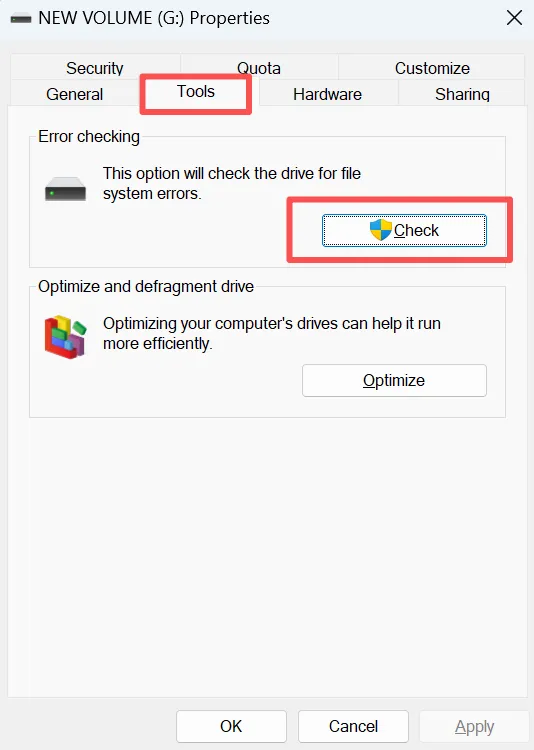
Method 2: Use Windows Error Checking Tool
For users who prefer a graphical interface:
- Open File Explorer
- Right-click the drive and select Properties
- Go to Tools → Error Checking → Check
This method is useful for quick inspections without command lines.
Common Windows File System Errors Explained
Understanding errors helps you choose the right fix.
Typical issues include:
- Corrupted file allocation tables
- Invalid security descriptors
- Cross-linked files
- Bad sectors on the disk
Each of these problems affects how Windows reads data. Running tools to check Windows file system health can resolve many of them automatically.
Best Practices to Prevent File System Corruption
Prevention is always better than repair. Based on industry best practices, follow these tips:
- Always eject external drives safely
- Avoid forced shutdowns
- Keep Windows updated
- Run antivirus scans regularly
- Check disk health periodically
These steps significantly reduce the chance of file system damage.
What If Checking the File System Causes Data Loss?
In some cases, fixing errors may result in missing files. CHKDSK can remove corrupted entries to stabilize the system. While this improves reliability, it may also cause data loss.
If files disappear after you check Windows file system, do not write new data to the drive. Continued use can overwrite recoverable files and reduce success rates.
Recover Lost Data After File System Errors
When data loss occurs due to file system corruption, recovery software becomes necessary. At this stage, a reliable solution matters more than speed.
Why Magic Data Recovery Is Recommended
Magic Data Recovery is designed to handle data loss caused by file system errors, accidental deletion, and disk corruption.
Key advantages include:
- Deep scan technology for damaged file systems
- Support for NTFS, FAT32, and exFAT
- User-friendly interface for non-technical users
- Read-only recovery process that avoids further damage
For example, if CHKDSK removes corrupted file entries, Magic Data Recovery can scan the disk structure and locate lost files before they are overwritten.
Compared to manual methods or generic tools, it offers higher accuracy and clearer recovery previews.
If you are looking for a safer and more efficient solution, Magic Data Recovery is worth considering.
Supports Windows 7/8/10/11 and Windows Server
How to Prevent File System Errors in Windows
Although file system issues are common, you can reduce the risk with proper habits.
First, always eject external drives safely. Sudden removal can damage the file system.
Next, avoid power interruptions during file transfers. Unexpected shutdowns often cause corruption. In addition, run regular disk checks to detect errors early.
Finally, keep backups of important data. Prevention is always more reliable than recovery.
Conclusion
Knowing how to check Windows file system helps you diagnose disk problems and avoid serious data loss. First, identify the file system type. Then, check for errors using tools like CHKDSK. However, if corruption occurs, do not rush to repair the disk. Instead, recover your data with a dedicated tool like Magic Data Recovery first to prevent permanent loss. By following this approach, you can handle file system issues safely and effectively.
FAQs
What does it mean to check Windows file system?
How often should I check Windows file system?
Can checking the file system delete my files?
Is CHKDSK safe for external drives?
Why does Windows ask to scan a drive at startup?
What should I do if files disappear after a disk check?
Can file system errors cause Windows to run slowly?
Is data recovery possible after file system corruption?

Jason is a data recovery and technical support specialist with over 15 years of hands-on experience. He has worked extensively with frontline users, troubleshooting difficult data loss cases and providing practical recovery solutions for accidental deletion, formatted drives, damaged file systems, lost partitions, system failures, and other recovery emergencies. His expertise also includes backup and restoration, file repair, and disaster recovery, with a strong emphasis on safe, reliable, and technically accurate guidance.