
How to Fix USB Drive Not Recognized (Complete Guide)
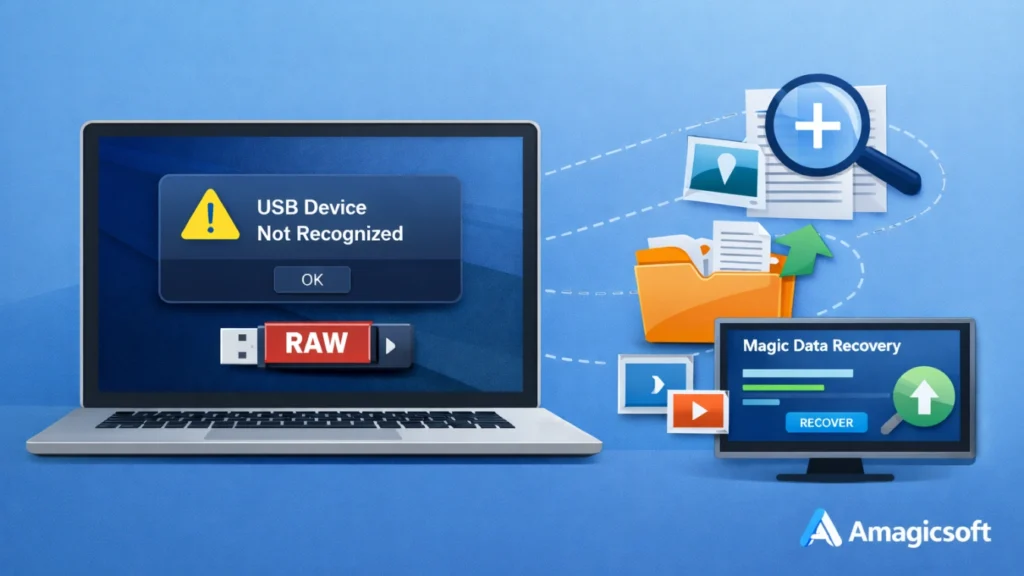
A USB drive not recognized error can happen at the worst possible time. You connect your flash drive to transfer photos, work documents, or videos, but nothing appears in File Explorer. In some cases, Windows shows “USB device not recognized.” In others, the drive appears as RAW, unallocated, or not accessible at all. If you are searching for how to fix usb drive not recognized, this guide will help you identify the cause and choose the right USB drive solution.
This article covers different real-world scenarios, from simple port issues to serious file system corruption. More importantly, when the USB drive becomes RAW or loses its partition, it explains how to recover important files safely with Magic Data Recovery before trying risky fixes like formatting.
Supports Windows 7/8/10/11 and Windows Server
Table of Contents
Why a USB Drive Is Not Recognized
A USB drive may stop showing up for several reasons. Some issues are minor and easy to fix, while others involve file system damage or partition loss.
Common causes include:
- Faulty USB port or unstable connection
- Outdated, missing, or corrupted USB drivers
- No drive letter assigned
- File system corruption
- USB drive turned into RAW
- Lost or deleted partition
- Power management conflicts
- Malware infection
- Improper ejection
Understanding the cause makes it easier to choose the best fix.
How to Fix USB Drive Not Recognized: Start With Basic Checks
When users look for how to fix usb drive not recognized, the fastest solution is often a simple hardware check.
Try another USB port
First, unplug the device and connect it to another USB port. If possible, test both USB 2.0 and USB 3.0 ports. Some ports may not provide stable power or may have temporary connection issues.
Test the USB drive on another computer
Next, connect the same drive to another PC or laptop. This step helps you determine whether the problem is with the drive or the original computer.
Check for visible physical damage
Inspect the connector for dust, bending, or looseness. A damaged USB connector can interrupt recognition even if the drive still powers on.
Restart the Computer and Reconnect the USB Drive
A system restart can resolve temporary conflicts in driver loading, USB controller response, or power delivery.
To do this:
- Remove the USB drive.
- Restart the computer.
- Wait until Windows loads fully.
- Reconnect the USB drive.
This fix is simple, but it often works when the issue comes from a temporary system glitch.
Update or Reinstall USB Drivers
Driver problems are one of the most common reasons behind how to fix a usb drive that is not recognized searches.
Update the USB driver
Follow these steps:
- Press Win + X and open Device Manager.
- Expand Universal Serial Bus controllers.
- Find the problematic USB device.
- Right-click it and choose Update driver.
Reinstall the USB driver
If updating does not help:
- Right-click the USB device in Device Manager.
- Choose Uninstall device.
- Restart the computer.
- Let Windows reinstall the driver automatically.
This step often fixes recognition failures caused by corrupted driver entries.
Check Disk Management for Hidden Detection Issues
Sometimes Windows detects the USB drive, but it does not appear in File Explorer. That usually means the drive has no letter, the partition is damaged, or the device shows up as unallocated.
How to check Disk Management
- Press Win + X.
- Select Disk Management.
- Look for your USB drive in the disk list.
From here, several situations may appear.
Scenario: The USB drive has no drive letter
If the partition looks healthy but has no drive letter:
- Right-click the partition.
- Select Change Drive Letter and Paths.
- Add a new drive letter.
This is a common fix for how to fix usb flash drive not recognized problems when the drive is detected but hidden.
Scenario: The USB drive shows as unallocated
If Disk Management shows the drive as Unallocated, the partition may be lost or deleted. In that case, do not create a new volume right away if the data matters. Recover the files first.
Scenario: The USB drive shows as RAW
If the drive appears as RAW, Windows can no longer read the file system correctly. This is a serious issue and often requires data recovery before repair.
How to Fix a USB Drive That Becomes RAW
A RAW USB drive usually means the file system metadata is damaged. This can happen after unsafe removal, interrupted file transfer, sudden power loss, bad sectors, or malware.
Typical signs include:
- Windows asks you to format the drive
- The drive opens with an error
- The capacity appears, but files are inaccessible
- Disk Management displays the file system as RAW
At this point, formatting may restore usability, but it can also make recovery harder if you act too soon.
What to do before formatting
If the drive stores important files, stop using it immediately. Do not copy new files to it. Do not run repeated repair attempts. Instead, recover the data first.
Recover Data from a RAW USB Drive with Magic Data Recovery
When basic fixes no longer work, Magic Data Recovery becomes the practical choice for users dealing with RAW drives or lost partitions.

The core pain point it solves
A RAW file system or missing partition makes the USB drive unreadable. Windows cannot access files, and built-in repair tools often fail or ask you to format the drive. That puts important data at risk.
Magic Data Recovery is designed for exactly this situation. It helps recover files from USB drives that are unreadable, RAW, formatted, or missing partitions.
Why Magic Data Recovery stands out
It supports RAW file system recovery
When the USB file system becomes unreadable, the software can scan the device deeply and locate recoverable files based on file structure and storage sectors.
It can recover from lost or deleted partitions
If the USB drive shows as unallocated, Magic Data Recovery can identify the missing partition and restore files without depending on the damaged partition table.
It uses a read-only recovery process
This matters because recovery should not overwrite original data. A read-only approach reduces risk and makes the process safer.
It allows file preview before recovery
Preview helps users confirm that the found files are valid before recovery. That saves time and improves recovery accuracy.
Example of a real-world use case
For example, a user inserts a USB flash drive and gets the message: “You need to format the disk before you can use it.” Disk Management shows the drive as RAW. Instead of formatting it and risking data loss, the user scans the device with Magic Data Recovery, previews the files, and restores important documents and photos first.
This is why the tool fits naturally into any guide about how to fix usb drive not recognized when the issue involves data access, not just hardware detection.
Why it is more reliable than many manual fixes
Manual fixes such as formatting, assigning a new volume, or using command-line repair tools may restore the drive, but they can also reduce recovery chances if the file system is badly damaged. Magic Data Recovery focuses on protecting data first, which makes it a more reliable option in high-risk cases.
If you are looking for a safer and more efficient solution, Magic Data Recovery is worth considering.
Supports Windows 7/8/10/11 and Windows Server
How to Recover Data When the USB Partition Is Lost
A lost partition is another major reason behind how to fix a usb drive that is not recognized issues.
Signs of partition loss
You may notice:
- The USB drive does not appear in File Explorer
- Disk Management shows Unallocated
- The drive capacity is visible, but the partition is missing
- Windows suggests initializing or formatting the disk
What you should avoid
Do not create a new partition immediately if you need the files. That may overwrite critical partition information.
The better approach
Use Magic Data Recovery to scan the drive first. It can recover files from the lost partition and help you restore important data before any repair or repartitioning attempt.
Disable USB Selective Suspend
Windows sometimes turns off USB devices to save power, especially on laptops. That can cause a connected drive to disconnect or fail to appear.
Steps to disable it
- Open Control Panel.
- Go to Power Options.
- Click Change plan settings.
- Select Change advanced power settings.
- Expand USB settings.
- Disable USB selective suspend setting.
After that, reconnect the USB drive and check whether it appears normally.
Scan for Malware and File System Errors
Malware or hidden file system damage can also trigger a usb flash drive not recognized error.
Run a malware scan
Use Windows Security or another trusted antivirus tool to scan both the system and the USB device.
Check for file system problems
If the drive is still accessible in some form, run a disk check. However, avoid aggressive repair attempts if the drive is RAW and contains important data. In those cases, recovery should come first.
Best Practices to Prevent USB Recognition Problems
Once you fix the issue, prevention becomes the next priority.
Here are simple habits that help:
- Always eject the USB drive safely
- Avoid removing the device during file transfer
- Back up important files regularly
- Keep system drivers updated
- Scan removable drives for malware
- Avoid using unreliable adapters or damaged ports
These steps reduce the chance of seeing the same problem again.
Conclusion
If you are dealing with how to fix usb drive not recognized, the right fix depends on the exact scenario. In some cases, changing ports, restarting the computer, or reinstalling drivers solves the issue quickly. In others, Disk Management reveals deeper problems such as missing drive letters, RAW file systems, or lost partitions.
When the USB drive becomes RAW or its partition disappears, the priority should be data safety. That is exactly why Magic Data Recovery is recommended. It addresses the real pain point, helps recover files from unreadable or damaged USB drives with the professional usb drive solution, supports lost partition recovery, and does so through a safer read-only process.
For users who want to fix the problem without putting valuable data at greater risk, Magic Data Recovery offers a more dependable path than jumping straight to formatting or manual repair.
Supports Windows 7/8/10/11 and Windows Server
FAQs
Why is my USB drive not recognized by my computer?
A USB drive may not be recognized because of a faulty port, unstable power supply, damaged drivers, file system corruption, or partition loss. In many cases, the device is detected internally but does not appear in File Explorer. Checking Device Manager and Disk Management can help identify the exact cause and guide the right fix.
How do I fix a USB flash drive not recognized in Windows 10 or Windows 11?
Start with simple checks such as changing the USB port, restarting the PC, and testing the drive on another computer. Then inspect Device Manager for driver issues and Disk Management for missing drive letters or RAW status. If the drive shows as RAW or unallocated, recover data first before formatting.
What does it mean when a USB drive becomes RAW?
A RAW USB drive means the operating system can no longer recognize the file system. This often happens after unsafe removal, sudden interruption during file transfer, malware, or storage corruption. The drive may still appear in Disk Management, but files become inaccessible and Windows may ask you to format it.
Can I recover files from a USB drive that is not recognized?
Yes, recovery is often possible if the drive is still detected at the hardware level. When the issue involves a RAW file system, lost partition, or corrupted structure, recovery software can scan the device and locate files directly. That is why recovery should come before repair attempts when important data is involved.
Should I format a USB drive if it is not recognized?
You should not format the USB drive right away if it contains valuable files. Formatting may make the drive usable again, but it also increases the risk of data loss. A safer approach is to check whether the drive is RAW or unallocated and recover the data first with a dedicated recovery tool.
Why does my USB drive appear in Disk Management but not in File Explorer?
This usually happens when the drive has no assigned drive letter, the partition is corrupted, or the file system is unreadable. Disk Management can still detect the hardware even if File Explorer cannot display it. Assigning a drive letter may fix the issue, but RAW or unallocated drives require recovery-first handling.
Can a lost USB partition be restored without losing data?
Yes, in many cases a lost USB partition can be handled without permanent data loss if you stop using the device early. The safest method is to scan the drive with recovery software that supports partition loss. This helps restore files first instead of risking overwrites through repartitioning or formatting.
Why is Magic Data Recovery recommended for RAW or lost-partition USB drives?
Magic Data Recovery is recommended because it targets the exact scenarios that make a USB drive unreadable. It supports RAW recovery, lost partition recovery, deep scanning, and file preview before recovery. More importantly, it uses a read-only process, which makes it safer than solutions that may overwrite recoverable data.

Jason is a data recovery and technical support specialist with over 15 years of hands-on experience. He has worked extensively with frontline users, troubleshooting difficult data loss cases and providing practical recovery solutions for accidental deletion, formatted drives, damaged file systems, lost partitions, system failures, and other recovery emergencies. His expertise also includes backup and restoration, file repair, and disaster recovery, with a strong emphasis on safe, reliable, and technically accurate guidance.