
How to Fix a Write Protected USB Flash Drive
Seeing “The disk is write-protected” can be frustrating, especially when you need to copy, delete, edit, or save files. Fortunately, write protection does not always mean your USB drive has failed. If you want to know how to fix a write protected USB flash drive, start with the simplest checks. First, look for a physical lock. Next, test the drive on another computer. Then, use DiskPart to clear the read-only attribute. If the problem continues, Windows Registry, Group Policy, BitLocker settings, or hardware failure may be responsible.
This guide explains how to fix a write protected USB flash drive in Windows 11 and Windows 10 without jumping straight to formatting. In addition, it shows what to do when DiskPart reports success but the USB remains read-only.
Table of Contents
Quick Answer: How to Fix a Write Protected USB Flash Drive
The fastest way to learn how to fix a write protected USB flash drive is to work from simple causes to advanced ones:
- Check for a physical write-protection switch.
- Test the USB on another computer.
- Run
attributes disk clear readonlyin DiskPart. - Check the Registry for a
WriteProtectvalue. - Review removable-storage settings in Group Policy.
- Check BitLocker policies.
- Verify NTFS security permissions.
- Back up your files and format the USB only if necessary.
In most cases, one of these methods removes software-level write protection. However, if the USB stays read-only on several computers, the drive itself may be failing.
What Does a Write Protected USB Flash Drive Mean?
A write-protected USB works in read-only mode. Therefore, you may still open or copy existing files, but Windows blocks changes to the drive.
For example, you may be unable to copy new files, delete files, rename folders, edit documents, or format the device.
Write protection can come from a physical switch, a Windows setting, an administrator policy, encryption rules, or failing flash memory. As a result, how to fix a write protected USB flash drive depends on where the restriction comes from.
Why Does a USB Flash Drive Become Write Protected?
Before changing system settings, check the symptoms. This helps you choose the right method faster.
Symptom | Possible Cause | Best First Step |
USB has a Lock switch | Physical protection | Move it to Unlock |
DiskPart shows | Disk attribute | Clear readonly with DiskPart |
Every USB is read-only on one PC | Windows restriction | Check Registry or Group Policy |
USB works on another PC | Local Windows configuration | Review system settings |
Work PC blocks unencrypted drives | BitLocker policy | Contact the administrator |
USB suddenly becomes read-only | Possible device failure | Back up important files |
| Device-enforced state | Test another PC |
Therefore, before you decide how to fix a write protected USB flash drive, identify whether the issue follows the USB or stays with one computer.
Before Fixing: Protect Data Before Removing Write Protection
Before you attempt any fix, you should secure your data. Many users skip this step; as a result, they lose important files permanently.
Write protection often appears when a USB drive starts failing. Therefore, repeated repair attempts may increase the risk of data loss. Instead, you should prioritize data safety.
When Data Recovery Is Necessary
You should recover files first if:
- The USB suddenly becomes read-only
- Errors appear repeatedly
- Important data remains on the device
In these situations, a recovery-first approach is safer than direct repair.
Recommended Solution for Data Safety
Magic Data Recovery provides a practical way to extract files from write-protected or corrupted USB drives.
This solution works well because:
- It accesses data even from locked devices
- It supports multiple file formats
- It allows file preview before recovery
- It reduces unnecessary risks during recovery
Therefore, if your data matters, using a recovery tool before applying fixes is a smart step while handling how to fix a write protected USB flash drive scenarios.

How to Fix a Write Protected USB Flash Drive with Proven Methods
After securing your data, you can proceed with repair methods. Below are effective and commonly used solutions.
Check the Physical Lock Switch First
First, inspect your USB device carefully. Some models include a physical lock switch.
If the switch is enabled, simply turn it off. Then reconnect the USB. In many cases, this quick check solves the problem immediately.
Remove Write Protection Using DiskPart
If the issue comes from system attributes, DiskPart provides a direct solution.
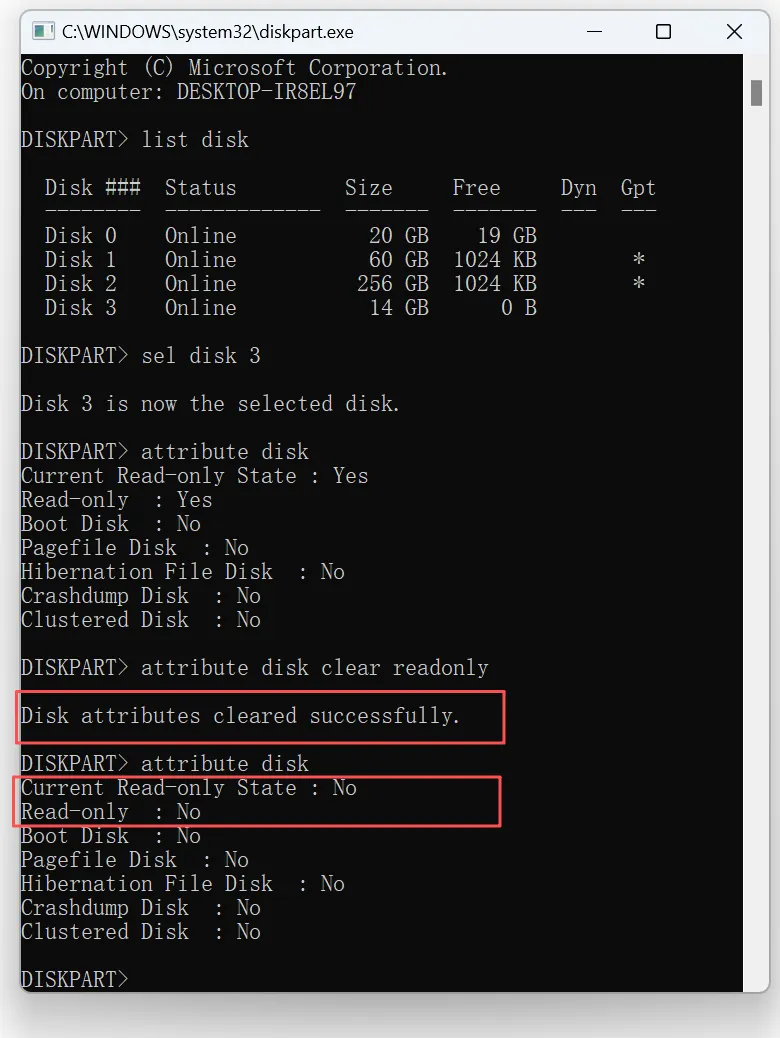
Steps to Use DiskPart
1. Open Command Prompt as administrator
2. Type diskpart
3. Enter list disk
4. Select your USB: select disk X
5. Use attribute disk to check current drive status
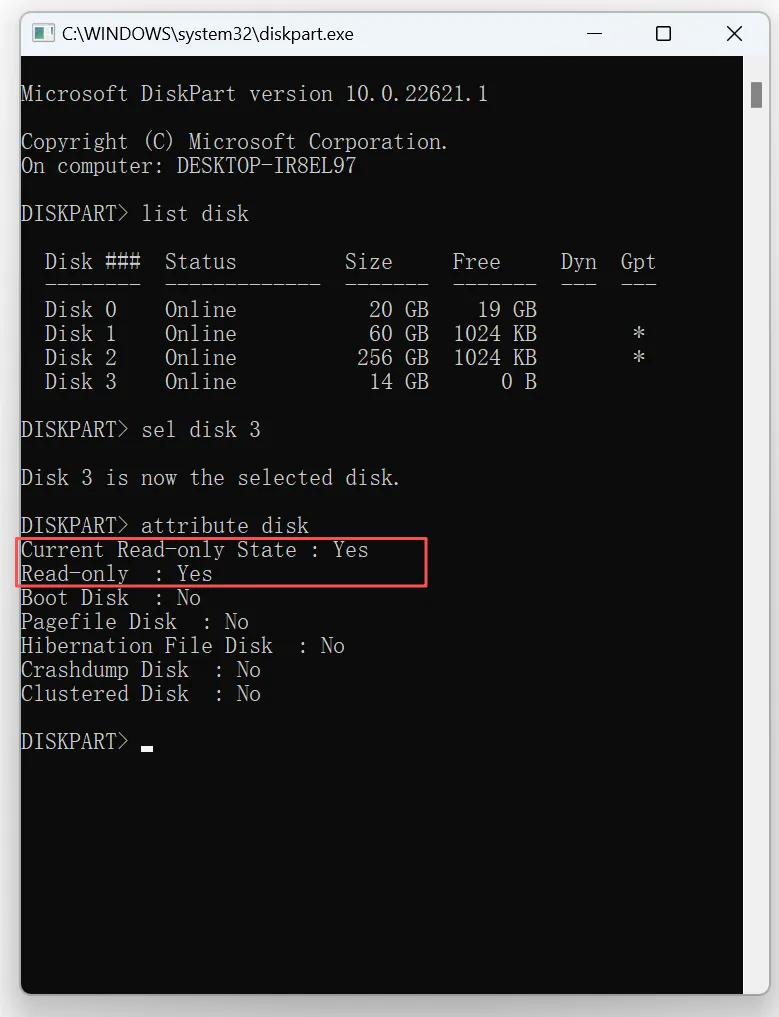
6. Run attributes disk clear readonly
After that, you can type attribute disk again, or reconnect your USB and check if the issue is resolved. This method often works when users search for how to fix write protected USB drive using system tools.
Edit Registry Settings to Remove Write Protection
Sometimes, system policies restrict write access. In that case, editing the registry can help.
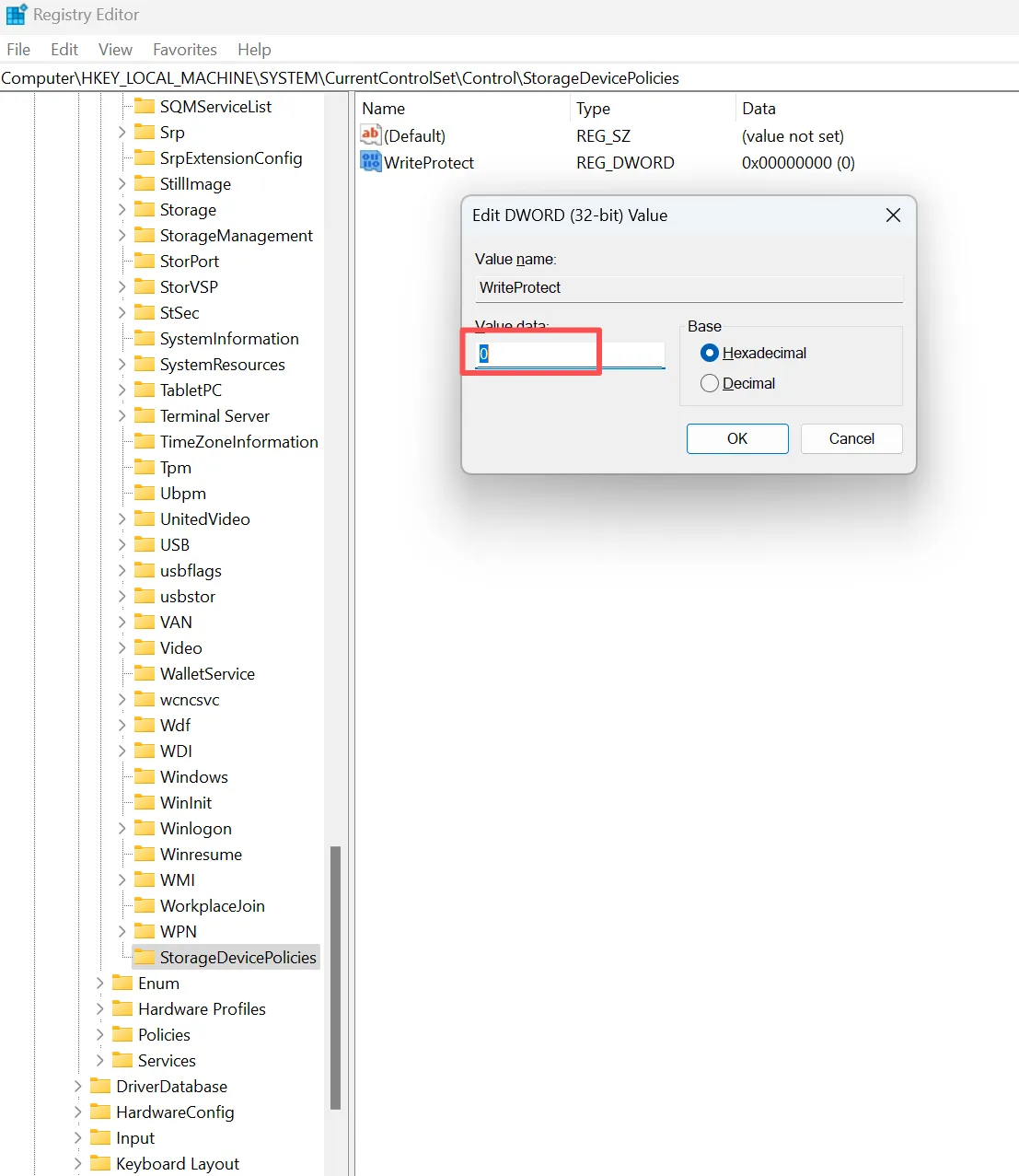
Steps to Modify Registry
1. Press Win + R and type regedit
2. Navigate to
HKEY_LOCAL_MACHINE\SYSTEM\CurrentControlSet\Control\StorageDevicePolicies
3. Set WriteProtect value to 0
However, you should proceed carefully. Incorrect changes may affect system stability. Therefore, always double-check your steps.
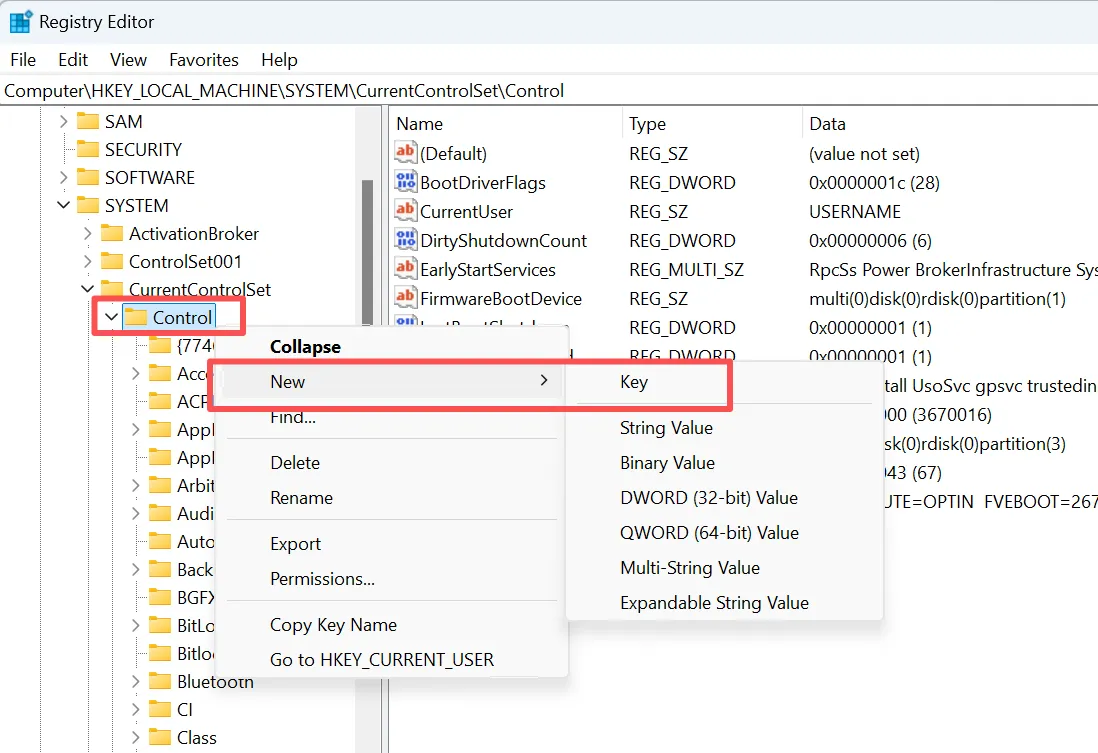
What If “StorageDevicePolicies” Does Not Exist?
In some systems, this key may not exist. In that case, you can create it manually:
1. Right-click Control, Select New → Key
2. Name it: StorageDevicePolicies
3. Right-click the new key → New → DWORD (32-bit) Value
4. Name it: WriteProtect
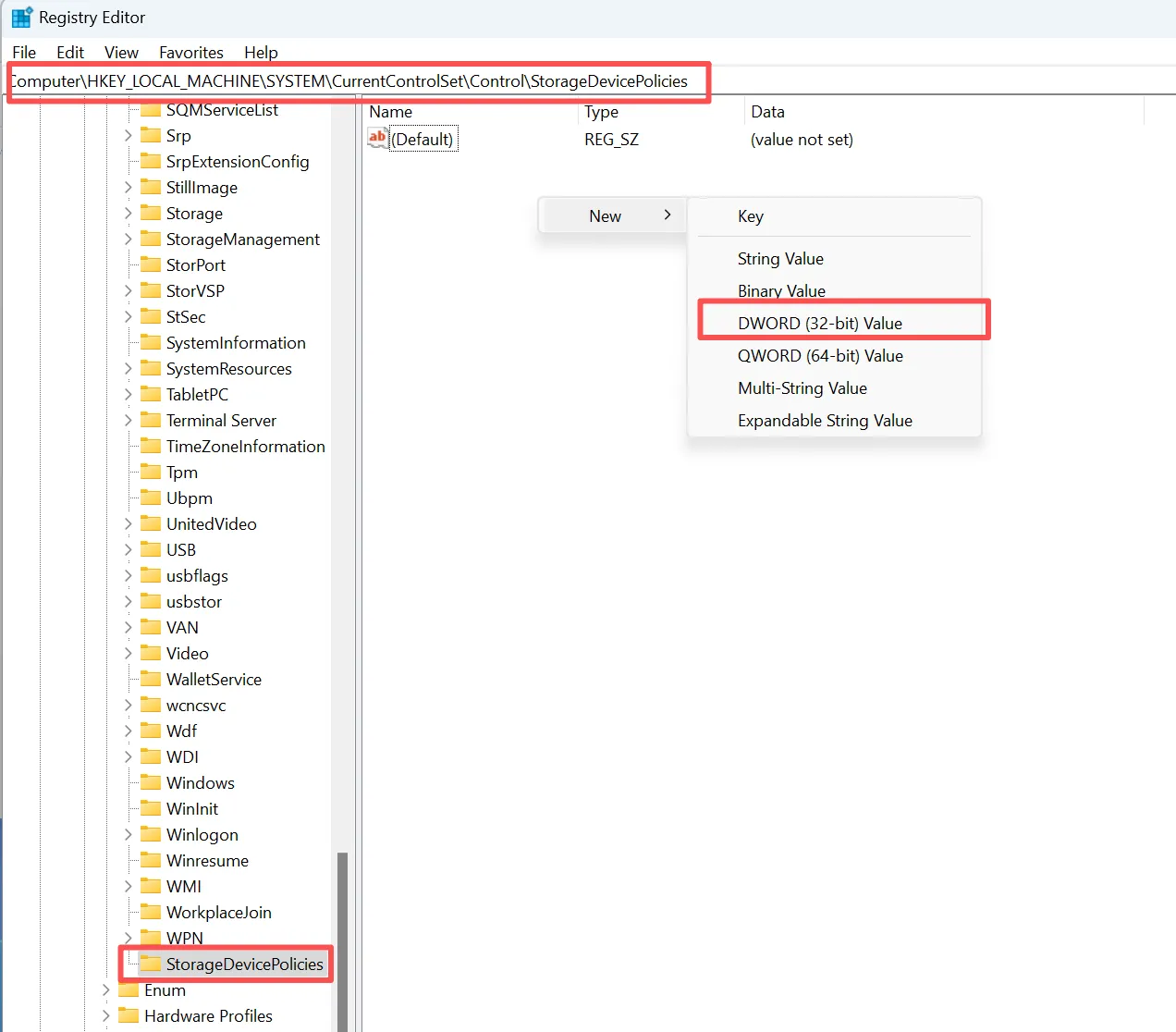
5. Set its value to 0
Change USB Drive Permissions
In some situations, permission settings block write access. Therefore, adjusting them may resolve the issue quickly.
Steps to Adjust Permissions
- Right-click the USB drive
- Select Properties → Security
- Enable full control
After that, try writing data again. In many cases, this fix works immediately.
Run CHKDSK to Repair File System Errors
File system errors often trigger write protection. Therefore, scanning the disk can fix hidden issues.
Command to Run
chkdsk X: /f /r
After the scan completes, reconnect your USB. As a result, you may regain write access.
Disable Encryption Tools
If encryption tools are active, they may restrict access. For example, BitLocker can limit write operations.
Therefore, disabling encryption may restore normal functionality.
Format the USB Drive as a Last Resort
If other methods fail, formatting may remove write protection. However, this step deletes all data.
Therefore, you should only use this option after completing data recovery. Otherwise, important files may be lost permanently.
Use Third-Party Repair Tools
Finally, some tools automate complex fixes. These tools help when manual solutions fail or become too complicated.
What If You Still Cannot Fix a Write Protected USB Drive?
If none of the methods work, the issue is likely hardware-related. In that case, repair becomes difficult.
Common Hardware-Level Causes
- Controller damage
- NAND memory wear
- Permanent read-only mode
For example, aging USB drives often enter a locked state to prevent further damage. Therefore, fixing them is not always possible.
However, data recovery may still succeed. As a result, focusing on extracting files becomes the best option in these scenarios.
How to Prevent Write Protected USB Drive Issues
Although you cannot prevent every hardware failure, better storage habits can reduce avoidable problems.
First, eject the USB safely before disconnecting it. In addition, avoid removing the drive while Windows is writing files.
Also, keep important files backed up elsewhere, replace drives that frequently disconnect, and avoid unnecessary Registry or policy changes.
As a result, even if you need to research how to fix a write protected USB flash drive again, your important data will already be protected.
Conclusion
Understanding how to fix a write protected USB flash drive requires a structured approach. First, identify the cause. Then, protect your data. After that, apply the correct solution.
While many issues can be resolved through system tools, hardware problems require a different strategy. Therefore, combining data recovery with repair methods offers the safest and most effective solution.
Magic Data Recovery stands out because it helps recover files from locked or damaged USB drives. Moreover, it works even when traditional fixes fail. Therefore, it provides a reliable option when you need both safety and efficiency.
Supports Windows 7/8/10/11 and Windows Server
FAQ
How can I fix a write-protected USB without formatting?
Why did my USB suddenly become write protected?
How do I remove USB write protection with CMD?
Why does DiskPart show Current Read-only State: Yes but Read-only: No?
Why is my USB still write protected after DiskPart?
Will formatting remove write protection from a USB flash drive?
How can I recover files from a write-protected USB?

Vasilii is a data recovery specialist with around 10 years of hands-on experience in the field. Throughout his career, he has successfully solved thousands of complex cases involving deleted files, formatted drives, lost partitions, and RAW file systems. His expertise covers both manual recovery methods using professional tools like hex editors and advanced automated solutions with recovery software. Vasilii's mission is to make reliable data recovery knowledge accessible to both IT professionals and everyday users, helping them safeguard their valuable digital assets.