
Excel File Recovery Guide

Losing an Excel file can ruin an entire work session. You may delete a workbook by mistake, format the wrong partition, face a file system error, or open a spreadsheet only to see that it is damaged. In each case, the same question appears: how to recover excel file quickly without making the problem worse. This guide explains the safest and most practical path for excel file recovery, including built-in Excel options, system-level recovery methods, and a more reliable document recovery solution for deleted, formatted, and inaccessible data.
Many users also confuse file recovery with file repair. That confusion often leads to wasted time. If the workbook still exists but will not open, you need to repair it. If the file disappeared after deletion, formatting, or storage errors, you need recovery software. Microsoft officially recommends Open and Repair, Extract Data, and several manual recovery methods for damaged workbooks. Meanwhile, many top-ranking guides also suggest Recycle Bin recovery, Previous Versions, and third-party recovery tools for deleted Excel files.
If you are dealing with deeper data loss, Magic Data Recovery is worth serious attention. It fits users who need excel file recovery after accidental deletion, formatting, or file system errors, especially when standard Windows options no longer help.
Supports Windows 7/8/10/11 and Windows Server
Table of Contents
What Excel File Recovery Really Means
Excel file recovery covers two different problems:
Recovering a lost Excel file
This case applies when your .xlsx or .xls file is gone. The file may have been deleted, removed during formatting, lost after a partition issue, or hidden by file system corruption.
Repairing a damaged Excel file
This case applies when the file still exists, but Excel cannot open it correctly. You may see errors, blank sheets, unreadable content, or a workbook that crashes during launch.
This distinction matters because the right fix depends on the real cause. Microsoft’s documentation focuses on workbook corruption and repair, while many commercial recovery pages focus on deleted or lost files. A stronger article should separate these paths clearly instead of mixing them.
Common Reasons You Need How to Recover Excel File Solutions
Several situations trigger the need for how to recover excel file guidance:
- You accidentally deleted an important workbook.
- You emptied the Recycle Bin too soon.
- You formatted the wrong USB drive or hard disk.
- The drive turned RAW or showed file system errors.
- Excel crashed during save.
- The workbook became corrupted after a power loss.
- The file opened yesterday but fails today.
From practical experience, users often start with the wrong method. For example, they try repair steps on a deleted file or search for recovery software when the workbook is still present and only needs repair. That slows recovery and increases the chance of overwriting the lost data.
How to Recover Excel File: Start With the Safest Methods
If the file disappeared, start with the least invasive options first. These steps work best when the loss happened recently and the storage device still behaves normally.
Check the Recycle Bin
This is the fastest recovery path for recently deleted workbooks.
Steps:
- Open Recycle Bin.
- Search for the Excel file by name or extension.
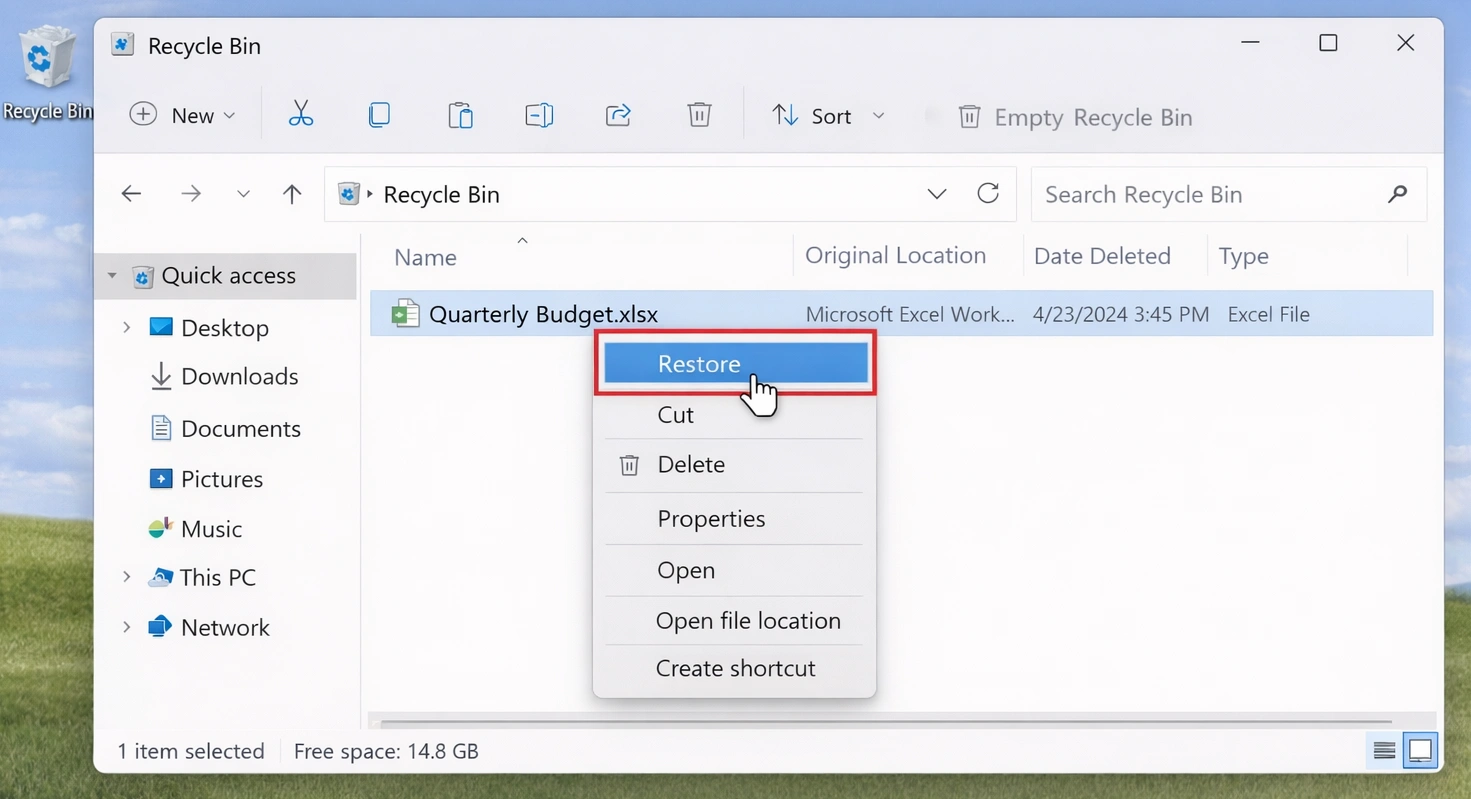
3. Right-click the workbook.
4. Click Restore.
Many high-ranking Excel recovery pages place this step first because it solves the simplest deletion case with no extra tools.
Restore a Previous Version
If File History or System Protection was enabled, Windows may store an earlier copy.
Steps:
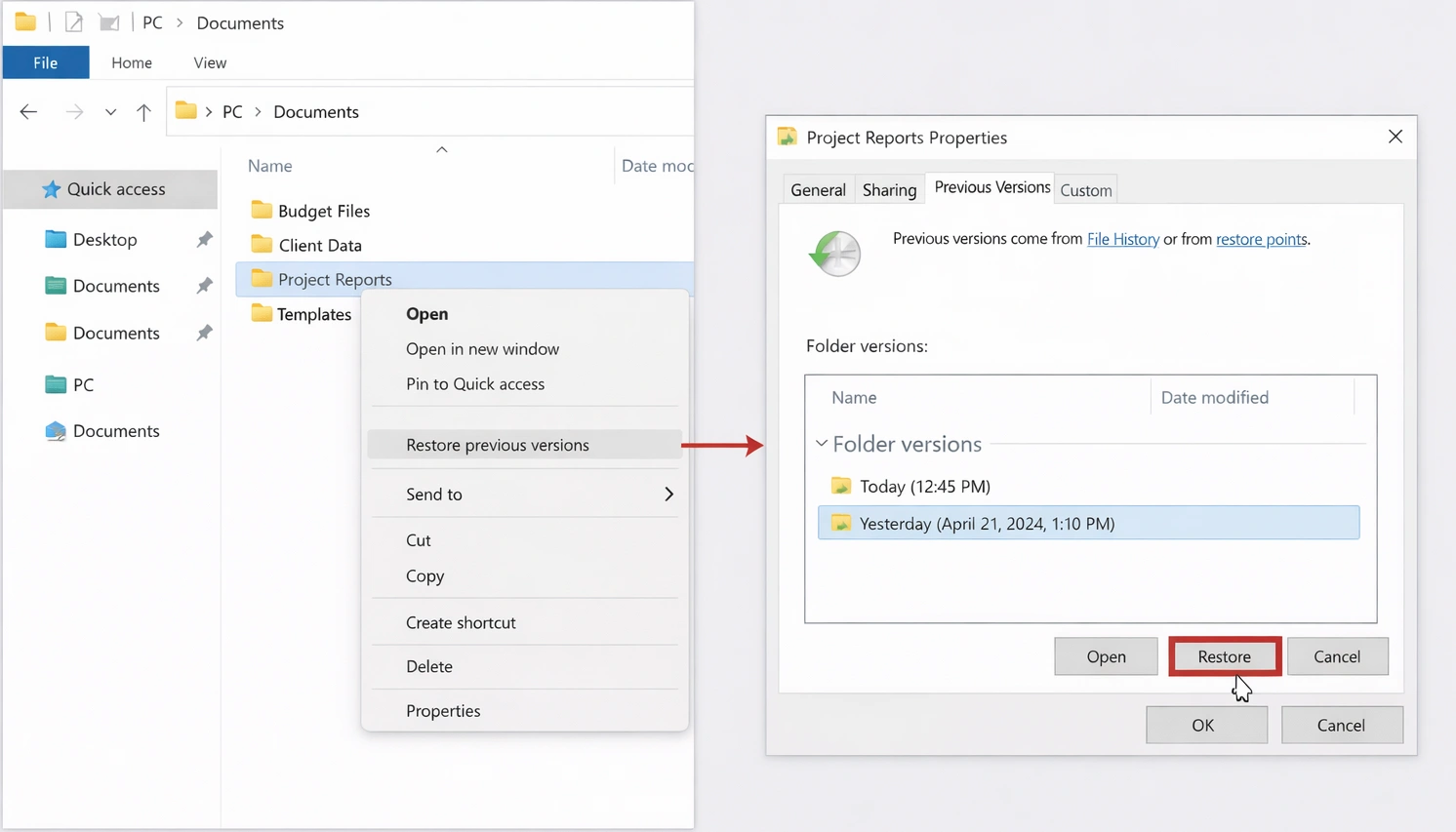
- Right-click the folder that originally stored the file.
- Select Restore previous versions.
- Choose an earlier version.
- Open or restore the folder copy.
This method works well when you deleted or replaced the workbook recently.
Search for Unsaved Workbooks
If Excel crashed before you saved the file, open Excel and check its unsaved workbook area.
Steps:
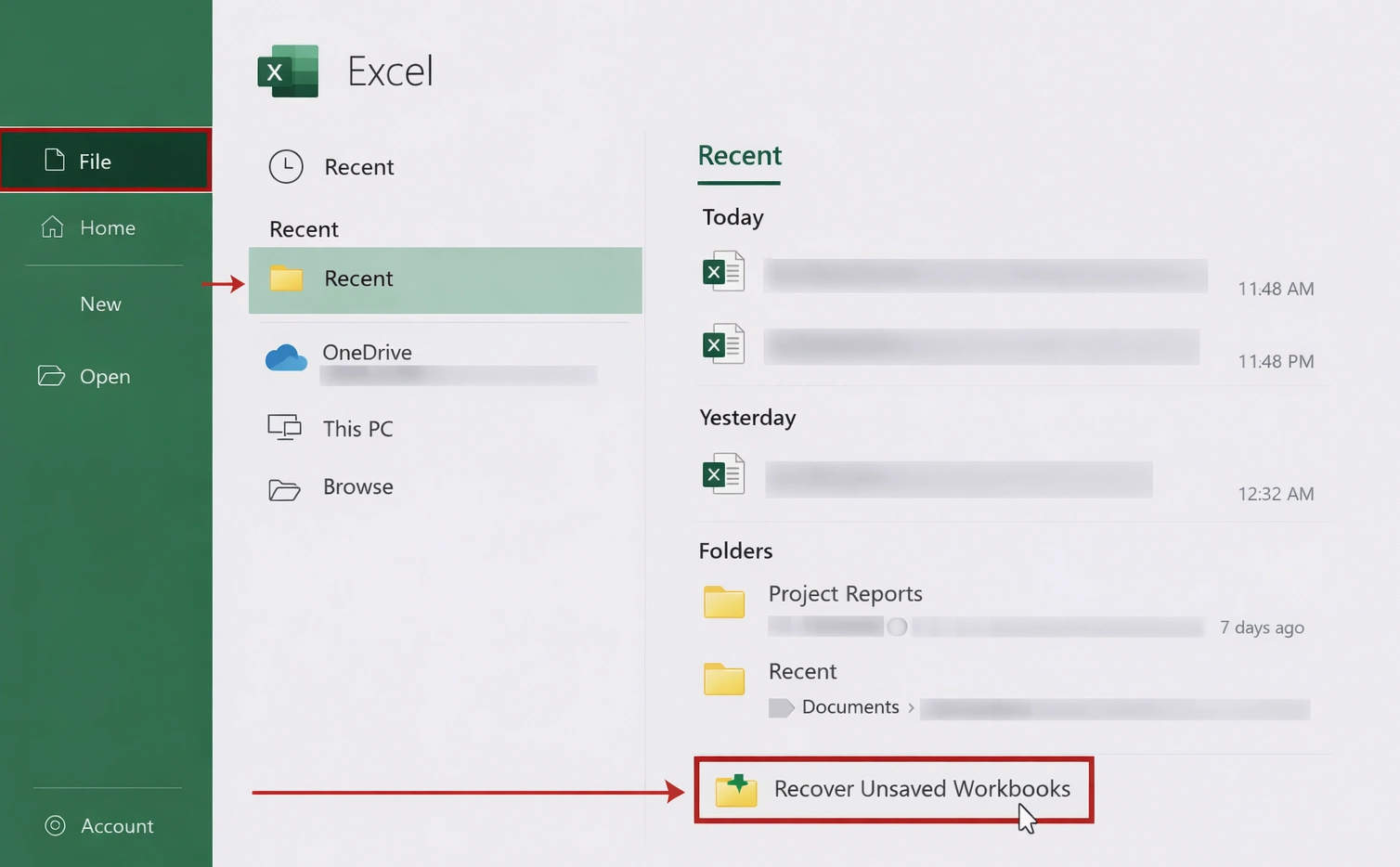
- Open Excel.
- Go to File > Open > Recent.
- Click Recover Unsaved Workbooks.
This method helps only in unsaved or interrupted editing scenarios. It will not restore a file lost after formatting or file system damage.
When Basic Methods Stop Working
Free options help in light-loss situations. However, they usually fail in these cases:
- the Recycle Bin is empty
- the partition was formatted
- the drive has file system errors
- the storage device is inaccessible
- the file vanished after partition loss or corruption
This is where many competing articles become vague. They mention “use a tool” but rarely explain why certain cases need more than built-in recovery. In practice, once storage-level issues appear, you need software that scans the device directly instead of relying on the file system index alone.
Why Magic Data Recovery Makes Sense for Excel File Recovery
If you need excel file recovery after deletion, formatting, or file system problems, Magic Data Recovery offers a more practical route than generic troubleshooting.
The core pain points it solves
Users often lose Excel workbooks in situations where Windows can no longer show the original file path. That happens after:
- permanent deletion
- formatting
- file system errors
- partition issues
- inaccessible storage
In those cases, normal restore options often fail because the file entry is gone or the file system is damaged. Magic Data Recovery addresses that gap by focusing on actual data recovery rather than only workbook repair.
Its main advantages
A useful recovery tool should do more than search the Recycle Bin. Magic Data Recovery stands out because it supports recovery from:
- deleted files
- formatted drives
- file system errors
- lost data on damaged or inaccessible storage
That makes it a better fit for real-world recovery scenarios, especially when users need more than a simple undo.
Real usage scenarios
Here are common examples where it fits naturally:
- You deleted a monthly financial workbook and emptied the Recycle Bin.
- You formatted a USB drive that stored client spreadsheets.
- Your external disk now shows file system errors and important Excel reports are missing.
- A partition issue caused your project folders to disappear.
Why it can be more reliable than other options
Built-in Excel tools help when the workbook still exists but is corrupted. Recycle Bin recovery helps only in basic deletion cases. By contrast, Magic Data Recovery covers deeper loss scenarios that those options cannot handle. It gives users one workflow for deleted, formatted, and file-system-related loss instead of forcing them to jump between partial fixes.
If you are looking for a more efficient solution, it is worth trying Magic Data Recovery.
Supports Windows 7/8/10/11 and Windows Server
How to Recover Excel File With Magic Data Recovery
The process should stay simple, especially for non-technical users.
Step 1: Initialize the Recovery Process
Initially, Install the software on a healthy drive. Launch the program and select the lost data partition from the list of available storage devices.

Step 2: Click the “Search for lost data” to Scan
Please select the drive from where you lost data then click the Search for lost data button to scan, the Deep Scan is necessary to reconstruct files from the drive, so please wait until the quick and deep scan are finished. This mode takes longer but yields significantly better results.

Step 3: Preview and Locate Your Files
One of the standout features of Magic Data Recovery is the built-in previewer. As the scan progresses, you can browse through folders and view images, documents, and videos. This ensures that the files are intact before you proceed to the final step.
Step 4: Securely Save Your Data
Finally, select the files you wish to restore and click “Recover.” Always save the recovered files to a different physical drive (such as a separate external disk).

This workflow is practical because it matches how real users lose files. Instead of guessing whether the problem came from deletion, formatting, or file system damage, they can run one structured recovery path.
How to Recover Corrupted Excel File Safely
If the workbook still appears in its folder but Excel cannot open it, you need repair methods instead of deleted-file recovery.
Use Excel Open and Repair
Microsoft recommends Open and Repair as a primary manual repair method.
Steps:
- Open Excel.
- Click File > Open.
- Select the damaged workbook.
- Click the arrow beside Open.
- Choose Open and Repair.
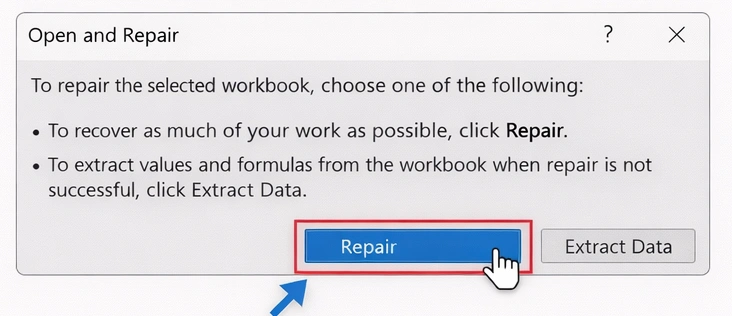
- Select Repair.
If Excel cannot fully repair the file, Microsoft advises trying Extract Data to recover values and formulas.
Try Extract Data
This option helps when workbook structure is too damaged for a full repair.
Use it when:
- formulas matter more than formatting
- the workbook opens with errors
- sheet layout matters less than raw content
Microsoft specifically lists Extract Data as a fallback when the standard repair process cannot recover enough information.
Set Calculation to Manual
Some damaged workbooks crash during recalculation. Microsoft suggests changing calculation mode to Manual before reopening the file.
Steps:
- Open a blank workbook.
- Go to File > Options > Formulas.
- Change calculation to Manual.
- Reopen the damaged file.
Pull Data With External References
If repair still fails, Microsoft also suggests using external references in a new workbook to retrieve data from the corrupted one. This method is technical, but it can save values even when the original workbook remains unstable.
How to Recover Corrupted Excel File vs Lost Excel File
Many users search both how to recover corrupted excel file and how to recover excel file, but those phrases often describe different problems.
Use repair methods when:
- the file still exists
- Excel shows corruption errors
- the workbook opens partially
- you need values, formulas, or sheet data from a damaged file
Use recovery software when:
- the file is deleted
- the Recycle Bin is empty
- the drive was formatted
- file system errors caused file loss
- folders or partitions disappeared
This separation improves user experience and SEO quality at the same time, because it matches actual search intent instead of blending every issue into one vague answer.
Best Practices to Improve Excel File Recovery Success
Good recovery depends as much on timing as on tools.
Stop using the affected storage device
Every write action can overwrite lost workbook data.
Avoid saving new files to the same partition
Even screenshots, browser downloads, or temp files can reduce recovery success.
Use Excel repair only for existing files
Do not waste time trying to repair a workbook that no longer exists.
Recover files to another location
Always restore recovered Excel workbooks to a different drive.
Enable preventive options afterward
Microsoft also recommends creating backup copies and using AutoRecover settings to reduce future risk.
Common Mistakes Users Make
Real-world recovery often fails because of avoidable mistakes.
1. Installing recovery software on the same drive
That can overwrite deleted Excel files.
2. Confusing corruption with deletion
A file that still exists needs repair first, not undelete logic.
3. Continuing to use the drive
Saving new documents, exporting files, or installing updates can make recovery harder.
4. Trusting one incomplete method
Recycle Bin recovery is useful, but it does not solve formatted-drive or file-system-related loss.
Conclusion
If your workbook still exists but will not open, start with Excel’s built-in repair methods such as Open and Repair, Extract Data, and manual recovery steps documented by Microsoft.
However, if the real problem involves deletion, formatting, or file system errors, you need a recovery tool designed for those scenarios. That is why we recommend Magic Data Recovery. It addresses the core pain points users actually face, supports broader recovery cases than basic system tools, and fits the real intent behind searches like excel file recovery, how to recover excel file, and how to recover corrupted excel file.
For users who want a more practical and reliable path, Magic Data Recovery is the solution worth trying.
Supports Windows 7/8/10/11 and Windows Server
FAQs
What is excel file recovery?
Excel file recovery means restoring a missing or inaccessible Excel workbook after deletion, formatting, or storage problems. It can also include retrieving data from a file that still exists but no longer opens correctly. The right method depends on whether the workbook is lost, unsaved, or corrupted.
How to recover excel file after accidental deletion?
First, check the Recycle Bin and restore the workbook if it is still there. Next, try Previous Versions if Windows backup features were active. If the file is no longer available, use a recovery tool that can scan the storage device directly and restore deleted Excel files safely.
Can I recover an Excel file after formatting a drive?
Yes, you may recover it if the lost data has not been overwritten. Formatting usually removes file system references rather than instantly erasing every file. That is why a dedicated recovery tool is often the best option for restoring Excel workbooks from formatted hard drives, USB devices, or memory cards.
How to recover corrupted excel file without losing data?
Start with Excel’s Open and Repair feature. If that does not work, try Extract Data to save values and formulas. You can also switch calculation mode to manual or use external references to pull data into a new workbook when the original file remains unstable.
What causes Excel files to become corrupted?
Excel files can become corrupted because of sudden shutdowns, interrupted saves, disk errors, unstable external drives, malware, or software crashes. In some cases, network issues also damage workbook structure. If the file still exists, repair methods usually help first. If the file disappears, recovery software becomes the better route.
Why is Magic Data Recovery useful for Excel files?
Magic Data Recovery is useful because it covers more than simple deletion. It can help when Excel workbooks disappear after formatting, file system errors, or storage access problems. That makes it a practical option for users who cannot restore files through Recycle Bin, Previous Versions, or basic built-in Windows recovery methods.
Is Excel repair the same as Excel recovery?
No. Repair fixes a workbook that still exists but opens with errors or corruption. Recovery restores a file that is missing after deletion, formatting, or storage-level issues. Many users mix the two ideas, but using the right method first saves time and improves the chance of getting the workbook back.
What should I do first after losing an Excel file?
Stop using the affected drive immediately. Then identify the exact problem: deleted, unsaved, formatted, inaccessible, or corrupted. If the file still exists, try repair first. If it is gone, begin recovery before saving anything new to that storage device, because new data may overwrite the lost workbook.

Jason is a data recovery and technical support specialist with over 15 years of hands-on experience. He has worked extensively with frontline users, troubleshooting difficult data loss cases and providing practical recovery solutions for accidental deletion, formatted drives, damaged file systems, lost partitions, system failures, and other recovery emergencies. His expertise also includes backup and restoration, file repair, and disaster recovery, with a strong emphasis on safe, reliable, and technically accurate guidance.