
How to Format SD Card to Fat32
Formatting an SD card to FAT32 sounds simple — until Windows throws messages like “You need to format the disk before you can use it” or “Windows can’t complete the format. This is common when users search how to format SD card to FAT32, how to format an SD card into FAT32, or how to format SD card with FAT32 but overlook data-safety risks.
Most SD card solutions focus only on “how to format,” without addressing the potential loss of photos, project files, or 4K/8K videos stored on the SD card. This guide explains the correct formatting process and how to protect your files first, with steps that follow data-recovery best practices.
Supports Windows 7/8/10/11 and Windows Server
Table of Contents
Determine Your Situation Before Formatting
Before formatting, determine which situation applies:
Scenario | Recommended Action |
No important data on SD card | Format immediately |
Important files on SD card | Recover data first, then format |
Windows cannot complete the format | Troubleshoot or recover → then format |
SD card shows RAW or asks for formatting | Recover data first |
The sequence matters. Formatting without confirming data safety can lead to permanent file loss.
Why Windows Asks to Format the SD Card
The SD card is usually not physically damaged. In most cases, the file system is corrupted due to:
Removing the SD card without ejecting
Recording interrupted by power loss
Virus or malware infection
Flash memory wear or aging
Firmware compatibility issues (GoPro, Sony, DJI, Nikon, etc.)
Windows cannot interpret the damaged metadata and prompts formatting. This is why immediate formatting is risky if files matter
If the SD Card Has No Important Files
You can directly format the SD card to FAT32. These steps also apply when users need how to format a microSD card to FAT32 or how to format a microSD card as FAT32.
Right-click the SD card → Format
File System → FAT32 → Start
For SD cards above 32GB, FAT32 may not appear. This is because Windows limits FAT32 formatting for large-capacity drives. File Explorer, Disk Management, and Command Prompt all restrict FAT32 for cards over 32GB. In this case, use a third-party FAT32 tool—especially when you need how to format SD card to FAT32 on Windows 11.
If there are no valuable files, no special precautions are required.
If the SD Card Contains Important Photos or Videos
This part is critical. If you format immediately:
- Folder structure may be overwritten
- Large video files may become permanently corrupted
- Metadata connecting fragmented video segments may be lost
Professionally recommended sequence:
1. Stop writing new data to the SD card
2. Recover the files
3. Format to FAT32 only after backup is complete
This is the same order used in digital forensics and professional camera recovery labs.
Recommended Recovery Workflow
To safely extract files before formatting, recovery software should meet three criteria:
It must read RAW or corrupted file systems.
It must preserve original folder names and timestamps.
It must reliably recover 4K/8K videos and image sequences.
Magic Data Recovery is frequently used by photographers, drone operators, and video creators because it prioritizes non-destructive scanning and directory-level integrity. This ensures files are safely backed up before formatting.
How to Use Magic Data Recovery to Recover Data Before Formatting
If the SD card requires formatting, Magic Data Recovery can recover data without modifying the card.
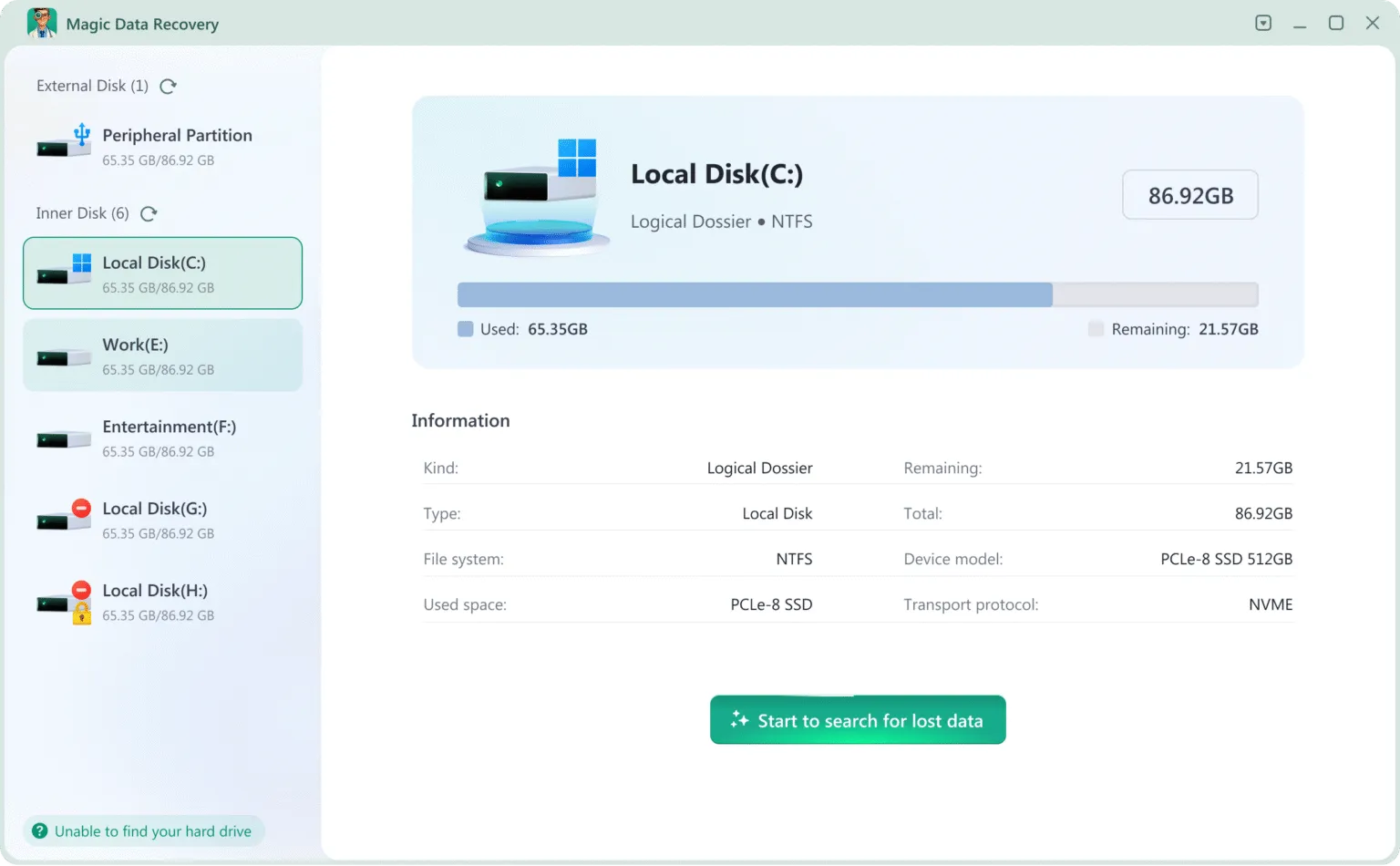
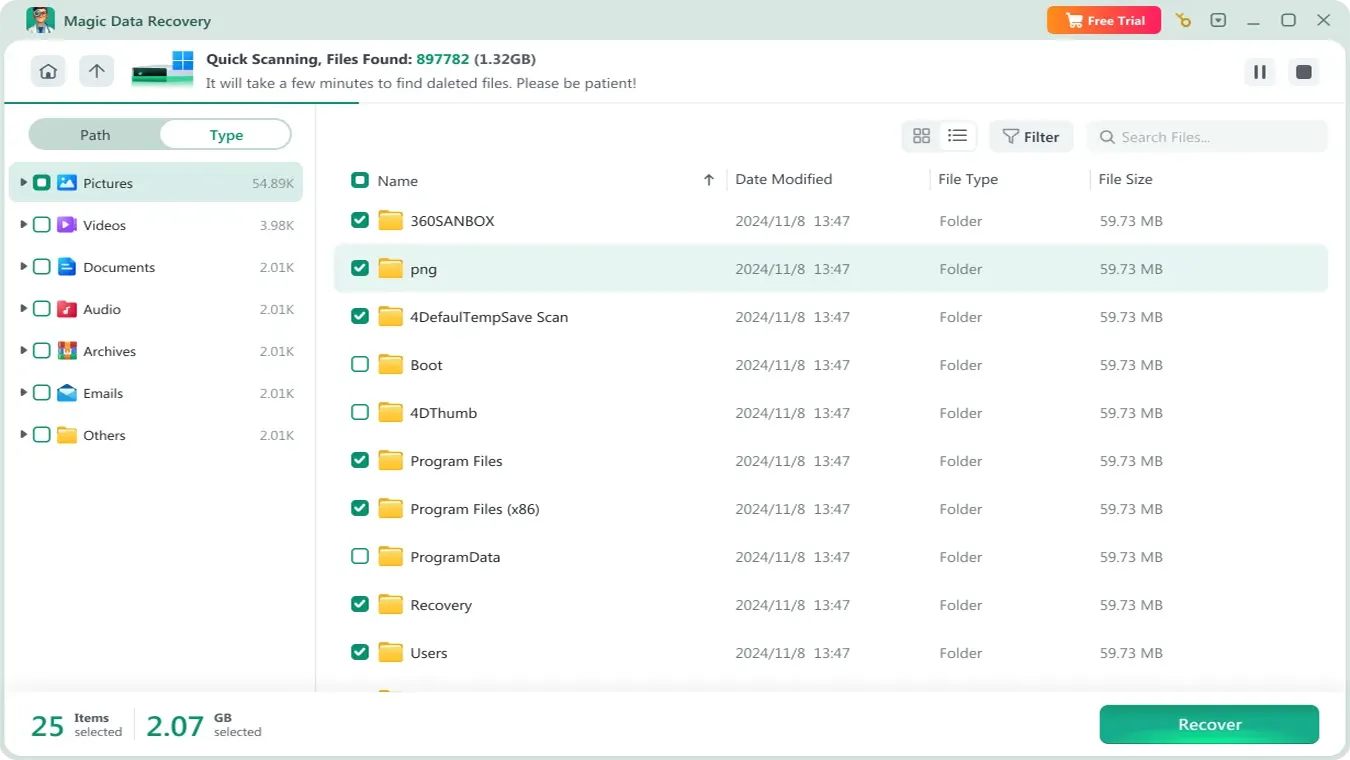
Steps to recover SD data before formatting
1. Install and launch Magic Data Recovery
Supports Windows 7/8/10/11 and Windows Server

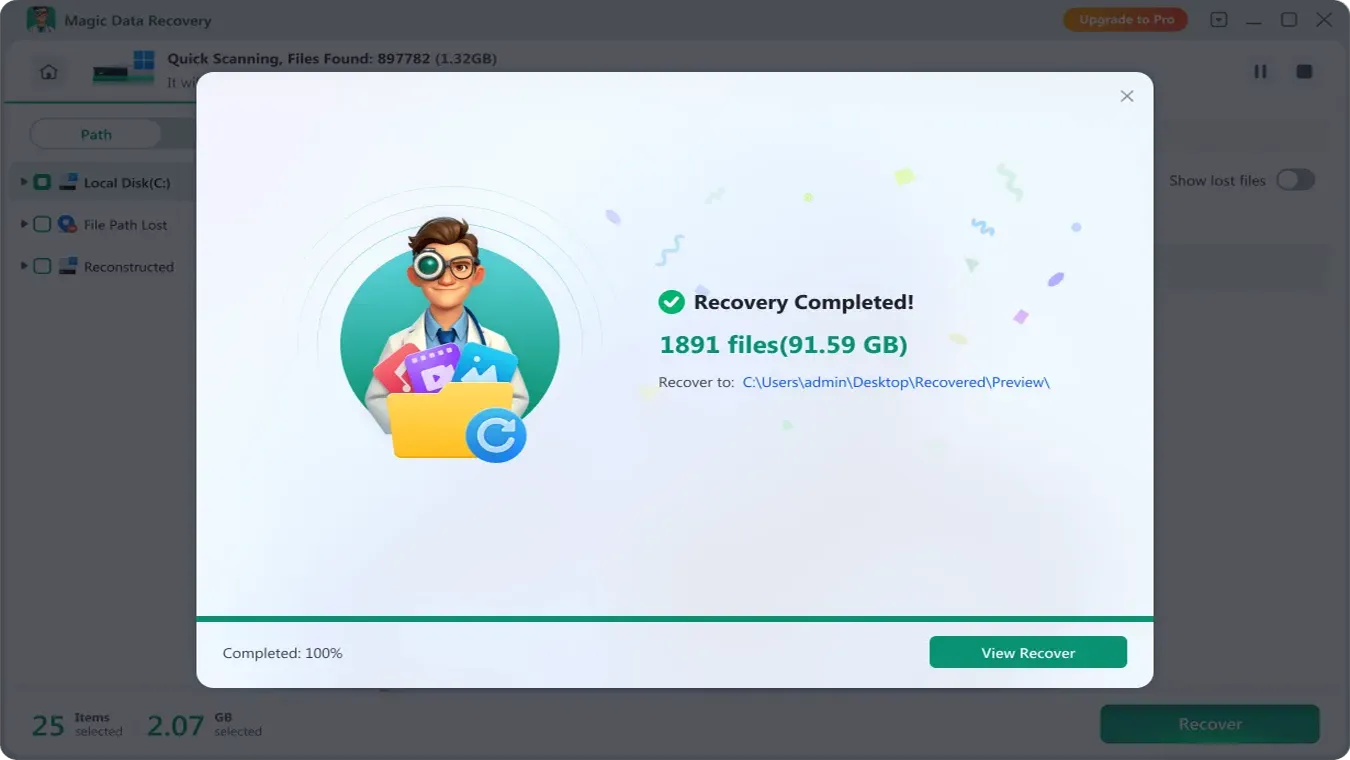
You can also check the video tutorial below.
After Recovery: Correct FAT32 Formatting Procedure
Once data is backed up, you can safely format the SD card for universal compatibility across cameras, game consoles, car stereos, and security systems.
File System: FAT32
Quick Format: Enabled
Full Format: Use only if the card is slow or formatting previously failed
After formatting, perform a brief write-and-read test to confirm stability.
Conclusion
Formatting an SD card to FAT32 is simple. The risk lies in not identifying your situation correctly. The safest rule is:
Recover → then Format → then Reuse
If you see errors like “You need to format the disk before you can use it” or “Windows was unable to complete the format,” recover your files first using sd card solution and a dedicated tool such as Magic Data Recovery. This ensures you retain full control of your data before resetting the SD card.
Supports Windows 7/8/10/11 and Windows Server
Format SD Card to FAT32 — FAQs
Why can't I format my SD card to FAT32?
Is exFAT the same as FAT32?
How to make a 128GB SD card FAT32?
Are SanDisk SD cards FAT32?
Can I format a 256GB SD card to FAT32?
What are the disadvantages of using FAT32?
How to format SD card RAW to FAT32?

Vasilii is a data recovery specialist with around 10 years of hands-on experience in the field. Throughout his career, he has successfully solved thousands of complex cases involving deleted files, formatted drives, lost partitions, and RAW file systems. His expertise covers both manual recovery methods using professional tools like hex editors and advanced automated solutions with recovery software. Vasilii's mission is to make reliable data recovery knowledge accessible to both IT professionals and everyday users, helping them safeguard their valuable digital assets.