
FoneLab Data Recovery Review: Honest Verdict
Losing critical photos, business documents, or videos triggers immediate panic. While searching for a quick fix online, you have likely encountered FoneLab data recovery. Also marketed under the name FoneLab, this software promises to rescue lost files from various storage devices with just a few clicks. However, when your data is on the line, you cannot afford to rely on guesswork or blind trust.
Consequently, many users wonder if this software actually delivers on its promises. Is it truly worth your investment, or will it leave you with unopenable, broken files? In this comprehensive review, we dig deep into the real performance, hidden limitations, and technical capabilities of this tool. Furthermore, we provide a reliable data rescue alternative like Magic Data Recovery to ensure you get your files back from hard drives intact.
Supports Windows 7/8/10/11 and Windows Server
Table of Contents
Comprehensive FoneLab Data Recovery Review: Features & Performance
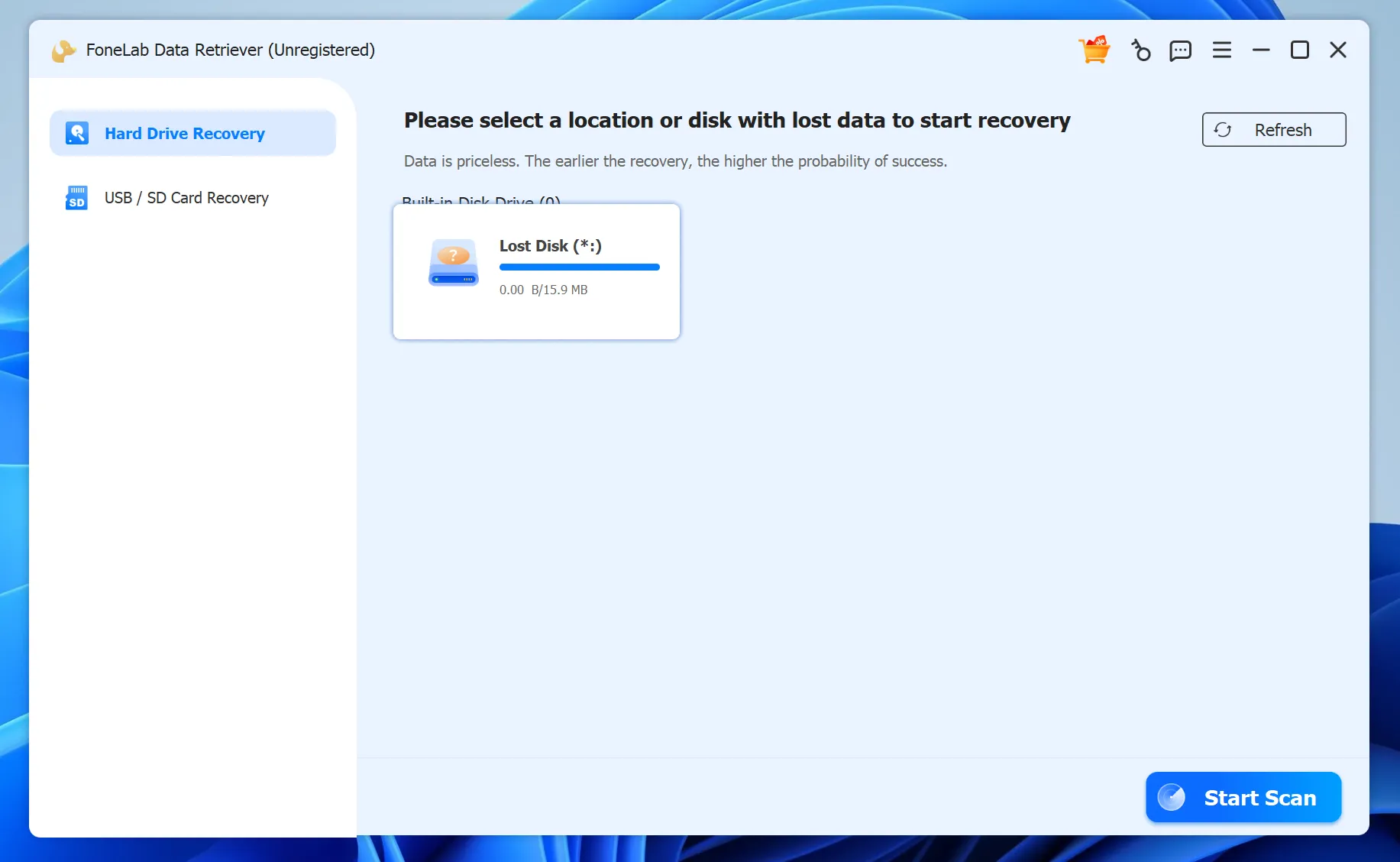
Basically, FoneLab offers a standard desktop application designed to scan hard drives, memory cards, and USB flash drives. The software features a clean, minimalistic user interface that appeals to beginners who want an uncomplicated data rescue process.
What is FoneLab Data Retriever?
Essentially, the tool offers two primary scanning modes: Quick Scan and Deep Scan. The Quick Scan finishes within seconds, because it only looks for recently deleted files that still reside in the file system indexes. On the other hand, the Deep Scan slowly combs through the storage sectors to find older or lost data structures. Therefore, it supports both Windows and macOS platforms, providing a universal layout for both operating systems.
Supported File Systems and Devices
Moreover, the software claims wide compatibility with common file storage formats, including:
- NTFS (Standard Windows drives)
- FAT32 & exFAT (USB flash drives and SD cards)
- APFS & HFS+ (Mac storage environments)
The Real Pricing Dilemma
Although the initial download is free, the trial version is highly restrictive. Specifically, it allows you to scan your drive and view file thumbnails, but you cannot save a single byte of data without purchasing a license.
Prices generally range from $39.95 to over $69.95 depending on your license type. This pricing model often frustrates everyday users. For example, if you only need a one-time emergency rescue, paying a steep premium for a tool you might never use again feels incredibly restrictive.
Hidden Pitfalls of FoneLab Data Recovery: Why Users Report Corrupted Files
A common complaint among real users involves the quality of the restored files. Because of this, people frequently report that while FoneLab data recovery successfully finishes the scan, the actual files they save turn out to be completely broken.
The Fragmented File Problem
When large files, such as MP4 videos or multi-page corporate documents, disappear, their data blocks scatter across the storage medium. This occurrence is known as file fragmentation.
During the reconstruction process, FoneLab data recovery often fails to piece these fragmented sectors back together in the correct chronological order. Consequently, you might open a recovered video only to encounter a black screen or a “Format Error” notification. Obviously, the software finds the file name, but it fails to rebuild the underlying data logic.
The SSD TRIM Limitation
Furthermore, modern Solid-State Drives (SSDs) use a command called TRIM to automatically wipe deleted data sectors in the background. Because FoneLab utilizes a relatively basic scanning engine, it frequently struggles to locate structural file remnants on TRIM-enabled SSDs. If the software encounters a drive where TRIM has executed, the recovery success rate drops significantly. As a result, you get empty folders or severely corrupted documents.
The Ultimate Alternative: Why Magic Data Recovery Outperforms FoneLab
If you are dealing with critical data loss, severe partition damage, or fragmented files, you need an enterprise-grade solution that goes beyond surface-level scanning. Therefore, Magic Data Recovery provides a superior, highly reliable alternative.
Because engineers developed this software with advanced low-level disk analysis technologies, this powerful software addresses the exact technical shortcomings that cause other tools to fail.
Feature Comparison | FoneLab Data Retriever | Magic Data Recovery |
Advanced Scan Fragment Reassembly | Basic (Prone to file corruption) | Advanced (Rebuilds fragmented videos/docs) |
MFT & Partition Reconstruction | Limited to healthy file systems | Advanced (Reads highly damaged MFTs) |
File Preview Accuracy | Thumbnail cache only | Direct hex and full-file verification |
Scan Speed & Stability | Slow on large drives | Optimized multi-thread algorithm |
Advanced MFT and Partition Rebuilding Engine
When a storage drive becomes RAW or inaccessible, the Master File Table (MFT) or partition table usually suffers severe damage. While standard tools give up when they cannot read the file system index, Magic Data Recovery bypasses these damaged layers entirely. Instead, it performs raw sector-by-sector carving to locate missing partition signatures. Consequently, it effectively rebuilds the entire directory tree exactly as it existed before the crash.
Intelligent File Verification Before Recovery
Clearly, you should never have to guess whether a file will actually open after you save it. This alternative tool features an integrated, real-time preview engine that reads the internal file headers. Thus, if you see a preview of a photo or a document within the software interface, it means the application has successfully validated its structure. This transparency saves you time, so you only pay for tangible results.
High-Speed Deep Scan for Large Drives
In addition, scanning multi-terabyte external hard drives can take hours and cause lesser software to crash or freeze. Magic Data Recovery utilizes an optimized multi-threaded algorithm that maximizes your hardware performance. Therefore, it safely reads deep data blocks without putting unnecessary stress on an already fragile, failing storage drive.
Step-by-Step Guide: How to Recover Lost Data Without Corruption
If you want to ensure your files return in pristine, working condition, using a professional utility is the best approach. Therefore, you can follow this simple guide to perform a clean, safe recovery.
Step 1: Download and Install the Software Safely
First, always download the tool directly from the official developer website. You can secure your copy by visiting Magic Data Recovery. Remember to install the application on a separate drive or partition, far away from the location where your lost files were originally stored.
Supports Windows 7/8/10/11 and Windows Server
Step 2: Select the Target Drive and Scan Mode
Next, launch the application on your computer. The main interface will display all available storage media, including internal SSDs, external hard drives, and connected memory cards. Select the specific drive you wish to target, and then choose the advanced scanning method to initiate a comprehensive block-level analysis.

Step 3: Preview Your Data
When the scan completes, it will list all the files on the drive. Click on your target files to open the live preview window so you can verify their integrity.

Step 4: Recover Files to a Safe Location
Lastly, select your files and save them to an entirely new, safe storage device to complete the process.

Technical Tips to Maximize Data Recovery Success
Data recovery is a time-sensitive process where a single mistake can permanently destroy your chances of getting your files back. Therefore, you should implement these expert tips to safeguard your storage media.
- Stop Writing New Data Immediately: The moment you realize files are missing, cease using that specific drive completely. Otherwise, activities like web browsing or transferring small files will overwrite the deleted data sectors, rendering them completely unrecoverable.
- Avoid Installing Recovery Software on the Affected Partition: Installing a tool onto the exact same drive you are trying to rescue will cause immediate data overwriting. Consequently, always run your data rescue software from an external flash drive or a secondary hard drive partition.
- Handle RAW and Formatted Drives with Care: If Windows prompts you with a message stating “You need to format the disk,” always click cancel. Because formatting the drive writes a fresh file system over your old data, it makes the subsequent rescue process far more difficult.
Conclusion
To summarize this FoneLab data recovery review, the software serves as a decent, user-friendly option for simple, recently deleted files on healthy storage media. Unfortunately, its high pricing tier and struggle with large, fragmented files make it a risky choice for complex data loss scenarios.
If you are dealing with severely corrupted file systems, formatted drives, or critical business assets, you need a tool that can pierce through the chaos. For a more robust, technically superior solution that actively prevents file corruption during extraction, we highly recommend trying Magic Data Recovery instead. Turn to a dependable professional hard drive solution to protect your digital life today.
Supports Windows 7/8/10/11 and Windows Server
FAQs About FoneLab Data Recovery
Is FoneLab data recovery safe to use on my computer?
Yes, FoneLab is generally safe and contains no malware. However, the installation process can accidentally overwrite your deleted data if you download it onto the same partition. To avoid permanent data loss, you must always install recovery tools on a separate, healthy drive.
Why are my files corrupted after using FoneLab data recovery?
This issue happens because FoneLab struggles to reconstruct fragmented data blocks from large files like MP4 videos. While it can find the file names easily, it often fails to reassemble the internal coding structure, resulting in unopenable and broken files.
Can I use FoneLab to recover data from an SSD?
You can try, but the success rate is very low due to the SSD TRIM command. This command automatically wipes deleted sectors in the background. Because FoneLab uses a basic scanning engine, it rarely bypasses TRIM restrictions effectively on modern solid-state drives.
Is there a completely free alternative to FoneLab?
Windows Windows File Recovery offers a free command-line alternative, but it lacks a graphical user interface and advanced rebuilding capabilities. For better results without file corruption, using a professional tool like Magic Data Recovery provides a much higher and safer success rate.
What should I do immediately after losing important files?
You must stop using the affected storage drive immediately to prevent data overwriting. Do not save new files, do not browse the web, and never install any software on that partition. This immediate action preserves the deleted sectors for a successful recovery later.
Does the free trial of FoneLab data recovery allow file saving?
No, the free trial version only allows you to scan the drive and preview file thumbnails. If you want to recover and save even a single file, you must purchase their premium license, which many users find expensive for one-time situations.

Vasilii is a data recovery specialist with around 10 years of hands-on experience in the field. Throughout his career, he has successfully solved thousands of complex cases involving deleted files, formatted drives, lost partitions, and RAW file systems. His expertise covers both manual recovery methods using professional tools like hex editors and advanced automated solutions with recovery software. Vasilii's mission is to make reliable data recovery knowledge accessible to both IT professionals and everyday users, helping them safeguard their valuable digital assets.