
UltFone Data Recovery Review & Alternative
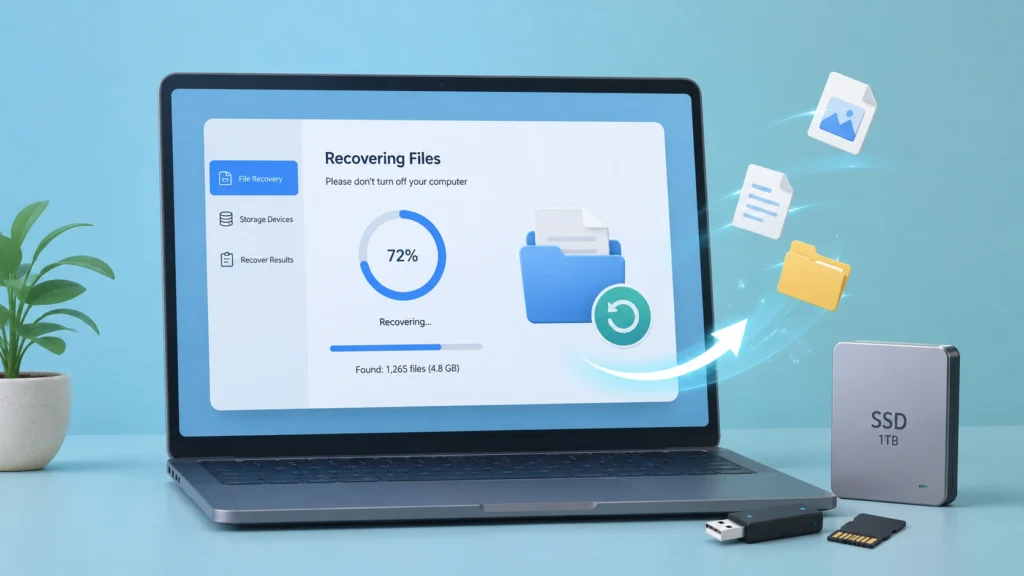
Losing important files can feel stressful, especially when the data disappears after accidental deletion, formatting, a RAW drive error, or a damaged file system. Many users search for UltFone Data Recovery because they want a simple Windows data recovery solution that can scan a drive and bring files back quickly.
However, choosing recovery software should not depend on marketing claims alone. A good tool should help you handle real-world problems, preview files before recovery, avoid overwriting data, and support different storage devices. This guide reviews UltFone Data Recovery, explains when it may help, and compares it with Magic Data Recovery, a practical alternative for deleted, formatted, corrupted, and file system error-related data loss.
Supports Windows 7/8/10/11 and Windows Server
Table of Contents
What Is UltFone Data Recovery?
UltFone Data Recovery is a Windows data recovery tool designed to restore files from computers and removable storage devices. According to its official page, UltFone Windows Data Recovery supports recovery from Windows PCs, USB drives, SD cards, crashed computers, hard drives, and other storage devices. It also supports 1000+ file types, including photos, videos, documents, audio files, archives, and emails.
For everyday users, this means UltFone Data Recovery can be useful when files disappear from common locations such as the desktop, Recycle Bin, external hard drives, USB flash drives, and memory cards.
The software follows a simple workflow:
- Select the location where files were lost.
- Scan the drive or folder.
- Preview and recover the files you need.
This three-step process makes UltFone Windows Data Recovery approachable for users who do not have technical recovery experience.
Common Situations Where UltFone Windows Data Recovery May Help
People usually look for UltFone Data Recovery when built-in Windows options cannot solve the problem. For example, File History, OneDrive, or the Recycle Bin may work for simple cases, but they often fail when files were permanently deleted, the drive was formatted, or a partition became inaccessible.
Accidental Deletion
If you deleted photos, work documents, or videos by mistake, UltFone Data Recovery may scan the storage device and locate recoverable file records. This works best when you stop using the affected drive immediately.
Formatted Drive Recovery
Formatting does not always erase all file content right away. In many cases, the file system table changes first, while old data may still remain on the disk until new files overwrite it. UltFone Windows Data Recovery lists formatted drives as one of its supported recovery scenarios.
RAW or Corrupted Drive
A drive may show as RAW when Windows cannot read its file system correctly. This often happens after unsafe removal, file system damage, power loss, or partition table errors. UltFone Data Recovery includes RAW drive recovery among its supported situations.
External Device Recovery
Many users lose files from USB drives, SD cards, digital cameras, external HDDs, and SSDs. UltFone Windows Data Recovery supports multiple external storage devices, making it suitable for common personal recovery tasks.
Pros and Limits of UltFone Data Recovery
Before choosing any recovery tool, it helps to understand both strengths and limitations. No software can guarantee full recovery in every case, especially when files have been overwritten or the disk has physical damage.
Area | UltFone Data Recovery Review |
Ease of use | Simple location-scan-preview workflow |
File types | Supports 1000+ file formats |
Recovery modes | Offers quick scan and deep scan |
Storage devices | Supports PCs, HDDs, SSDs, USB drives, SD cards, and more |
Preview | Allows users to preview files before recovery |
Limitation | Recovery success depends on overwriting, disk condition, and file system damage |
Important warning | Do not recover files back to the original drive |
The biggest advantage of UltFone Data Recovery is simplicity. It gives users a guided way to scan lost files without needing command-line tools. However, users should still follow safe recovery rules. For example, do not install the software on the same drive where files were lost. Also, never save recovered data back to the original location because that may overwrite remaining recoverable data.
UltFone Data Recovery vs Magic Data Recovery
Magic Data Recovery is a strong alternative because it focuses on the most common and frustrating data loss scenarios: deleted files, formatted drives, file system errors, RAW partitions, lost partitions, and corrupted storage devices. Its official guide states that it supports hard drives, SSDs, USB flash drives, memory cards, external drives, mounted virtual disks, and common Windows file systems such as FAT, exFAT, NTFS, ReFS, and EXT2/3/4.
Here is a practical comparison:
Feature | UltFone Data Recovery | Magic Data Recovery |
Deleted file recovery | Yes | Yes |
Formatted drive recovery | Yes | Yes |
RAW/file system error recovery | Supported scenarios include RAW drives | Designed for file system errors, RAW, and lost partitions |
Preview before recovery | Yes | Yes |
Supported devices | PC, HDD/SSD, USB, SD card, camera, etc. | HDD/SSD, USB, SD card, external drives, disk images, NAS-extracted disks |
Supported file systems | Windows recovery focus | FAT, exFAT, NTFS, ReFS, EXT2/3/4 |
Workflow | Select location, scan, preview, recover | Select drive, scan, preview, recover to a safe location |
Best for | Simple Windows recovery tasks | Broader logical data loss cases and safer recovery workflow |
Why Recommend Magic Data Recovery?
While UltFone Data Recovery can help in many basic recovery situations, Magic Data Recovery is easier to recommend when the problem involves more than simple deletion.
For example, many users do not lose files because they clicked “Delete.” They lose data because:
- Windows asks them to format a drive.
- A USB drive suddenly becomes RAW.
- A partition disappears after resizing or reinstalling Windows.
- A memory card gets corrupted after unsafe removal.
- A drive shows folders, but files cannot open correctly.
These situations require more than a basic undelete scan. Magic Data Recovery is built for common logical data loss scenarios, including deleted files, formatted drives, file system errors, RAW file systems, and lost partitions. It also provides a clear workflow that helps users preview recoverable files and save them to another safe location.
Core Pain Point It Solves
The biggest pain point is uncertainty. Users often do not know whether files are deleted, hidden, corrupted, or trapped behind a damaged file system. Magic Data Recovery reduces that uncertainty by scanning the affected drive and showing recoverable results before users restore them.
Unique Selling Points
Magic Data Recovery stands out because it offers:
- Support for deleted, formatted, corrupted, and RAW drive recovery.
- Compatibility with HDDs, SSDs, USB drives, SD cards, and external drives.
- Preview-based recovery for documents, photos, videos, audio, and archives.
- A safer workflow that reminds users not to recover files to the original drive.
- Support for common Windows file systems, including NTFS, FAT, exFAT, ReFS, and EXT file systems.
Real Use Case Example
Suppose you formatted a USB drive that contained client files. Windows now shows an empty drive, but you have not copied new files to it. In this case, Magic Data Recovery can scan the USB drive, detect recoverable files, let you preview important documents, and help you save them to another disk.
If you are looking for a more efficient solution for deleted, formatted, or file system error-related data loss, you can try Magic Data Recovery before considering expensive manual recovery services.
How to Recover Lost Files with Magic Data Recovery
Follow these steps to reduce risk and improve recovery results.
Step 1: Stop Using the Affected Drive
Once you notice data loss, stop saving, downloading, copying, or installing anything on that drive. New data may overwrite old file fragments and reduce the chance of recovery.
Step 2: Install Magic Data Recovery on Another Drive
Do not install recovery software on the same partition where files were lost. If the lost files were on drive D, install the program on drive C or another external drive.
Supports Windows 7/8/10/11 and Windows Server
Step 3: Select the Drive and Start a Scan
Launch Magic Data Recovery, choose the affected drive, and start scanning. If you are recovering from a USB drive, SD card, or external hard drive, make sure the connection stays stable.

Step 4: Preview the Results
After the scan, browse files by type, folder path, date, or file name. Preview documents, images, and videos when available. This helps you avoid recovering unnecessary files.

Step 5: Recover Files to a Safe Location
Save recovered files to another healthy drive. Never save them back to the same disk during the recovery process.

Best Practices Before Using Any Windows Data Recovery Software
Whether you choose UltFone Data Recovery or Magic Data Recovery, the same recovery rules apply.
First, act quickly. The longer you use the affected drive, the higher the risk of overwriting data. Second, avoid disk repair tools before recovery if the files are important. CHKDSK or formatting may change file system structures and make recovery harder in some cases. Third, check backups before scanning. OneDrive, File History, external backups, and cloud sync may offer a cleaner copy.
Top-ranking data recovery guides also emphasize backups and safe recovery habits because software recovery works best when lost data has not been overwritten.
Final Verdict: Is UltFone Data Recovery Worth It?
UltFone Data Recovery is worth considering if you need a simple Windows recovery tool for deleted files, formatted drives, Recycle Bin loss, USB drives, SD cards, or external storage devices. It offers a beginner-friendly workflow and supports many file types.
However, Magic Data Recovery is the better recommendation for users who want a more complete solution for real-world data loss. It covers deleted files, formatted drives, file system errors, RAW drives, lost partitions, and corrupted storage scenarios. More importantly, it guides users through a safer recovery process: scan first, preview results, and save recovered files to a different location.
If your files disappeared after deletion, formatting, system errors, or drive corruption, Magic Data Recovery is a reliable tool to try before you give up on your data.
Supports Windows 7/8/10/11 and Windows Server
FAQs
Is UltFone Data Recovery safe to use?
UltFone Data Recovery is designed to scan lost files and recover selected data from Windows drives and storage devices. However, safe use also depends on your actions. Do not install it on the affected drive, do not save recovered files to the original location, and stop using the drive before scanning.
Can UltFone Windows Data Recovery recover files after formatting?
Yes, UltFone Windows Data Recovery supports formatted drive recovery. In many quick-format cases, old file content may remain until new data overwrites it. For better results, stop using the formatted drive immediately and recover files to another disk instead of saving them back to the formatted partition.
What is the best alternative to UltFone Data Recovery?
Magic Data Recovery is a strong alternative because it supports deleted files, formatted drives, file system errors, RAW drives, lost partitions, and corrupted storage devices. It also offers preview-based recovery and a clear workflow that helps ordinary users recover files without dealing with complex manual recovery steps.
Why can recovered files fail to open?
Recovered files may fail to open if their original data blocks were overwritten, fragmented, corrupted, or only partially recovered. This can happen after continued drive use, formatting, disk repair, or severe file system damage. To reduce this risk, stop using the affected drive and recover files to another healthy storage device.
Should I install recovery software on the same drive?
No. You should not install UltFone Data Recovery, Magic Data Recovery, or any recovery tool on the same drive where files were lost. Installation writes new data to the disk. That new data may overwrite deleted file content and lower the chance of successful recovery.
Can Magic Data Recovery recover data from a RAW drive?
Yes, Magic Data Recovery can help with RAW drive and file system error-related data loss. A RAW drive usually means Windows cannot recognize the file system correctly. Instead of formatting the drive first, scan it with recovery software, preview recoverable files, and save them to another location.
How long does Windows data recovery take?
Recovery time depends on drive size, connection speed, file system condition, and scan depth. A small USB drive may scan quickly, while a large external HDD may take much longer. Deep scans usually take more time, but they can find more files in formatted or corrupted drive scenarios.
Can I recover files after emptying the Recycle Bin?
Yes, Recycle Bin recovery may be possible if the deleted files have not been overwritten. After emptying the Recycle Bin, Windows usually removes file references rather than instantly destroying every data block. Use recovery software as soon as possible and avoid saving new files to the same drive.

Jason is a data recovery and technical support specialist with over 15 years of hands-on experience. He has worked extensively with frontline users, troubleshooting difficult data loss cases and providing practical recovery solutions for accidental deletion, formatted drives, damaged file systems, lost partitions, system failures, and other recovery emergencies. His expertise also includes backup and restoration, file repair, and disaster recovery, with a strong emphasis on safe, reliable, and technically accurate guidance.