
Ultimate Guide to NTFS Recovery: Restore Lost Data
The sudden disappearance of critical files from your Windows computer can trigger immediate panic. Whether you mistakenly formatted an external hard drive, encountered a sudden RAW drive error, or accidentally permanently deleted a vital work folder using Shift+Delete, the loss feels overwhelming. However, you do not need to lose hope just yet because modern software offers a successful NTFS recovery.
Because the New Technology File System is designed with built-in data resilience, your deleted documents often remain intact beneath the surface. Therefore, this comprehensive guide will show you how to perform a reliable hard drive solution and rescue your digital life safely.
Before we dive into the technical solutions, you must remember the golden rule of NTFS data recovery: stop writing any new data to the affected drive immediately, and use a dedicated tool like Magic Data Recovery to recover files as soon as possible.
Supports Windows 7/8/10/11 and Windows Server
Table of Contents
What is NTFS and Why Do Drive Failures Require NTFS Recovery?
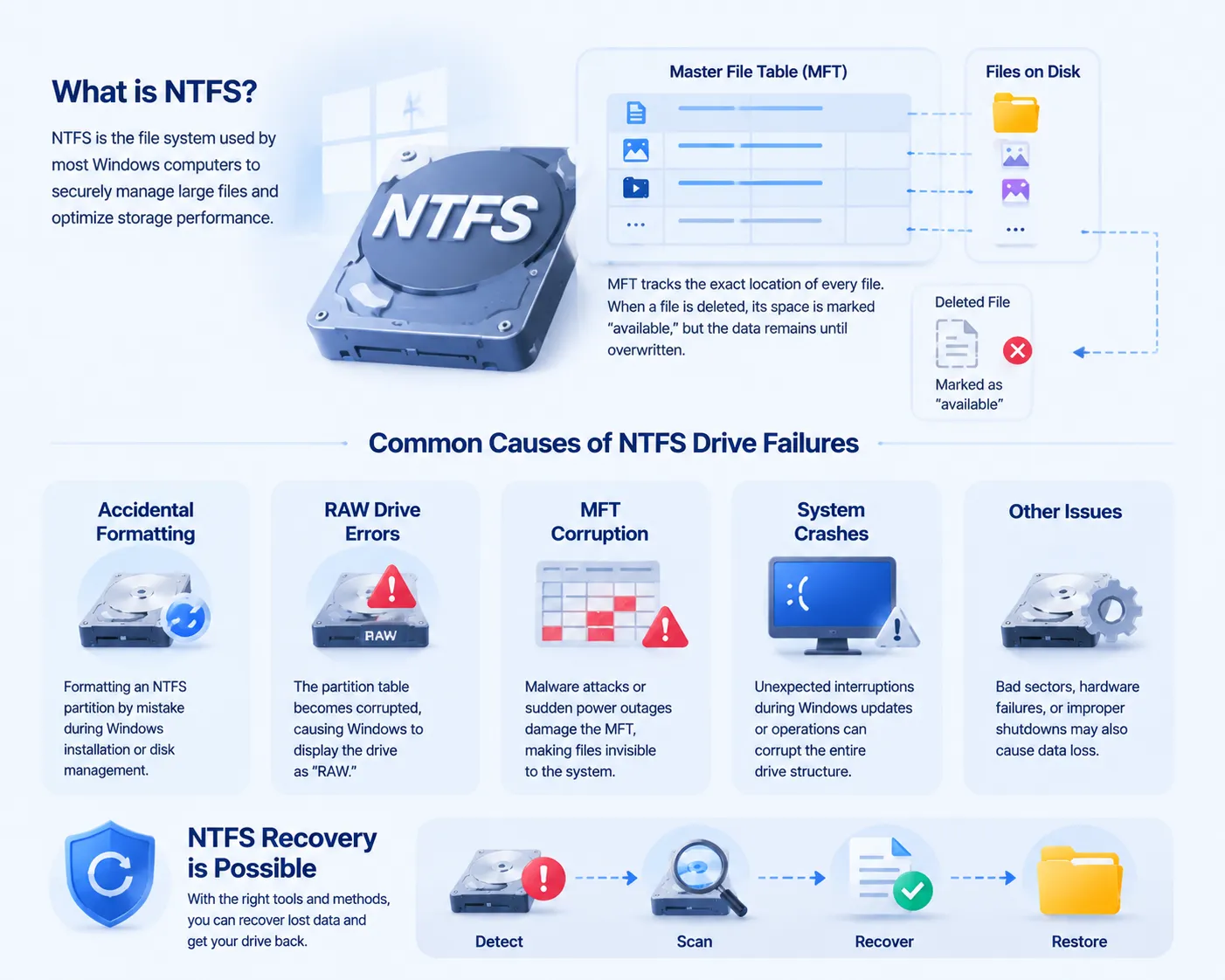
Most modern Windows computers rely on NTFS because it securely manages large files and optimizes storage performance. For this purpose, the system utilizes a hidden database called the Master File Table (MFT) to track the exact location of every file on your partition. When a file is removed, Windows merely marks that specific space as “available,” but the actual file content stays behind until new data takes its place.
Unfortunately, several common scenarios can disrupt this file system and trigger a crisis, which subsequently requires specialized NTFS recovery interventions:
- Accidental Formatting: Formatting an NTFS partition by mistake during a fresh Windows installation or disk management cleanup.
- RAW Drive Errors: The partition table becomes corrupted, causing Windows to no longer recognize the file system and display the drive as “RAW.”
- MFT Corruption: Malware attacks or sudden power outages wipe out or damage the Master File Table, which makes your files invisible to the operating system.
- System Crashes: Unexpected interruptions during a major Windows update can corrupt the entire drive structure.
Understanding these specific scenarios will help you choose the right approach for your upcoming NTFS data recovery process.
The Hidden Risks of Using Free Software for NTFS Data Recovery
When facing data loss, many users immediately search for completely free software to solve their problems. While free tools seem appealing at first glance, they frequently introduce hidden traps that can permanently jeopardize your data.
First, most free utilities enforce strict recovery limits, often cutting you off after you restore a small part of lost data. If you need to recover large video projects or massive photo albums, these limitations will halt your progress midway. Second, poorly designed free software often lacks read-only protection. Consequently, the tool itself might accidentally overwrite your lost data during the scanning process.
For reliable NTFS recovery, especially when dealing with badly fragmented files or heavily damaged file systems, a professional-grade solution is always required to guarantee a safe and complete extraction.
The Best Solution: Professional NTFS Recovery with Magic Data Recovery
If you are looking for a highly effective and stress-free solution, Magic Data Recovery provides a reliable way to rescue your files. This specialized utility balances professional-grade scanning algorithms with an incredibly simple, user-friendly interface that anyone can navigate.
Core Benefits for Your File System
Unlike basic tools, this software features unique capabilities specifically tailored for complex NTFS data recovery tasks:
- Advanced MFT Reconstruction: The software carefully analyzes corrupted Master File Tables, allowing it to locate files that Windows considers completely lost.
- Deep Sector Scanning: It bypasses standard Windows interface limitations to read raw storage sectors directly, which ensures the recovery of deeply buried partition data.
- Pre-Recovery Preview: Users can view photos, documents, and media files before purchasing a license, so you know exactly what is salvageable.
- 100% Read-Only Safety: The scanning engine never alters or writes to your damaged drive, preserving the original state of your data.
Real-World Application Scenarios
Imagine your external hard drive suddenly prompts you with a “You need to format the disk” error. Instead of formatting and risking total data loss, you can run Magic Data Recovery to bypass the error and pull your files to safety. It works exceptionally well for restoring corrupted office documents, family photo archives, and lost audio files from external drives, USB sticks, and internal mechanical disks.
Step-by-Step Guide: How to Perform NTFS Recovery Safely
Successfully restoring your data requires a structured, careful approach. Please follow these verified steps to complete your NTFS recovery project safely.
Step 1: Secure Installation
Download Magic Data Recovery from the official website. You must install the software on a healthy, separate drive, such as your internal C: drive if you are recovering an external disk. Never download or install the utility onto the target partition where the data loss occurred.
Supports Windows 7/8/10/11 and Windows Server
Step 2: Connect and Select the Target
Launch the program on your computer. The main dashboard will display all connected storage devices. Select the specific NTFS partition or external drive that contains your missing files.

Step 3: Wait till the Scan Completes
After you start a scan, it runs Advanced Scan automatically. For formatted drives or RAW partitions, Advanced Scan can thoroughly analyze every storage sector.

Step 4: Preview and Verify Your Files
Once the scan concludes, browse through the organized folder tree. Click on individual images or documents to preview them. This preview step confirms that the file structure is completely healthy and restorable.

Step 5: Save to a Safe Location
Check the boxes next to the files you wish to save, then click the Recover button. Choose a completely different storage device, such as a separate external drive or cloud storage, to save your recovered items. Saving them back to the original drive could overwrite remaining data.

Pro-Tips to Maximize Your NTFS Data Recovery Success Rate
Achieving a perfect recovery outcome often depends on small, critical decisions made during the process. Implement these expert practices to safeguard your digital storage:
- Avoid Temporary Internet Use: Web browsers constantly write temporary cache files to your main drive. If your data loss happened on your C: drive, minimize your web browsing until the recovery finishes.
- Clone Failing Hardware: If your hard drive is making strange clicking noises, it might be physically failing. You should create a sector-by-sector disk image clone immediately before running any intensive scanning software.
- Implement the 3-2-1 Backup Strategy: The ultimate protection against data loss is a proactive defense. Keep three separate copies of your data, stored on two different types of media, with one copy kept entirely off-site.
Conclusion
Losing critical access to your file system is undoubtedly stressful, but modern technology makes the hard drive recovery process highly manageable. By acting quickly, avoiding the temptation of unsafe free tools, and following a structured approach, you can successfully reverse most data loss disasters.
We highly recommend Magic Data Recovery as your primary solution because it combines industrial-strength scanning with an intuitive user experience. It safely navigates the complexities of the Windows file system without risking further damage to your storage drive. If you are currently searching for a fast, dependable, and efficient NTFS recovery solution, you should download the free trial of Magic Data Recovery today to preview your salvageable files.
Supports Windows 7/8/10/11 and Windows Server
FAQ
Can I recover data from an NTFS drive after a format?
Yes, you can recover data if a Quick Format was performed, because that process merely deletes the MFT architecture while leaving the actual files untouched. However, a Full Format writes zeros across the entire drive, which makes software-based NTFS recovery impossible. Therefore, always check your formatting settings beforehand.
Why does my NTFS partition suddenly display as RAW?
A partition turns RAW when the file system's structural integrity or the MFT becomes corrupted by malware, unsafe removal, or bad sectors. Consequently, Windows can no longer read the drive layout, though a professional NTFS data recovery tool can still scan the underlying raw data easily.
How long does a Deep Scan take for NTFS recovery?
The duration depends entirely on the physical size and read speed of your storage drive. For instance, a standard 1TB external hard drive typically takes a few hours to undergo a comprehensive deep sector scan. Thus, you should ensure your computer remains connected to a stable power source.
Can I perform NTFS recovery on an SSD?
Yes, but success depends on whether Windows executed the TRIM command. On mechanical hard drives, deleted data remains until overwritten. On SSDs, TRIM quickly clears those data blocks to maintain speed, which significantly reduces the chances of a successful NTFS data recovery unless you act instantly.
What should I do if my NTFS drive makes clicking noises?
If your drive makes physical clicking noises, it indicates severe mechanical failure. In this situation, you must stop using software solutions immediately because scanning will worsen the internal hardware damage. Instead, shut down the system and contact a professional lab rather than attempting standard NTFS recovery.
Why should I avoid saving recovered files to the same drive?
Saving files back to the original partition causes severe data overwriting. When you write new data, Windows fills the "available" blocks where your lost files still reside. Therefore, you must always select a separate external disk or cloud drive to complete your NTFS data recovery safely.

Vasilii is a data recovery specialist with around 10 years of hands-on experience in the field. Throughout his career, he has successfully solved thousands of complex cases involving deleted files, formatted drives, lost partitions, and RAW file systems. His expertise covers both manual recovery methods using professional tools like hex editors and advanced automated solutions with recovery software. Vasilii's mission is to make reliable data recovery knowledge accessible to both IT professionals and everyday users, helping them safeguard their valuable digital assets.