
Recover Files Command Prompt Guide
Losing an important document, photo, video, or project file can cause immediate panic. As a result, many Windows users search for “recover files command prompt” and expect one command to restore everything. In reality, Windows includes several command-line tools, and each one solves a different problem.
For example, ATTRIB can reveal files that still exist but remain hidden. CHKDSK can repair certain file-system errors. Meanwhile, Windows File Recovery uses the Winfr command to search for deleted data. Therefore, you need to understand what happened before choosing a hard drive recovery method.
This guide explains how to recover files using Command Prompt on Windows 11 and Windows 10. You will learn which command matches each data-loss scenario, how to avoid common mistakes, and when Magic Data Recovery may provide a simpler alternative.
Supports Windows 7/8/10/11 and Windows Server
Table of Contents
Which Command Prompt File Recovery Method Should You Use?
Before you run any command, match the problem to the right solution.
What happened to your files? | Best method | Recommended tool |
Files still exist but remain hidden | Remove hidden or system attributes | ATTRIB |
Files remain in the Recycle Bin | Open and restore them | Recycle Bin |
Files were deleted | Scan for deleted data | Windows File Recovery |
A drive has file-system errors | Check and repair the file system | CHKDSK |
A drive was formatted, became RAW, or CMD found nothing | Use a guided recovery tool | Magic Data Recovery |
The main rule is simple: you can only recover files using Command Prompt when you choose a tool that matches the cause of data loss. For instance, ATTRIB cannot restore a permanently deleted file because it only changes file attributes.
Can You Really Recover Files Using Command Prompt?
Yes, but “recover” can mean several different things. Some commands reveal hidden files, while others repair a damaged file system or search for deleted data. Consequently, you should not treat ATTRIB, CHKDSK, and Winfr as interchangeable tools.
ATTRIB Reveals Hidden Files
ATTRIB changes the attributes attached to files and folders. Therefore, it can help when malware, shortcut-virus behavior, or an incorrect setting marks existing files as hidden, system, or read-only.
However, ATTRIB does not recreate deleted data. If a file no longer exists in the file system, this command cannot bring it back.
According to the Microsoft ATTRIB documentation, the command displays, sets, or removes attributes assigned to files and directories.
CHKDSK Repairs File-System Problems
CHKDSK checks a volume for file-system and metadata errors. With options such as /f or /r, it can repair certain logical or physical problems.
Still, CHKDSK is not a standard undelete tool. You should use it when file-system damage blocks normal access, not simply because you deleted a document.
Microsoft describes CHKDSK as a utility that checks the file system and file-system metadata for errors. Therefore, it serves a different purpose from a dedicated CMD data recovery tool.
Winfr Searches for Deleted Files
Windows File Recovery, also known by its command name Winfr, can scan local storage for deleted files that no longer appear in the Recycle Bin.
For genuine deleted file recovery using CMD, Winfr is usually the most relevant built-in option. Even so, it requires the correct source drive, destination drive, recovery mode, and file filters.
Before You Recover Files Using Command Prompt
Recovery chances often fall after new data overwrites the space that previously held a deleted file. Therefore, take the following precautions before you start.
1. Stop Using the Affected Drive
Avoid downloading files, installing software, copying data, or creating new documents on the affected drive. Otherwise, new information may overwrite data that recovery tools could still find.
For example, if you deleted photos from drive D:, stop saving new photos or downloads to D: until you finish the recovery attempt.
2. Use a Different Recovery Destination
Always save recovered files to a drive other than the source. This approach reduces the chance of overwriting other recoverable data.
For instance, if you lost files from C:, save the results to E: or another separate storage location.
3. Identify the Data-Loss Scenario
Before you recover files using Command Prompt, ask these questions:
- Are the files hidden or actually deleted?
- Did you empty the Recycle Bin?
- Did you format the drive?
- Did the partition become RAW?
- Does Windows report a file-system error?
- Are you working with NTFS, FAT, or exFAT?
- Did the files disappear after malware activity?
Once you understand the scenario, you can choose a safer and more relevant method.
Method 1: Recover Hidden Files with ATTRIB Command Prompt
Best for: Files hidden by malware, incorrect attributes, or shortcut-virus behavior.
Not suitable for: Deleted or formatted files.
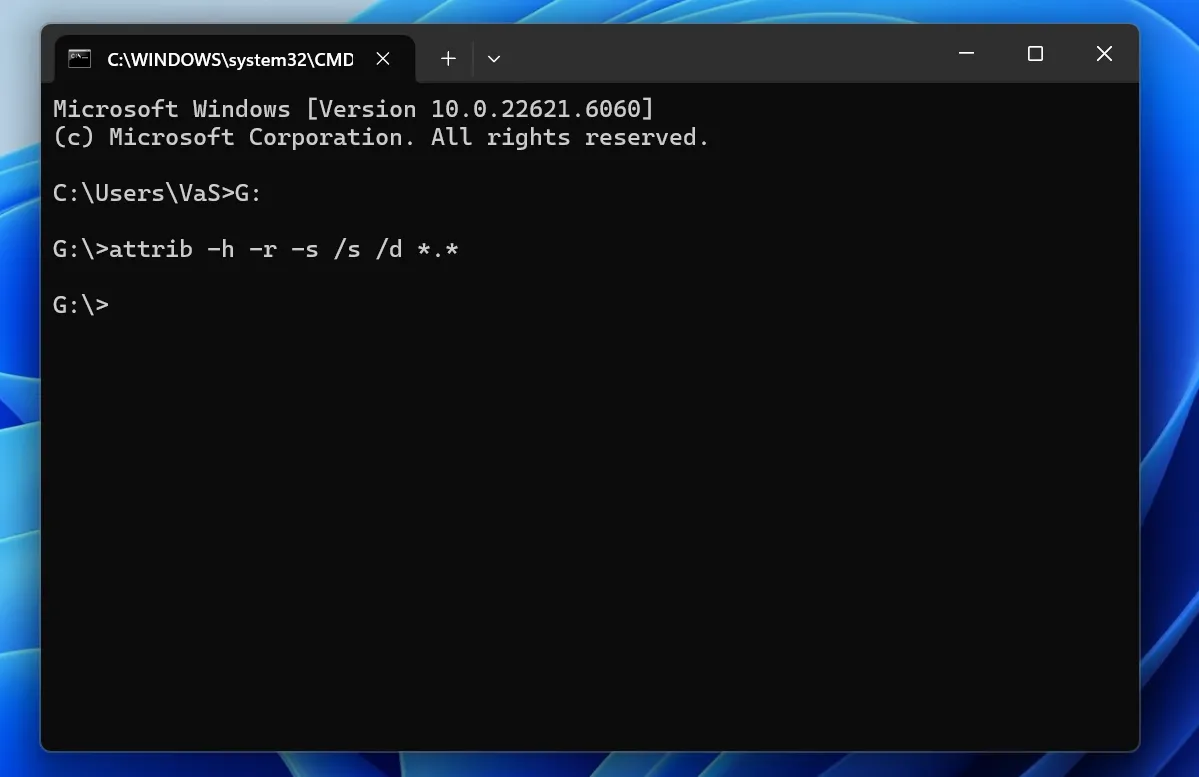
To recover files using Command Prompt when they are hidden, open CMD as an administrator and enter:
attrib -h -r -s X:\*.* /s /d
Replace X: with the correct drive letter. For example, use the following command for drive G::
attrib -h -r -s G:\*.* /s /d
The parameters work as follows:
-hremoves the hidden attribute.-rremoves the read-only attribute.-sremoves the system attribute./sapplies the command to matching files in subfolders./dalso applies the command to folders.
After the command finishes, open File Explorer and check the drive again.
This method can reveal data that still exists. However, it cannot recover permanently deleted files using CMD because it does not scan unallocated storage for deleted information.
Method 2: Restore Files from the Recycle Bin Through Command Prompt
Sometimes, users assume that a file has disappeared permanently even though Windows still keeps it in the Recycle Bin.
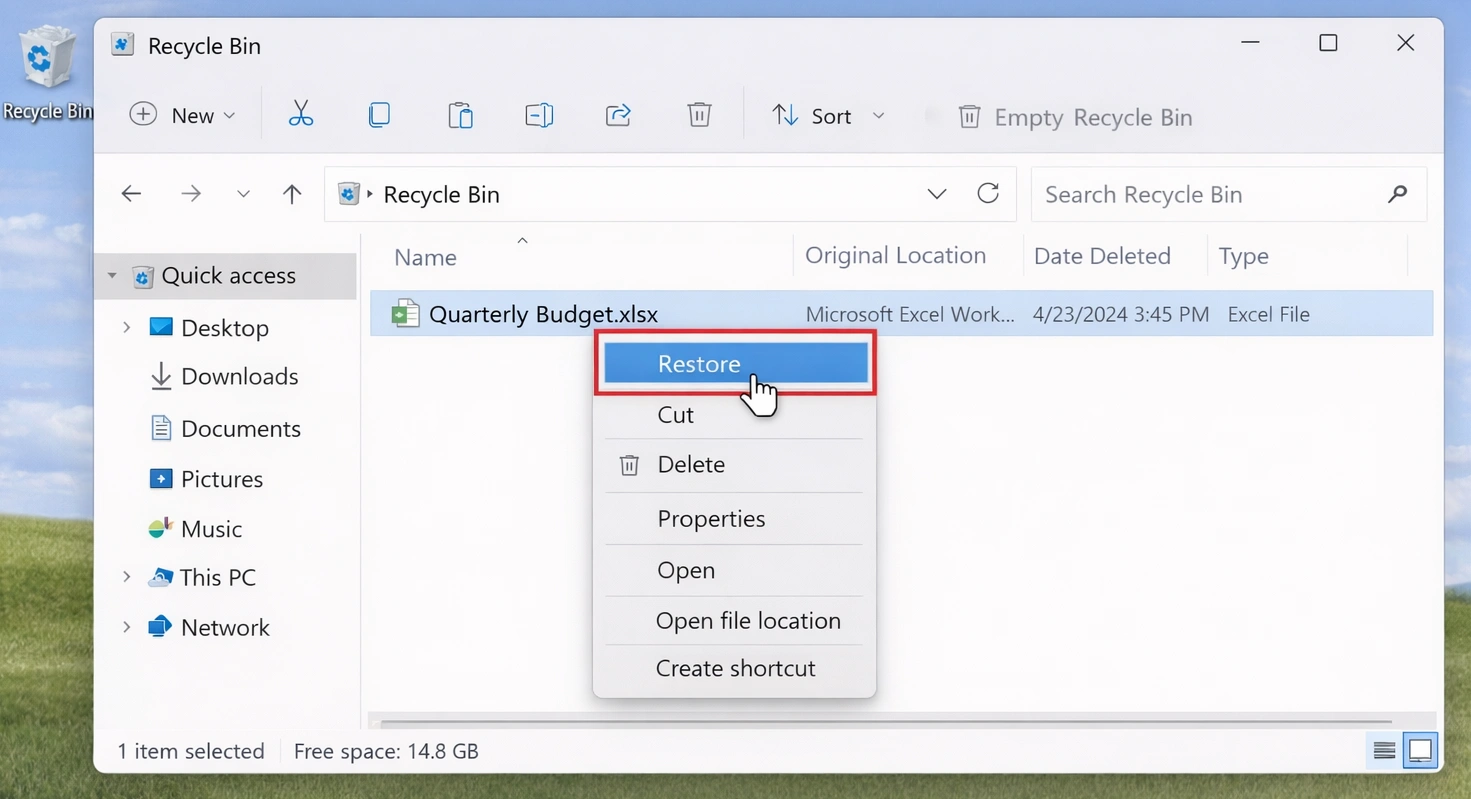
To open the Recycle Bin through Command Prompt, enter:
start shell:RecycleBinFolder
Next, locate the file, right-click it, and choose Restore. Windows should return the file to its original location.
This command only opens the Recycle Bin. It does not scan a drive for permanently deleted data. Therefore, if the Recycle Bin is empty, continue with Windows File Recovery or another recovery solution.
Although this is a basic way to recover files using Command Prompt, it only works while the Recycle Bin still contains the files.
Method 3: Recover Deleted Files with Windows File Recovery
For actual Command Prompt file recovery, Windows File Recovery offers a more suitable option than ATTRIB or CHKDSK.
Its basic syntax is:
winfr source-drive: destination-drive: [/mode] [/switches]
For example:
winfr C: E: /regular /n *.pdf
This command searches drive C: for deleted PDF files and saves the results to drive E:.
Before running the command, install Windows File Recovery from the Microsoft Store. Also, ensure that the source and destination use different drives.

Regular vs. Extensive Mode
Windows File Recovery offers two main modes:
Situation | Recommended mode |
Recently deleted file on a healthy NTFS drive | Regular |
File deleted some time ago | Extensive |
Formatted or corrupted drive | Extensive |
FAT or exFAT storage | Extensive |
Regular mode suits recent deletions on healthy NTFS storage. In contrast, Extensive mode performs a deeper scan and works with more complex cases.
Therefore, choosing the right mode plays an important role when you recover files using Command Prompt.
Recover PDF and Word Files
Use:
winfr C: E: /regular /n *.pdf /n *.docx
This Windows File Recovery command searches for deleted PDF and DOCX files on C: and stores the recovered results on E:.
Recover Deleted Photos
Use:
winfr C: E: /extensive /n \Users\YourName\Pictures\*.jpg /n \Users\YourName\Pictures\*.png
Replace YourName with your Windows account name.
If you do not know the original folder, you can search by file extension instead. However, a wider search may take longer and return more results.
Recover Files from a USB Drive Using CMD
Assume your USB drive uses G: and your recovery destination uses D:. Then run:
winfr G: D: /extensive /n *.jpg
Because many USB drives use FAT32 or exFAT, Extensive mode may work better. Therefore, check the file system before choosing a mode.
To check it, open File Explorer, right-click the drive, select Properties, and review the value beside File system.
Common Winfr Problems
A CMD data recovery attempt may fail because:
- The source and destination point to the same drive.
- You entered the wrong drive letter.
- The command contains a syntax error.
- You selected Regular mode for a case that needs Extensive mode.
- The destination lacks enough free space.
- You used an incorrect folder path or file extension.
- New data has already overwritten the deleted file.
If Regular mode finds nothing, try Extensive mode when the situation supports it. However, no tool can restore data after another file has fully overwritten it.
Method 4: Repair File-System Errors with CHKDSK
CHKDSK can help when a drive contains logical file-system errors. However, it should not be your first choice after ordinary accidental deletion.
The basic repair command is:
chkdsk X: /f
Replace X: with the affected drive letter. For example:
chkdsk G: /f
The /f option tells CHKDSK to fix detected file-system errors.
Use this method when corruption makes files or folders inaccessible. By contrast, if you pressed Shift + Delete on a document, use Winfr or dedicated recovery software instead.
Additionally, avoid running repair commands without first considering the value of the lost data. A repair operation changes file-system information, so users handling highly important data may prefer to scan the drive before attempting repairs.

What If You Cannot Recover Files Using Command Prompt?
CMD tools remain useful, but each one has clear limitations. ATTRIB cannot undelete files. CHKDSK focuses on file-system repair. Winfr requires accurate drive letters, recovery modes, switches, paths, and filters. In addition, Command Prompt does not offer a convenient visual preview workflow.
A graphical recovery tool may make more sense when:
- You permanently deleted files.
- You emptied the Recycle Bin.
- You formatted a drive.
- A partition became RAW.
- You do not know the original file path.
- Winfr returned no useful results.
- You prefer a guided interface.
- You want to preview supported files before recovery.
In these cases, Magic Data Recovery provides a practical alternative to trying to recover files using Command Prompt repeatedly.
An Easier Alternative: Magic Data Recovery
Magic Data Recovery helps users who find recovering files with Command Prompt too complicated or unsuitable for their situation.
Instead of asking you to create a Winfr command manually, the software provides a visual workflow. You choose a drive, start a scan, review the results, preview supported files, and save the data you need.
This approach can help after accidental deletion, an emptied Recycle Bin, formatting, RAW partition problems, or an unsuccessful CMD attempt. Moreover, the interface reduces the risk of choosing the wrong mode, switch, folder path, or file filter.
When Magic Data Recovery Makes Sense
Consider Magic Data Recovery when:
- You permanently deleted important files.
- The Recycle Bin is empty.
- You formatted a storage device by mistake.
- Your drive became RAW.
- A Command Prompt recovery method found nothing useful.
- You want to preview supported files before recovery.
- You prefer a graphical process instead of command syntax.
For example, imagine that you accidentally formatted an SD card containing family photos. ATTRIB cannot help because the files are not merely hidden. CHKDSK does not work as a standard undelete tool. Winfr may help, but it requires the right syntax and recovery settings.
Magic Data Recovery, on the other hand, lets you select the affected drive, scan it, filter the results, preview supported files, and save selected data to a safer location.
How to Use Magic Data Recovery
If your attempt to recover files using Command Prompt feels too complex or produces no useful results, follow these steps.
Step 1: Download and Install Magic Data Recovery
Download and install Magic Data Recovery. To protect lost data, avoid installing the program on the same drive where your files disappeared.
Supports Windows 7/8/10/11 and Windows Server
Step 2: Select the Drive to Scan
Launch Magic Data Recovery. Then, locate and select the drive where you lost the files. Start the scan from the main interface.

Step 3: Scan the Drive for Lost Files
Magic Data Recovery starts an Advanced Scan and searches for deleted or lost files. Meanwhile, recoverable items appear as the scan progresses, so you can review found data before the process ends.

Step 4: Preview Files Before Recovery
Next, preview supported files to confirm their contents. This step helps you identify the correct documents, photos, videos, and other items before you recover them.

Step 5: Recover Files to a Safe Location
Finally, select the files you need and start the recovery. Save the results to a different drive or storage location. Otherwise, recovered data could overwrite other files that the scan may still find.

Recover Files Using Command Prompt vs. Magic Data Recovery
The better option depends on your technical experience and data-loss scenario.
Feature | Command Prompt / Winfr | Magic Data Recovery |
Graphical interface | No | Yes |
Requires command syntax | Yes | No |
Reveals hidden files | ATTRIB can help | Scan-based workflow |
Searches for deleted files | Winfr can help | Guided scanning workflow |
Handles formatted-drive scenarios | Extensive mode may help | Supports broader recovery workflows |
File preview | Very limited | Available for supported files |
Best for | Users comfortable with commands | Users who prefer guided recovery |
Windows File Recovery remains a useful Microsoft command-line option for experienced users. However, Magic Data Recovery may suit beginners and complex cases better because it removes the need to select command modes, switches, file paths, and filters manually.
Therefore, you should recover files using Command Prompt when you understand the commands and face a suitable data-loss scenario. Choose Magic Data Recovery when you need a clearer, more visual process.
Conclusion: Recover Files Using Command Prompt
You can recover files using Command Prompt in several situations, but the correct method depends on what happened.
Use ATTRIB when files still exist but remain hidden. Use CHKDSK when file-system errors block access. For actual deletion, use the Windows File Recovery command and choose the correct Winfr mode.
However, Command Prompt does not suit every user or every recovery case. If you face permanent deletion, formatting, a RAW partition, removable-storage data loss, or an unsuccessful Winfr scan, Magic Data Recovery offers a clearer hard drive recovery workflow.
That is why Magic Data Recovery deserves consideration. It reduces the complexity of Command Prompt file recovery by replacing manual syntax with drive selection, scanning, filtering, previewing, and guided recovery. As a result, users can focus on finding the files they need instead of troubleshooting commands.
Ultimately, experienced users can recover files using Command Prompt when the situation matches ATTRIB, CHKDSK, or Winfr. Users who prefer a simpler and more visual recovery process can try Magic Data Recovery instead.
Supports Windows 7/8/10/11 and Windows Server
FAQs - Recover Files Command Prompt Guide
Can I Recover Permanently Deleted Files Using Command Prompt?
Yes, Windows File Recovery can attempt to recover files that no longer appear in the Recycle Bin. However, success depends on the storage device, file system, time since deletion, and whether new data has overwritten the old file. For true deletion, Winfr offers a more relevant option than ATTRIB or CHKDSK.
What Is the Best CMD Command for Deleted File Recovery?
Winfr is usually the best built-in command for actual deleted-file recovery on supported Windows systems. ATTRIB only changes file attributes, while CHKDSK repairs file-system problems. Therefore, choose Winfr when Windows has deleted the file rather than hidden it or made it inaccessible through file-system errors.
Can ATTRIB Restore Deleted Files?
No. ATTRIB can reveal files that still exist but carry hidden, system, or read-only attributes. It cannot restore data that Windows has truly deleted. Therefore, ATTRIB may help after malware or an attribute change, while genuine deletion requires Winfr or a dedicated recovery application.
Can CHKDSK Recover Permanently Deleted Files?
CHKDSK mainly checks and repairs file-system and metadata errors. It may help when corruption blocks access to existing files, but it does not act as a standard undelete tool. After accidental deletion, an emptied Recycle Bin, or Shift + Delete, use Winfr or recovery software instead.
Can I Recover Files from a USB Drive Using CMD?
Yes, depending on the problem. Use ATTRIB when files still exist but remain hidden. For actual deletion, Windows File Recovery may help. Because many USB drives use FAT or exFAT, you may need Extensive mode. Always send recovered files to a different destination.
What Should I Do If Winfr Finds Nothing?
First, verify the source drive, destination drive, file filters, and recovery mode. If Regular mode finds nothing, try Extensive mode when appropriate. Also, stop writing new data to the affected drive. If command-line recovery still fails, Magic Data Recovery offers a more visual next step.
Is Magic Data Recovery Easier Than Command Prompt?
For many beginners, yes. Magic Data Recovery provides a graphical workflow, so you do not need to remember Winfr syntax, select switches, or build filters manually. Instead, you choose a drive, run a scan, preview supported files, and recover selected items to another safe storage location.

Vasilii is a data recovery specialist with around 10 years of hands-on experience in the field. Throughout his career, he has successfully solved thousands of complex cases involving deleted files, formatted drives, lost partitions, and RAW file systems. His expertise covers both manual recovery methods using professional tools like hex editors and advanced automated solutions with recovery software. Vasilii's mission is to make reliable data recovery knowledge accessible to both IT professionals and everyday users, helping them safeguard their valuable digital assets.