
Recovery Data Windows 11: A Practical Guide
Losing important files on a Windows 11 PC can be frustrating and stressful. Whether data disappears after an accidental deletion, a system reset, a failed update, or disk formatting, many users immediately search for reliable Windows 11 data recovery solutions. While Windows provides several built-in options, they are not always sufficient for real-world data loss scenarios.
This guide explains how to recover data on Windows 11, what HDD recovery methods are effective, and when professional software becomes necessary. By the end of this article, you will understand your recovery options clearly and know why Magic Data Recovery is often the most practical choice for everyday users.
Supports Windows 7/8/10/11 and Windows Server
Wondering if your files can be recovered? Find out in seconds with our quick check below.
Data Recovery Assessment
Answer 3 quick questions to estimate your recovery chances
Table of Contents
Common Data Loss Scenarios in Windows 11
Understanding how data lost is the first step toward successful data recovery in Windows operations. Windows 11 introduces new system behaviors that can increase the risk of unintentional data loss.
Accidental or Permanent Deletion
Files removed using Shift + Delete bypass the Recycle Bin. In these cases, Windows 11 data recovery depends entirely on whether the disk sectors have been overwritten.
Windows 11 Update or System Reset
Major Windows updates or a “Reset this PC” operation may remove user files if incorrect options are selected. Many users only realize the loss after the process is complete.
Disk Formatting or Partition Loss
Formatting a drive or deleting a partition erases file system records. However, the data itself often remains temporarily, making recovery possible with the right tools.
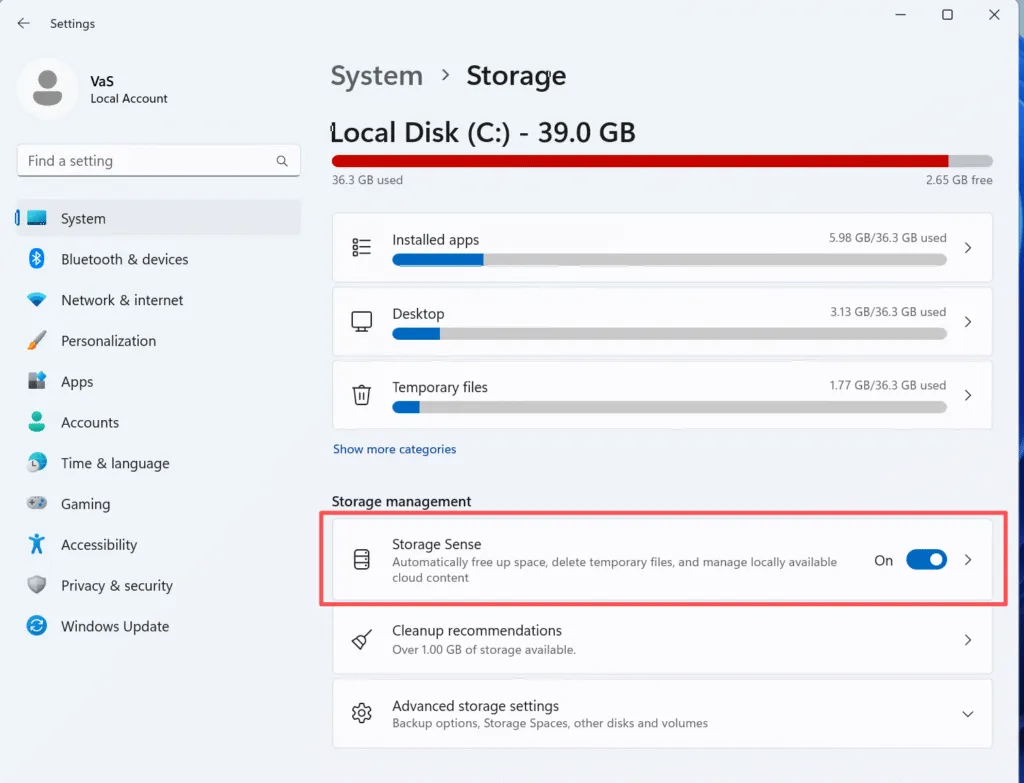
Storage Sense Auto Cleanup
Windows 11 Storage Sense can automatically delete temporary files or unused data. When misconfigured, it may remove files users still need.
Can You Really Do Data Recovery on Windows 11 Successfully?
Not all lost data can be recovered. Successful Windows 11 data recovery depends on several technical factors:
- Overwrite status: Once new data replaces old sectors, recovery becomes unlikely.
- Drive type: SSDs use TRIM technology, which can shorten recovery windows compared to HDDs.
- Time factor: The sooner recovery begins, the higher the success rate.
From practical experience, most failures happen because users continue using the affected drive, unintentionally overwriting recoverable data.
Built-in Methods for Data Recovery on Windows 11
Windows 11 includes several native tools. They work well in limited scenarios but have clear limitations.
Check the Recycle Bin
This is the simplest form of Windows data recovery. If you deleted files normally, restoring them from the Recycle Bin is immediate and risk-free.
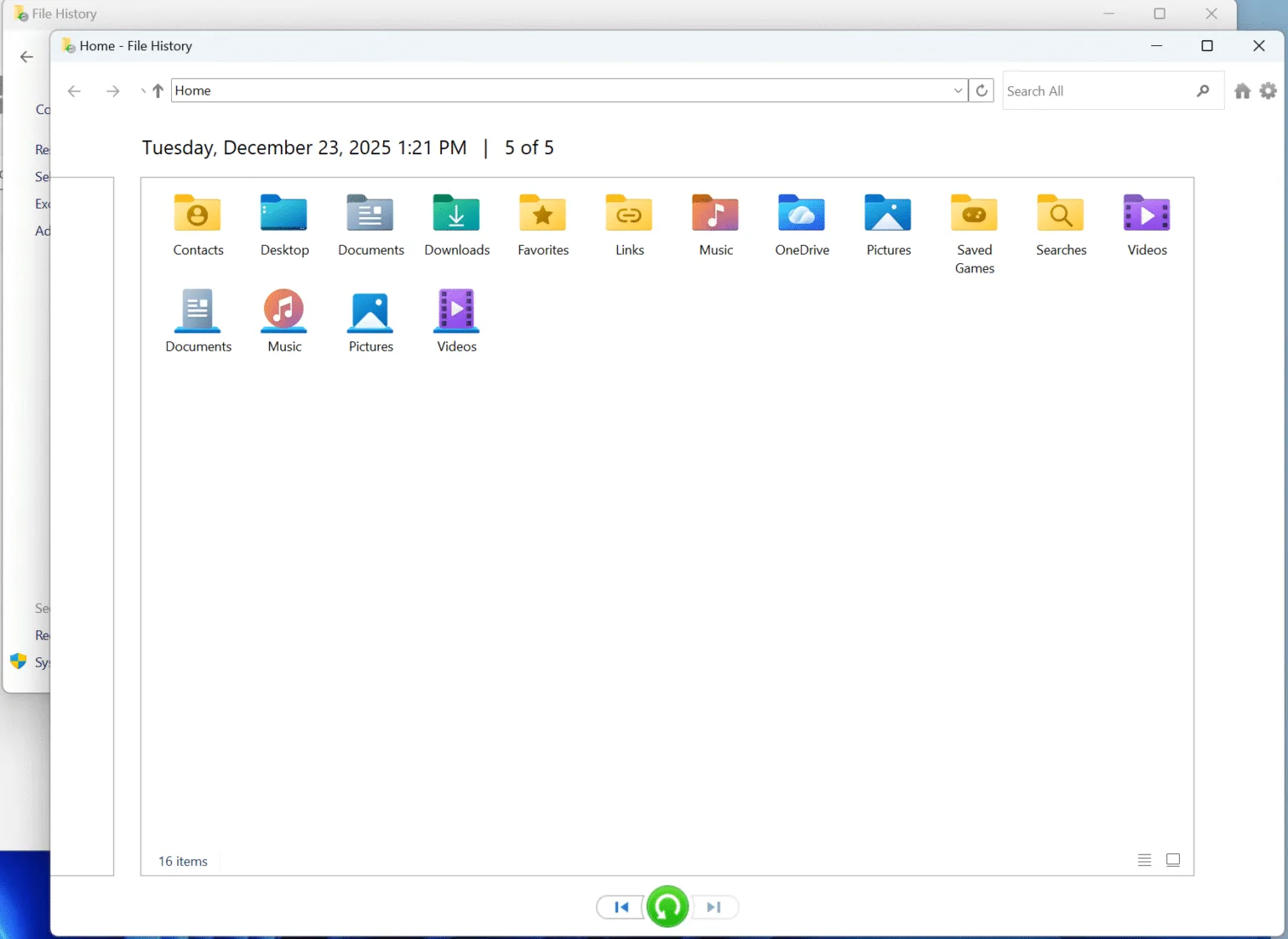
Restore Files Using File History
File History allows users to restore previous versions of files, but only if it was enabled before data loss. Unfortunately, many systems have this feature disabled by default.
Windows File Recovery Tool
Microsoft’s Windows File Recovery is a command-line utility designed for advanced users. While effective in some cases, it has notable drawbacks:
- No graphical interface
- Limited file preview capability
- Complex command syntax
For non-technical users, this tool often leads to confusion and failed recovery attempts.
Why Third-Party Software Is Often Required for Recovery Data Windows
Built-in tools cannot handle many real-world scenarios such as:
- Permanently deleted files
- Formatted drives
- Lost partitions
- System crash-related data loss
In these situations, dedicated Windows 11 data recovery software provides deeper scanning, preview features, and safer recovery workflows.
How to Recover Data on Windows 11 with Magic Data Recovery
Magic Data Recovery is designed to simplify Windows 11 data recovery for everyday users while maintaining professional-level results.
Step-by-Step Recovery Process
Step 1: Install the Software Safely
Install Magic Data Recovery on a drive different from the one where data was lost. This prevents overwriting recoverable files.
Supports Windows 7/8/10/11 and Windows Server
Step 2: Select the Affected Location
Choose the disk or partition where files were originally stored, and then start searching lost files.

Step 3: Let the Scan Complete
Magic Data Recovery performs Advanced Scan automatically to find every possible file. It displays all the files on the drive when the scan completes.

Step 4: Preview Files
Preview feature helps users verify recoverability before restoring data.

Step 5: Recover to a Secure Location
Save recovered files to an anotherl disk to ensure data safety.

Why Magic Data Recovery Is a Reliable Choice for Windows 11 Users
Magic Data Recovery focuses on solving practical recovery problems without unnecessary complexity.
Core Pain Points It Solves
- Permanent file deletion
- Formatted disk recovery
- Data loss after system crashes
Unique Advantages
- Fully compatible with Windows 11
- User-friendly interface suitable for beginners
- File preview before recovery
- Non-destructive recovery process
Real-World Usage Scenarios
For example, users who accidentally format an external drive or lose files after a Windows 11 update often find built-in tools insufficient. In these cases, Magic Data Recovery offers a structured and reliable solution.
Compared to manual or command-line methods, it reduces error risks and improves recovery efficiency.
Tips to Increase Recovery Success on Windows 11
To maximize Windows 11 data recovery success rates:
- Stop using the affected drive immediately
- Avoid installing recovery software on the same disk
- Recover files to an external storage device
- Act as soon as data loss is discovered
Following these best practices significantly improves recovery outcomes.
Conclusion
Successful Windows 11 data recovery depends on understanding data loss scenarios, acting quickly, and choosing the right hard drive recovery method. While Windows built-in tools are helpful in limited cases, they often fall short in complex situations.
Magic Data Recovery provides a balanced solution by combining ease of use, deep scanning capability, and safe recovery practices. If you are looking for a practical and reliable way to recover lost files on Windows 11, Magic Data Recovery is a solution worth considering.
Supports Windows 7/8/10/11 and Windows Server
FAQ About Data Recovery on Windows 11
Is data recovery on Windows 11 free?
Can I recover data after resetting Windows 11?
Does Windows 11 permanently delete files?
How long does data stay recoverable on Windows 11?
Is Windows data recovery safe for SSDs?
Do I need technical skills to recover data on Windows 11?
What is the safest way to perform data recovery on Windows 11?

Vasilii is a data recovery specialist with around 10 years of hands-on experience in the field. Throughout his career, he has successfully solved thousands of complex cases involving deleted files, formatted drives, lost partitions, and RAW file systems. His expertise covers both manual recovery methods using professional tools like hex editors and advanced automated solutions with recovery software. Vasilii's mission is to make reliable data recovery knowledge accessible to both IT professionals and everyday users, helping them safeguard their valuable digital assets.