コンテンツへスキップ
amagicsoftロゴアイコン
  • ホーム
  • 製品紹介
    • Magic Data Recovery
    • Magic Recovery Key
  • 店舗
  • ブログ
  • もっと見る
    • Amagicsoftについて
    • お問い合わせ
    • プライバシーポリシー
    • 利用規約
    • ライセンス契約
    • 返金ポリシー
  • 日本語
    • English
    • 한국어
    • Deutsch
    • Français
    • 繁體中文
ディスクの問題修正

ディスクのエラーチェックドライブの問題の検出と修正
2025年12月21日 Vasilii コメントはまだない
ディスクのエラーチェック ドライブの問題の検出と修正

“Check disk for errors” refers to the process of scanning a storage device—such as a hard disk drive (HDD), solid-state drive (SSD), USB flash drive, or external hard drive—to detect and correct logical file system inconsistencies. On Windows systems, this function is most commonly performed using CHKDSK(ディスクチェック), a built-in diagnostic utility provided by Microsoft. CHKDSK examines file system metadata, directory structures, allocation tables, and—optionally—disk surface sectors to identify corruption that may cause crashes, boot failures, or data access errors.

This process addresses 論理エラー, not physical damage. Logical issues include corrupted file records, cross-linked files, invalid security descriptors, and incorrect free-space counts. According to マイクロソフトドキュメント, チェックディスク operates at the file system level (e.g., エヌティーエフエス または FAT32), verifying internal consistency rather than repairing hardware.

目次

When You Should Check Disk for Errors

Running a disk check is recommended when you experience:

  • Repeated system crashes or Blue Screen errors
  • Folders that fail to open or disappear unexpectedly
  • A drive that suddenly becomes RAW or unreadable
  • Slow performance caused by file system inconsistencies
  • Error messages such as “Windows detected a hard disk problem”

The good news is that these symptoms often indicate 論理的腐敗, which can usually be resolved without data loss if handled correctly.

How Disk Error Checking Works

When you check disk for errors, the operating system performs several verification stages:

1. File system structure validation – Ensures the Master File Table (MFT) or FAT directory entries are consistent.

2. Index and directory verification – Confirms folder hierarchies and file references are intact.

3. Security descriptor checks – Verifies file permissions and access control lists.

4. Optional sector scanning – Identifies unreadable sectors and attempts to isolate them from future use.

It is important to understand that file system repair tools modify metadata. Improper use—especially on unstable drives—can increase the risk of permanent data loss.

How to Check Disk for Errors Using CHKDSK

Follow these steps carefully. Do not panic—this is a controlled and widely used maintenance operation.

Method 1: Using Command Prompt

1.プレス ウィンドウズ+S, タイプ コマンド, を選択する。 管理者として実行する.

2. Enter chkdsk /f command as following:

chkdsk X:/f

交換 X: をターゲット・ドライブ・レターで指定します。.

check disk for errors with chkdsk /f

3. If prompted to schedule the scan at next reboot, type Y and restart your system.

について /f parameter fixes logical file system errors. To include a surface scan, use:

chkdsk X:/f /r

Note that /r takes significantly longer and should be used cautiously on aging drives.

check disk for errors with chkdsk /f /r

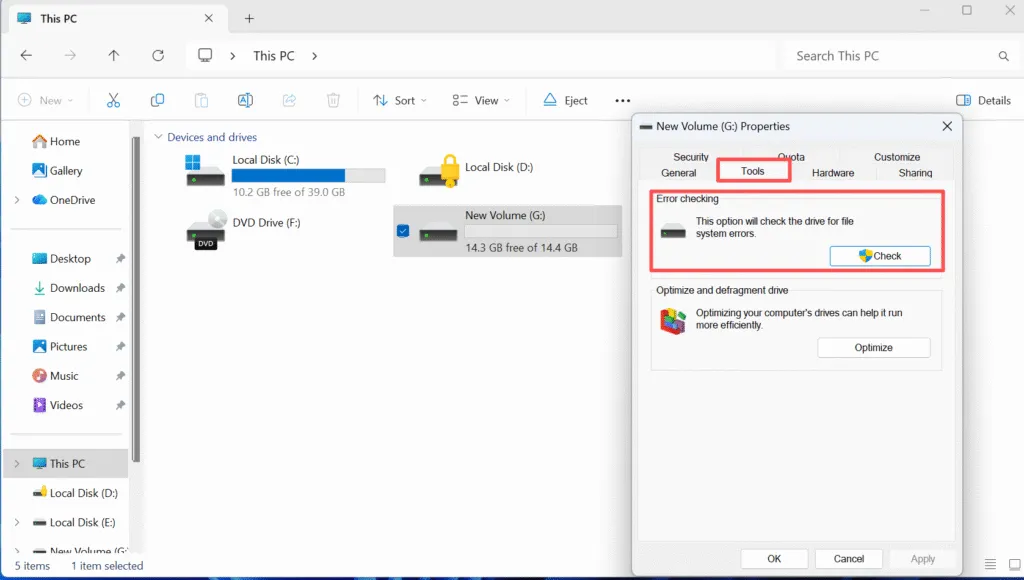
Method 2: Using File Explorer

1.開く このPC.

2. Right-click the target drive and select プロパティ.

3.をクリックする。 ツール タブ.

4. Click チェック under Error checking.

error checking
This method provides a simplified interface but relies on the same underlying CHKDSK engine to check disk for errors.

Important Precautions Before Repairing Disk Errors

Before running any disk repair:

  • まず重要なデータをバックアップする。. File system repairs modify metadata structures.
  • Avoid using チェックディスク on drives making unusual noises or disconnecting intermittently.
  • Do not interrupt the process once it has started.

If the drive contains irreplaceable data, a read-only recovery approach is strongly recommended before attempting repairs.

Recovering Data Before Checking Disk Errors

In scenarios where corruption is severe, checking the disk for errors may hide or remove damaged file entries. Professional recovery tools such as Magic Data Recovery are designed to operate in 読み取り専用モード, allowing you to extract files safely before any repair attempt.

Magic Data Recovery supports recovery from エヌティーエフエス, FAT32, エクストラファット, そして RAWパーティション and can scan disks that fail standard file system checks. This approach provides a controlled recovery path and reduces the risk of permanent data loss.

まとめ

Checking a disk for errors is a fundamental maintenance task that helps restore file system stability and prevent cascading failures. When used correctly, tools like チェックディスク can resolve many common 論理的問題. However, caution and preparation are essential. Always assess the condition of the drive, secure important data first, and apply repairs methodically. Download Magic Data Recovery to recover your files safely before repairing disk errors and maintain full control over your data restoration process.

Magic Data Recoveryをダウンロード

Windows 7/8/10/11およびWindows Serverをサポート

FAQ: Check Disk for Errors

1.How to check disk for errors?

You can check a disk drive for errors using Windows’ built-in CHKDSK utility. Open Command Prompt as an administrator and run chkdsk X: /f, replacing X: with the target drive letter. Alternatively, use File Explorer by right-clicking the drive, selecting Properties > Tools > Check. Both methods scan the file system for logical inconsistencies.

2.Does check disk fix errors?

Yes, CHKDSK can fix logical file system errors, such as corrupted directory entries, incorrect file allocation records, and metadata inconsistencies. However, it does not repair physical hardware damage. If physical failure is suspected, data recovery should be performed before running repairs.

3.Which is better, CHKDSK /f or /r?

Neither option is universally “better”—they serve different purposes. • /f fixes logical file system errors and is faster. • /r locates bad sectors and attempts data recovery from readable areas, which takes much longer. For routine checks, /f is usually sufficient. Use /r only when you suspect sector-level issues.

4.How to detect disk problems?

Common signs of disk problems include frequent crashes, slow file access, missing files, read/write errors, and SMART warnings. Running CHKDSK, reviewing Event Viewer logs, and monitoring disk health tools can help confirm logical or structural disk issues.

5.Should I run CHKDSK or SFC?

These tools serve different purposes. CHKDSK checks disk structure and file system integrity, while SFC (System File Checker) verifies Windows system files. If you suspect drive corruption, run CHKDSK first. If Windows components are malfunctioning, follow up with SFC.

6.How to scan a PC using cmd?

To scan a PC using Command Prompt, open CMD as administrator and enter diagnostic commands such as chkdsk, sfc /scannow, or DISM. These tools allow low-level system and disk verification without third-party software.

7.Does CHKDSK fix corrupted files?

CHKDSK may repair file system references associated with corrupted files, but it cannot always restore the file’s original content. In some cases, files may be moved to a recovery folder or become inaccessible. For important data, recovery software should be used before running CHKDSK.

8.Can disk errors be repaired?

Many disk errors caused by file system corruption can be repaired using CHKDSK. However, errors caused by failing hardware are not repairable through software. In such cases, recovering data with a read-only tool like Magic Data Recovery before attempting repairs is strongly recommended.
  • WiKi
Vasilii

バシリイは、この分野で約10年の実務経験を持つデータ復元のスペシャリストです。そのキャリアを通じて、彼は削除されたファイル、フォーマットされたドライブ、失われたパーティション、RAWファイルシステムを含む何千もの複雑なケースの解決に成功してきました。彼の専門知識は、16進エディタなどの専門ツールを使用した手動復元方法と、復元ソフトウェアを使用した高度な自動化ソリューションの両方をカバーしています。バシリの使命は、信頼できるデータ復元知識をITプロフェッショナルと一般ユーザーの双方が利用できるようにし、貴重なデジタル資産を保護できるようにすることです。.

投稿ナビゲーション

前へ
次のページ

検索

カテゴリー

  • ビットロッカーのリカバリ
  • 削除されたファイルの復元
  • ディスクの問題修正
  • フォーマットファイルの復元
  • ハードディスク・ドライブ復旧
  • ライセンスキーの回復
  • 紛失ファイルの復元
  • メモリーカード復元
  • ニュース
  • パスワード復旧
  • フォトリカバリー
  • SSDリカバリー
  • USBドライブ復元
  • ユーザーガイド
  • ビデオ・リカバリー
  • ウィキ
  • Windowsの問題修正

最近の投稿

  • WindowsでCHKDSKがスタック
    WindowsでCHKDSKが動かない?すべてのシナリオのための完全な修正ガイド
  • サムスンSSDで削除された写真を復元する方法
    サムスンSSDで削除された写真を復元する方法は?
  • ディスクのエラーチェック ドライブの問題の検出と修正
    ディスクのエラーチェックドライブの問題の検出と修正

タグ

CHKDSKとディスクツール ディスク修復 エラーのトラブルシューティング どのように Magic Data Recovery Magic Recovery Key WiKi

関連記事

ディスク書き込みエラーの原因と対策
ディスクの問題修正

ディスク書き込みエラー:原因と対策

2025年12月19日 Vasilii Disk Write Error: Causes and Fixes はコメントを受け付けていません

ディスク書き込みエラーは、オペレーティング・システムやアプリケーションがストレージ・デバイスへのデータ保存に失敗した場合に発生する。このエラーは、システムがデータを書き込もうとしたが、ハードウェアの問題、ファイルシステムの破損、パーミッションの制限、またはストレージ構造内の論理的不整合によってブロックされたことを示している。ディスク書き込みエラーは、HDD、SSD、外付けドライブ、USBフラッシュドライブ、SDカードで発生する可能性があります。良いニュースは、ディスク書き込みエラーが永久的なデータ損失を意味しないということです。ほとんどの場合、基礎となるデータはまだ存在しますが、修正可能なシステムまたはディスクレベルの問題により、一時的にアクセスできなくなります。目次 ディスク書き込みエラーの一般的な原因 ディスク書き込みエラーは通常 [...]...

CHKDSK RAWドライブ 壊れたドライブを修復する方法
ディスクの問題修正

CHKDSK RAWドライブ:壊れたドライブを修復する方法

2025年12月19日 Vasilii CHKDSK RAW Drive: How to Fix a Corrupted Drive はコメントを受け付けていません

ファイルシステムのタイプはRAWです。CHKDSKはRAWドライブでは使用できません。“というメッセージが表示された場合、特に重要なファイルが保存されている外付けハードディスク・ドライブの場合、心配になることがあります。RAWドライブでCHKDSKを実行できないということは、WindowsがNTFSやFAT32などのドライブ上のファイルシステムを認識できなくなったことを示しています。慌てないでください。ほとんどの場合、データはまだ物理的に存在しています。問題は、ファイル・システムのメタデータが破損または欠落していることにあり、すぐにデータが破壊されるわけではありません。外付ドライブがRAWになるのは、次のような原因が一般的です:安全でない取り外しや突然の電源喪失 ファイルシステムの破損 重要な構造に影響を及ぼす不良セクタ ウイルスやマルウェアの干渉 [...]...

chkdsk 不良セクタ
ウィキ

CHKDSK バッドセクター:ディスクのエラーをチェックし、安全に修復する方法

2025年12月18日 Smith, Erin CHKDSK Bad Sectors: How to Check and Repair Disk Errors Safely はコメントを受け付けていません

目次 バッドセクターが原因でデータに突然アクセスできなくなる場合 ハードドライブのエラーは、警告なしに現れることがよくあります。システムが正常に動作していたかと思うと、次の日にはWindowsがファイルを開けなくなったり、起動中にフリーズしたり、ディスク読み取りエラーが報告されたりします。多くの場合、CHKDSK不良セクタがこれらの問題の隠れた原因です。マイクロソフトには、ファイル・システム・エラーを検出し、ディスクの不良セクタをスキャンするCHKDSKユーティリティが含まれています。このツールは故障したドライブを安定させるのに役立ちますが、多くのユーザーはCHKDSK不良セクタ修復が実際に何を意味し、何をしないのかを誤解しています。このガイドでは、CHKDSKの正しい使用方法、CHKDSKで修復できる不良セクタの種類、CHKDSKで修復できない不良セクタについて説明します。

amagicsoftロゴアイコン

当社のビジョンは、世界的に有名なソフトウェア ブランドおよびサービス プロバイダーとなり、一流の製品とサービスをユーザーに提供することです。

製品紹介
  • Magic Data Recovery
  • Magic Recovery Key
ポリシー
  • 利用規約
  • プライバシーポリシー
  • 返金ポリシー
  • ライセンス契約
会社概要
  • Amagicsoftについて
  • お問い合わせ
  • 店舗
フォローする

著作権©2025 Amagicsoft。無断複写転載を禁じます。

  • 利用規約
  • プライバシーポリシー