
Partition Data Recovery Free: Get Lost Data Back Safely
Losing an entire partition can feel devastating. One moment, your drive appears normal. The next, a partition is missing, marked as unallocated, or completely inaccessible. In many cases, users immediately search for a partition data recovery free solution, hoping to restore their files without paying for expensive recovery services.
The good news is this: even if a partition itself cannot be rebuilt, the data stored inside it is often still recoverable. Understanding the difference between partition recovery and partition data recovery is the key to choosing the right approach.
In this guide, you will learn how partition data recovery free tools work, what their limitations are, and how Magic Data Recovery can help recover files from a lost partition safely and efficiently.
Supports Windows 7/8/10/11 and Windows Server
Wondering if your files can be recovered? Find out in seconds with our quick check below.
Data Recovery Assessment
Answer 3 quick questions to estimate your recovery chances
Table of Contents
What Is Free Partition Data Recovery?
Partition data recovery free refers to using free or freeware tools to retrieve files from a lost, deleted, or unallocated partition without rebuilding the partition structure itself.
It is important to distinguish between two concepts:
- Partition recovery: Attempts to restore the partition table or file system.
- Partition data recovery: Focuses on scanning the disk and extracting recoverable files directly from raw storage sectors.
Most freeware solutions, including professional-grade tools, fall into the second category. They do not repair partition metadata. Instead, they locate files that still physically exist on the disk.
This distinction matters because many real-world data loss scenarios only require file recovery, not structural partition repair.
Common Reasons Partition Data Gets Lost
Partition data loss is more common than many users expect. Based on real usage scenarios, the most frequent causes include:
- Accidental partition deletion in Disk Management
- Disk converted to unallocated space
- Operating system reinstallation
- Corrupted partition table (MBR or GPT)
- Power failures during disk operations
- Malware or virus attacks
In these cases, files are rarely erased immediately. Instead, the system loses track of where they are stored, which makes partition data recovery freeware a viable solution.
Can You Really Do Partition Data Recovery Free?
Yes, but with realistic expectations. A partition data recovery free solution like Magic Data Recovery typically allows you to:
- Scan lost or unallocated partitions
- Preview recoverable files
- Recover a limited amount of data at no cost
However, free tools also come with constraints. They may limit recovery size, scan depth, or supported file systems. Understanding these limits helps avoid frustration and sets proper expectations.
Still, for many users, freeware is sufficient to recover critical documents, photos, or work files from a lost partition.
Why Data from a Lost Partition Is Often Recoverable
When you delete a partition, the operating system removes references to the file system. The actual data blocks remain intact until overwritten by new data.
In practical terms:
- Deleting a partition does not erase files immediately
- Formatting often only resets metadata
- Unallocated space may still contain recoverable data
This is why partition data recovery free tools scan disks at a low level. Instead of relying on partition records, they analyze raw storage sectors to locate recognizable file signatures.
That technical approach significantly increases recovery chances when used early and correctly.
How to Free Recover Data from a Lost Partition Using Magic Data Recovery
Magic Data Recovery can help with the scenarios where files are lost due to partition deletion, corruption, or formatting. While it does not rebuild partitions, it excels at recovering data from lost or unallocated space.
Why Magic Data Recovery Fits Partition Data Recovery
Magic Data Recovery addresses several real user pain points:
- Lost partitions showing as unallocated
- Drives that appear empty but contain valuable data
- Users who need a practical partition data recovery free approach
Key Advantages
- Deep scanning of unallocated space
- File preview before recovery
- Support for common file systems
- Clean, user-friendly interface
Step-by-Step Recovery Process
Step 1: Download and Install Magic Data Recovery on a Secure Drive
Download Magic Data Recovery and install it on a storage device that was not affected by the deleted partition. Installing the recovery software on the same disk may overwrite data that could still be recovered and lower the success rate.
Supports Windows 7/8/10/11 and Windows Server
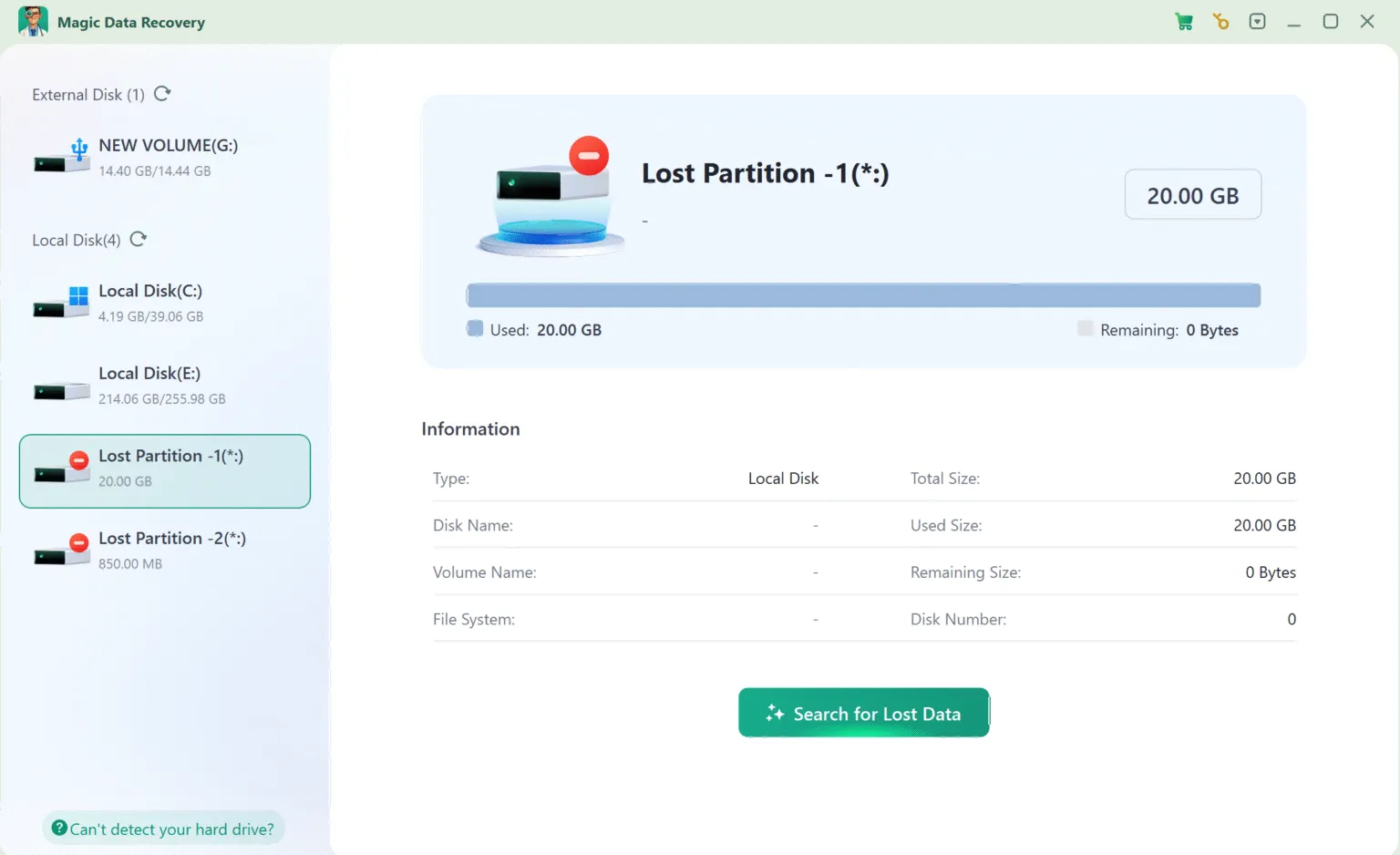
Step 2: Select the Disk with the Deleted Partition
From the main interface, identify the physical disk that originally contained the deleted partition. Even if the partition now appears as unallocated space, the software can still detect it and begin the search.
Step 3: Allow the Scan to Finish
Once the scan starts, Magic Data Recovery will perform an in-depth analysis of the disk structure automatically. Recoverable files from the deleted partition will be displayed gradually as the scan progresses, allowing you to monitor the results in real time.

Step 4: Preview Files Before Recovery
After the scan is complete, use the built-in preview feature to open files directly within the application. Previewing helps confirm that the files are undamaged and lets you choose only the data you actually need to restore.

Step 5: Recover Files to a Separate Storage Location
Select the files you wish to restore and save them to a different drive. Do not recover files back to the original disk, as doing so could overwrite remaining data and compromise further recovery efforts.

This workflow mirrors how professionals approach partition-related data loss, but without unnecessary complexity. If you are looking for a reliable partition data recovery freeware solution that prioritizes data safety, Magic Data Recovery is a practical choice. It will list all the files and you can recover 500 MB files for free.
Partition Recovery vs. Partition Data Recovery
Feature | Partition Recovery | Partition Data Recovery |
Restores partition structure | Yes | No |
Focuses on file extraction | No | Yes |
Risk of further corruption | Higher | Lower |
Suitable for freeware | Limited | Very suitable |
For most users, partition data recovery free is the safer and more practical option.
Best Practices to Maximize Recovery Success
- Stop using the affected drive immediately
- Avoid formatting or initializing the disk
- Install recovery software on a separate drive
- Recover files to external storage
These practices significantly improve recovery outcomes, regardless of the tool used.
Conclusion
Choosing the right partition data recovery free tool requires balancing effectiveness, safety, and transparency. Magic Data Recovery stands out because it focuses on what truly matters: retrieving your files without risking further data loss.
By scanning unallocated space and extracting recoverable data directly, it provides a dependable solution for users facing partition-related data loss. If you need a trustworthy way to recover files from a lost partition, Magic Data Recovery is a solution worth considering.
Supports Windows 7/8/10/11 and Windows Server
FAQ: Partition Data Recovery Free
Can I recover data from an unallocated partition for free?
What is the difference between partition recovery and partition data recovery?
Is partition data recovery freeware safe to use?
Can Magic Data Recovery restore a deleted partition?
Does formatting a partition make data unrecoverable?
Why do free recovery tools limit recovery size?
When should I consider professional data recovery services?

Vasilii is a data recovery specialist with around 10 years of hands-on experience in the field. Throughout his career, he has successfully solved thousands of complex cases involving deleted files, formatted drives, lost partitions, and RAW file systems. His expertise covers both manual recovery methods using professional tools like hex editors and advanced automated solutions with recovery software. Vasilii's mission is to make reliable data recovery knowledge accessible to both IT professionals and everyday users, helping them safeguard their valuable digital assets.