
Recover Contacts on PC and Outlook
Losing an important address book can disrupt work, sales follow-ups, client communication, and personal plans. The good news is that you still have several free or low-cost ways to recover contacts, especially when the contacts were recently deleted, synced with Outlook, saved in a PST file, or backed up on your PC.
This guide explains how to recover deleted contacts from Outlook, Windows folders, backups, PST/OST files, and free Microsoft tools. It also shows when manual recovery stops working and why Magic Data Recovery can help when contacts disappear because of deletion, formatting, file system errors, or lost Outlook data files.
Supports Windows 7/8/10/11 and Windows Server
Table of Contents
What Happens When Contacts Are Deleted?
Before you try to recover contacts, it helps to understand where they may still exist.
In Outlook, deleted contacts often move to the Deleted Items folder first. If you use Microsoft 365, Exchange, Outlook.com, or Outlook on the web, some deleted items may also remain in a recoverable server-side location for a limited time. Microsoft notes that contacts, calendar items, emails, and tasks can often be recovered from Deleted Items or Recoverable Items when they are still available there.
On a Windows PC, contacts may also exist as exported CSV files, vCard files, Outlook PST files, backups, or cached Outlook data. If the original file was deleted from local storage, your recovery result depends on whether Windows or another program has overwritten that storage space.
Therefore, stop saving new files to the affected drive before you try to recover deleted contacts. This simple step improves your chances.
Method 1: Recover Contacts from Outlook Deleted Items
Start here if you deleted contacts inside Outlook.
Steps for Classic Outlook
- Open Outlook.
- Go to Deleted Items.
- Search for the missing contact name, company, email address, or phone number.
- Right-click the contact.
- Choose Move > Other Folder.
- Select Contacts.
- Click OK.
This method works best when the deletion happened recently and the Deleted Items folder has not been emptied.
Steps for Outlook on the Web
- Open Outlook on the web.
- Go to People.
- Open the Deleted folder.
- Select the contact or contact list.
- Choose Restore.
This is the fastest free way to recover contacts if the contact still appears in the deleted folder.
Method 2: Recover Deleted Contacts from Recoverable Items
If Deleted Items is empty, do not give up. Outlook may still let you recover deleted contacts from Recoverable Items.
Steps
- Open Outlook.
- Select Deleted Items.
- Look for Recover items deleted from this folder.
- Search for the missing contacts.
- Select the items.
- Click Restore.
- Move them back to the Contacts folder if needed.
Microsoft explains that when an item is no longer in Deleted Items, Recoverable Items is the next place to check. Recovered contacts normally return to the contacts folder when possible.
This option may not appear for every account type. For example, POP accounts and some local-only Outlook setups may not support server-side recovery.
Method 3: Check Outlook PST or OST Files on Your PC
Many users search for how to recover contacts after Outlook is reinstalled, a profile is removed, or a PST file is missing. Outlook data can live inside PST or OST files.
A PST file may store emails, contacts, calendar items, tasks, and other Outlook data. Microsoft also explains that an OST file is a synchronized local copy of mailbox information stored on your device.
Common Outlook Data File Locations
Check these folders:
- C:\Users\YourName\Documents\Outlook FilesC:\Users\YourName\AppData\Local\Microsoft\Outlook
How to Open a PST File in Outlook
- Open Outlook.
- Go to File.
- Choose Open & Export.
- Click Open Outlook Data File.
- Select the PST file.
- Expand the data file in the left panel.
- Open the Contacts folder.
If your contacts appear, export them or move them into your active Outlook profile.
This method is useful when you still have the PST file but Outlook no longer displays the contacts.
Method 4: Import Contacts from a Backup PST File
If you created an Outlook backup before the loss, you can restore contacts from that PST file.
Steps
1. Open Outlook.
2. Go to File > Open & Export.
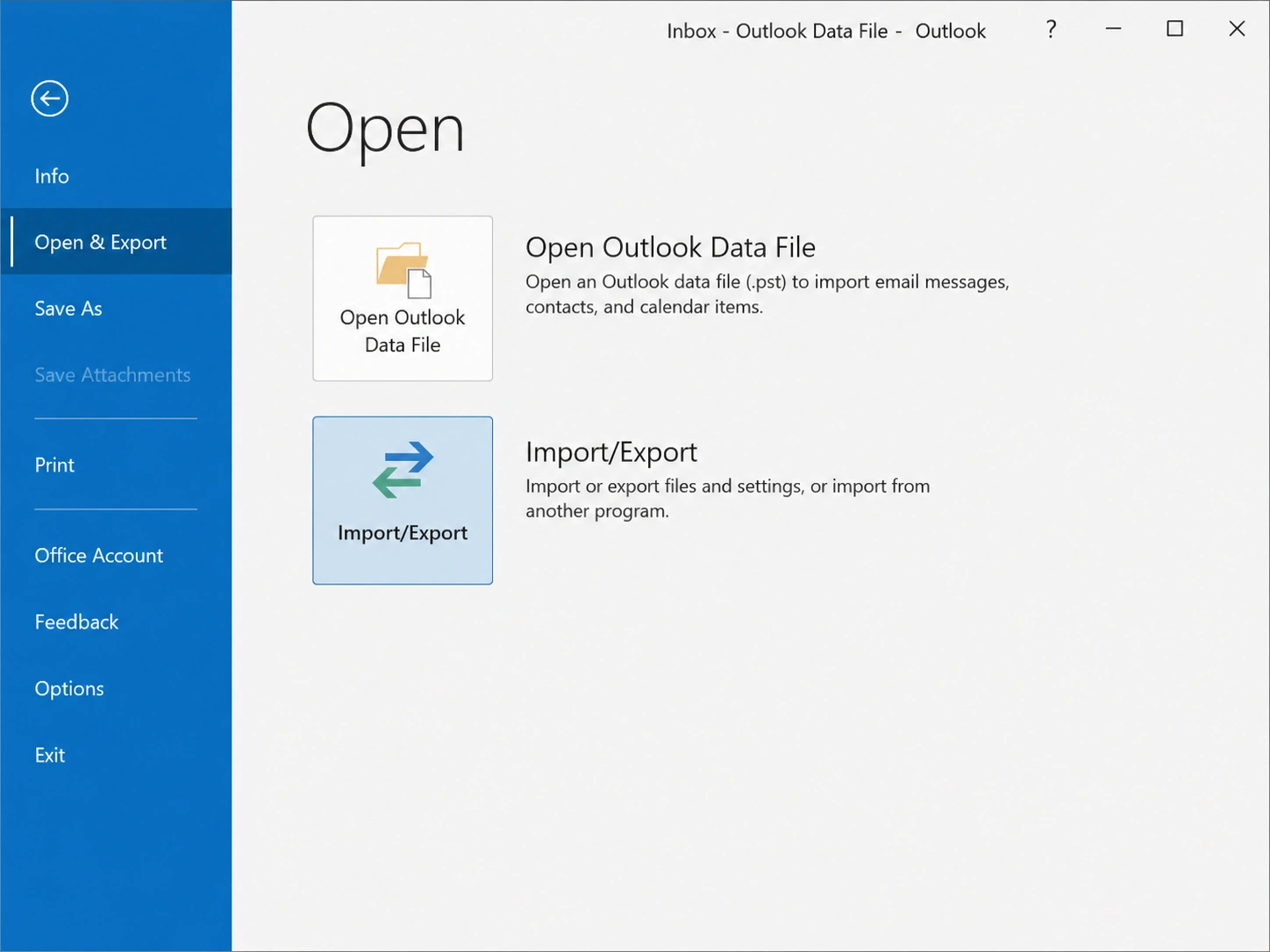
3. Choose Import/Export.
4. Select Import from another program or file.
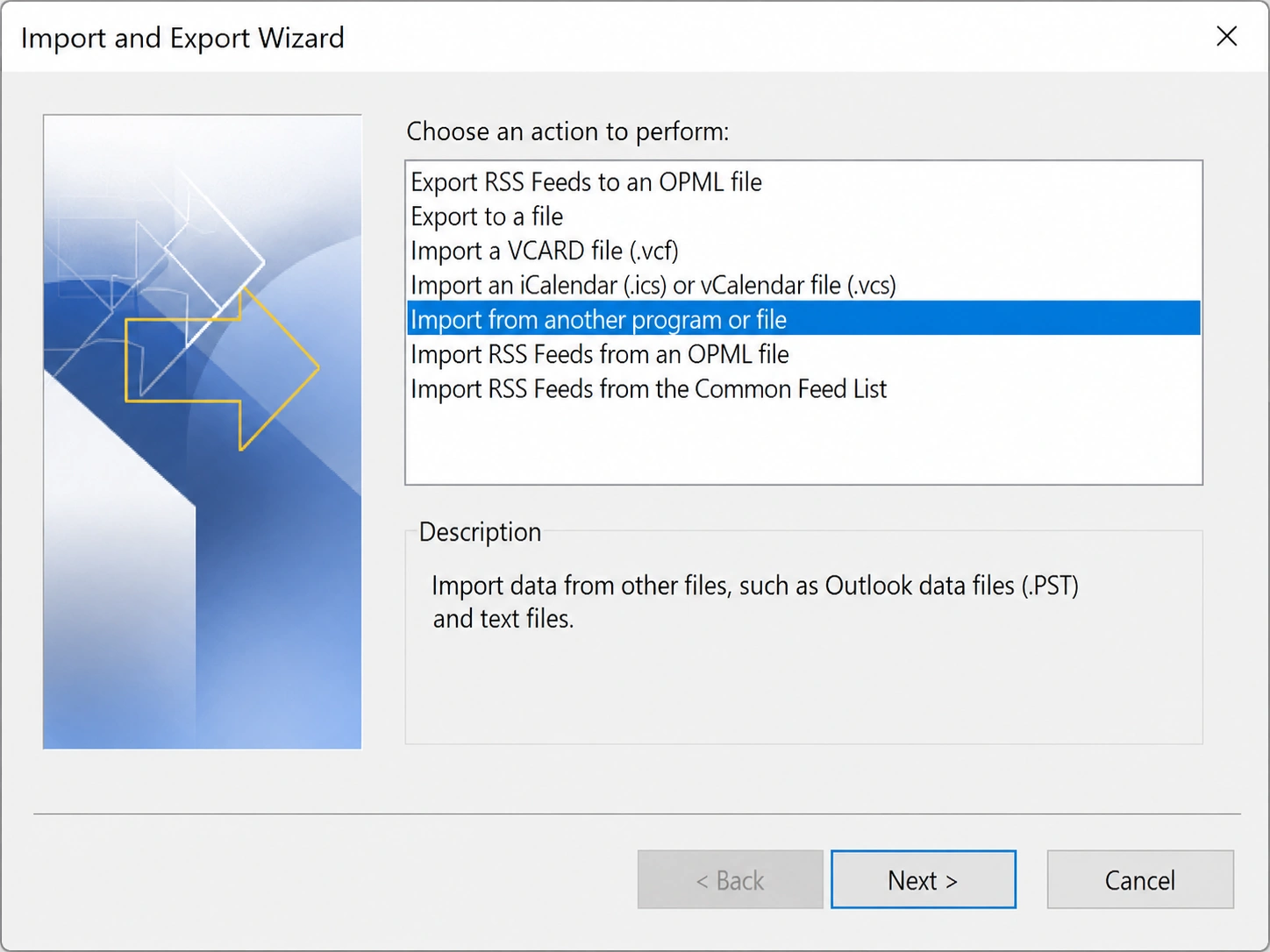
5. Choose Outlook Data File (.pst).
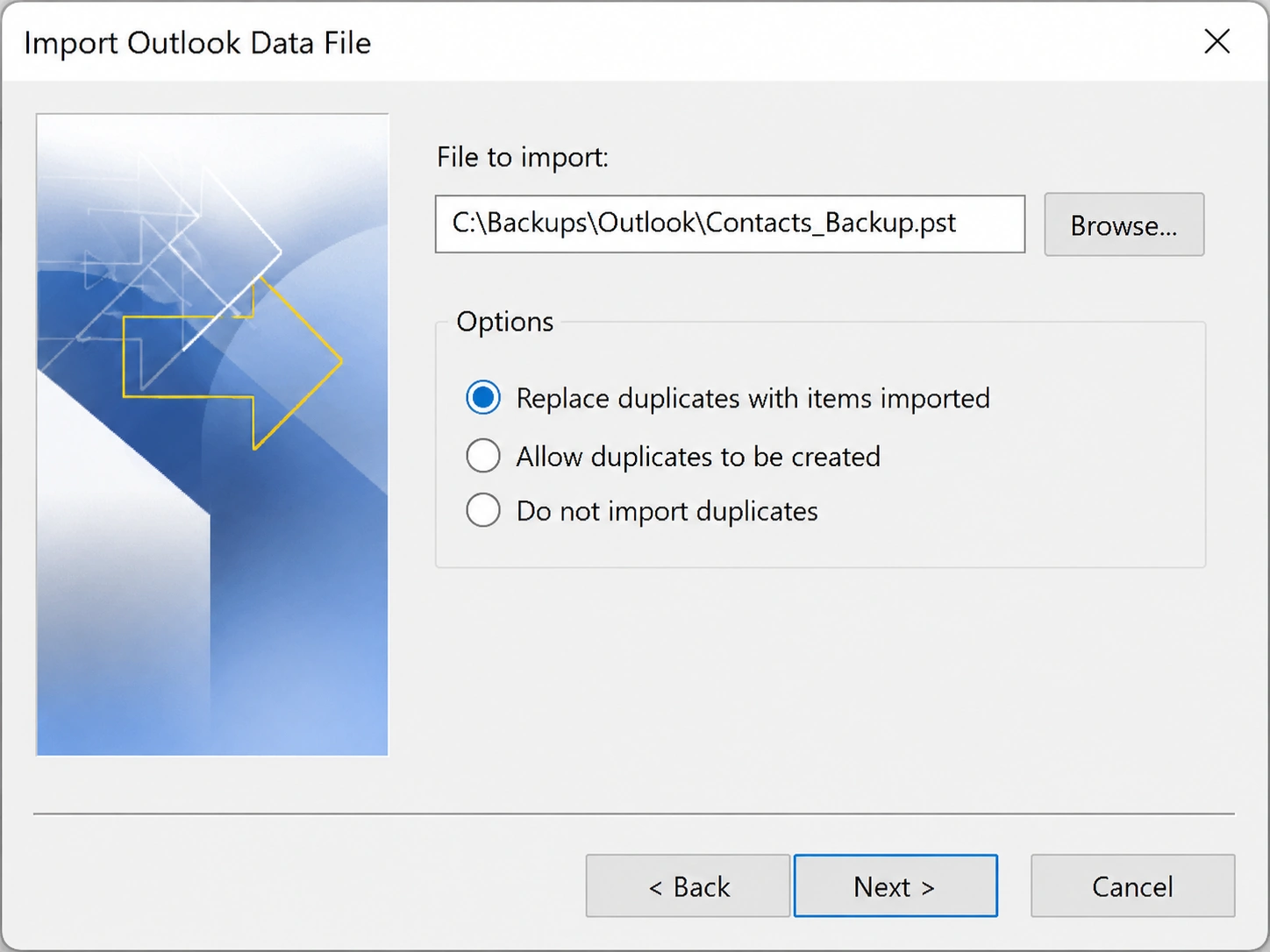
6. Select your backup PST.
7. Choose the Contacts folder.
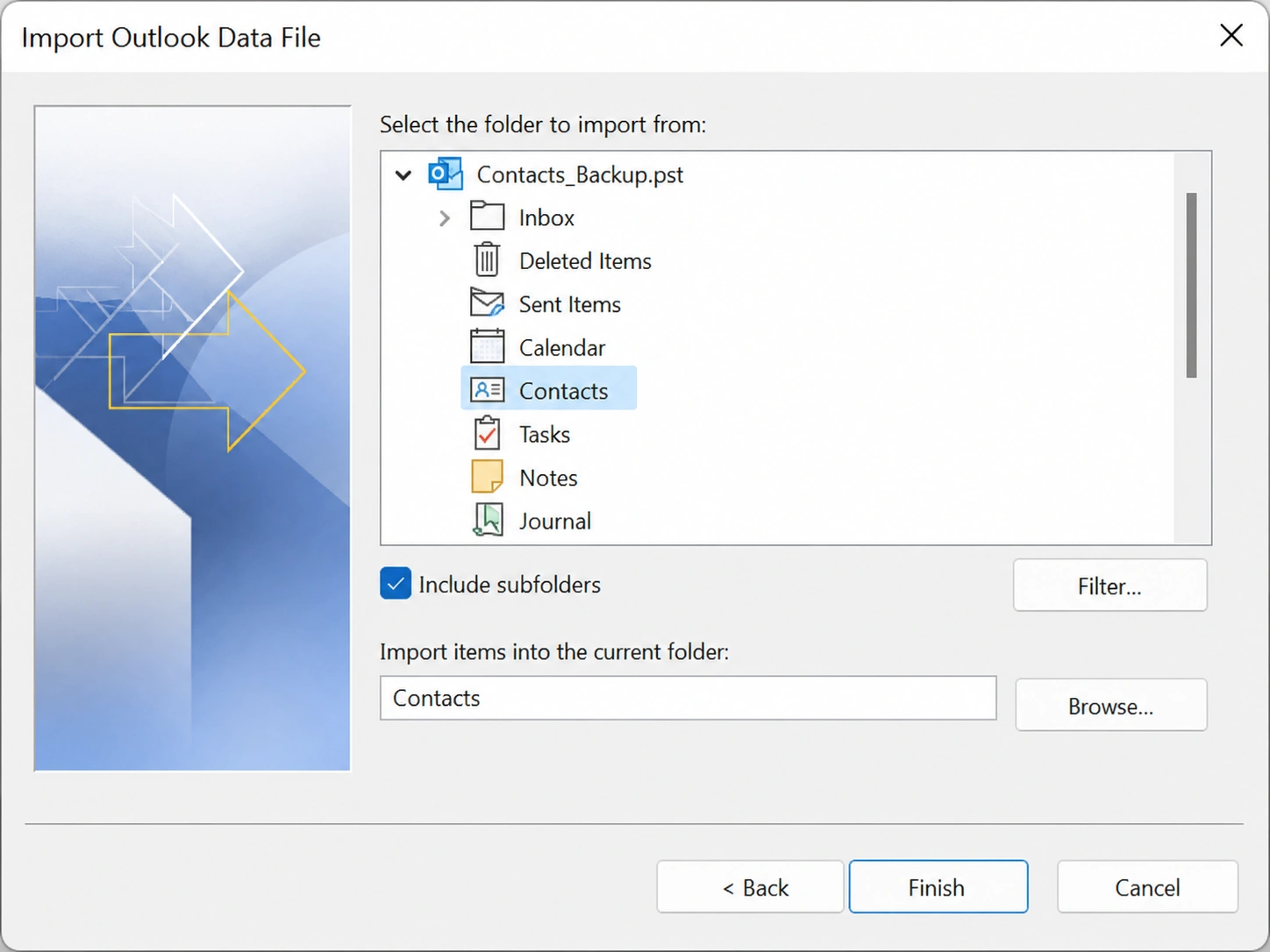
8. Import items into your current mailbox.
This is one of the safest ways to recover contacts because you work from a backup instead of scanning damaged or deleted storage.
However, avoid importing blindly if your current Contacts folder still has useful data. Instead, open the PST first, review the contacts, and then copy only what you need.
Method 5: Search for CSV, VCF, PST, or Backup Files
Sometimes the contacts are not inside Outlook anymore, but exported files still exist on the PC.
Search your computer for:
- *.pst*.ost*.csv*.vcfcontactsaddress bookOutlook backup
Check these locations:
- Desktop
- Downloads
- Documents
- OneDrive folders
- External drives
- USB flash drives
- Old backup folders
- Email attachments
If you find a CSV or VCF file, you may be able to import it back into Outlook, Google Contacts, Apple Contacts, or another address book app.
This method takes time, but it is free and often works when users exported contacts months ago and forgot the file location.
Method 6: Restore Contacts from Windows File History
Windows File History can help if you previously enabled it and saved your contacts file, PST file, or exported CSV in a protected folder.
Microsoft describes File History as a Windows feature that helps protect personal files and folders from accidental loss or damage and lets users browse earlier versions.
Steps
- Open the folder where the contact file used to exist.
- Right-click inside the folder.
- Choose Properties.
- Open the Previous Versions tab.
- Select an earlier version.
- Click Restore or Open to preview.
Use this method if you need to recover deleted contacts from a lost PST, CSV, or VCF file rather than from Outlook itself.
Method 7: Check Recycle Bin and OneDrive Recycle Bin
If you deleted a PST, CSV, or VCF file from your PC, check the Recycle Bin first.
Steps
- Open Recycle Bin.
- Search for the deleted file.
- Right-click it.
- Choose Restore.
If the file was stored in OneDrive, also check the OneDrive recycle bin. Microsoft notes that deleted OneDrive files and folders may be restored from the OneDrive recycle bin, and Windows Recycle Bin files can be restored by right-clicking and choosing Restore.
This method works only if the file has not been permanently deleted or removed from cloud retention.
Method 8: Try Windows File Recovery
When the contact file no longer appears in Recycle Bin or backups, Windows File Recovery may help. It is a command-line recovery app from Microsoft that can recover lost files deleted from local storage devices when they cannot be restored from Recycle Bin.
This option may help you recover a deleted PST, CSV, or VCF file from a hard drive, USB drive, or external storage device.
However, it is not beginner-friendly. You need to choose the correct source drive, destination drive, and recovery mode. Also, you should never restore recovered files to the same drive because that can overwrite lost data.
Method 9: Repair a Damaged Outlook PST or OST File
If Outlook still has the PST or OST file but cannot open it, the file may be corrupted. Microsoft provides the Inbox Repair Tool, also known as SCANPST.EXE, to repair Outlook data files.
When to Try This
Use SCANPST when:
- Outlook says the data file cannot be opened.
- Contacts disappeared after a crash.
- Outlook closes when loading the profile.
- The PST file exists but behaves abnormally.
- You see file structure or mailbox errors.
Important Tip
Make a copy of the PST or OST file before running any repair. If the repair fails or changes the file structure, the backup gives you another chance to try a different recovery method.
When Free Contact Recovery Methods May Fail
Free methods are worth trying first, but they have limits.
You may not be able to recover contacts manually if:
- Deleted Items and Recoverable Items are empty.
- No Outlook backup exists.
- The PST file was permanently deleted.
- The drive was formatted.
- The file system became RAW or inaccessible.
- A Windows reinstall removed the old profile.
- The storage device has logical errors.
- The deleted data has been overwritten.
At this point, you need a deeper scan of the storage device rather than a normal Outlook restore.
Why Magic Data Recovery Is Worth Trying
If you have already checked Outlook, backups, Recycle Bin, and Windows File Recovery, Magic Data Recovery gives you a more practical next step. It can scan storage devices for lost files after deletion, formatting, file system errors, partition issues, and other data loss scenarios.
Supports Windows 7/8/10/11 and Windows Server
Amagicsoft’s user guide describes Magic Data Recovery as a Windows recovery tool for deleted, formatted, or otherwise lost files from hard drives, SSDs, USB drives, memory cards, and other storage media.

Core Pain Point It Solves
Manual Outlook methods can only help when the contact still exists inside Outlook, a backup, or a recoverable folder. Magic Data Recovery helps when the actual file that stores or exports your contacts has disappeared from the PC.
For example, it may help you look for:
- Deleted PST files
- Lost CSV contact exports
- Missing VCF files
- Outlook backup folders
- Files lost after formatting
- Data on inaccessible drives
- Files affected by file system errors
Key Advantages
Magic Data Recovery focuses on file-level recovery. That matters because many contact losses are not pure Outlook problems. The real issue may be a deleted PST file, a formatted external drive, a damaged partition, or a missing backup folder.
Its practical advantages include:
- Scans common Windows storage devices.
- Supports deleted, formatted, and corrupted-file-system scenarios.
- Helps users preview recoverable files before recovery.
- Works for multiple file types, not only contacts.
- Offers a simpler interface than command-line recovery tools.
Compared with manual methods, it is more reliable when Outlook cannot see the file at all. Compared with Windows File Recovery, it is easier for non-technical users who want a visual recovery workflow.
If you are looking for a faster way to recover deleted contacts after a PC storage problem, you can try Magic Data Recovery and scan the drive where your Outlook files or exported contacts were stored.
Best Practices to Avoid Losing Contacts Again
After you recover contacts, protect them with a simple backup routine.
Use these tips:
- Export Outlook contacts to CSV monthly.
- Keep a PST backup on an external drive.
- Sync contacts with a trusted cloud account.
- Avoid storing the only PST copy on a failing drive.
- Do not run disk cleanup before recovery.
- Do not install recovery software on the same drive where data was lost.
- Test your backup before you need it.
These habits reduce risk and make the next recovery much easier.
Conclusion
The best way to recover contacts depends on where the contacts were stored and how they were lost. Start with Outlook Deleted Items, Recoverable Items, PST files, backups, Recycle Bin, File History, and Windows File Recovery. These free or nearly free methods often work when the loss is recent or a backup exists.
However, if you need to recover deleted contacts from a missing PST file, formatted drive, file system error, or inaccessible storage device, manual options may not be enough. Magic Data Recovery is a useful next step because it scans the storage device directly and helps recover lost files in more complex data loss situations. If you want a more efficient solution, Magic Data Recovery is worth trying before you give up on your missing contacts.
Supports Windows 7/8/10/11 and Windows Server
FAQs
How can I recover contacts deleted from Outlook?
You can often recover contacts from Outlook by opening Deleted Items, finding the deleted contact, and moving it back to the Contacts folder. If it is not there, check Recoverable Items if your account supports it. For Microsoft 365, Exchange, and Outlook.com accounts, server-side recovery may still be available for a limited time.
Can I recover deleted contacts after emptying Deleted Items?
Yes, you may still recover deleted contacts from Recoverable Items if your Outlook account supports that feature. Open Deleted Items and look for the option to recover items deleted from the folder. If the contact no longer appears there, you may need a backup PST file or data recovery software.
Where are Outlook contacts stored on a PC?
Outlook contacts may be stored inside PST or OST data files, depending on the account type. PST files often appear in Documents or Outlook Files folders, while OST files usually appear under AppData. These files can include emails, calendars, tasks, and contacts, so they are important when you need to restore missing Outlook data.
Can I recover contacts from a deleted PST file?
Yes, you may be able to recover contacts from a deleted PST file if the file has not been overwritten. First, check Recycle Bin and backups. If they do not help, scan the original drive with a data recovery tool. Save recovered files to another drive to avoid overwriting lost data.
Is Windows File Recovery good for contact recovery?
Windows File Recovery can help if your contacts were saved in a deleted PST, CSV, or VCF file. However, it uses command-line commands, so beginners may find it difficult. It also requires careful drive selection. A visual recovery tool may be easier if you are not comfortable using commands.
Can I recover contacts after formatting a drive?
You may be able to recover deleted contacts after formatting if the original data has not been overwritten. Stop using the formatted drive immediately. Then use data recovery software to scan for PST, CSV, VCF, and other contact-related files. Recovery chances drop when new files are saved to the same drive.
Why are my Outlook contacts missing but not deleted?
Contacts may disappear because of profile changes, account sync issues, hidden folders, damaged PST files, incorrect data file selection, or Outlook view problems. Check whether the right account and data file are open. Also search for old PST files on your PC before assuming the contacts are permanently gone.
When should I use Magic Data Recovery?
Use Magic Data Recovery when Outlook recovery, Recycle Bin, File History, backups, and Windows File Recovery do not solve the problem. It is especially useful when contacts were stored in deleted PST, CSV, or VCF files, or when files were lost after formatting, file system errors, partition problems, or storage device issues.

Jason is a data recovery and technical support specialist with over 15 years of hands-on experience. He has worked extensively with frontline users, troubleshooting difficult data loss cases and providing practical recovery solutions for accidental deletion, formatted drives, damaged file systems, lost partitions, system failures, and other recovery emergencies. His expertise also includes backup and restoration, file repair, and disaster recovery, with a strong emphasis on safe, reliable, and technically accurate guidance.