
How to Recover Files from USB Drive Safely
Losing documents, photos, or videos from a USB drive can cause immediate stress. You may have deleted a folder, formatted the device, or received a Windows message asking you to format the disk. Fortunately, you can often recover files from USB drive storage when you stop using the device quickly and choose the right USB drive recovery method.
This guide covers deleted, hidden, formatted, and corrupted USB data. It also explains when Magic Data Recovery offers a practical Windows solution while protecting the remaining data.
Important: Stop using the USB drive immediately. Do not copy new files to it, format it, run CHKDSK, or save recovered files back to the same device.
Supports Windows 7/8/10/11 and Windows Server
Table of Contents
Can You Recover Files from USB Drive Storage?
In many cases, yes. Windows usually removes the file-system reference before it erases every part of a deleted file. Therefore, recovery software may still locate the data until new content overwrites the same space.
However, the result depends on the cause. Accidental deletion and quick formatting often leave more recoverable data than repeated use, full formatting, or physical damage.
USB problem | Best first action |
Deleted files | Stop using the drive and scan it |
Quick format | Run a complete recovery scan |
Hidden folders | Show hidden items first |
RAW or inaccessible drive | Recover data before formatting |
Repeated disconnections | Stop scanning and check the hardware |
Physical damage | Contact a recovery specialist |
Before you start, open Disk Management. If Windows shows the correct capacity, a software-based USB file recovery attempt may help. In contrast, stop when the drive shows the wrong size, disappears repeatedly, or becomes hot.
Before You Recover Files from USB Drive
The first few minutes matter. Therefore, follow three precautions.
Stop Writing New Data
Do not move folders, edit files, or download content to the affected USB. Every new write can replace sectors that still contain lost data.
Avoid Formatting and CHKDSK
Cancel any formatting prompt. Also, avoid CHKDSK until you save the files elsewhere. CHKDSK repairs file-system errors, but it does not recover deleted data. As a result, it may change the file system before you secure your files.
Prepare Another Save Location
Create a folder on your computer or connect a second healthy disk. This simple step makes it safer to recover files from USB drive storage. Never restore files to the original USB. Otherwise, the restored data may overwrite other recoverable files.
Method 1: Recover Files from USB Drive with Magic Data Recovery
When Windows still recognizes the USB but files are deleted, formatted, missing, or inaccessible, Magic Data Recovery provides a clear scan-and-preview workflow.
The software handles accidental deletion, quick formatting, RAW partitions, and inaccessible storage. It also provides search, filters, and previews through a visual interface.
According to the current Amagicsoft product page, Magic Data Recovery supports Windows, more than 5,000 file formats, and up to 500 MB of free recovery. Therefore, users can inspect recoverable files before deciding what to save.
Why Magic Data Recovery Is a Practical Choice
Manual methods work when files are only hidden or when a backup exists. However, Magic Data Recovery combines scanning, filtering, previewing, and selective recovery in one visual interface.
For example, a student may quick-format a USB containing a thesis and research files. A preview-based scan helps locate the right documents before saving them.
Magic Data Recovery cannot restore overwritten data or repair broken hardware. Nevertheless, it offers a safer process than random repair attempts because users can inspect files first.
How to Use Magic Data Recovery
Step 1: Install the Software Safely
First, download Magic Data Recovery from the official website. Then, install it on your computer’s internal drive, not on the affected USB. This prevents the installer from overwriting lost data.
Supports Windows 7/8/10/11 and Windows Server
Step 2: Select and Scan the USB
Next, connect the USB to a stable port and identify it by name, capacity, and drive letter. After that, start the scan. Recently deleted files may appear quickly, while a formatted or RAW drive may require a deeper scan. However, stop if the USB disconnects repeatedly or becomes unstable.

Step 3: Filter and Preview Files
After the scan, filter results by type, extension, name, size, or date. More importantly, preview key files before recovery. A visible filename does not always mean the file remains complete. Therefore, verify that photos open correctly and documents remain readable.

Step 4: Save Files to Another Drive
Finally, save the selected files to your computer or another healthy disk. Then, open several restored files to check their condition. This workflow helps users recover files from USB drive media without changing the source device first.

Method 2: Recover Hidden USB Files
Sometimes, malware or an attribute change hides files. Therefore, check visibility before you run a complete scan.
- Open File Explorer.
- Select the USB drive.
- Choose View > Show > Hidden items.
- Copy visible files to a safe location.
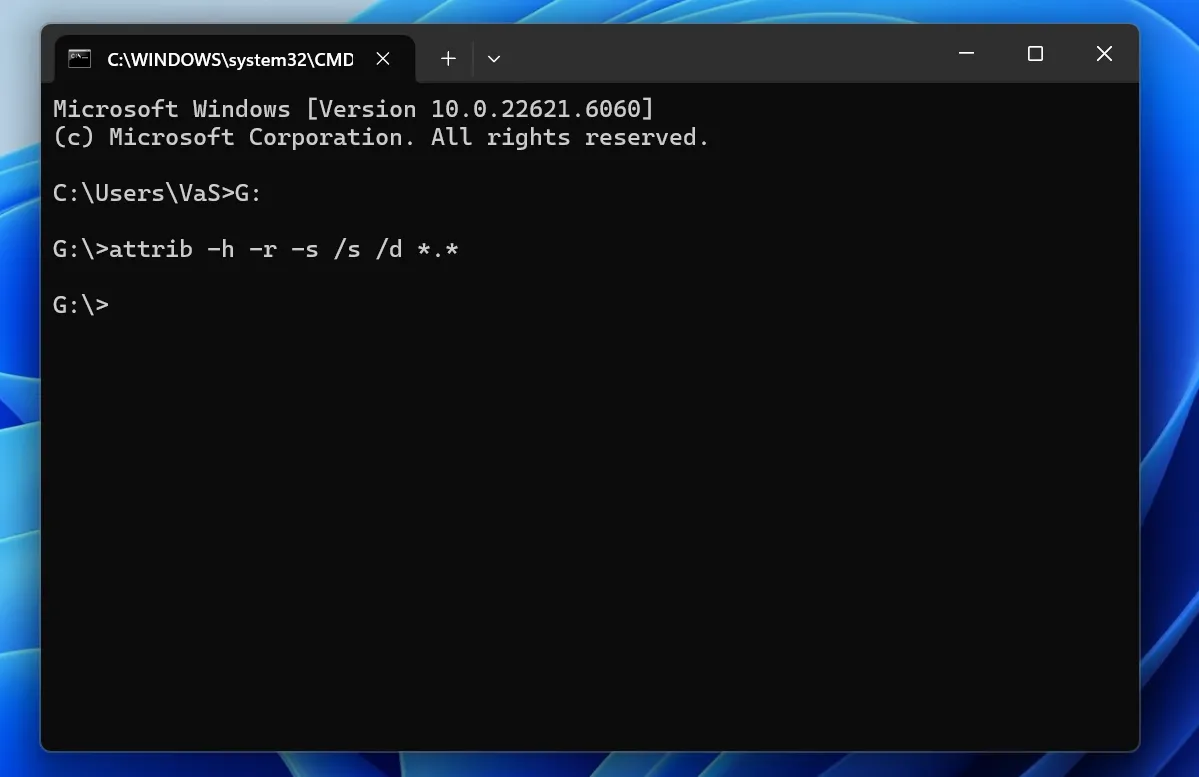
You can also use the attrib command. However, it only changes visibility and cannot recover files from USB drive sectors. It cannot restore data after deletion or formatting.
Method 3: Restore a Backup
A backup offers the lowest-risk solution. Therefore, check OneDrive, Google Drive, Dropbox, Windows File History, email attachments, and other computers.
This method may not technically recover files from USB drive sectors, but it can return the same content faster.
Method 4: Use Windows File Recovery

How to Recover Data from Corrupted USB
You may need to recover data from corrupted USB storage when Windows reports a RAW file system, asks for formatting, denies access, or shows an empty folder despite used capacity.
First, try another USB port and one other computer. Then, check Disk Management. If Windows shows the correct capacity, a software scan may help you recover files from USB drive storage before you run repair commands.
However, stop when the USB disconnects repeatedly, shows an incorrect capacity, becomes hot, or produces severe read errors. Therefore, contact a professional service when the data has high personal or business value.
USB Drive Not Recognized: Safe Checks
A USB drive not recognized error can result from a damaged port, unstable connection, missing drive letter, driver issue, or hardware failure.
Try another port, remove any hub, test one other computer, and check Disk Management. Also, confirm whether the volume has a drive letter. If it does not, assign an unused one.
However, do not initialize, repartition, or format the disk while data remains missing. Recovery software cannot scan hardware that Windows cannot detect. Therefore, choose professional help when the USB has physical damage.
Common Mistakes When You Recover Files from USB Drive
Avoid continuing to use the USB, formatting it, installing software on it, saving files back to it, or repeating scans on unstable hardware. Also, ignore guaranteed-recovery claims.
Instead, protect the source drive, preview important files, and save results elsewhere. This process improves your chance to recover files from USB drive storage without causing further loss.
Tips After You Recover Files from USB Drive
Once you restore the files, keep important data in at least two locations. In addition, use cloud storage, safely eject USB devices, and replace drives that disconnect.
USB drives work well for transfer, but they should not hold the only copy of valuable data.
Conclusion: Recover Files from USB Drive Safely
The best way to recover files from USB drive storage starts with caution. Stop using the device, avoid formatting and repair commands, and save restored files to another disk.
Hidden-file checks and backups solve simple cases. Windows File Recovery offers a free command-line method. However, Magic Data Recovery provides a clearer path for users who need scanning, filters, previews, and selective recovery in one interface.
We recommend Magic Data Recovery for detectable USB drives affected by accidental deletion, quick formatting, RAW partitions, or other logical problems. It addresses the core task without promising guaranteed success.
If you need a more efficient USB drive solution, try Magic Data Recovery and scan the USB before you attempt repairs.
Supports Windows 7/8/10/11 and Windows Server
FAQ
Can I Recover Permanently Deleted Files from a USB Drive?
Yes, you may still recover them when new data has not overwritten the original storage space. First, stop using the USB. Then, scan it with a suitable recovery tool and save the results to another drive. However, no software can restore sectors that new files have already overwritten.
Where Do Deleted USB Files Go?
Deleted USB files usually do not move to the Windows Recycle Bin. Instead, the file system marks their storage space as available for reuse. Therefore, the data may remain on the device for a while. A recovery tool can search for it until new content overwrites the same sectors.
Can I Recover Files from USB Drive for Free?
Yes. You can check hidden items, restore a backup, or use Windows File Recovery without buying a license. In addition, Magic Data Recovery currently offers up to 500 MB of free recovery. This option works well when you need a small number of documents, images, or other files.
Can CMD Recover Deleted Files from a USB Drive?
CMD can reveal hidden files and run file-system commands, but ordinary commands do not provide a complete deleted-file scan with previews. Windows File Recovery uses a command-line interface for recovery. However, a graphical tool often gives beginners a clearer way to filter, preview, and select files.
Can I Recover Files After Formatting a USB Drive?
You may recover files after a quick format when new data has not overwritten them. Stop using the USB, scan the entire device, preview the results, and save them elsewhere. However, a full format, repeated use, or severe corruption can reduce the number and quality of recoverable files.
Why Does Windows Ask Me to Format the USB Drive?
Windows shows this message when it cannot read the file system. The drive may have become RAW, corrupted, or disconnected during a write operation. Do not format it immediately. Instead, check Disk Management and recover important files first. Afterward, you can repair or reformat the device safely.
Why Can I See a Recovered File but Not Open It?
The file may contain missing, overwritten, or corrupted data even though the scan found its name or structure. Therefore, preview files before saving them whenever possible. After recovery, open several copies from the destination drive. A file that appears in a scan does not always remain complete.

Vasilii is a data recovery specialist with around 10 years of hands-on experience in the field. Throughout his career, he has successfully solved thousands of complex cases involving deleted files, formatted drives, lost partitions, and RAW file systems. His expertise covers both manual recovery methods using professional tools like hex editors and advanced automated solutions with recovery software. Vasilii's mission is to make reliable data recovery knowledge accessible to both IT professionals and everyday users, helping them safeguard their valuable digital assets.