
Recover Deleted Files From Recycle Bin After Empty: 2026 Guide
Emptied the Recycle Bin and then realized you still need those files? Don’t panic. In many cases, you can still recover deleted files from Recycle Bin after empty, as long as the original data has not been overwritten by new files.
When you empty the Recycle Bin, Windows usually removes the file references instead of instantly wiping the actual data from the drive. That means the deleted files may still exist on your disk for a limited time. The key is to act quickly, avoid saving new files to the same drive, and choose the right deleted file recovery method based on whether you have a backup.
This guide explains five practical ways to recover files after emptying the Recycle Bin on Windows 11 and Windows 10. Whether you want to restore files from File History, use Previous Versions, try Windows File Recovery, check cloud backups, or scan the drive with Magic Data Recovery, you can find a suitable solution below.
Supports Windows 7/8/10/11 and Windows Server
⚠️ CRITICAL WARNING: The moment you realize data is missing, stop using your computer immediately. Do not download large videos, do not install new games, and do not save new Word documents. Every new file you write to your hard drive risks overwriting the invisible data you are trying to save.
Table of Contents
Can You Recover Deleted Files from Recycle Bin After Empty?
Yes, it is possible to recover files after emptying the Recycle Bin, but success depends on several factors.
When a file is deleted from the Recycle Bin, Windows marks the disk space as available for new data. The file content may remain on the drive until that space is reused. If new data overwrites the same area, the file may become partially damaged or permanently unrecoverable.
Your recovery chances are usually higher when:
- The deletion happened recently.
- You have not saved many new files to the same drive.
- The files were deleted from an HDD.
- The files were stored on an external drive, USB drive, or memory card.
- You start scanning the drive immediately.
Your recovery chances may be lower when:
- The deleted files were stored on an SSD with TRIM enabled.
- You installed new programs after emptying the Recycle Bin.
- You downloaded large files to the same drive.
- The drive has been formatted or heavily used after deletion.
The most important rule is simple: stop using the affected drive immediately.
Method 1. Recover Deleted Files from Emptied Recycle Bin with Magic Data Recovery
For 90% of users, the Recycle Bin is the last line of defense. Once it is emptied, you likely don’t have a backup handy. This is where specialized software becomes necessary.
We recommend Magic Data Recovery as the primary solution. Unlike basic undelete tools, Magic Data Recovery is engineered with a deep-scan algorithm specifically designed to handle “permanent” deletion scenarios. It reconstructs files based on their binary signatures, making it possible to recover deleted files from recycle bin after empty with a high success rate.
Why Magic Data Recovery is the Superior Solution:
- No Backup Required: It works directly on the drive, retrieving data that was never backed up.
- Visual Preview Technology: You can view photos, read documents, and play audio files before you recover them. This ensures you don’t waste time recovering corrupted files.
- All-Scenario Support: Whether you emptied the bin, formatted the drive, or suffered a virus attack, it handles it all.
Step-by-Step Recovery Guide
Follow these precise steps to maximize your chances:
Step 1: Download and Installation: Download Magic Data Recovery from the official Amagicsoft website.
Supports Windows 7/8/10/11 and Windows Server
Pro Tip: Install the software on an external USB drive or a different partition (like D:) to avoid overwriting the very data you want to save on the C: drive.
Step 2: Select the Target Source: Launch the application. You will see a clean, user-friendly interface displaying all connected drives. Since the Recycle Bin is a system folder, you should select the System Drive (usually C:) or look for a specific “Recycle Bin” shortcut if available in the dashboard.

Step 3: Initiate the Scan: Click the “Search for lost data” button. The software will perform two passes:
- Quick Scan: Finds recently deleted files with file names intact.
- Deep Scan: Scours the drive sector-by-sector to recover deleted files from recycle bin after empty that have lost their file headers. This takes longer but finds significantly more data.



Method 2: Use Windows File History to Restore Data (Backup Required)
If you are one of the prudent users who enabled Windows backup features before the accident, you might be able to recover deleted files from recycle bin after empty for free using File History.
Note: This feature is often disabled by default in Windows 10 and 11. If you haven’t set it up previously, skip to Method 1.
Steps to Restore:
- Open Control Panel: Press the Windows Key, type “Control Panel,” and hit Enter.
- Access File History: Navigate to System and Security > File History.
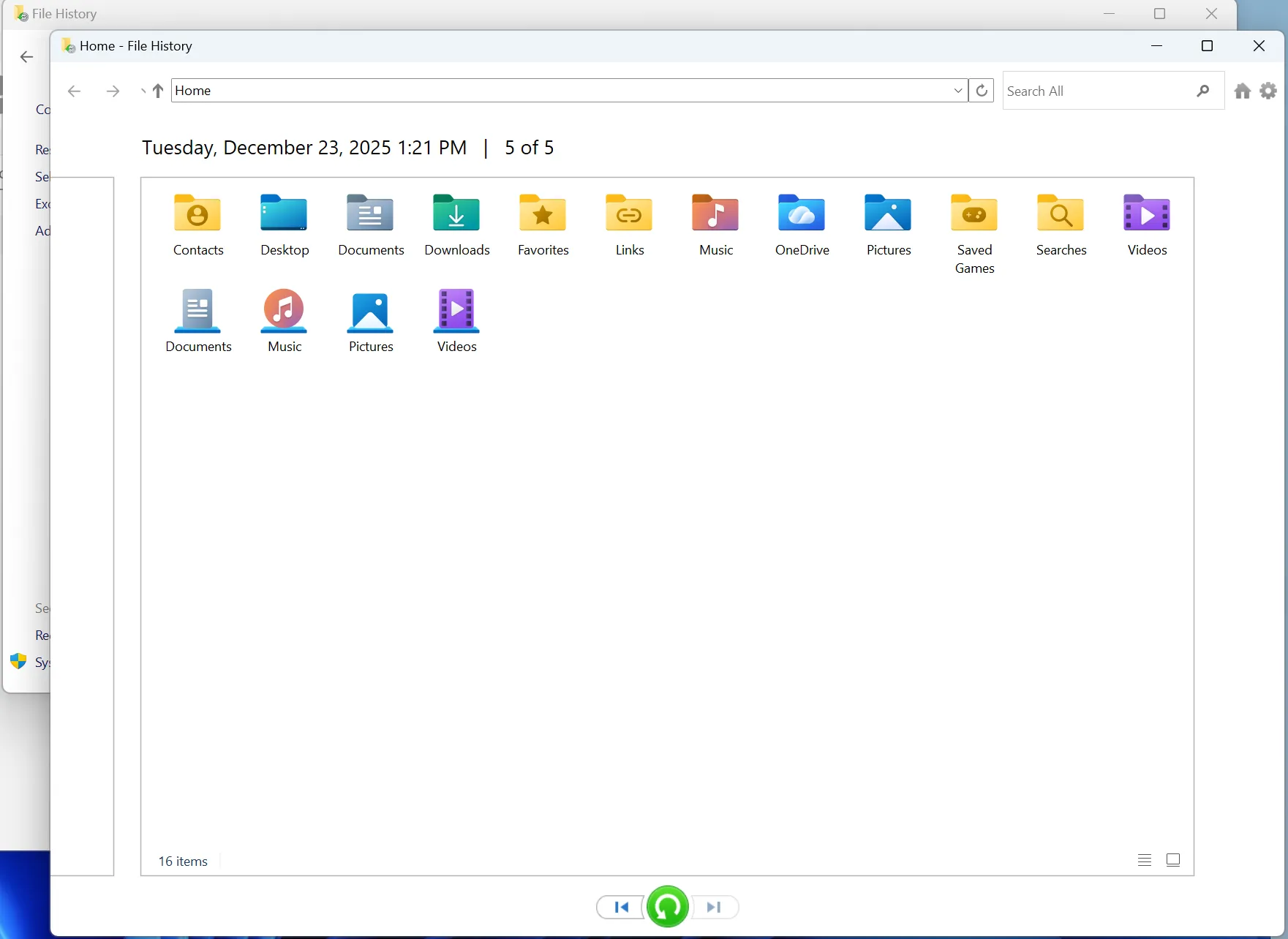
- Restore Files: Click on the link that says “Restore personal files.”
- Time Travel: You will see a window showing your backup timeline. Use the arrow keys to scroll back to a date before you deleted the files.
- Retrieve: Navigate to the original location of the file (e.g., the “Documents” folder). Select the file and click the green “Restore” button to put it back.
While effective, this method relies entirely on past actions. It cannot help you recover deleted files from recycle bin after empty if no snapshot was taken prior to the deletion.
Method 3: Recover Deleted Files From Recycle Bin After Empty Using Command Prompt
For advanced users comfortable with text-based interfaces, Microsoft provides a command-line utility called Windows File Recovery. This is a free tool, but it lacks the graphical ease of use and safety features (like Previews) found in Magic Data Recovery.
Prerequisite: You must have Windows 10 version 2004 or later.
How to use it:
- Install: Go to the Microsoft Store and search for “Windows File Recovery.” Install the app.
- Launch: Press the Windows Key, type “Windows File Recovery,” and select “Run as Administrator.”
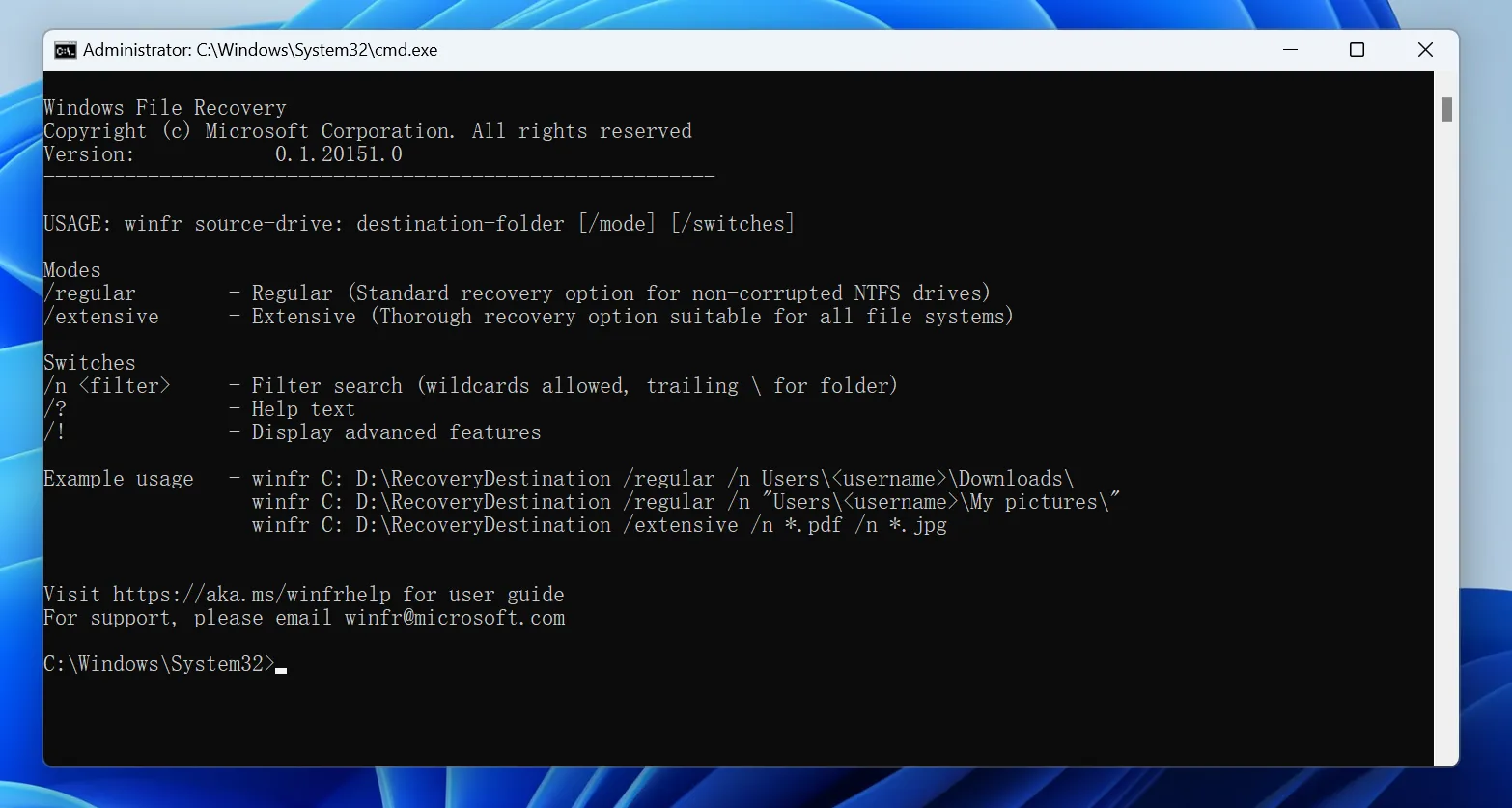
- Type the Command: You need to construct a specific command. The syntax is
winfr source-drive: destination-drive: [/mode] [/switches].- Example: If you want to recover deleted files from recycle bin after empty (specifically PDF files) from your C: drive and save them to your E: drive, you would type:
winfr C: E: /regular /n \Users\YourName\Documents\*.pdf
- Example: If you want to recover deleted files from recycle bin after empty (specifically PDF files) from your C: drive and save them to your E: drive, you would type:
- Execute: Press “Y” to confirm and wait for the process to finish.
The Risks of the Command Line:
- Zero Visibility: You are working blind. You cannot see if the file is 1KB or 1GB, or if it is corrupted.
- Complexity: A single typo in the file path means the process fails.
- No Organization: Recovered files are often dumped into a single folder, losing their original structure.
Method 4: Restore Previous Versions of Files or Folders
Previous Versions is another Windows feature that may help you recover files after emptying the Recycle Bin. It uses restore points, File History, or backup snapshots to bring back older versions of folders.
This method is useful when you remember the original folder where the deleted files were stored.
Steps to Restore Previous Versions
Step 1. Open File Explorer
Go to the folder where the deleted files were originally saved.
For example:
- Desktop
- Documents
- Pictures
- Downloads
- A project folder
- An external drive folder
Step 2. Open folder properties
Right-click the folder and select Properties.
Step 3. Check Previous Versions
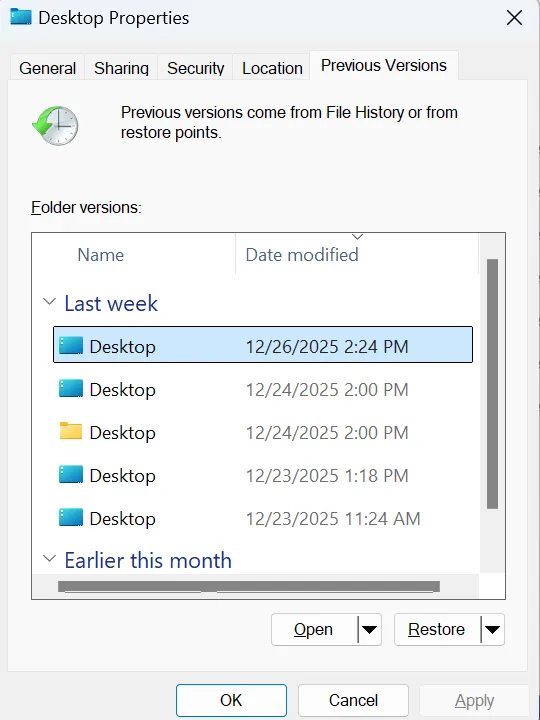
Go to the Previous Versions tab. If Windows has available versions, they will be listed there.
Step 4. Preview or restore
Select a version from before the deletion happened. You can click Open to check its contents first, or click Restore to recover the folder.
Important Warning
Be careful when using the Restore button because it may replace the current version of the folder. If you are not sure, open the previous version first and manually copy the files you need to another safe location.
Common Scenarios: Why You Lost Data
Understanding how data loss happens can help you prevent it in the future. Here are scenarios where you might need to recover deleted files from recycle bin after empty:
- The “Shift + Delete” Mistake: Holding the Shift key while deleting bypasses the Recycle Bin entirely, instantly marking files as “permanently” deleted.
- Recycle Bin Capacity Exceeded: If the bin is full, Windows automatically deletes the oldest files to make room for new ones without asking for confirmation.
- Malware or Virus: Malicious software can empty your bin or hide files without your permission.
- Disk Cleanup Utility: Running automated cleanup tools often flushes the Recycle Bin silently in the background.
In all these cases, the native Windows recovery options usually fail, making a professional tool like Magic Data Recovery essential.
Conclusion
If you emptied the Recycle Bin by mistake, you still have several ways to recover your deleted files. If you have a backup, try File History, Previous Versions, or Windows Backup first. If no backup is available, use Windows File Recovery or a professional recovery tool.
For most users, Magic Data Recovery is the easier option because it can scan the drive, show recoverable files, and let you preview them before recovery. To get the best result, stop using the affected drive immediately and save recovered files to a different location.
The sooner you start recovery, the better your chances of getting your deleted files back.
Supports Windows 7/8/10/11 and Windows Server
FAQs
Where do permanently deleted files go after the recycle bin?
Can I recover permanently deleted files?
Are files deleted when you empty the recycle bin?
How to recover deleted files that didn't go to the recycle bin?
How do I recover files deleted from emptied Recycle Bin?
Are permanently deleted files actually deleted?
Is "Permanently deleted files Cannot be recovered" True or false?
Where do permanently deleted files go in Windows 10?

Erin Smith is recognized as one of the most professional writers at Amagicsoft. She has continually honed her writing skills over the past 10 years and helped millions of readers solve their tech problems.