
USB Jump Drive Not Recognized: Causes, Fixes, and Data Recovery Guide
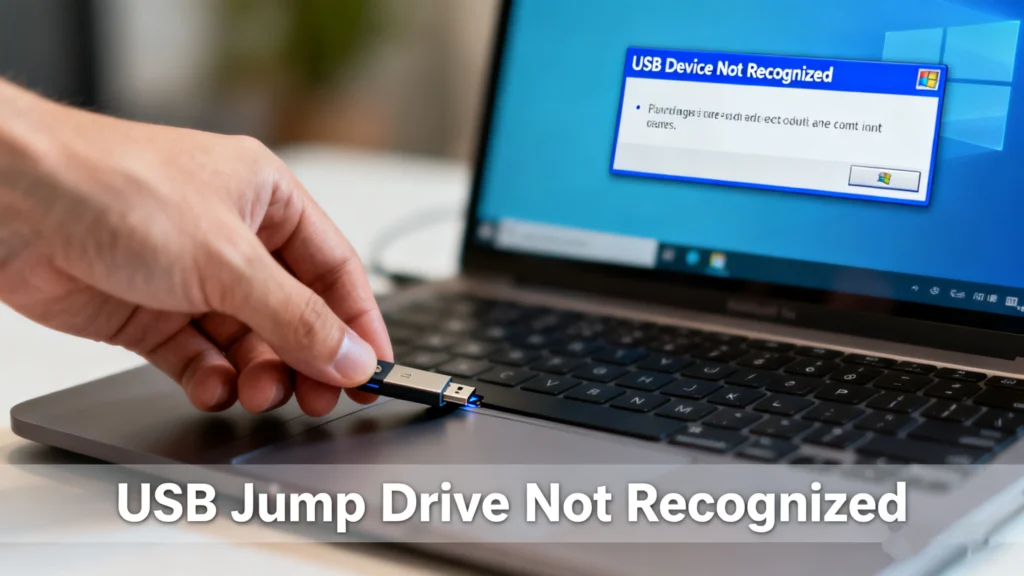
A usb jump drive not recognized error can appear without warning. One moment your USB flash drive works normally, and the next it fails to show up on your computer, car stereo, or smart TV. For many users, this issue raises immediate concerns about lost files, corrupted data, or even permanent hardware damage.
In practice, a usb jump drive not recognized problem is usually caused by software conflicts, file system errors, missing partitions, or incompatible formats. In some cases, the data is still intact—it’s just inaccessible through normal means.
This guide explains why a usb jump drive is not recognized, how to fix it step by step, and when professional data recovery software like Magic Data Recovery becomes the most reliable solution.
Supports Windows 7/8/10/11 and Windows Server
Table of Contents
What Does “USB Jump Drive Not Recognized” Actually Mean?
When a usb jump drive not recognized message appears, the system fails to mount the device correctly. This may look like:
- The USB drive does not appear in File Explorer or Finder
- The system reports “Unknown USB Device”
- The drive shows up without a drive letter
- The USB is detected but inaccessible
Understanding the exact symptom helps determine whether the issue is logical (software-related) or physical (hardware-related).
Common Causes of USB Jump Drive Not Recognized
1. USB Port or Connection Issues
A faulty USB port is often overlooked. Loose connections, dust, or damaged ports can prevent proper detection.
Try first:
- Switch to another USB port
- Avoid USB hubs
- Test the drive on another computer
If the usb jump drive not recognized issue persists across multiple systems, the cause is likely elsewhere.
2. Driver Conflicts or Outdated USB Drivers
Operating systems rely on USB drivers to communicate with external storage. Corrupted or outdated drivers can block recognition.
Typical signs include:
- Error messages in Device Manager
- USB device listed with a warning icon
Updating or reinstalling USB drivers often resolves this type of usb jump drive not recognized problem.
3. File System Errors (Highly Common)
File system corruption is one of the most frequent reasons a usb jump drive not recognized error occurs. Improper ejection, sudden power loss, or virus attacks can damage the file system.
When this happens:
- The system may ask you to format the drive
- The USB appears as RAW
- Files are inaccessible
Formatting may fix visibility—but it also erases data. This is where recovery becomes critical.
4. Lost or Damaged Partition
A USB drive can lose its partition table due to system errors or accidental operations. Without a valid partition, the OS cannot assign a drive letter.
In Disk Management, the drive may appear as:
- “Unallocated space”
- No partition shown
This scenario frequently leads users to believe the drive is “dead,” even though data still exists.
5. Incompatible Format (Especially in Cars)
If your car stereo reports a usb jump drive not recognized error, formatting is often the cause. Many vehicles only support:
- FAT32
- Specific file naming rules
NTFS or exFAT drives may work on computers but fail in automotive systems.
6. Physical Damage or Aging Flash Memory
USB flash drives do wear out over time. Repeated write cycles, overheating, or poor-quality chips can lead to failure.
Symptoms include:
- Intermittent detection
- Sudden disappearance during use
- Complete non-recognition
How to Fix USB Jump Drive Not Recognized (Step-by-Step Solutions)
Step 1: Test Basic Hardware Factors
Before attempting advanced fixes:
- Try a different USB port or cable
- Restart your computer
- Test on another operating system
This isolates whether the issue is system-specific.
Step 2: Repair File System Errors Using CHKDSK
Once your data is backed up, you can safely use the Windows built-in CHKDSK tool to repair the corrupted file architecture of your unrecognized thumb drive.
Follow these 4 quick steps to run CHKDSK:
1. Find Your USB Drive Letter
Press Win + E to open File Explorer (or Win + X > Disk Management). Look under “This PC” and note the letter assigned to your USB jump drive (e.g., E:, F:, or G:).
2. Open Command Prompt as Administrator
- Type cmd in the Windows search bar.
- Right-click Command Prompt and select Run as administrator.
3. Run the Repair Command
Type the following command in the black window (replace X with your actual USB drive letter) and press Enter:
chkdsk X: /f /r
- /f: Instructs Windows to fix logical file system errors.
- /r: Identifies bad sectors and recovers readable data.
4. Wait for Completion
Windows will scan the drive in stages. This can take from 5 minutes to half an hour depending on the drive’s size. Do not unplug the USB drive during this process. Once completed, close CMD and reconnect your drive to see if it is recognized.

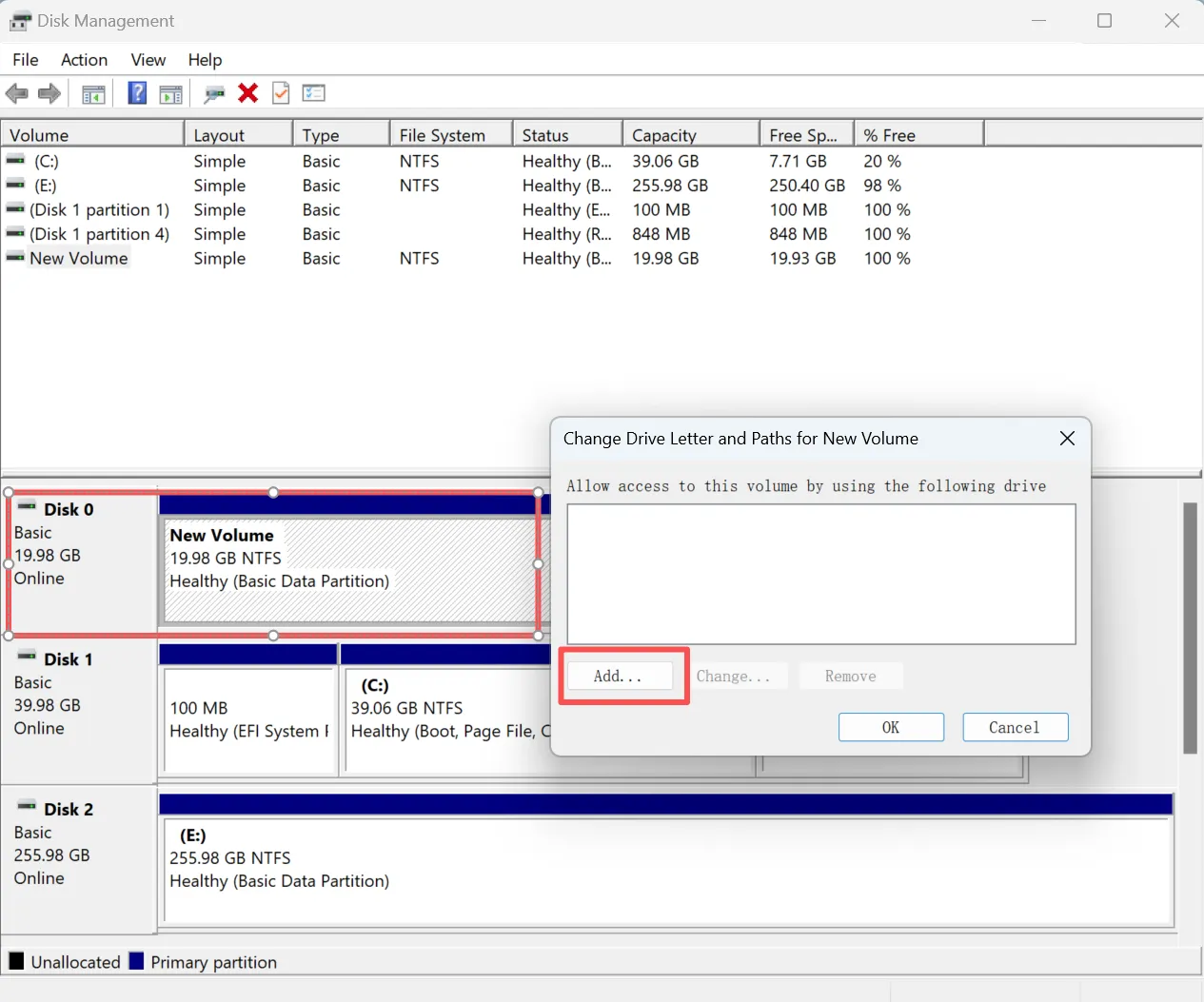
Step 3: Assign a New Drive Letter
Sometimes, Windows successfully mounts the jump drive but assigns it a drive letter that is already in use by a network drive or a local partition, making it invisible in File Explorer.
1. Open Disk Management (Win + X).
2. Right-click your USB drive partition and select Change Drive Letter and Paths…
3. Click Change, choose a new, unused letter from the dropdown menu (e.g., M: or X:), and click OK.
4. Check if the drive now appears normally in File Explorer.
Recover Data When USB Jump Drive Not Recognized
When file system corruption or partition loss causes a usb jump drive not recognized issue, traditional fixes are no longer enough. At this stage, data recovery software becomes the safest approach.
Why Choose Magic Data Recovery?
Magic Data Recovery is specifically designed for scenarios where USB drives are not recognized due to logical errors.
Core Problems It Solves
- File system corruption (RAW USB drives)
- Lost or deleted partitions
- USB drives detected but inaccessible
Key Advantages
- Read-only scanning protects original data
- Deep scan locates files even without a partition table
- Supports common USB file systems (FAT32, exFAT, NTFS)
Real-World Usage Scenarios
- A USB drive asks to be formatted after improper removal
- A jump drive shows “unallocated” in Disk Management
- Important documents disappeared after a system crash
Compared to manual fixes or risky formatting, Magic Data Recovery offers a more controlled and reliable solution.
If you are looking for an efficient way to recover files before attempting repairs, Magic Data Recovery is a practical choice.
Supports Windows 7/8/10/11 and Windows Server
Preventing USB Jump Drive Not Recognized Errors in the Future
To reduce the risk of encountering a usb jump drive not recognized issue again:
- Always use “Safely Remove Hardware”
- Avoid unplugging during file transfers
- Keep backups of critical data
- Use reputable USB brands
- Avoid extreme heat or moisture
These best practices align with industry recommendations and significantly extend USB lifespan.
Conclusion
A usb jump drive not recognized problem does not automatically mean your data is lost. In most cases, the issue is logical rather than physical.
When file system errors or partition loss prevent access, Magic Data Recovery provides a safer alternative to formatting or guesswork repairs. Its ability to locate data even when the USB is unreadable makes it more dependable than many built-in tools.
If preserving your files matters, data recovery from the USB drive first is always the right decision.
FAQs About USB Jump Drive not Recognized
How do I fix my USB flash drive not recognized?
Why won't my jump drive show up?
How to solve USB not detected?
Why is my car not recognizing my USB flash drive?
How to repair a dead USB flash drive?
Do USB flash drives go bad?

Erin Smith is recognized as one of the most professional writers at Amagicsoft. She has continually honed her writing skills over the past 10 years and helped millions of readers solve their tech problems.