
How to Fix If Computer Not Recognizing Hard Drive
Table of Contents
Why Is Your Computer Not Recognizing Your Hard Drive
Several factors can cause your hard drive to go undetected, including:
- Connection issues (faulty cables or ports)
- Driver problems or outdated firmware
- File system corruption(the drive may show as RAW or ask for formatting)
- Disk health issues (bad sectors, damaged hardware)
- Incorrect BIOS settings
Once you identify the root cause, you can apply the correct fix.
Solutions When Computer Is Not Recognizing an Internal Hard Drive
Method 1. Check Physical Connections
First, check your physical connections as a computer not recognizing hard drive issue often stems from this. Ensure that the internal hard drive is securely connected. Check the power and data cables (SATA/IDE) to make sure they’re properly attached. If necessary, test the drive in another computer to rule out a motherboard issue.
Method 2. Update or Reinstall Drivers
Next, outdated drivers can cause your computer not recognizing hard drive issues. To update:
1. Right-click on Start and open Device Manager.
2. Locate the hard drive under Disk Drives.
3. Right-click and choose Update driver or uninstall and restart your computer.
Method 3. Check BIOS Settings
Furthermore, incorrect BIOS settings can prevent your computer from recognizing the hard drive. Access your BIOS during startup (press F2, F10, or Delete depending on your system). Look for the Boot or Storage settings and confirm that the drive is enabled.
Method 4. Repair Corrupted File Systems
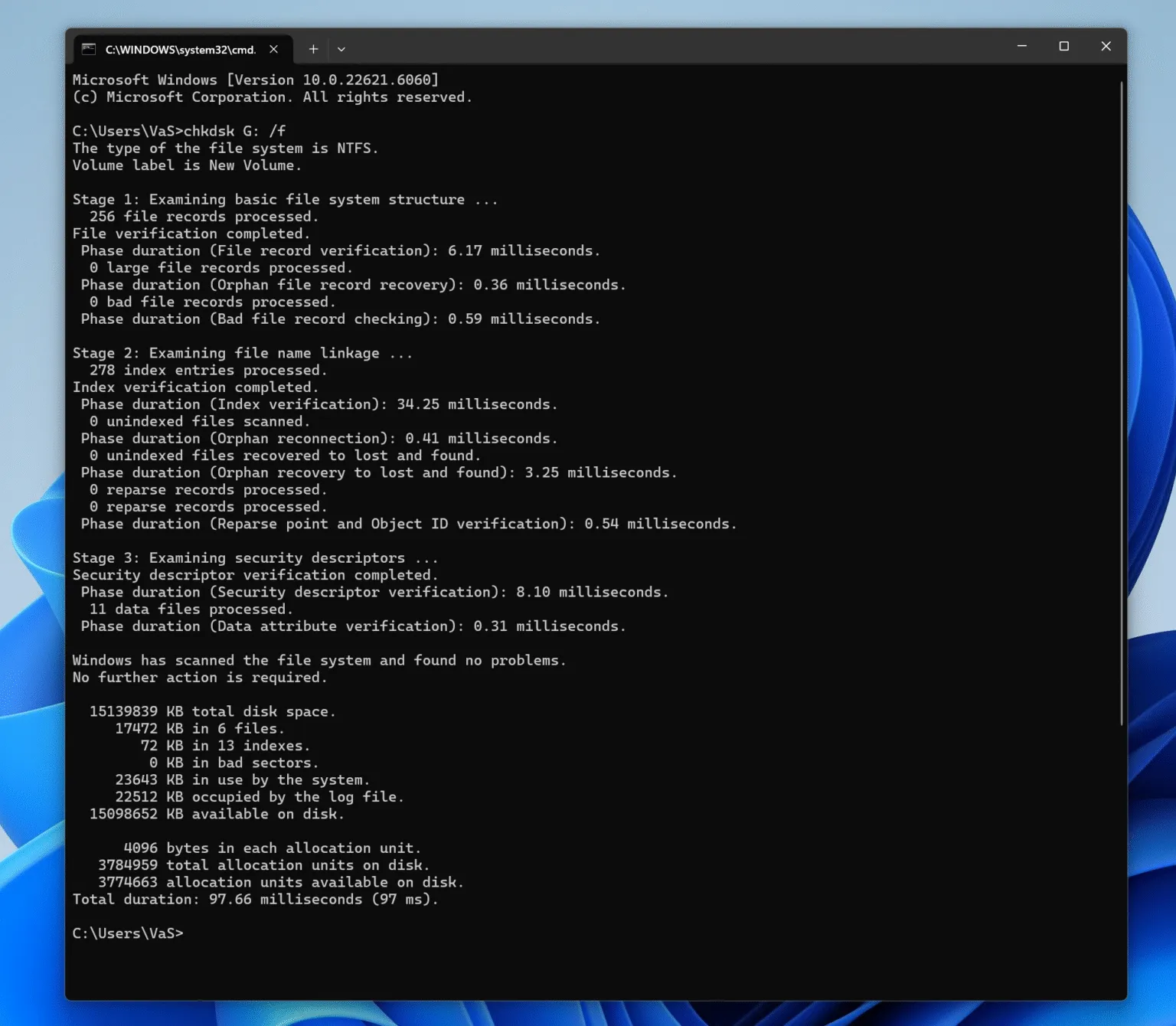
Additionally, if your computer is not recognizing the hard drive due to file system corruption, use the CHKDSK command:
1. Open Command Prompt as Administrator.
2. Type chkdsk X: /f (replace X with your drive letter).
3. Press Enter to start the repair process.
Solutions When Computer Is Not Recognizing an External Hard Drive
Method 1. Try Different USB Ports and Cables
First, try different USB ports and cables as a common solution for a computer not recognizing an external hard drive. Swap USB cables and ports to rule out issues with the cable or port. Test the external drive on another computer to ensure the problem isn’t with the drive itself.
Method 2. Power Supply
Moreover, ensure your external drive’s power supply is working properly, as a computer not recognizing an external hard drive can be caused by insufficient power.
Method 3. Disable USB Selective Suspend
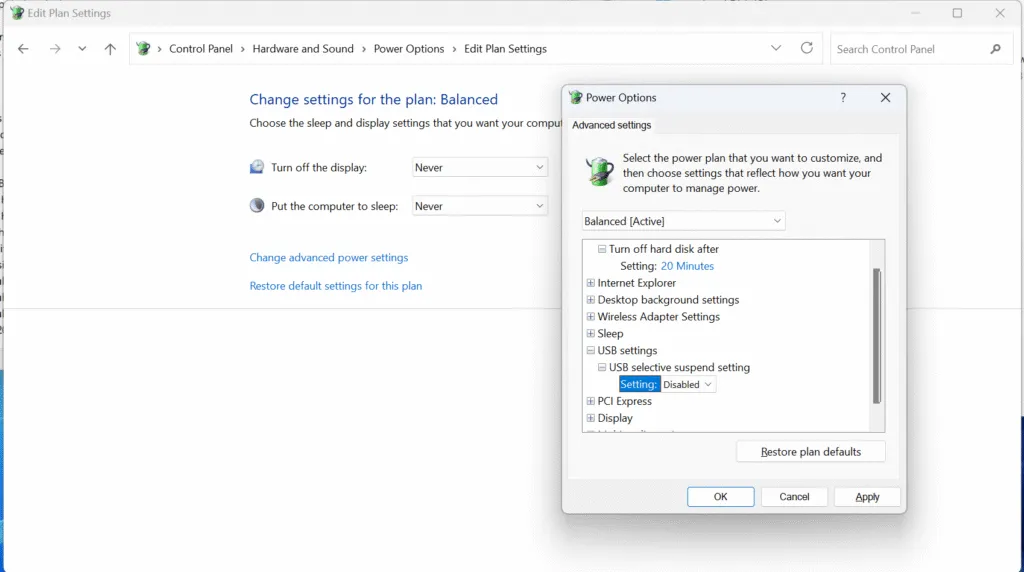
Additionally, Windows may disable USB devices in power-saving settings, causing your computer not to recognize the hard drive. To prevent this:
1. Go to Control Panel > Power Options.
2. Select Change plan settings and then Change advanced power settings.
3. Disable USB selective suspend setting.
Method 4. Update USB Drivers
Outdated USB drivers can cause external drives to go undetected. Update them through Device Manager by right-clicking on the Universal Serial Bus Controllers section and selecting Update driver.

Method 5. Use Disk Management to Assign a Drive Letter
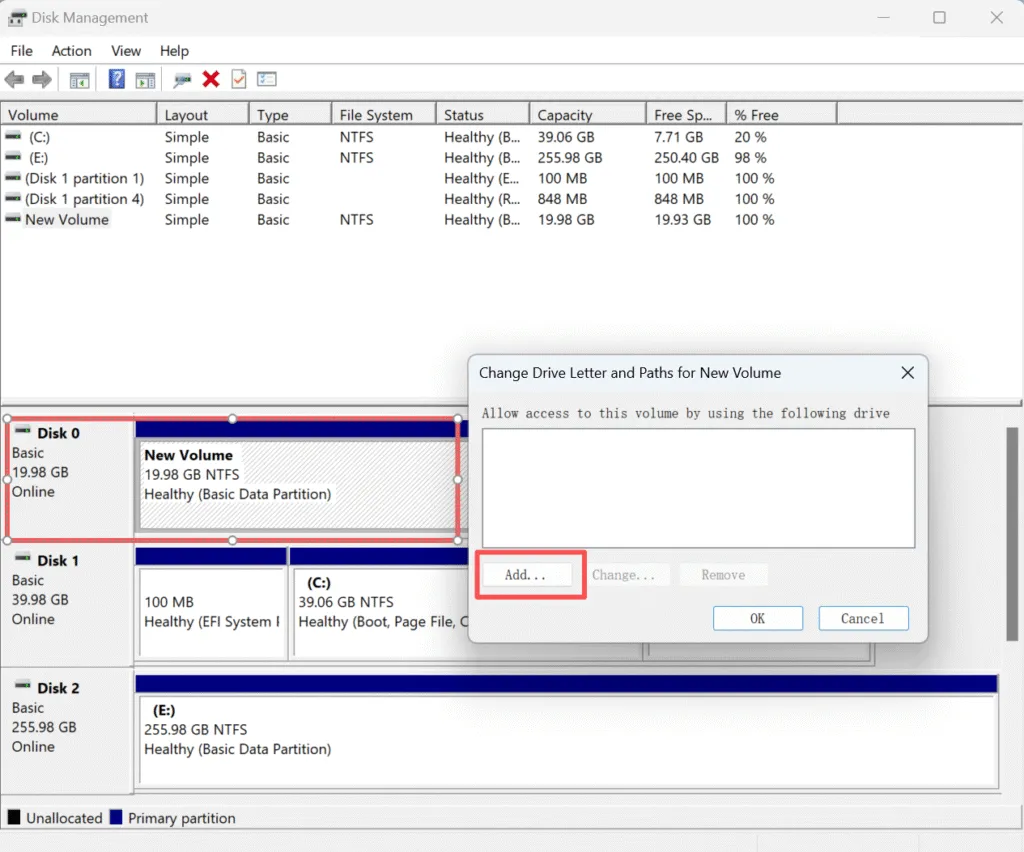
Finally, if your computer is not recognizing the external hard drive but it’s detected in Disk Management, it may need a drive letter:
1. Right-click the Start button and select Disk Management.
2. Find your external drive, right-click, and select Change Drive Letter and Paths.
3. Assign a letter to make it accessible.
If Your Computer Is Not Recognizing the Hard Drive Due to a Physical Issue
Conclusion
Whether your hard drive is internal or external, there are multiple ways to resolve detection issues. From checking physical connections to updating drivers and configuring BIOS settings, these solutions can help restore your hard drive.
However, if the computer not recognizing hard drive persists, don’t panic—your data might still be recoverable. Try Magic Data Recovery. It’s a powerful tool designed to recover data from undetected or inaccessible drives, ensuring that your valuable files are safely restored. As long as it is not a physical issue, Magic Data Recovery can help you recover the data easily.
Supports Windows 7/8/10/11 and Windows Server
Computer Not Recognizing Hard Drive – FAQ
How to fix a hard drive that is not detected?
Why does my computer not recognize my hard drive?
Why isn't my PC finding my hard drive?
How do I force my hard drive to detect?
Can a virus cause a hard drive to disappear?
What is the lifespan of a typical hard drive?
How do I fix Windows 10 not detecting my hard drive?
Can BIOS settings affect hard drive detection?

Vasilii is a data recovery specialist with around 10 years of hands-on experience in the field. Throughout his career, he has successfully solved thousands of complex cases involving deleted files, formatted drives, lost partitions, and RAW file systems. His expertise covers both manual recovery methods using professional tools like hex editors and advanced automated solutions with recovery software. Vasilii's mission is to make reliable data recovery knowledge accessible to both IT professionals and everyday users, helping them safeguard their valuable digital assets.