
Fix File System Error: Complete Guide & Data Recovery
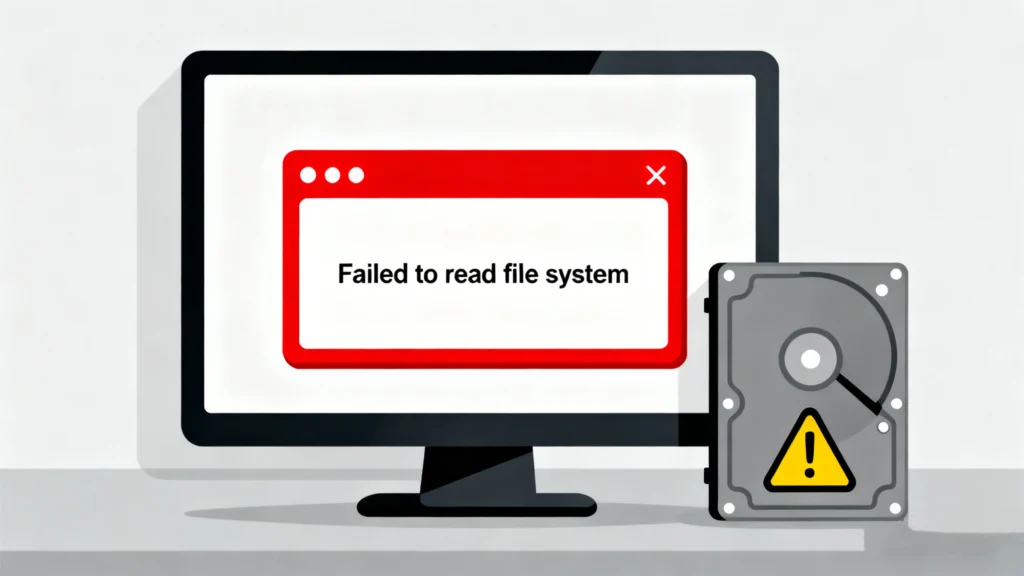
When you try to open an important document or boot your PC, only to be greeted by cryptic alerts like “The file system structure is corrupted and unusable” or “You need to format the disk.” This sudden file system error is more than an annoyance; it’s a digital heart-stopping moment that threatens your precious data. From family photos to critical work projects, a corrupted file system can lock you out without warning.
Understanding and resolving these errors is crucial for every computer user. This article serves as your definitive resource, demystifying file system errors by explaining their root causes, providing actionable, step-by-step repair methods, and guiding you through a reliable data recovery process when all else fails. We address this complex issue with clarity and authority, ensuring you can navigate this crisis with confidence. When a file system error makes a partition inaccessible, specialized tools like Magic Data Recovery become your essential lifeline for data rescue.
Supports Windows 7/8/10/11 and Windows Server
Table of Contents
Understanding File System Errors: The Root of the Problem
A file system error occurs when the logical structure that governs how data is stored, organized, and retrieved on a disk becomes damaged or inconsistent. Think of the file system as the library’s catalog for your hard drive. If this catalog gets scrambled, the OS cannot locate or interpret your files correctly, leading to inaccessibility, crashes, or data loss.
Common Causes of File System Corruption
Several factors can trigger these critical errors:
- Improper Shutdowns: Sudden power loss or forced restarts interrupt critical read/write operations.
- Bad Sectors: Physical or logical damage on the disk surface can corrupt file system metadata.
- Malware or Virus Attacks: Malicious software deliberately targets and corrupts system structures.
- Faulty Hardware/Drivers: A failing hard drive, SSD, or incompatible driver can write data incorrectly.
- Software Conflicts: Bugs in operating system updates or applications can lead to corruption.
How to Diagnose a File System Error
Before attempting fixes, identify the specific error. Common symptoms and messages include:
- “File system error (-1073741510)” or similar codes during app launches.
- “Windows detected a file system error on [Drive Letter]”.
- The dreaded “RAW” file system instead of NTFS or FAT32 in Disk Management.
- General system sluggishness, boot failures, and “Access Denied” messages.
Pro Tip: Regularly check your disk’s health using built-in tools like CHKDSK /scan in Command Prompt or the “Error-checking” tool in drive Properties. Early detection can prevent full-blown corruption.
Step-by-Step Solutions to Fix File System Errors in Windows
Here are proven methods to repair file system errors, starting with the simplest.
Method 1: Run Built-in Windows Repair Tools
Windows includes powerful utilities designed to fix file system errors.
- CHKDSK (Check Disk): This command-line tool scans and repairs logical file system errors and bad sectors.
- Open Command Prompt as Administrator.
- Type
chkdsk C: /f /r(replace “C:” with your affected drive letter). - The
/fparameter fixes errors, while/rlocates bad sectors and recovers readable info.
- SFC (System File Checker): If system files are corrupted, use SFC.
- In Admin Command Prompt, type
sfc /scannow. - This scans and restores corrupted Windows system files.
- In Admin Command Prompt, type
Method 2: Utilize the DISM Tool
If SFC fails, the Deployment Image Servicing and Management (DISM) tool can repair the Windows system image, which may be the underlying cause.
- In Admin Command Prompt, run:
DISM /Online /Cleanup-Image /RestoreHealth. - This command fetches healthy files from Windows Update to replace corrupted ones.
Method 3: Perform a Clean Boot
Software conflicts can cause file system errors. Performing a clean boot starts Windows with minimal drivers and startup programs, helping you identify the conflicting software.
- Use
msconfigto access System Configuration and disable all non-Microsoft services and startup items.
Method 4: Check and Update Drivers
Outdated or corrupt storage drivers are a common culprit.
- Press
Win + Xand select Device Manager. - Expand “Disk drives” and “Storage controllers,” right-click each device, and select “Update driver.”
Method 5: Format the Drive (Last Resort)
If the drive is still inaccessible and shows as RAW, formatting will create a new, clean file system. WARNING: This erases all data on the drive. Only proceed if you have a backup or plan to use data recovery software immediately afterward.
When Prevention Fails: Recovering Data from a Corrupted File System
Sometimes, repair attempts cannot restore partition access without data loss. If you face an unresponsive drive with critical files, data recovery software is your next critical step. This is where choosing a specialized, reliable tool is paramount.
Introducing Magic Data Recovery: Your Data Rescue Solution
When a severe file system error renders your partition RAW, unformatted, or inaccessible, Magic Data Recovery is engineered to handle precisely this crisis. Unlike basic repair tools, it focuses on deep scanning to reconstruct and extract your files from the logically damaged structure.

Supports Windows 7/8/10/11 and Windows Server
Why Choose Magic Data Recovery for File System Error Recovery?
Targets the Core Pain Point
It specializes in recovering data from partitions with severe file system corruption, including those showing as RAW, crashed, or requiring formatting. It bypasses the broken catalog to read raw data segments.
Proven Product Advantages
- Deep Scan Engine: Employs advanced algorithms to piece together file remnants from corrupted file systems (NTFS, FAT32, exFAT, etc.).
- Preview Before Recovery: Allows you to see recoverable photos, documents, and videos before purchasing, ensuring the files you need are intact.
- High Recovery Success Rate: Optimized for complex scenarios where standard fixes have failed, maximizing the chance of getting your data back.
- User-Centric Design: Features an intuitive interface that guides non-technical users through the recovery process safely, without risking further data loss.
Real-World Application
- Scenario: After a sudden power outage, your external hard drive becomes RAW. CHKDSK fails, and Windows urges you to format it.
- Action: You connect the drive, run Magic Data Recovery, click the “Search for lost data” to scan for the RAW drive. The software scans the underlying data blocks, reconstructs the file directory, and lets you recover your files to a different, healthy drive.
A More Reliable Choice
While free methods have their place, they are often inadequate for severe corruption and carry risks of permanent overwriting. Magic Data Recovery provides a focused, powerful, and safe alternative with dedicated technical support, making it a more trustworthy solution when your data is invaluable.
Conclusion
File system errors, while daunting, are often resolvable. A systematic approach—starting with diagnosis, moving through built-in Windows repairs, and understanding the limits of these fixes—empowers you to tackle the problem. Prioritizing regular backups remains the gold standard for data protection.
However, when faced with an inaccessible partition and potential data loss, a robust recovery strategy is non-negotiable. For those situations where system tools cannot recover your files, employing a dedicated solution like Magic Data Recovery is the logical and most effective step forward. It bridges the gap between a failed repair and permanent data loss, offering a powerful chance for restoration.
Don’t let a file system error be the end of your data’s story. If you’re dealing with a corrupted partition and need to recover irreplaceable files, consider a proven specialist. Magic Data Recovery offers a reliable, user-friendly path to reclaim what’s yours. Download and try Magic Data Recovery to scan your affected drive and preview recoverable files today.
Supports Windows 7/8/10/11 and Windows Server
FAQs
How do I fix a file system error?
What causes file system error (-2147219196)?
What is a file system error?
How to fix file system error (-2147219200)?
Is Microsoft killing the blue screen?
How do I repair Windows filesystem?
How to fix a corrupted file system?

Jason has over 15 years of hands-on experience in the computer data security industry. He specializes in data recovery, backup and restoration, and file repair technologies, and has helped millions of users worldwide resolve complex data loss and security issues.