
Excel Corrupt File Recovery Guide (2026)
Losing access to an Excel file can be frustrating, especially when it contains important business data or personal records. Many users search for excel corrupt file recovery solutions after encountering sudden crashes, unreadable files, or missing data.
This guide explains why Excel files become corrupted and shows you practical ways to fix and recover them. More importantly, it introduces a reliable solution for recovering data even when standard repair methods fail.
Table of Contents
What Causes Excel File Corruption?
Understanding the cause helps you choose the right excel file corrupted recovery method.
Common reasons include:
- Sudden power failure while saving files
- System crashes or forced shutdowns
- File system errors on storage devices
- Virus or malware attacks
- Improper file transfers or interruptions
For example, many users experience corruption after unplugging a USB drive without safely ejecting it. This often damages file structures.
Common Signs of a Corrupted Excel File
You may need excel file corrupt recovery if you notice:
- Excel cannot open the file
- Error messages like “file format is not valid”
- Missing or unreadable data
- Excel freezing when loading files
Recognizing these signs early improves your recovery chances.
Quick Fixes for Excel File Corrupted Recovery
Before turning to advanced tools, it is worth trying Excel’s built-in recovery options. These methods can resolve many common issues related to excel file corrupted recovery.
1. Use Open and Repair
This is the most effective built-in feature for excel corrupt file recovery.
Steps:
1. Open Microsoft Excel (do not open the file directly)
2. Click on File in the top menu
3. Select Open and then click Browse
4. Locate the corrupted Excel file
5. Click once on the file to select it
6. Click the small arrow next to the Open button
7. Choose Open and Repair
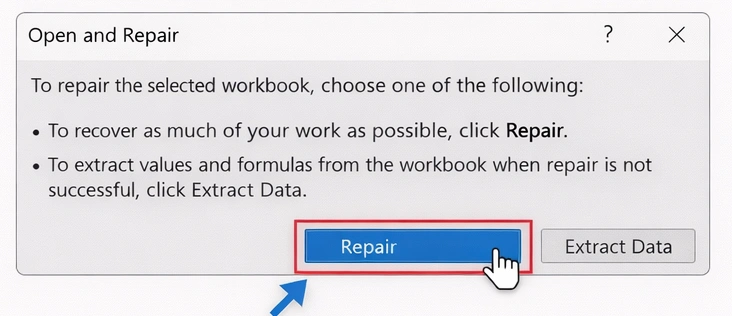
8. Select Repair to attempt full recovery
9. If repair fails, choose Extract Data to recover values only
👉 Tip: Always try “Repair” first before extracting data.
2. Recover from AutoRecover
Excel automatically saves temporary versions, which can help with excel file corrupt recovery.
Steps:
1. Open Excel
2. Click File → Info
3. Look for Manage Workbook or Manage Versions
4. Click Recover Unsaved Workbooks
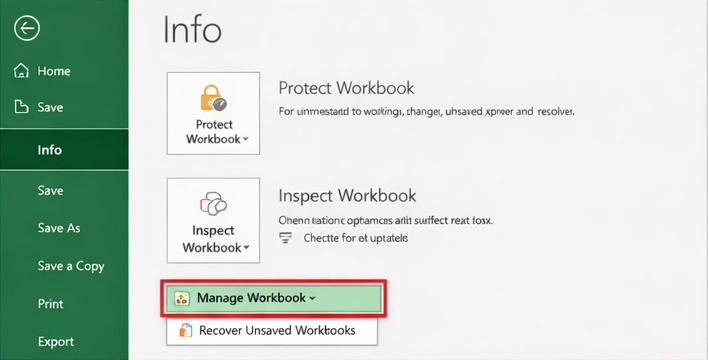
5. Browse the list of auto-saved files
6. Open the file you want
7. Click Save As to store it safely
👉 Note: AutoRecover must be enabled beforehand to work.
3. Change File Format
Changing the file format can sometimes fix structural issues.
Steps:
- Make a copy of the corrupted file (important for safety)
- Right-click the file and rename it
- Change the extension from .xlsx to .zip
- Open the ZIP file and extract its contents
- Locate the xl folder and related XML files
- Identify damaged components manually or rebuild structure
- Recompress files into a ZIP archive
- Rename back to .xlsx
👉 This method works best for users familiar with file structures.
4. Open in Safe Mode
Safe mode disables add-ins that may cause file corruption issues.
Steps:
- Press Windows + R to open the Run dialog
- Type: excel /safe and press Enter
- Excel will launch in safe mode
- Click File → Open → Browse
- Select the corrupted Excel file
- Try opening it normally
👉 If the file opens successfully, the issue may be caused by add-ins.
Best Way for Excel Corrupt File Recovery (Recommended)
When built-in methods fail, you need a more reliable solution. This is where Magic Data Recovery becomes useful.
Why Choose Magic Data Recovery?
Unlike basic repair tools, Magic Data Recovery handles multiple scenarios:
- Recover corrupted Excel files
- Restore deleted Excel files
- Recover data from formatted drives
- Fix file system errors
These capabilities make it a complete excel recovery corrupt file solution.
Key Advantages
- Deep scanning technology for damaged files
- Supports multiple storage devices (HDD, SSD, USB)
- Preview files before recovery
- User-friendly interface
For instance, if your Excel file becomes unreadable due to disk errors, the software can scan the entire drive and reconstruct recoverable data.
Step-by-Step Guide
1. Install and launch Magic Data Recovery
2. Select the storage location

3. Click Search for lost data button to search for lost files

4. Preview Excel files
5. Recover the needed data

👉 If you are looking for a more efficient solution, you may consider trying Magic Data Recovery.
Supports Windows 7/8/10/11 and Windows Server
Recover Excel Files from Different Scenarios
This is where most articles fall short. A complete excel corrupt file recovery strategy should cover multiple cases.
Recover Deleted Excel Files
If you accidentally delete files:
- Check Recycle Bin first
- Use recovery software for permanent deletion
Recover Excel Files from Formatted Drive
Formatting removes file records, but data may still exist.
Magic Data Recovery can scan and rebuild lost Excel files even after formatting.
Recover Excel Files from File System Errors
Disk errors often corrupt files.
A deep scan can locate hidden or damaged Excel data that standard tools cannot access.
Recover Severely Corrupted Files
When files are beyond repair:
- Traditional methods fail
- Data recovery tools extract usable content
This is a critical advantage over basic repair methods.
Online Excel File Corrupt Recovery Tools (Pros & Cons)
Online tools are popular, but they have limitations.
Pros:
- No installation required
- Quick fixes for small files
Cons:
- File size limits
- Privacy concerns
- Low success rate for severe corruption
For sensitive or large files, offline tools like Magic Data Recovery are more reliable.
Tips to Prevent Excel File Corruption
Prevention saves time and effort.
- Always save files properly
- Use stable power sources
- Avoid force shutdowns
- Keep backups regularly
- Use antivirus protection
Following these practices reduces the need for excel file corrupted recovery.
Conclusion
Excel corrupt file recovery requires the right approach based on the situation. While built-in tools can fix minor issues, they often fail with severe corruption, deletion, or disk errors.
That’s why a comprehensive solution like Magic Data Recovery stands out. It not only repairs damaged files but also recovers lost data across multiple scenarios. This makes it a more reliable and practical choice compared to basic repair methods.
Supports Windows 7/8/10/11 and Windows Server
FAQs
Can I recover a corrupted Excel file?
Yes, you can recover a corrupted Excel file using built-in tools like Open and Repair or AutoRecover. These methods work well for minor issues. However, if the file is severely damaged or partially missing, using a dedicated recovery tool can significantly improve the chances of retrieving usable data.
What is the best excel corrupt file recovery method?
The best method depends on the situation. Built-in Excel tools are useful for minor corruption. For more serious cases, such as deleted files or damaged storage devices, professional solutions like Magic Data Recovery provide deeper scanning and more reliable recovery results.
Why does my Excel file become corrupted?
Excel files can become corrupted due to power failures, system crashes, or improper shutdowns. In addition, file system errors, malware infections, or interrupted file transfers can damage the file structure, making it unreadable or inaccessible.
Can I recover Excel files after formatting a drive?
Yes, it is possible to recover Excel files after formatting a drive. Although formatting removes file references, the actual data may still remain on the storage device. Recovery software can scan the disk and reconstruct lost files if they have not been overwritten.
Is online excel file corrupt recovery safe?
Online recovery tools can be convenient, but they are not always safe for sensitive files. Uploading data to external servers may pose privacy risks. In most cases, offline recovery software provides a more secure and reliable solution.
What should I do if Excel cannot open my file?
You should first try the Open and Repair feature in Excel. If that does not work, check AutoRecover versions or open the file in safe mode. When these methods fail, using a recovery tool is often the most effective way to extract usable data.
Can corrupted Excel files be fully restored?
Full restoration depends on the severity of the corruption. Minor issues can often be fixed completely, while severe corruption may only allow partial recovery. Advanced recovery tools can still retrieve important data even when full restoration is not possible.
How can I prevent Excel file corruption in the future?
To prevent file corruption, always save files properly and avoid sudden shutdowns. Regular backups are essential. Additionally, using reliable storage devices and keeping antivirus software updated can help protect your Excel files from damage.

Jason is a data recovery and technical support specialist with over 15 years of hands-on experience. He has worked extensively with frontline users, troubleshooting difficult data loss cases and providing practical recovery solutions for accidental deletion, formatted drives, damaged file systems, lost partitions, system failures, and other recovery emergencies. His expertise also includes backup and restoration, file repair, and disaster recovery, with a strong emphasis on safe, reliable, and technically accurate guidance.