
How to Fix USB Drive Without Formatting
When your USB suddenly shows an error like “You need to format the disk,” the situation feels urgent. However, formatting immediately risks permanent data loss. Therefore, many users search for how to fix USB drive without formatting instead of taking risky actions.
Fortunately, most USB issues come from logical errors rather than physical damage. As a result, you can often repair the drive without formatting. In this guide, you will learn how to fix USB drive without formatting through practical steps. Meanwhile, you will also understand why these problems occur and how to protect your data before fixing anything.
Table of Contents
Why USB Drive Shows Errors and Requests Formatting
Before you fix the USB drive without formatting, you should first understand the root causes. In most cases, the system detects the USB, yet it cannot read its internal structure.
Common causes include:
- File system corruption (FAT32, exFAT, NTFS)
For example, unsafe removal often breaks file allocation data.
- RAW file system
In this case, Windows no longer recognizes the format.
- Logical bad sectors
As a result, some areas become unreadable.
- Malware interference
Sometimes, viruses hide or damage files.
Because these issues affect the structure rather than the hardware, you can still fix the USB drive without formatting effectively.
Can You Fix USB Drive Without Formatting?
Yes, in most situations, fixing USB drive without formatting works well. However, success depends on the type of problem.
You can fix it if:
- The USB appears in Disk Management
- The storage size shows correctly
- The issue relates to file system errors
You may not fix it if:
- The USB does not appear at all
- The device has physical damage
- The connection drops repeatedly
Therefore, if your USB remains detectable, you still have a strong chance to fix it without formatting.
What to Do Before You Fix USB Drive Without Formatting
Before applying any solution, preparation matters. In fact, this step often determines whether you lose your data.
Follow these precautions:
- Stop using the USB immediately
- Do not format the drive
- Avoid writing new files
- Recover important data first
Many users skip this step. However, repair tools may remove corrupted entries during the process. Consequently, files may disappear permanently. So, the safest approach to fix USB drive is:
Recover data → Then repair
How to Fix USB Drive Without Formatting: Step-by-Step Methods
Now let’s explore actionable solutions. Each method targets a different cause. Therefore, you should try them one by one.
Method 1 – Use CHKDSK to Fix USB Drive Without Formatting
CHKDSK helps repair file system errors directly.
Steps:
- Press
Windows + R, typecmd, and run as administrator - Enter:
chkdsk X: /f /r - Replace X with your USB letter
- Press Enter

Explanation:
/ffixes logical errors/rscans bad sectors
However, CHKDSK may remove damaged file entries. Therefore, always recover important data first.
Method 2 – Assign a New Drive Letter
Sometimes, Windows cannot access the USB due to a conflict.
Steps:
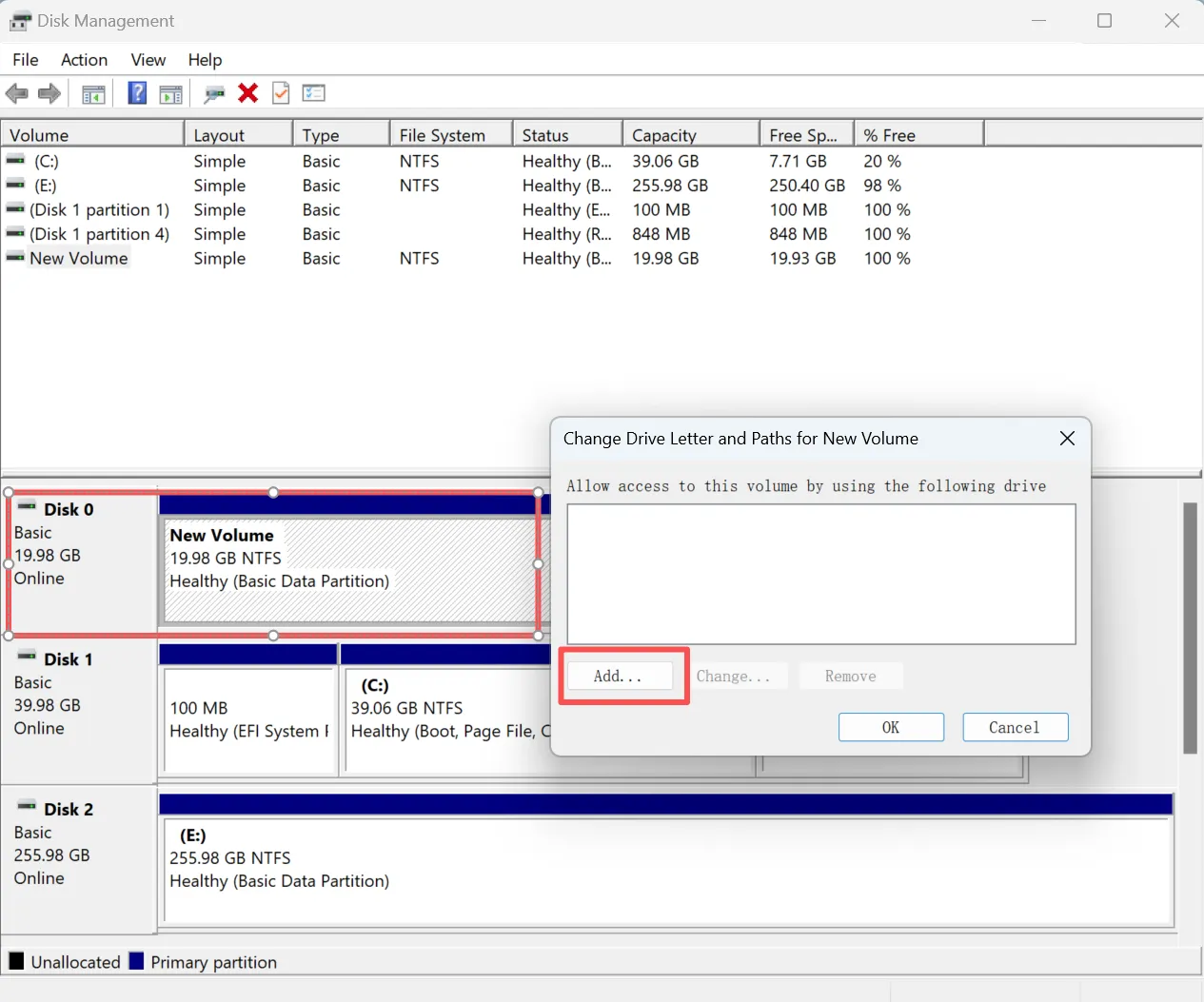
- Open Disk Management
- Right-click the USB
- Select “Add” or “Change”
- Assign a new drive letter
As a result, the system may recognize the drive again.
Method 3 – Reinstall Drivers to Fix USB Drive Without Formatting
Driver issues can block proper detection.
Steps:
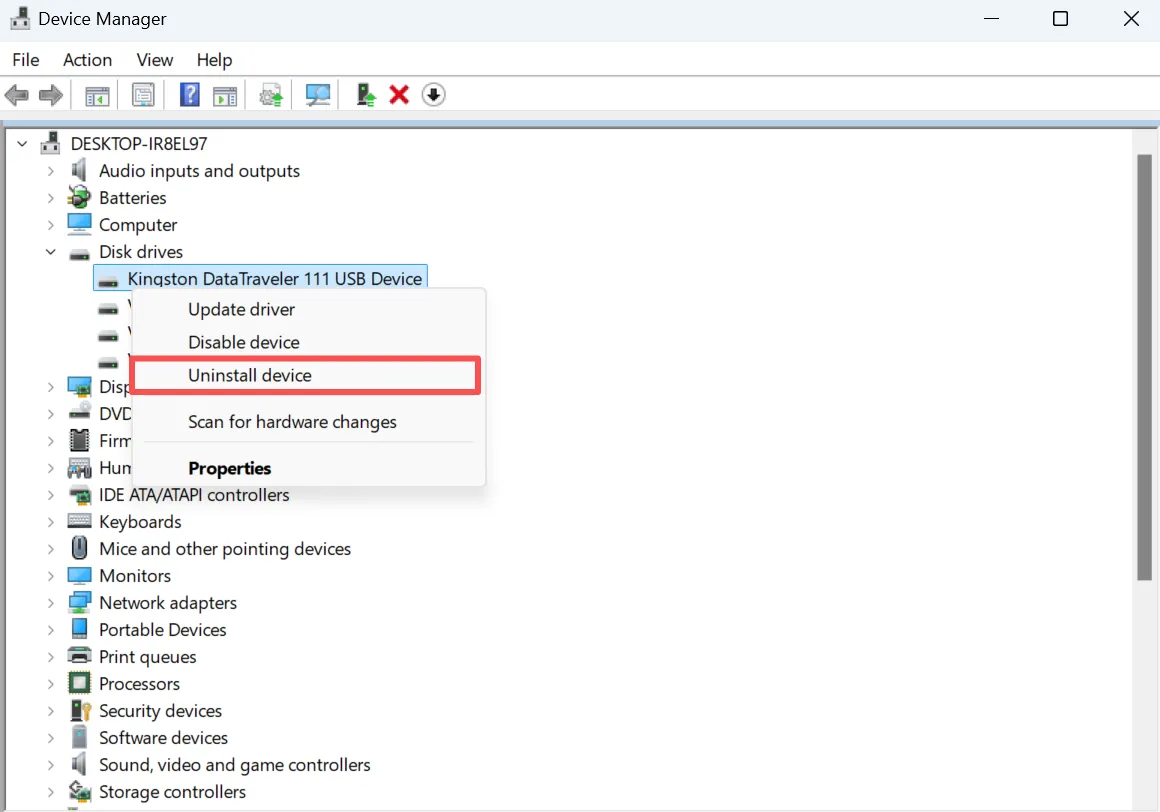
- Open Device Manager
- Expand Disk Drives
- Right-click your USB → Uninstall device
- Restart the system
After restarting, Windows installs the driver again automatically.
Method 4 – Use Error Checking Tool
This option provides a simpler graphical solution.
Steps:
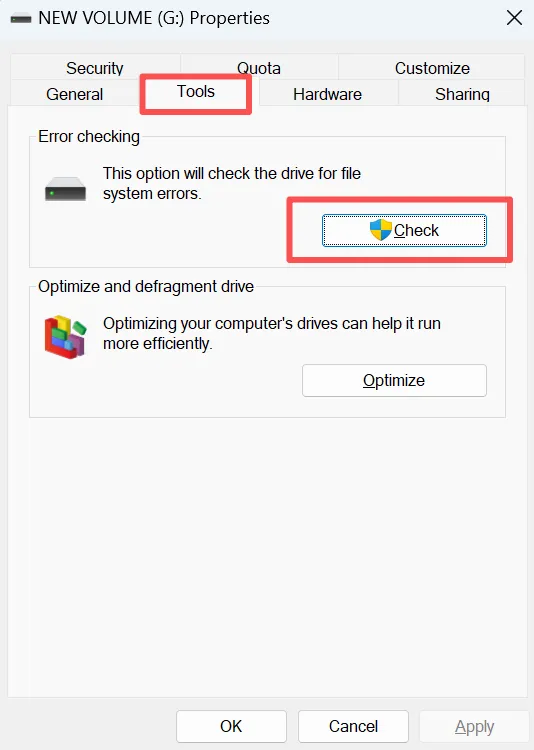
- Right-click the USB drive
- Select Properties → Tools
- Click “Check”
- Follow instructions
Although this method works well for minor issues, it still carries some risk to corrupted files.
Method 5 – Fix RAW USB Drive Without Formatting
A RAW USB often triggers formatting prompts.
What RAW means:
- The file system becomes unreadable
- The directory structure disappears
How to fix it:
- Recover data first
- Repair the file system
- Format only if necessary
Because RAW indicates deeper corruption, recovery becomes even more important.
How to Recover Data Before You Fix USB Drive Without Formatting
If you want to safely fix USB drive, recovering data first is the most reliable step. This is where Magic Data Recovery becomes useful.
Why this method works better
Unlike repair tools, this software scans raw disk sectors. Therefore, it can find files even when the file system fails or becomes RAW.
Key advantages:
- Works on corrupted and RAW drives
- Performs deep sector-level scanning
- Allows file preview before recovery
- Recovers data without formatting

If you want a safer workflow to fix USB drive, this approach protects your data first.
USB Repair Methods for How to Fix USB Drive Without Formatting
Method | Data Safety | Difficulty | RAW Support | Recommended |
CHKDSK | Medium | Medium | Partial | After recovery |
Drive Letter Change | High | Easy | No | Yes |
Driver Reinstall | High | Easy | No | Yes |
Error Checking | Medium | Easy | Partial | After recovery |
Data Recovery Tool | High | Easy | Yes | Strongly recommended |
Clearly, recovery tools protect files, while repair tools fix structure.
When You Cannot Fix USB Drive Without Formatting
Although fixing USB drive without formatting works in most cases, some situations require formatting.
You may need formatting if:
- File system damage is severe
- Repair tools fail repeatedly
- USB remains RAW
Even so, you should recover data first. After that, formatting restores usability.
How to Prevent Issues After You Fix USB Drive Without Formatting
Prevention helps avoid repeated problems. Therefore, simple habits matter.
Best practices:
- Always eject USB safely
- Avoid unplugging during transfers
- Scan for malware regularly
- Keep backups using the 3-2-1 rule
For instance, many users damage USB drives by removing them too quickly. However, a simple habit change prevents this issue.
Conclusion
Now you clearly understand how to fix USB drive without formatting using safe and effective methods. In most cases, logical errors cause the problem, so you can repair the drive without losing data.
However, the most important principle remains unchanged: recover your data before any repair. That is why Magic Data Recovery is recommended. It scans raw sectors, works even on corrupted drives, and ensures your files remain safe before fixing the USB.
If you want a reliable solution, this recovery-first approach offers the best balance between safety and effectiveness.
Supports Windows 7/8/10/11 and Windows Server
FAQs
Can I fix a USB drive without formatting?
Yes, you can fix a USB drive without formatting if the problem is logical. For example, file system errors or drive letter conflicts can be resolved easily. However, you should recover your data first, because repair tools may remove damaged file entries during the process.
Why does my USB ask to format?
Your USB asks to format when the system cannot read its file system. This usually happens after improper removal, corruption, or RAW conversion. Even so, the data often still exists. Therefore, you should avoid formatting immediately and try recovery first.
Is CHKDSK safe for fixing a USB drive?
CHKDSK is useful, but it carries some risk. It repairs file system errors; however, it may delete corrupted entries. Because of this, you should recover important files before running it. This approach ensures that you do not lose valuable data during repair.
How do I fix a RAW USB drive without formatting?
To fix a RAW USB drive without formatting, first recover your data using a reliable tool. Then, attempt file system repair with CHKDSK or similar methods. If repair fails, formatting becomes necessary, but only after securing your files.
Can I recover data from a corrupted USB drive?
Yes, you can recover data if the USB still appears in the system. Data recovery software scans raw sectors and retrieves files even when the file system fails. Therefore, recovery remains possible in many corruption scenarios.
What causes USB file system corruption?
USB corruption often occurs due to improper ejection, sudden power loss, malware, or bad sectors. These factors damage the file structure. As a result, the system cannot read the drive and may request formatting.
When is formatting unavoidable for a USB drive?
Formatting becomes unavoidable when the file system is severely damaged and cannot be repaired. For example, if the USB remains RAW after multiple attempts, formatting is required. Still, you should always recover important data before taking this step.

Vasilii is a data recovery specialist with around 10 years of hands-on experience in the field. Throughout his career, he has successfully solved thousands of complex cases involving deleted files, formatted drives, lost partitions, and RAW file systems. His expertise covers both manual recovery methods using professional tools like hex editors and advanced automated solutions with recovery software. Vasilii's mission is to make reliable data recovery knowledge accessible to both IT professionals and everyday users, helping them safeguard their valuable digital assets.