
EaseUS Partition Recovery: Fix Lost Partitions
When a disk partition disappears, turns RAW, or shows as unallocated, many users search for EaseUS Partition Recovery for a quick fix. However, partition loss does not always mean your files are gone. Often, Windows loses the partition record, file system reference, or drive letter while the file data still remains on the disk. Therefore, the safest first step is not formatting or rebuilding. Instead, recover your files first and repair the partition later.
This guide explains how the process works, when you need a partition recovery software, and what mistakes to avoid. It also introduces Magic Data Recovery as a practical EaseUS Partition Recovery alternative for users who want a data-first way to recover files from a deleted, RAW, inaccessible, or lost partition.
Supports Windows 7/8/10/11 and Windows Server
Table of Contents
What Is EaseUS Partition Recovery?
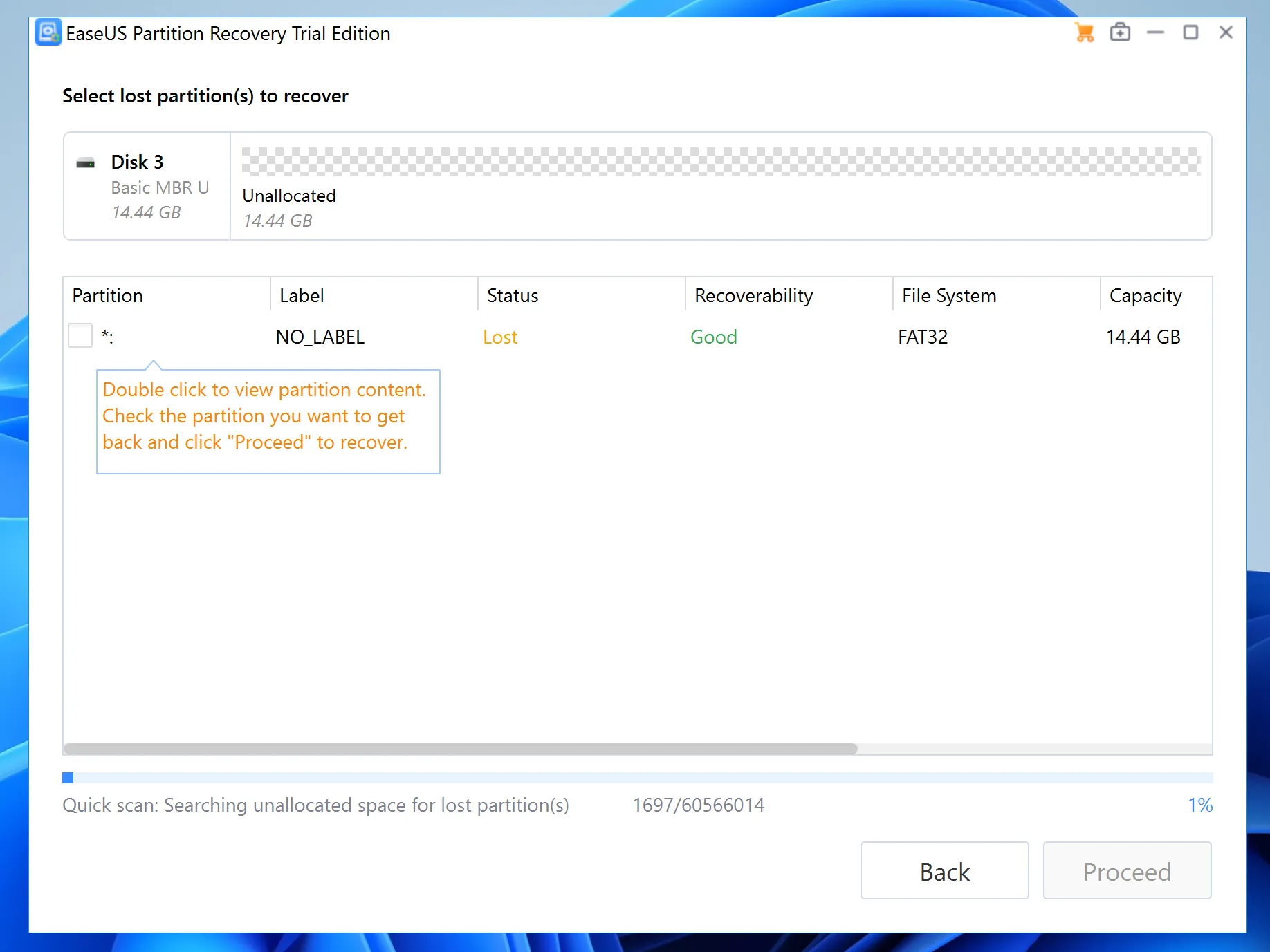
EaseUS Partition Recovery usually means using EaseUS software to locate a deleted or lost partition and restore access to the data. A partition is a logical area on an HDD, SSD, USB drive, or SD card. Windows uses it to organize storage, assign drive letters, and read file systems such as NTFS, exFAT, and FAT32.
For example, you may open Disk Management and see a drive marked as “Unallocated.” Also, Windows may ask you to format a partition before use. These signs can point to partition table damage, file system corruption, or accidental deletion. Because the original files may still exist, lost partition recovery can work if you stop using the drive early.
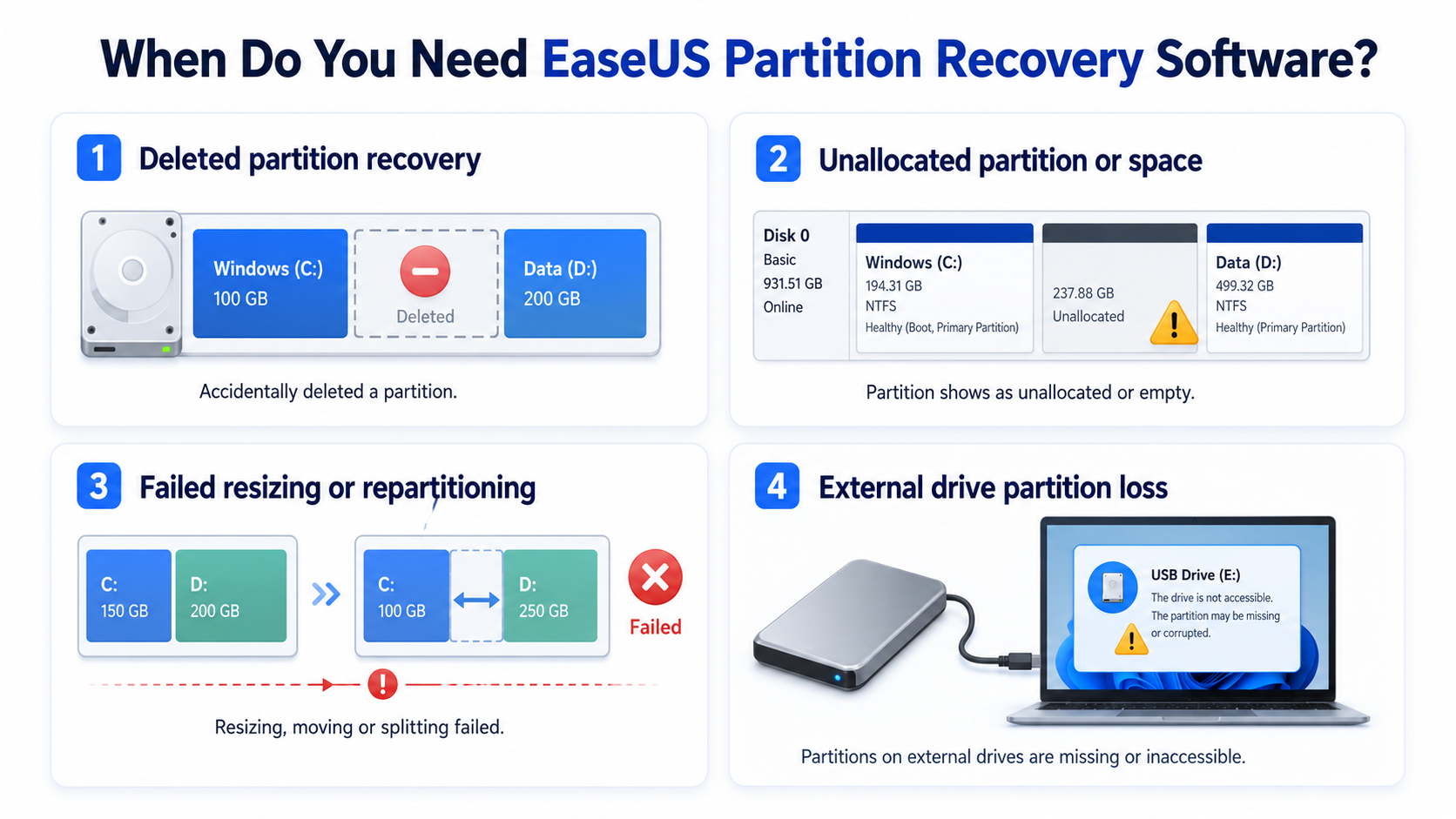
When Do You Need EaseUS Partition Recovery Software?
You may need a partition recovery software when Windows cannot show or open a partition normally. However, the right solution depends on what caused the issue.
Deleted partition recovery
A user may delete the wrong partition during Windows installation, disk cleanup, or drive resizing. As a result, the space becomes unallocated, although the files may remain recoverable.
Unallocated partition or space
When a drive or part of a drive shows as unallocated in Disk Management, Windows can no longer find a valid partition record. This issue may happen after accidental deletion, partition table corruption, failed disk operations, or system errors. In this case, do not create a new volume immediately. Instead, scan the disk first and recover important files before rebuilding the partition.
Failed resizing or repartitioning
Partition resizing can fail after power loss, software errors, or unsafe interruption. In that case, the partition structure may break. However, a data-first recovery tool may still find documents, photos, videos, and archives inside the affected disk.
External drive partition loss
USB drives, SD cards, and external hard drives can lose partitions after unsafe ejection or connection problems. In addition, repeated reconnecting may create more errors. So, scan the device carefully before trying repairs.
EaseUS Partition Recovery vs Data Recovery
Many users treat partition recovery and data recovery as the same process. However, they differ.
Partition recovery focuses on the lost volume. It tries to find or rebuild partition information so the operating system can access the volume again.
Data recovery focuses on files. It scans the disk, finds recoverable items, and saves them to another safe drive. Therefore, if you need to recover data from a lost partition before changing disk structure, a data-first method often offers a safer route.
Why Recover Files Before Rebuilding a Partition?
Before you use any partition recovery tool, protect the source drive. Every new write action can overwrite recoverable data. For example, installing software on the damaged disk, creating a new partition, or saving recovered files to the same drive can make recovery harder.
Instead, follow a safer order. First, stop using the affected disk. Next, install recovery software on another healthy drive. Then, scan the damaged disk. Finally, recover files to a separate storage device. After your files are safe, you can format, repair, or rebuild the partition with less risk.
This workflow follows a simple best practice: secure the data before you fix the structure. It also helps beginners avoid risky operations that look simple but may cause permanent data loss.
Best EaseUS Partition Recovery Alternative: Magic Data Recovery
If your goal is to save files from a missing or inaccessible partition, Magic Data Recovery offers a clear EaseUS Partition Recovery alternative. It focuses on file recovery first, not complex partition repair. Therefore, it fits users who want to scan a lost partition, preview files, and recover selected items to a safe location.
The main pain point after partition loss is uncertainty. You may not know whether your data still exists or whether a quick repair will make things worse. Instead of asking you to rebuild the partition immediately, Magic Data Recovery helps you check recoverable files first.
Key advantages include:
- Deep scan for lost, deleted, formatted, RAW, or inaccessible partitions.
- File preview before recovery, so you can confirm useful results.
- A simple scan, preview, and recover workflow for beginners.
- Support for HDDs, SSDs, USB drives, SD cards, and external drives.
- Support for common files such as documents, photos, videos, audio files, emails, and archives.
- Recovery to another location, which helps reduce overwrite risk.
For example, if a work partition disappears after a failed resize, you can scan the affected disk first. Then, you can preview important files and recover them to another drive. After that, you can recreate the partition without risking your only copy of the data.
EaseUS Partition Recovery vs Magic Data Recovery
The better tool depends on your goal. EaseUS may suit users who want a partition-focused solution and feel comfortable with disk-level operations. However, Magic Data Recovery suits users who want a file-first recovery path before structural changes.
Feature | EaseUS Partition Recovery | Magic Data Recovery |
Main purpose | Restore lost partition access | Recover files from lost partitions |
Best use case | Partition-level recovery | Data-first lost partition recovery |
Beginner workflow | Moderate | Simple scan, preview, recover |
Recovery focus | Partition structure | Files and folders |
RAW partition help | Scenario-dependent | Scan and recover files |
Safer first step | Useful after careful review | Strong choice before repair |
Output location | Choose carefully | Save to another safe drive |
In short, the EaseUS option can help when you need partition restoration. Meanwhile, Magic Data Recovery gives you a practical solution when you want to recover files first and reduce overwrite risk.
How to Recover Data from a Lost Partition with Magic Data Recovery
Follow these steps to recover data from a lost partition safely.
Step 1: Install Magic Data Recovery on another drive
First, install Magic Data Recovery on a healthy disk, not on the lost partition. This helps protect the original data area.
Supports Windows 7/8/10/11 and Windows Server
Step 2: Select the affected disk
Next, open the program and choose the disk where the partition disappeared. Check the capacity and device name before scanning.

Step 3: Scan the drive
Then, scan the disk. The software will run a deep scan automatically to look for files from the drive.

Step 4: Preview files
After that, preview the files. This helps you select the files you need for recovery.

Step 5: Recover files
Finally, save recovered data to another drive, because saving it back to the same disk may overwrite other recoverable files.

What Not to Do After Partition Loss
Whether you use EaseUS, Magic Data Recovery, or another recovery tool, avoid these mistakes:
- Do not format the drive when Windows asks.
- Do not create a new partition in unallocated space.
- Do not run repair commands before file recovery.
- Do not install software on the affected drive.
- Do not save recovered files back to the same partition.
- Do not keep using the drive for daily work.
These rules sound simple. However, they often decide whether recovery succeeds. Because partition loss can involve file system damage, directory loss, and overwritten sectors, careful handling matters from the first minute.
Conclusion: Choose the Safest Recovery Path First
EaseUS Partition Recovery can help users who want to restore lost partition access or handle partition-level recovery. However, not every partition problem should start with rebuilding. If your files are important, recover them first and repair the partition later.
That is why Magic Data Recovery works well as an EaseUS Partition Recovery alternative. It gives users a simple, data-first workflow: scan the affected disk, preview recoverable files, and restore selected items to another safe drive. Therefore, if you need a clear and beginner-friendly way to handle lost partition recovery, Magic Data Recovery is worth trying before you make changes to the damaged partition.
Supports Windows 7/8/10/11 and Windows Server
FAQs About EaseUS Partition Recovery
What does EaseUS Partition Recovery do?
EaseUS Partition Recovery helps users find and recover lost or deleted partitions. It can help when a volume disappears, shows as unallocated, or becomes inaccessible. However, if your first goal is file safety, recover data to another drive before rebuilding.
Is EaseUS Partition Recovery the same as data recovery?
No. Partition recovery focuses on the missing partition or volume structure, while data recovery focuses on files inside the damaged area. Therefore, a data-first tool may help more when Windows cannot open the partition and you mainly need documents, photos, videos, or project files back.
What is the best EaseUS Partition Recovery alternative?
Magic Data Recovery is a strong EaseUS Partition Recovery alternative when you want to recover files before repairing the partition. It lets you scan the affected disk, preview recoverable files, and save them to another safe location. As a result, you protect data before taking bigger repair steps.
Can I recover data from a RAW partition?
Yes, recovery may be possible if the data area has not suffered serious overwrite or physical damage. A RAW partition means Windows cannot read the file system, not necessarily that files are gone. Therefore, use a recovery tool first and avoid formatting the partition before scanning.
Should I format the drive before using recovery software?
No. Formatting may create new file system information and reduce recovery quality. Instead, stop using the drive, scan it with reliable recovery software, and save recovered files to another storage device. After your files are safe, you can decide whether to format or rebuild the partition.
Can Magic Data Recovery recover files from external drives?
Yes. Magic Data Recovery supports common storage devices, including external hard drives, USB drives, SD cards, HDDs, and SSDs. For example, if an external drive partition disappears after unsafe ejection, you can scan the device and recover files to another drive before trying repairs.
Where should I save recovered files?
Always save recovered files to a different disk or external storage device. This step matters because saving data back to the damaged partition can overwrite other recoverable files. In addition, use a drive with enough free space so the recovery process does not stop halfway.

Vasilii is a data recovery specialist with around 10 years of hands-on experience in the field. Throughout his career, he has successfully solved thousands of complex cases involving deleted files, formatted drives, lost partitions, and RAW file systems. His expertise covers both manual recovery methods using professional tools like hex editors and advanced automated solutions with recovery software. Vasilii's mission is to make reliable data recovery knowledge accessible to both IT professionals and everyday users, helping them safeguard their valuable digital assets.