
File Allocation Table Bad: A Complete Fix Guide
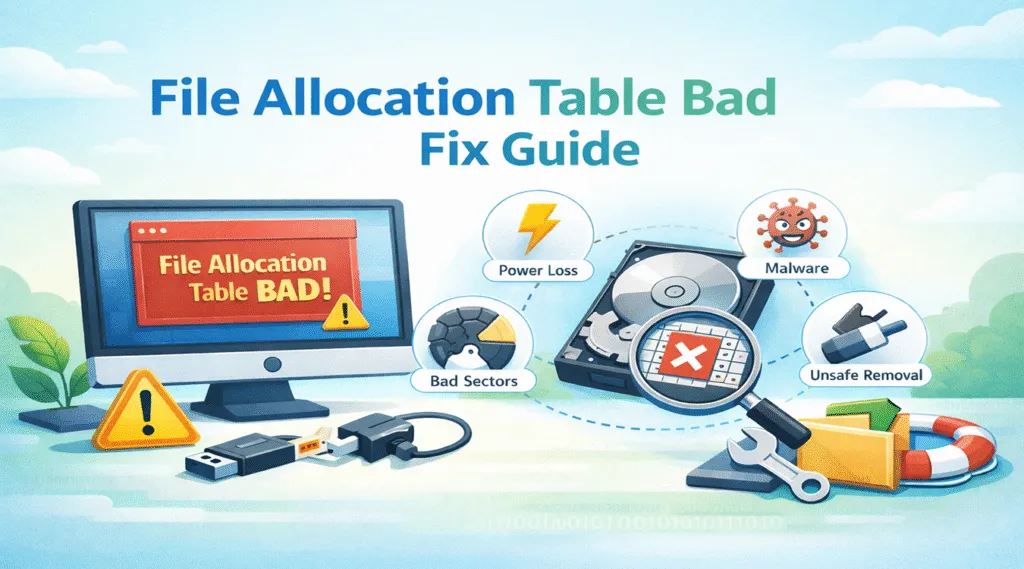
When Windows shows the message file allocation table bad, most people panic immediately. After all, the drive often becomes unreadable at the same time. Even worse, Windows may prompt you to format the disk, which feels like an instant warning that your files could disappear.
In real-life situations, this issue usually appears after a sudden power outage, an unsafe USB removal, or a system crash. Because of that, many users experience it without any preparation. Moreover, the problem can affect external drives, USB flash drives, and internal partitions.
In this guide, you will learn what file allocation table bad means, why it happens, and how to fix it step by step. In addition, you will discover safe hard drive recovery methods if repair tools cannot restore access.
Table of Contents
What Does File Allocation Table Bad Mean?
The error file allocation table bad means Windows detected corruption inside the file system structure. More specifically, the file allocation table (FAT) no longer provides a reliable map of where files are stored.
As a result, Windows cannot locate file data correctly. Therefore, the system blocks access to prevent further damage. In many cases, the drive will show as RAW, inaccessible, or unformatted.
If you see file allocation table bad drive c, the pressure becomes even higher. Since Drive C stores Windows system files and personal data, corruption there can trigger boot failures. Therefore, you need to act quickly and carefully.
What Is a File Allocation Table (FAT)?
A File Allocation Table is an index used by FAT-based file systems, such as FAT16 and FAT32. It tracks:
- Which disk sectors belong to a file
- Which sectors are free
- How file fragments connect across the disk
In other words, FAT works like a digital roadmap. However, if the roadmap becomes damaged, Windows cannot read file locations properly. Even so, the actual data may still exist on the drive.
Common Symptoms of File Allocation Table Bad
Although the message itself is clear, the symptoms often appear before the error shows up. For example, you may notice:
- The drive cannot open in File Explorer
- Windows asks you to format the disk
- Files disappear or display strange names
- The partition shows as RAW
- Copying files becomes extremely slow
- The system freezes while reading the drive
- The PC fails to boot (especially when Drive C is affected)
Therefore, if you see several of these signs together, file allocation table bad becomes a likely explanation.
What Causes File Allocation Table Bad Errors?
This problem rarely happens randomly. Instead, it usually comes from interruptions, physical wear, or malicious activity. Consequently, understanding the root cause helps you choose the safest fix.
Suggested Illustration Placement:
Insert an infographic showing FAT corruption caused by power loss, unsafe removal, malware, and bad sectors.
Sudden Power Loss or Forced Shutdown
If your computer shuts down while writing data, the FAT may not update correctly. As a result, Windows detects inconsistencies and reports file allocation table bad.
Unsafe Removal of USB Drives
Many users unplug flash drives without ejecting them. Because of that, file operations may stop mid-process. Over time, the file allocation table becomes unstable.
Bad Sectors or Aging Storage
Hard drives and SSDs can develop bad sectors. If those damaged sectors affect the FAT area, Windows may lose access to the table. Therefore, the drive may suddenly appear corrupted.
Malware or Virus Infection
Some malware attacks file system structures directly. Even after virus removal, the FAT corruption can remain. Consequently, Windows continues showing the error.
File System Corruption After a Crash
System crashes can interrupt disk processes. For that reason, file system corruption often appears after a blue screen or unexpected restart.
How to Fix File Allocation Table Bad Safely (Step-by-Step)
Before you attempt any repair, remember one important rule: avoid writing new data to the affected drive. Otherwise, you may overwrite recoverable files.
Step 1: Stop Using the Drive Immediately
First, stop copying, saving, or installing anything on the disk. This step is simple, yet it often makes recovery easier later.
If the drive is external, eject it properly and reconnect it only when necessary.
Step 2: Try a Different Port, Cable, or Computer
Sometimes, the problem looks like corruption but is actually a connection issue. Therefore, try another USB port or cable. If possible, test the drive on another computer.
If Windows reads the drive normally after that, you may avoid deeper repairs.
Step 3: Run CHKDSK to Repair File System Errors
If the drive remains inaccessible, CHKDSK can repair logical file system issues.
Open Command Prompt as Administrator, then run:
chkdsk X: /f
Replace X with the correct drive letter.
If you suspect bad sectors, you can also run:
chkdsk X: /f /r
However, CHKDSK may remove damaged file entries during repair. Because of that, you should recover important files first whenever possible.

Step 4: Use Windows Error Checking Tool
If you prefer a graphical method, follow these steps:
- Right-click the drive
- Select Properties
- Open the Tools tab
- Click Check
This tool can fix minor corruption without complex commands. Therefore, it is a good option for beginners.
Step 5: Update Disk Drivers (Optional but Useful)
Driver issues rarely cause FAT corruption directly. Still, outdated drivers may cause the system to misread disk data. For that reason, updating them can help.
Go to:
- Device Manager → Disk drives → Update driver
Afterward, restart your PC and test the drive again.
Step 6: Format the Drive (Only as a Last Option)
Formatting rebuilds the file system structure. Therefore, it often removes the file allocation table bad message. However, formatting also deletes file references.
For that reason, you should only format after recovering important data.
How to Fix File Allocation Table Bad Drive C
When Windows reports file allocation table bad drive c, the repair process changes. Since Windows constantly uses Drive C, running repairs in normal mode may not work well.
Run CHKDSK in Windows Recovery Environment
If Windows still boots, back up your data first. However, if boot issues appear, Recovery Mode becomes the safer option.
To do this:
- Restart and enter Windows Recovery
- Select Troubleshoot
- Open Advanced options → Command Prompt
- Run:
chkdsk c: /f /r
Since Windows is not fully loaded, CHKDSK can scan the disk more effectively.
Use Startup Repair or System Restore
If the PC fails to start, Startup Repair can restore boot files. Similarly, System Restore can roll back changes that triggered corruption.
Although these tools do not guarantee recovery, they often restore system access. Therefore, they are worth trying before reinstalling Windows.
Replace the Drive If Errors Keep Returning
If Drive C repeatedly shows corruption, the drive may be failing. In that case, recovery becomes urgent. Therefore, you should extract your important files immediately and plan a replacement.
How to Recover Data from a Drive with File Allocation Table Bad
Even if the FAT structure is corrupted, the actual files may still exist. However, Windows cannot locate them correctly. That is why many users cannot access the drive even though the data remains recoverable.
Therefore, recovery software often provides the safest path forward.
Best Practices Before Recovery
To improve recovery success, follow these tips:
- Avoid formatting the drive
- Avoid repeated CHKDSK attempts
- Do not save new files to the disk
- Start recovery as soon as possible
In addition, if the drive makes clicking noises or disconnects frequently, stop using it and recover data quickly.
A Reliable Recovery Solution: Magic Data Recovery
If repair tools fail, you still have a strong chance of restoring your files. However, you need a solution that focuses on data safety rather than file system rebuilding.
That is where Magic Data Recovery becomes useful. It can scan drives affected by file allocation table bad errors and recover files even when Windows cannot read the partition normally.
What Core Problem Does It Solve?
Magic Data Recovery helps recover files when:
- The drive shows RAW
- Windows requests formatting
- CHKDSK cannot fix the disk
- The partition becomes unreadable
- file allocation table bad drive c prevents normal access
Therefore, it is suitable for both home users and professionals handling urgent recovery tasks.
Key Advantages (Unique Selling Points)
Magic Data Recovery offers several practical strengths:
- Deep scan that bypasses corrupted FAT structures
- Read-only scanning to reduce the risk of overwriting
- Supports internal drives, external disks, USB flash drives, and memory cards
- Useful after formatting, deletion, or partition loss
In addition, the interface is user-friendly, so even non-technical users can follow the process.
Real-World Use Scenarios
For example, Magic Data Recovery is helpful when:
- A USB drive shows file allocation table bad, but photos still need recovery
- CHKDSK repairs the drive, yet folders disappear afterward
- Drive C becomes unstable, so you need to save documents before reinstalling Windows
In these cases, recovery software saves time and reduces trial-and-error.
Why It Can Be More Reliable Than Built-in Windows Tools
Windows repair tools aim to fix file system structure. While that may restore access, it can also remove corrupted file references. As a result, some files may vanish after repair.
In contrast, Magic Data Recovery focuses on extracting your files first. Therefore, it often provides a safer workflow when data matters most.

Tips to Prevent File Allocation Table Bad in the Future
After you fix the issue, prevention becomes the next priority. Fortunately, simple habits reduce the risk significantly.
- Always eject USB drives safely
- Avoid forced shutdowns
- Use a UPS if power outages happen often
- Run antivirus scans regularly
- Monitor disk health with SMART tools
- Keep backups using the 3-2-1 rule
Most importantly, replace aging drives early. Otherwise, file system errors may return more frequently.
Conclusion
The error file allocation table bad indicates file system corruption, but it does not always mean your data is permanently lost. In many cases, Windows tools like CHKDSK and Error Checking can repair the structure and restore access.
However, you should be careful. If the issue involves file allocation table bad drive c, the risk becomes higher because the system partition controls Windows startup. Therefore, you should prioritize data safety before aggressive repair steps.
That is why Magic Data Recovery is recommended. Instead of focusing only on file system repair, it helps recover your files directly from corrupted partitions. As a result, it offers a safer option when Windows tools cannot access the drive or when HDD recovery must happen before formatting.
Supports Windows 7/8/10/11 and Windows Server
FAQ About File Allocation Table Bad
What does file allocation table bad mean?
Will CHKDSK fix file allocation table bad?
Why does Windows ask me to format the drive?
Can I recover files without formatting the drive?
What should I do if I see file allocation table bad drive c?
Can malware cause this issue?
Does this error mean my drive is physically failing?

Vasilii is a data recovery specialist with around 10 years of hands-on experience in the field. Throughout his career, he has successfully solved thousands of complex cases involving deleted files, formatted drives, lost partitions, and RAW file systems. His expertise covers both manual recovery methods using professional tools like hex editors and advanced automated solutions with recovery software. Vasilii's mission is to make reliable data recovery knowledge accessible to both IT professionals and everyday users, helping them safeguard their valuable digital assets.