
How to Fix USB Pen Drive Not Detected (8 Practical Fixes)
If you are wondering how to fix USB pen drive not detected on Windows 10 or Windows 11, you are not alone. Many users encounter situations where their USB drives are connected but do not appear in File Explorer, or Windows shows errors like “USB device not recognized.”
However, before attempting repairs, you should understand that some methods, such as formatting or running CHKDSK improperly, may overwrite important data. Therefore, learning how to fix USB pen drive not detected safely is crucial to avoid permanent data loss.
This guide explains how to fix USB pen drive not detected problems step by step. In addition, it shows how to recover important files from the USB drive safely, you will also learn how to safely recover important files before attempting risky repairs.
Table of Contents
Why USB Pen Drive Not Detected Happens
Before learning how to fix USB pen drive not detected issues, you should first understand the possible causes. Different problems require different solutions. Therefore, identifying the correct cause improves recovery success and prevents unnecessary repairs.
File System Corruption
A damaged FAT32, exFAT, or NTFS file system may stop Windows from reading the USB drive properly. Consequently, the device may appear as RAW, inaccessible, or unallocated.
Missing Drive Letter
Sometimes Windows detects the USB drive internally but fails to assign a drive letter. As a result, the USB pen drive does not appear inside File Explorer.
Driver Conflicts
Outdated USB drivers, corrupted controller drivers, or Windows update conflicts can interrupt communication between the operating system and the USB device.
Bad Sectors
Physical storage damage may create unreadable sectors. Therefore, Windows may fail to detect the USB drive correctly.
Partition Damage
If the partition table becomes corrupted, the USB drive may appear as Unallocated in Disk Management.
USB Port or Power Problems
Faulty USB ports, unstable power delivery, or damaged connectors can also trigger USB detection issues.
Quick Checks Before Fixing USB Pen Drive Not Detected
Before applying advanced solutions for how to fix usb pen drive not detected, try several simple checks. In many situations, these quick steps solve the problem immediately.
- Try another USB port
- Restart the computer
- Test the USB drive on another computer
- Disconnect other USB devices
- Check whether the USB drive indicator light turns on
If the device works on another computer, then the problem likely relates to the operating system rather than the USB drive itself.
How to Fix USB Pen Drive Not Detected (Step-by-Step Solutions)
The following solutions explain how to fix usb pen drive not detected through practical troubleshooting methods. First try the simplest solutions; afterward, move to more advanced ones if necessary.
Restart the Computer
First, restart the computer. Although this method seems basic, it often resolves temporary driver conflicts.
Steps:
- Remove the USB drive
- Restart the computer
- Insert the USB drive again after startup
Because restarting refreshes system drivers, the system may detect the device normally afterward.
Try Another USB Port
Next, connect the USB drive to another port. Sometimes the original port cannot provide a stable connection.
Additionally, avoid using USB hubs during testing. Instead, connect the drive directly to the computer to ensure stable power delivery.
Update USB Drivers
Driver updates often solve detection problems. Therefore, updating the USB driver should be one of the early troubleshooting steps.
Steps:
- Open Device Manager
- Expand Universal Serial Bus Controllers
- Right-click the USB driver
- Select Update Driver
After updating, reconnect the USB device and check whether the system detects it.
Assign a Drive Letter
Another common reason for usb drive not showing up involves a missing drive letter. Fortunately, assigning one usually fixes the issue quickly.
Steps:
- Press Win + X
- Open Disk Management
- Locate the USB drive
- Right-click the partition
- Select Change Drive Letter and Paths
After assigning a drive letter, the USB drive should appear in File Explorer.
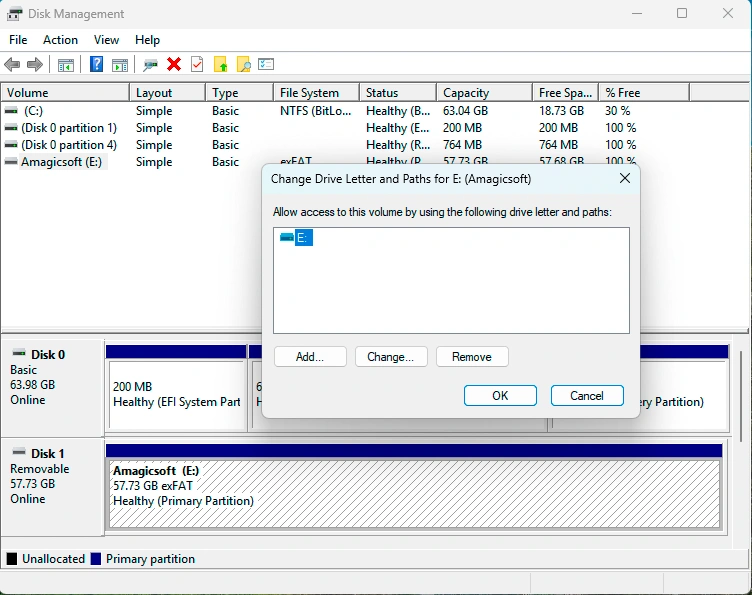
Check Disk Management
Disk Management provides valuable information about USB device status. Therefore, checking this tool helps determine whether the system recognizes the hardware.
Possible results include:
- USB appears as Unallocated
- USB shows a RAW file system
- USB appears without a partition
If the drive shows as unallocated, then the partition structure may have been damaged or deleted.
Run CHKDSK to Repair File System Errors
File system errors can also prevent the system from reading the drive. Therefore, running a disk repair command may help.
Steps:
- Open Command Prompt as Administrator
- Enter the following command:
chkdsk X: /f
Replace X with the USB drive letter.
After the scan finishes, reconnect the USB drive and check whether it opens normally.

Reinstall USB Controllers
Sometimes USB controller issues interrupt device detection. In that case, reinstalling the controller drivers may restore normal functionality.
Steps:
- Open Device Manager
- Expand Universal Serial Bus Controllers
- Uninstall each USB controller
- Restart the computer
After the restart, Windows automatically reinstalls the drivers.
Format the USB Drive (Last Option)
If none of the previous methods solve how to fix usb pen drive not detected, formatting may restore access. However, formatting deletes all files on the drive.
Therefore, recovering important data first remains the safest option.
Recover Data Before Fixing USB Pen Drive Not Detected
Sometimes the USB device appears in Disk Management but cannot open normally. For example, the system may display errors such as “You need to format the disk before using it.”
At this stage, repairing the drive may overwrite recoverable files. Therefore, recovering important files first becomes the safest approach when solving how to fix usb pen drive not detected.
Recover Data from USB Pen Drive Not Detected Using Magic Data Recovery
When troubleshooting how to fix usb pen drive not detected, protecting data should always come first. Magic Data Recovery provides a reliable solution for retrieving files from inaccessible storage devices.
Unlike basic system utilities, this tool performs deep scans that locate recoverable files even when partitions disappear or file systems become corrupted.
Key Advantages of Magic Data Recovery
Magic Data Recovery offers several useful features:
- Deep scan technology for lost files
- Recovery from corrupted or inaccessible USB drives
- File preview before recovery
- Simple interface suitable for beginners
Because of these features, users can recover data safely before attempting repairs.
Real-World Recovery Scenarios
Magic Data Recovery helps in several situations:
- USB drive becomes RAW
- Partition disappears from File Explorer
- Files disappear after improper removal
- USB drive becomes inaccessible after system errors
In each scenario, the software scans the device and identifies recoverable files. If you need a safe solution while solving how to fix usb pen drive not detected, Magic Data Recovery provides an efficient method to retrieve important data.

How to Prevent USB Pen Drive Detection Problems
Although learning how to fix usb pen drive not detected is important, prevention helps reduce future risks.
Consider these best practices:
- Always use Safely Remove Hardware
- Avoid removing USB devices during file transfers
- Keep system drivers updated
- Scan USB drives for malware regularly
- Maintain regular data backups
By following these habits, users can significantly reduce the chance of USB detection problems.
Conclusion
Learning how to fix USB pen drive not detected problems safely helps protect important files and reduces unnecessary risks. In many cases, the issue involves corrupted file systems, driver conflicts, missing drive letters, or RAW partition errors rather than permanent physical damage.
Therefore, recovering files before repair remains the safest strategy. Magic Data Recovery can scan inaccessible or corrupted USB drives deeply and recover files before risky repair operations begin. After securing important data, you can safely apply repair methods such as Disk Management fixes, driver updates, CHKDSK, and RAW USB troubleshooting.
By following a structured USB recovery approach, you can fix USB detection problems more safely while improving the chances of successful file recovery on Windows 10 and Windows 11.
Supports Windows 7/8/10/11 and Windows Server
FAQ About How to Fix USB Pen Drive Not Detected
Why is my USB pen drive not detected on Windows?
Usually this issue occurs because of driver conflicts, corrupted file systems, or missing drive letters. Checking Disk Management often reveals whether the system recognizes the device.
How do I fix a USB drive that is not recognized?
First try simple troubleshooting methods such as restarting the computer or switching USB ports. Afterward, update drivers or assign a drive letter if necessary.
Why does my USB appear in Disk Management but not File Explorer?
This situation usually means the drive lacks a drive letter. Assigning a drive letter through Disk Management often resolves the problem quickly.
Can a corrupted USB drive be repaired?
Yes, tools such as CHKDSK can repair file system errors. However, recovering important files first remains the safest approach.
Can formatting fix a USB pen drive not detected issue?
Formatting can restore usability when the file system becomes corrupted. Nevertheless, formatting deletes all stored data.
How can I recover files from an undetected USB drive?
Professional recovery tools such as Magic Data Recovery can scan inaccessible drives and recover files even when partitions become damaged.
What is the safest method to recover USB data?
The safest method involves scanning the drive with reliable recovery software before attempting repairs or formatting.

Vasilii is a data recovery specialist with around 10 years of hands-on experience in the field. Throughout his career, he has successfully solved thousands of complex cases involving deleted files, formatted drives, lost partitions, and RAW file systems. His expertise covers both manual recovery methods using professional tools like hex editors and advanced automated solutions with recovery software. Vasilii's mission is to make reliable data recovery knowledge accessible to both IT professionals and everyday users, helping them safeguard their valuable digital assets.