
How to Fix Laptop Not Recognizing External Hard Drive
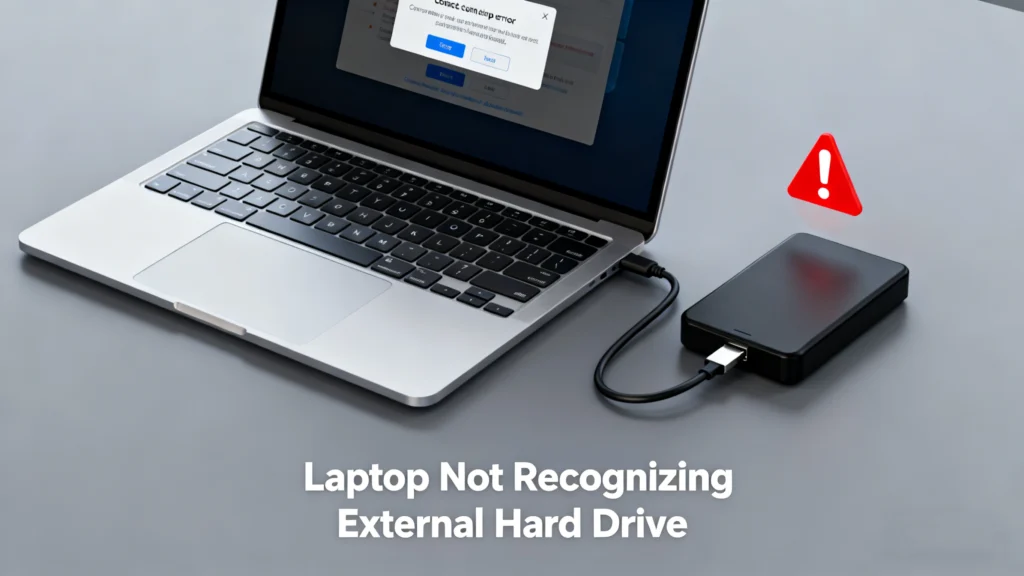
A laptop not recognizing external hard drive is a common yet frustrating problem. Many users encounter this issue when connecting an external HDD or SSD for backups, file transfers, or work-related data access. In some cases, the drive powers on but does not appear on the laptop. In other situations, the disk shows up as RAW, unallocated, or completely invisible.
These symptoms often indicate deeper issues such as file system corruption, partition loss, driver conflicts, or hardware problems. More importantly, they can place critical data at risk.
This guide explains why a laptop is not recognizing an external hard drive, walks you through effective troubleshooting methods, and shows how to safely recover data when the drive becomes unreadable—especially in RAW or lost-partition scenarios—using Magic Data Recovery.
Supports Windows 7/8/10/11 and Windows Server
Table of Contents
Why Is My Laptop Not Recognizing External Hard Drive?
When a laptop not recognizing external hard drive occurs, the root cause usually falls into one of the following categories.
Hardware-Related Causes
External hard drives rely on stable physical connections. Even minor issues can prevent detection.
Common hardware problems include:
- Faulty or damaged USB cable
- Loose USB port or worn connector
- Insufficient power supply (especially for 2.5-inch HDDs)
- Physical damage from drops or shocks
Testing the drive on another laptop or using a different cable is often the fastest way to rule out hardware failure.
File System Errors or RAW Partition
One of the most frequent reasons a laptop not recognizing external hard drive properly is a corrupted file system.
Typical symptoms include:
- Drive appears as RAW
- Windows prompts to format the disk
- Drive shows as “Unallocated” in Disk Management
File system corruption can result from unsafe removal, sudden power loss, or bad sectors. At this stage, formatting the drive may cause permanent data loss.
Missing or Lost Partition
If the partition table is damaged, the external hard drive may not mount at all.
This usually happens after:
- Accidental disk initialization
- Malware attacks
- Disk cloning failures
- Improper use of partition tools
Although the drive hardware is intact, the operating system cannot locate usable volumes.
Driver or System Conflicts
Outdated or corrupted drivers can also explain why a laptop not recognizing external hard drive.
Common scenarios include:
- USB controller driver errors
- External drive driver not installed correctly
- macOS or Windows updates causing compatibility issues
How to Fix Laptop Not Recognizing External Hard Drive
Before attempting external HDD data recovery, try the following fixes in order.
Method 1: Check Physical Connections First
Start with the basics.
- Replace the USB cable
- Switch to a different USB port
- Avoid USB hubs; connect directly to the laptop
- Try the drive on another computer
If the drive still does not appear, continue with software-based solutions.
Method 2: Check Disk Management (Windows)
Disk Management can reveal whether the system detects the drive at a lower level.
Steps:
- Press Win + X and select Disk Management
- Look for the external drive
- Check its status:
- RAW
- Unallocated
- No drive letter
If the disk is visible but inaccessible, do not format it yet.
Method 3: Assign or Change a Drive Letter
Sometimes, the drive is detected but not assigned a letter.
- Right-click the external disk in Disk Management
- Choose Change Drive Letter and Paths
- Assign an unused letter
This method often resolves visibility issues without data loss.
Method 4: Update or Reinstall USB Drivers
Driver issues frequently cause a laptop not recognizing external hard drive.
Steps:
- Open Device Manager
- Expand Universal Serial Bus Controllers
- Uninstall suspicious or faulty devices
- Restart the laptop to reinstall drivers automatically
Method 5: Check External Hard Drive on macOS Finder
If you are using macOS and the drive does not appear in Finder:
- Open Finder > Settings > General
- Enable External disks
- Go to Disk Utility and check disk status
If the drive appears but fails to mount, file system damage is likely.
When the Drive Is RAW or Partition Is Lost: Recover Data First
If your laptop not recognizing external hard drive because the file system is RAW or the partition is missing, repairing it directly may overwrite data.
At this stage, data recovery should be the priority.
Recover Data from an External Hard Drive with Magic Data Recovery

Core Problems It Solves
- RAW file system recovery
- Lost or deleted partition recovery
- External hard drive not detected but visible in Disk Management
- File system errors after improper removal
Key Advantages of Magic Data Recovery
- Advanced RAW recovery engine that scans at sector level
- Supports HDDs, SSDs, USB drives, and external enclosures
- Recovers files from NTFS, FAT32, exFAT, and RAW volumes
- Read-only recovery process, ensuring data safety
Typical Use Case
For example, if an external hard drive suddenly becomes RAW after unplugging it without ejecting, Windows may ask to format the disk. Instead of formatting, you can use Magic Data Recovery to scan the drive, preview recoverable files, and restore them safely.
Why Magic Data Recovery Is More Reliable
Compared to built-in tools or risky repairs:
- It avoids overwriting existing data
- It supports deep scanning for lost partitions
- It allows file preview before recovery
If you are looking for a safer and more efficient solution, Magic Data Recovery is a practical option worth considering.
Supports Windows 7/8/10/11 and Windows Server
What to Avoid When External Hard Drive Is Not Detected
To prevent permanent data loss, avoid the following actions:
- Formatting the drive immediately
- Running aggressive repair commands on a RAW disk
- Repeatedly reconnecting a failing drive
- Using unreliable third-party tools
These actions can significantly reduce recovery success.
Conclusion
A laptop not recognizing external hard drive can result from hardware faults, driver issues, file system corruption, or partition loss. While basic troubleshooting may resolve simple cases, RAW or unallocated disks require a more cautious approach.
In situations where data access is critical, recovering files before repair is the safest strategy. Magic Data Recovery offers a reliable, non-destructive solution for retrieving data from undetected or unreadable external hard drives.
If you are dealing with a RAW drive or missing partition, using the right recovery solution can make all the difference.
FAQs
Why is my laptop not recognizing my external hard drive?
How to fix hard disk external not detected?
How do I see my external hard drive on my laptop?
Why doesn't my external hard drive show up in Finder?
What do I do if my hard drive is not detected?
How do I force a USB to recognize?
How do I fix an undetected external hard drive?
Why is my USB plugged in but not showing up?

Erin Smith is recognized as one of the most professional writers at Amagicsoft. She has continually honed her writing skills over the past 10 years and helped millions of readers solve their tech problems.