
Recover Files from Formatted SSD: Safe Guide
If you need to recover files from formatted SSD, the first few minutes after formatting matter more than most people realize. A mistaken format can make work documents, photos, project files, or backups disappear instantly, but the chance of getting them back depends heavily on what happens next.
Unlike traditional hard drives, SSDs handle deleted and formatted data differently. A quick-formatted HDD may leave much of the original data physically intact until new files overwrite it. On an SSD, however, TRIM and garbage collection can clear blocks that the operating system marks as unused, which can significantly reduce the chances of recovery.
For that reason, stop using the SSD as soon as you notice the mistake. Check your backups first and confirm whether the drive was quick-formatted, fully formatted, or used again afterward. If no usable backup exists and the SSD is still detected normally, a recovery tool such as Magic Data Recovery can scan the drive for data that may still remain.
For a broader explanation of formatted storage recovery, see our formatted drive recovery guide.
Supports Windows 7/8/10/11 and Windows Server
Table of Contents
Can You Recover Files from a Formatted SSD?
Sometimes. The realistic answer depends on what happened immediately before and after the format.
A formatted SSD may still contain recoverable information when the file system metadata was reset but the underlying data blocks have not yet been cleared. However, recovery becomes much harder once TRIM and the SSD controller’s garbage collection process remove those blocks.
Therefore, recover files from formatted SSD should not be treated like ordinary HDD recovery.
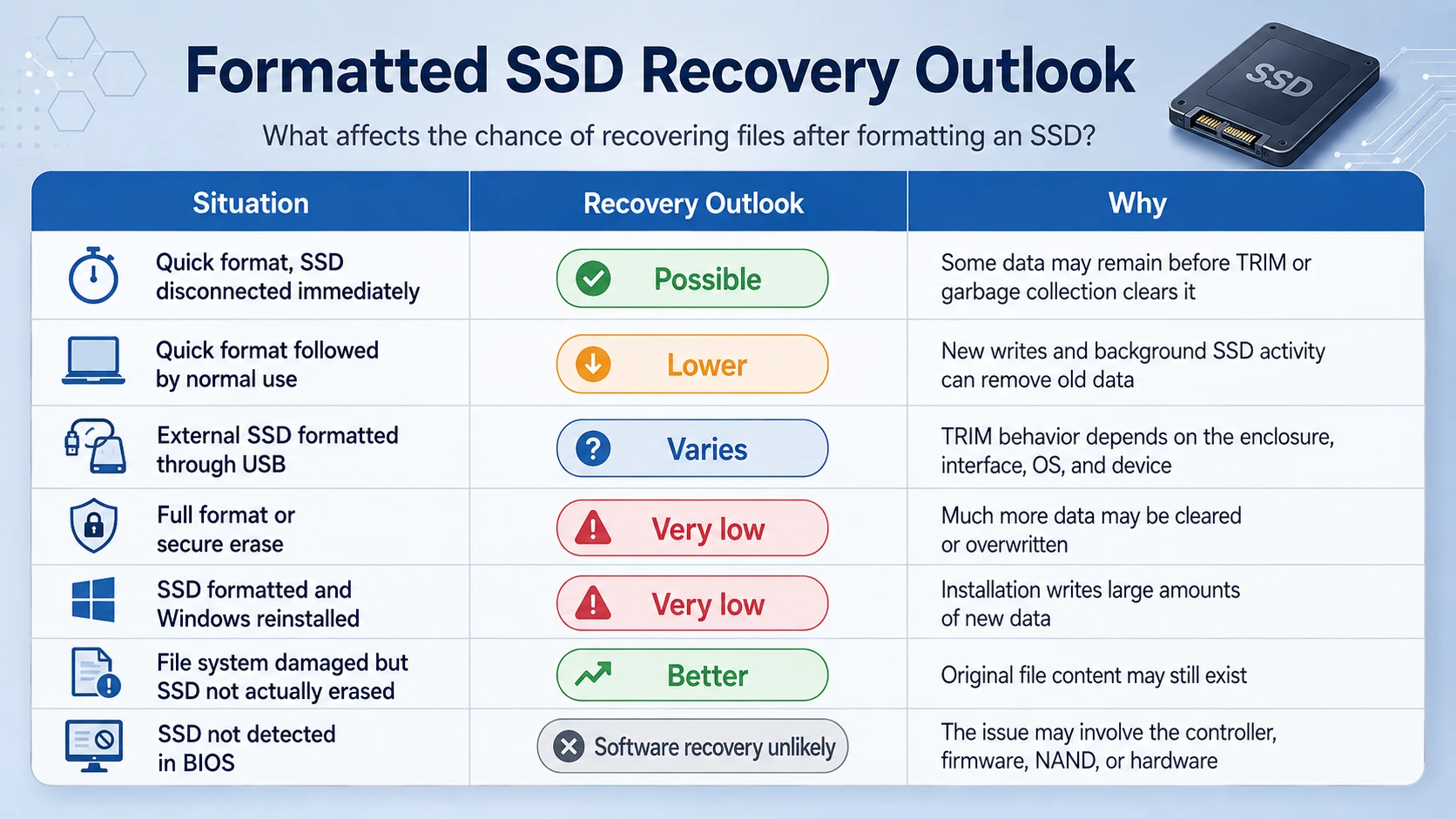
Several factors matter:
Situation | Recovery Outlook | Why |
Quick format, SSD disconnected immediately | Possible | Some data may remain before TRIM or garbage collection clears it |
Quick format followed by normal use | Lower | New writes and background SSD activity can remove old data |
External SSD formatted through USB | Varies | TRIM behavior depends on the enclosure, interface, OS, and device |
Full format or secure erase | Very low | Much more data may be cleared or overwritten |
SSD formatted and Windows reinstalled | Very low | Installation writes large amounts of new data |
File system damaged but SSD not actually erased | Better | Original file content may still exist |
SSD not detected in BIOS | Software recovery unlikely | The issue may involve the controller, firmware, NAND, or hardware |
The biggest mistake is assuming that because a scan can see an SSD, all formatted files must still be recoverable. File names, folder records, and even previews may disappear when the underlying blocks have already been cleared.
For more background on why solid-state storage behaves differently, see SSD Data Recovery: What Can Be Recovered?.
Why Formatted SSD Recovery Is Different from HDD Recovery
Understanding one SSD feature explains most failed recovery attempts: TRIM.
What TRIM Does
When Windows deletes data or resets a file system, it can notify an SSD that certain blocks are no longer required. This notification is commonly known as TRIM.
The SSD can then erase those unused blocks internally so that future writes remain fast.
Microsoft describes TRIM, or delete notification, as a mechanism that informs the underlying storage device that clusters have been freed. Microsoft’s fsutil documentation
That is useful for normal SSD performance. Unfortunately, it creates a problem when you suddenly need to recover files from formatted SSD.
On an HDD, deleted data usually remains in the magnetic sectors until something overwrites it. On an SSD, a block marked as unused may later contain nothing useful for recovery software to reconstruct.
Quick Format Does Not Guarantee Recovery
People often read that a quick format “doesn’t erase data.”
That statement is much safer when discussing HDDs.
A quick format usually rebuilds file system structures rather than deliberately overwriting every sector. However, on an SSD, the operating system may also send TRIM information for space that becomes free.
As a result, quick formatting improves the possibility of recovery compared with destructive wiping, but it does not guarantee that formatted SSD recovery will work.
For deleted-file behavior specifically, our guide to recovering deleted files from an SSD explains how TRIM, garbage collection, and continued drive use affect recovery.
What to Do Immediately After Formatting an SSD
The actions you take during the next few minutes matter more than trying several recovery programs one after another.
Stop Using the SSD
Do not copy files to it.
Do not download recovery software onto it.
Do not reinstall Windows.
If it is an external SSD, disconnect it until you are ready to perform recovery.
Every new write can replace information that might otherwise remain available.
Do Not Format the SSD Again
Windows may ask you to format a drive again if the file system appears damaged or RAW.
Do not do it when important files are still missing.
Another format does not make your old files easier to find. Instead, it changes the storage structures again and may create additional TRIM activity.
Avoid CHKDSK and Repair Tools for Now
CHKDSK is designed to repair file system consistency. It is not a file recovery program.
When your priority is recovering important data, changing damaged file system records before recovery can make the situation more complicated.
Use this rule:
Recover first. Repair later.
Our SSD repair guide covers repair options that make more sense after your important files are already safe.
Prepare Another Drive
You need a different healthy drive for:
- installing recovery software;
- saving recovered files;
- storing a backup or disk image when necessary.
Never restore recovered files directly to the formatted SSD you are scanning.
How to Recover Files from Formatted SSD Without Recovery Software
Before scanning the SSD, check whether another copy already exists.
A backup is safer because it does not depend on whether TRIM has cleared the original data.
Method 1: Check Windows File History
If File History was enabled before the format:
- Open Control Panel.
- Go to System and Security > File History.
- Select Restore personal files.
- Browse previous versions of your folders.
- Restore the files to a healthy drive.
File History only helps when Windows created copies before the SSD was formatted.
Method 2: Check Cloud Storage
Look at any service that synchronized folders from the formatted SSD, including:
- OneDrive;
- Google Drive;
- Dropbox;
- company cloud storage;
- NAS synchronization folders.
Do not forget each service’s deleted-item or version-history area. A local file may have disappeared during formatting while its cloud copy remains available.
Method 3: Check Another Backup Drive
External HDDs, NAS devices, old laptops, manual backup folders, and previous system migrations are worth checking.
This may sound obvious, but it is often faster and safer than trying to recover files from formatted SSD directly.
For comparison, you can also read our guide to recovering data after formatting a hard drive, which explains why backup recovery should usually come before sector-level scanning.
How to Recover Files from Formatted SSD with Magic Data Recovery
When no usable backup exists, recovery software becomes the next practical option.
Magic Data Recovery is designed for logical data-loss cases including accidental deletion, formatting, corrupted file systems, inaccessible partitions, and lost files on SSDs and other storage devices.
It is useful here because it scans for recoverable data rather than trying to repair the formatted SSD first.
However, there is one important limitation to understand:
No recovery software can restore SSD blocks that TRIM, garbage collection, secure erase, or later writes have already cleared.
That distinction makes the recommendation more realistic than simply promising that a formatted SSD can always be recovered.
Step 1: Install Magic Data Recovery on Another Drive
Download the program to a healthy system drive or another storage device. Do not install it onto the formatted SSD.
Supports Windows 7/8/10/11 and Windows Server
Step 2: Connect and Select the Formatted SSD
Launch the software and locate the SSD by capacity, device information, and partition layout.
For an external SSD, make sure Windows detects the device reliably before scanning.
If the drive disconnects repeatedly, reports the wrong capacity, or disappears from BIOS, stop treating it as a normal logical recovery case.

Step 3: Scan for Lost Files
Start the scan and allow it to search the formatted storage. After formatting, the original directory structure may no longer be complete. Therefore, check both reconstructed folders and results grouped by file type.

Step 4: Preview Important Files
Previewing matters more after an SSD format than simply seeing a filename. A filename in scan results does not automatically mean that the file content survived.

Step 5: Recover to Another Drive
Select the files you need and save them to a separate healthy disk. Never save the recovered data back to the formatted SSD during recovery. Doing so may overwrite other files that have not yet been restored.

Magic Data Recovery currently allows users to test recovery with up to 500 MB of files, which can be useful for verifying whether important data is actually recoverable before deciding how to proceed.
What If Magic Data Recovery Finds No Usable Files?
No result is also useful information. If the software detects the SSD but cannot locate valid files—or recovered files are empty or corrupted—TRIM or later writes may already have removed the original content.
Before trying more tools, consider what happened after formatting.
You Continued Using the SSD
Installing programs, downloading files, Windows updates, browser caches, and general system activity all create writes.
A system SSD is especially vulnerable because Windows continually writes temporary data in the background.
Windows Was Reinstalled
A Windows installation can write gigabytes of new information to the formatted SSD.
That may overwrite old file system structures and file content even before TRIM is considered.
The SSD Was Securely Erased
Secure erase and manufacturer sanitize functions are intentionally designed to make old data unavailable. Software recovery is generally not a realistic solution afterward.
How to Improve the Chance of Formatted SSD Recovery
There is no trick that can reverse TRIM after data has already been cleared. Still, a few habits prevent avoidable damage.
Stop Writing to the SSD
This remains the most important rule.
Recover to Another Physical Drive
A different partition on the same SSD is not ideal. Use another physical disk whenever possible.
Avoid Repeated Scans on an Unstable SSD
A healthy SSD can normally tolerate scanning. An unstable SSD that disconnects or reports errors should be treated differently because hardware failure may progress while it remains powered.
Do Not Experiment with Repair Commands First
Changing partitions, running CHKDSK, initializing the disk, updating firmware, or formatting again may solve accessibility problems while reducing your ability to recover the original files.
Again, when the data matters:
Recover first, repair later.
Recover Files from Formatted SSD: Final Advice
It is possible to recover files from formatted SSD, but the outcome depends much more on SSD behavior than on the recovery program alone.
A recently formatted SSD that was disconnected immediately may still contain recoverable information. In contrast, an SSD that remained powered, received TRIM commands, underwent a secure erase, or had Windows reinstalled may offer little usable data.
Start with backups because they carry the least risk. When no backup exists and the SSD remains properly detected, Magic Data Recovery is worth trying because it can scan formatted, deleted, inaccessible, and file-system-error scenarios without requiring you to repair the original SSD first. Its preview function also helps confirm what actually survived before recovery.
Most importantly, do not keep writing to the affected drive. The earlier you stop using it, the better your chance of a useful formatted SSD recovery result.
For more guidance covering different formatted storage situations, visit the Formatted Drive Recovery Guide.
Supports Windows 7/8/10/11 and Windows Server
FAQs About Recovering Files from a Formatted SSD
Can I recover files from a formatted SSD?
Yes, recover files from formatted SSD may still be possible when the original data blocks remain intact. However, TRIM and SSD garbage collection can clear unused blocks after formatting, so results vary significantly. Stop using the SSD immediately before attempting recovery.
Can I recover data after a quick format on an SSD?
Possibly. A quick format does not deliberately overwrite every data sector, but an SSD may receive TRIM commands for newly freed space. Therefore, quick format recovery can work in some situations, but it is less predictable than recovering a quick-formatted HDD.
Does TRIM make formatted SSD recovery impossible?
TRIM can make recovery impossible for blocks the SSD has already cleared. However, TRIM behavior varies by system, connection method, device, and timing. Recovery software can only retrieve data that still physically remains available to the controller.
Should I disable TRIM after accidentally formatting an SSD?
Changing TRIM settings after data loss does not restore blocks that have already been cleared. The safer immediate action is to stop using or disconnect the SSD. Avoid making unnecessary system changes before attempting recovery.
Can I recover files from an external SSD after formatting?
Yes, sometimes. Formatted SSD recovery from an external device depends on whether the USB enclosure or connection passed TRIM commands and whether new data was written afterward. Disconnect the external SSD and scan it without saving anything back to it.
Can CHKDSK recover files from a formatted SSD?
CHKDSK repairs file system structures; it is not designed to reconstruct files erased by formatting. Running it can also modify disk metadata. When important data is missing, recover your files first and use CHKDSK only after the recovery attempt.
Why can recovery software see filenames but not open the recovered files?
File system records may survive even when the underlying SSD blocks no longer contain valid file data. TRIM, garbage collection, or overwriting can create this situation. Previewing files before recovery helps identify which results still contain usable content.
What should I do if my formatted SSD is not detected in BIOS?
Software cannot normally scan an SSD that the computer cannot communicate with. Check the connection once, but avoid repeated power cycling or invasive repairs. If important data is involved and the SSD remains undetected, consider professional hardware-level recovery.

Vasilii is a data recovery specialist with around 10 years of hands-on experience in the field. Throughout his career, he has successfully solved thousands of complex cases involving deleted files, formatted drives, lost partitions, and RAW file systems. His expertise covers both manual recovery methods using professional tools like hex editors and advanced automated solutions with recovery software. Vasilii's mission is to make reliable data recovery knowledge accessible to both IT professionals and everyday users, helping them safeguard their valuable digital assets.