
Can Recuva Recover a Formatted Disk? A Practical Guide
If you searched can Recuva recover formatted disk, you probably formatted the wrong hard drive, USB flash drive, or memory card and now want a clear answer before making the situation worse. Recuva can recover files from some formatted disks, particularly after a recent quick format. However, the result depends heavily on the device type, format method, file system, and whether new data has overwritten the original files.
Before trying any recovery method, stop using the affected storage device. Do not copy files to it, format it again, run CHKDSK, or install recovery software on it. For a broader explanation of what to do immediately after formatting, see this formatted drive recovery guide.
This article explains when Recuva works, how to configure it correctly, why it sometimes fails, and when a more capable solution such as Magic Data Recovery may be a better fit.
Supports Windows 7/8/10/11 and Windows Server
Table of Contents
Can Recuva Recover a Formatted Disk?
Yes, Recuva can recover data from a formatted disk in certain situations.
The official Recuva website states that the program can recover files from damaged or newly formatted drives. Its support documentation also provides a dedicated option called “Scan for non-deleted files,” which is intended for corrupted or reformatted volumes. that does not mean every formatted disk can be restored.
A good candidate for Recuva formatted drive recovery usually has these characteristics:
- The disk received a quick format rather than a full format.
- Very little or no new data has been written afterward.
- Windows still recognizes the drive and displays its correct capacity.
- The storage device is physically healthy.
- The original data was stored on an HDD, USB drive, or memory card.
- The file system metadata has not been severely damaged.
By comparison, recovery becomes much less likely after a full format, secure erase, operating system reinstall, heavy reuse, or SSD TRIM operation.
The Practical Answer
Recuva is worth trying when you accidentally quick-formatted a healthy disk and stopped using it immediately. It is less dependable when the partition has become RAW, the file system has changed, the disk was formatted several times, or important metadata no longer exists.
Consider two common scenarios.
A user quick-formats a 1 TB NTFS external HDD, notices the mistake immediately, and disconnects it. Recuva may still locate many files because their contents may remain in unallocated disk space.
Another user formats a 512 GB SSD, reinstalls Windows, downloads applications, and continues using the computer for several days. In that case, overwriting and SSD cleanup processes may have already made much of the old data unrecoverable.
Why Files May Still Exist After Formatting
Formatting does not always erase every file immediately. What happens depends on the type of format performed.
A storage drive uses a file system, such as NTFS, FAT32, or exFAT, to record where files are stored. During a quick format, Windows creates new file-system structures and removes the previous file table and root directory. It does not perform a sector-by-sector scan of the entire volume. the operating system no longer knows where the old files are, even though some of their contents may remain in the underlying sectors. Recovery software searches those sectors for old metadata and recognizable file signatures.
This is why recover files from formatted disk software can sometimes rebuild photos, videos, documents, and archives after the drive appears empty.
Quick Format vs. Full Format
Format type | What usually happens | Recovery outlook |
Quick format | Recreates file-system structures and marks storage space as available | Often worth attempting if the disk was not reused |
Full format | Checks the volume and writes across sectors on modern Windows systems | Recovery is usually very limited |
Secure erase or overwrite | Intentionally replaces stored data | Normal software recovery is generally ineffective |
SSD format with TRIM | Freed blocks may be cleared internally by the SSD | Results are unpredictable and often poor |
Microsoft documents that the /Q option performs a quick format by deleting the file table and root directory without conducting a sector-by-sector bad-area scan. Its format command also supports zeroing sectors, which explains why overwrite-based formatting sharply reduces recoverability. il, compare Amagicsoft’s explanations of a quick format and a full format.
How to Recover a Formatted Disk with Recuva
The most common mistake is running the standard Recuva Wizard without enabling the setting intended for reformatted disks. A normal scan may focus primarily on deleted file records and miss files that Recuva still considers non-deleted within damaged or reconstructed file-system structures.
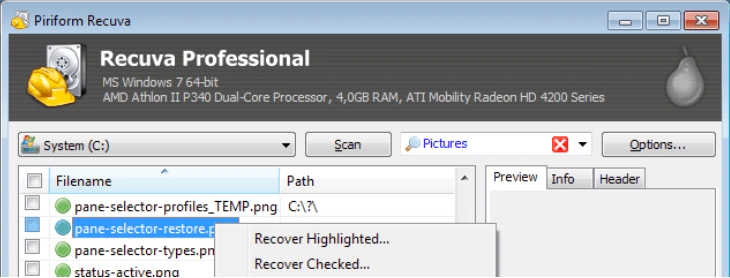
Follow the steps below for a safer and more complete scan.
Step 1: Stop Using the Formatted Drive
Disconnect an external drive, USB stick, or SD card until you are ready to scan it.
For an internal secondary disk, avoid opening, downloading, or saving anything to it. If the affected disk contains Windows, shut down the computer and connect the drive to another working PC when possible.
Every write operation can replace recoverable sectors.
Step 2: Install Recuva on Another Drive
Download Recuva from its official website.
Do not install it on the formatted disk. For example, if drive D: was formatted, install Recuva on drive C: or use another computer. Installing software on the affected volume can overwrite exactly the files you are trying to recover.
You can also consult this separate guide on how to use Recuva data recovery.
Step 3: Enter Advanced Mode
Open Recuva.
If the Recuva Wizard appears, click Cancel to enter Advanced Mode. The setting required for a reformatted disk is not part of the basic Wizard workflow.
Step 4: Enable Scan for Non-Deleted Files
Click Options, and then open the Actions tab.
Select:
Scan for non-deleted files
Click OK to save the setting.
Recuva’s official support instructions specifically recommend this option for corrupted, damaged, or reformatted disks. elect the Correct Drive
Choose the formatted disk from the drive list.
Check the drive letter, label, size, and device type carefully. When several similar external drives are connected, disconnect any unnecessary devices to reduce the risk of scanning or restoring to the wrong disk.
If Recuva does not display the drive, check Windows Disk Management. A disk that appears with its correct capacity may still be scannable. However, software recovery becomes more difficult if the drive is completely absent, repeatedly disconnects, or reports an incorrect size.
Step 6: Run a Normal Scan First
Start with a normal scan if the formatted volume is still recognized and the format was recent.
A normal scan is faster and may preserve more original filenames, folder paths, and file-system records when that metadata remains available.
If it finds the required files, there is no need to run a deeper scan immediately.
Step 7: Enable Recuva Deep Scan When Necessary
Run Recuva Deep Scan if the first scan produces few or no useful results.
Deep Scan searches the disk for known file signatures rather than relying entirely on the original directory records. This can help locate file content after formatting has removed or damaged the old file-system references.
However, signature-based recovery has trade-offs:
- Original filenames may be missing.
- Folder structures may not survive.
- Fragmented files may be incomplete.
- Some recovered files may open incorrectly.
- A large disk may take much longer to scan.
Recuva’s official product page describes Deep Scan as a method for searching a drive for traces of difficult-to-find files.
Step 8: Recover Files to Another Disk
Select the files you need and click Recover.
Save them to a different physical drive. Do not restore them to the formatted source disk, even if that disk has plenty of free space. Writing recovered files back to the source can overwrite other files that have not yet been restored.
After recovery, open a sample of documents, photos, videos, and archives before assuming the process succeeded.
Why Recuva Fails to Recover a Formatted Disk
People often conclude that Recuva is ineffective when the real problem is the recovery condition or an incorrect scan configuration.
Below are the most common causes.
Scan for Non-Deleted Files Was Not Enabled
This is one of the most important Recuva-specific issues.
A basic deleted-file scan may not adequately search a reformatted file system. Enter Advanced Mode and enable “Scan for non-deleted files” before deciding that nothing remains.
New Data Overwrote the Old Files
After formatting, the drive treats its storage space as available.
Copying a single large video, reinstalling Windows, downloading applications, or moving a backup onto the disk can overwrite thousands of old files. Once the relevant sectors have been replaced, neither Recuva nor another software tool can reconstruct their original contents.
A Full Format Was Performed
A full format is fundamentally different from a quick format.
Because it writes across the volume while preparing and checking it, the old file content may no longer remain. A scan might still find fragments or references in unusual cases, but users should keep expectations low.
The Disk Is an SSD
SSDs manage deleted storage differently from traditional hard drives.
Windows and the SSD controller may use TRIM to identify blocks that are no longer needed. The controller can then clear or recycle those blocks internally. Therefore, even a quick-formatted SSD may become unrecoverable sooner than an HDD.
Continued computer use, a fresh Windows installation, or automatic background maintenance can reduce the remaining opportunity further.
The Original File System Was FAT32
Recuva’s documentation notes that recovery is generally easier from NTFS than FAT. It also states that fragmented files cannot be recovered from FAT-formatted drives in the same way they may be recovered from NTFS volumes. on matters for SD cards and USB drives, which commonly use FAT32 or exFAT.
Deep Scan Found File Signatures but Not Complete Files
A signature scanner may identify the beginning of a JPG, MP4, ZIP, or DOCX file without locating all of its fragments.
This often leads to:
- Photos that display only partially
- Videos that refuse to play
- Archives that report errors
- Documents that appear corrupted
- Files with generic names and no folders
The scan found evidence of the file, but not enough continuous data to rebuild it correctly.
The Drive Has Physical Problems
Recuva is not a substitute for a data recovery laboratory.
Stop scanning if the drive:
- Makes clicking, grinding, or repeated spin-up sounds
- Disconnects during a scan
- Becomes extremely slow
- Reports the wrong capacity
- Is not detected in Disk Management
- Shows signs of electrical or liquid damage
Repeated software scans can place additional stress on an unstable drive. Important data on a physically failing device should be handled by a qualified recovery service.
Recuva vs. Magic Data Recovery for a Formatted Disk
Recuva remains useful because it is simple, familiar, and available as a free recovery tool. It makes sense as an initial attempt after a recent quick format on a healthy Windows-readable drive.
However, formatted disks often involve more than ordinary file deletion. The previous file system may be missing, the partition may appear RAW, folder records may be damaged, or the device may contain thousands of files across many formats.
That is where Magic Data Recovery provides a broader recovery workflow.
Feature | Recuva | Magic Data Recovery |
Best suited for | Recently deleted files and some newly formatted drives | Deleted, formatted, RAW, corrupted, and file-system-error scenarios |
Formatted-disk setup | Requires Advanced Mode and specific scan settings | Automatically scans the selected device for lost data |
Deep scanning | Available | Advanced sector-level scanning available |
File preview | Available for supported files | Preview and filtering before recovery |
File-type coverage | Common documents and media | More than 5,000 file types |
Typical user | Someone trying a basic free recovery first | Someone handling a broader or more complex data-loss case |
Recovery destination | Must be another drive | Must be another drive |
Magic Data Recovery supports more than 5,000 file types and uses a straightforward select, scan, preview, and recover workflow. It is designed for storage devices including hard drives, SSDs, USB flash drives, and memory cards. not that Recuva never works. It often makes sense for basic undelete tasks. The distinction is that Magic Data Recovery is built around a wider range of logical data-loss situations, including accidental formatting and damaged file-system structures.
How to Use Magic Data Recovery When Recuva Cannot Find Files
When Recuva finishes without locating the required data, avoid formatting the disk again or running repair utilities. Instead, perform a fresh read-only recovery scan with another tool.
Step 1: Download and Install Magic Data Recovery
Download Magic Data Recovery and install it on a healthy disk.
Supports Windows 7/8/10/11 and Windows Server
Never install it on the formatted source volume.
Step 2: Connect the Formatted Device
Connect the hard drive, USB device, or memory card to the Windows computer.
Confirm that the device appears with the expected capacity. For an SD card, use a stable card reader rather than connecting the camera if the connection frequently drops.
Step 3: Select the Formatted Disk
Launch the software and choose the affected device.
Check the disk size and partition information carefully before starting the scan.

Step 4: Scan for Lost Files
Magic Data Recovery searches the selected storage area for deleted, formatted, inaccessible, and lost files. Results appear as the scan progresses, allowing you to begin reviewing recoverable content.

Step 5: Filter and Preview Files
Use file-type filters, search tools, and previews to narrow the results.

For example, a user recovering a formatted photography SD card can focus on JPG, PNG, CR2, NEF, ARW, or video formats instead of reviewing unrelated system files.
Likewise, an office user can filter for DOCX, XLSX, PPTX, PDF, ZIP, and email-related files.
Step 6: Recover to a Safe Location
Select the required files and save them to another physical drive.

Afterward, verify several large and important files. A successful preview usually provides stronger evidence than a recognizable filename alone.
For additional formatted-drive methods, see the guide on how to recover data from a formatted hard drive.
What to Do If Neither Tool Finds the Files
A second unsuccessful scan does not always mean the next step should be a third or fourth recovery program.
First, reassess the situation.
Check whether:
- The disk received a full format.
- Windows was reinstalled afterward.
- Large files were copied onto the volume.
- The affected device is an SSD.
- The drive shows physical failure symptoms.
- Encryption was enabled before formatting.
- The reported capacity differs from the actual device size.
If the data is irreplaceable, stop experimenting and consult a professional laboratory. This is particularly important for physically unstable disks, encrypted volumes, damaged USB controllers, and devices that are no longer detected correctly.
For non-critical data on a healthy disk, you can compare scan results from Recuva and Magic Data Recovery. Different recovery engines may identify different metadata and file signatures, but no software can restore sectors that have already been overwritten.
How to Improve the Chance of Formatted Disk Recovery
The actions taken after formatting often matter more than the brand of software used.
Follow these rules:
- Stop using the storage device immediately.
- Do not format it again, even if Windows prompts you.
- Avoid CHKDSK and file-system repair before recovering the files.
- Install recovery software on another drive.
- Save recovered files to a separate physical device.
- Scan an unstable drive image rather than repeatedly scanning the original.
- Preview important files before recovering everything.
- Contact a laboratory when the drive shows physical symptoms.
These precautions cannot reverse existing overwriting, but they can prevent additional damage.
Conclusion
So, can Recuva recover formatted disk data? Yes, particularly after a recent quick format on a healthy HDD, USB drive, or memory card that has not been reused. The correct setup matters: enter Advanced Mode, enable “Scan for non-deleted files,” and use Recuva Deep Scan when the normal scan does not find enough data.
Still, Recuva has practical limits. A full format, SSD TRIM, severe file-system corruption, fragmented files, and continued disk use can all reduce the result.
When Recuva cannot locate the required files, Magic Data Recovery is a sensible next step because it is designed for deletion, formatting, RAW file systems, and other logical data-loss scenarios. Its scan, preview, filter, and recover workflow also makes it easier to evaluate results before saving them.
Most importantly, do not write anything else to the affected device. Begin with the safest recovery method and use this formatted drive recovery guide to choose the appropriate next step.
FAQs
Can Recuva recover a quick-formatted disk?
Yes, Recuva can often recover files after a quick format, especially on a healthy HDD, USB drive, or memory card that has not been reused. Enable “Scan for non-deleted files” in Advanced Mode and consider Deep Scan. Results still depend on overwrite activity, file fragmentation, and the original file system.
Can Recuva recover a fully formatted hard drive?
Recovery after a full format is much less likely. A Windows full format can write across the volume while checking sectors, which may destroy the original file content. Recuva cannot reconstruct data that has already been overwritten. You can still scan if the process was interrupted, but expectations should remain conservative.
Why does Recuva not show files from my formatted drive?
Recuva may show no useful files if it ran a normal deleted-file scan instead of scanning for non-deleted files. Other causes include new data overwriting old sectors, an SSD processing TRIM commands, severe file-system damage, or a drive that disconnects during scanning. Check the settings before running another scan.
Should I enable Deep Scan for a formatted disk?
Deep Scan is worth enabling when the normal scan does not find files from a formatted disk. It searches for known file signatures across the drive and can locate files whose directory records are gone. However, it may lose original names and folder paths, and scanning a large drive can take considerably longer.
Can Recuva recover data from a formatted SSD?
Recuva can scan a formatted SSD if Windows still recognizes it, but SSD recovery is less predictable than HDD recovery. TRIM and the SSD controller’s cleanup processes may make deleted blocks unreadable soon after formatting. Stop using the SSD immediately, avoid reinstalling Windows, and scan from another working system whenever possible.
Can Recuva restore the original folder structure?
Sometimes. Recuva may preserve names and folders when enough NTFS metadata remains intact. After formatting or a signature-based Deep Scan, however, the original directory structure may be incomplete or missing. Recovered files can appear under generic names, so previewing documents, photos, and videos is important before saving a large batch.
Is Recuva free for formatted disk recovery?
Recuva’s free edition can perform file recovery and is a reasonable first attempt for a recently formatted, healthy drive. The practical limitation is not necessarily the price but the recovery scenario. Complex formatting, RAW file systems, lost partitions, and heavily damaged metadata may require a tool designed for broader logical data-loss cases.
What should I use if Recuva fails?
If Recuva fails, do not repeatedly format, repair, or write to the drive. Try Magic Data Recovery from another disk, scan the affected device, preview the results, and save recovered files elsewhere. If the drive clicks, disappears, reports the wrong capacity, or cannot stay connected, stop software attempts and contact a recovery laboratory.

Jason is a data recovery and technical support specialist with over 15 years of hands-on experience. He has worked extensively with frontline users, troubleshooting difficult data loss cases and providing practical recovery solutions for accidental deletion, formatted drives, damaged file systems, lost partitions, system failures, and other recovery emergencies. His expertise also includes backup and restoration, file repair, and disaster recovery, with a strong emphasis on safe, reliable, and technically accurate guidance.