
MBR2GPT: Convert MBR to GPT Without Data Loss
When upgrading to newer systems, many users need to convert MBR to GPT. However, data safety often becomes the biggest concern. Fortunately, mbr2gpt provides a built-in way to complete this conversion without formatting the disk.
At the same time, real-world situations are not always ideal. For example, system crashes, incorrect operations, or sudden power interruptions can still cause lost partitions or data loss. Therefore, this guide explains how the Windows conversion tool works, how to use it properly, and what you can do if problems occur.
Table of Contents
What Is MBR2GPT and How It Works
MBR2GPT is a native Windows utility designed to change disk partition styles without deleting existing data. Instead of recreating partitions, it adjusts the structure in place.
Moreover, this tool enables users to switch from BIOS to UEFI without reinstalling the operating system. As a result, the entire upgrade process becomes faster and more efficient.
According to Microsoft’s official documentation on MBR2GPT, the tool validates the disk before performing any changes. Therefore, it helps reduce potential risks during conversion.
Why You Should Convert MBR to GPT
There are several practical reasons to update your disk format.
First, GPT supports larger storage capacity. In contrast, MBR limits disks to 2TB.
Second, modern systems rely on UEFI. Therefore, users must update their disk structure to meet Windows 11 requirements.
In addition, GPT improves reliability. It stores backup partition tables, which makes recovery easier if something goes wrong.
Requirements Before Using the MBR2GPT Conversion Tool
Before running the built-in utility, you should verify a few conditions. Otherwise, the process may fail.
- Your system runs Windows 10 version 1703 or later
- The disk is a system disk
- The number of primary partitions does not exceed three
- Enough unallocated space exists for the EFI partition
Because these requirements directly affect the result, checking them in advance can prevent unnecessary errors.
How to Use MBR2GPT.exe Step by Step
To complete the conversion safely, follow these steps carefully. If done correctly, you can keep your files intact throughout the process.
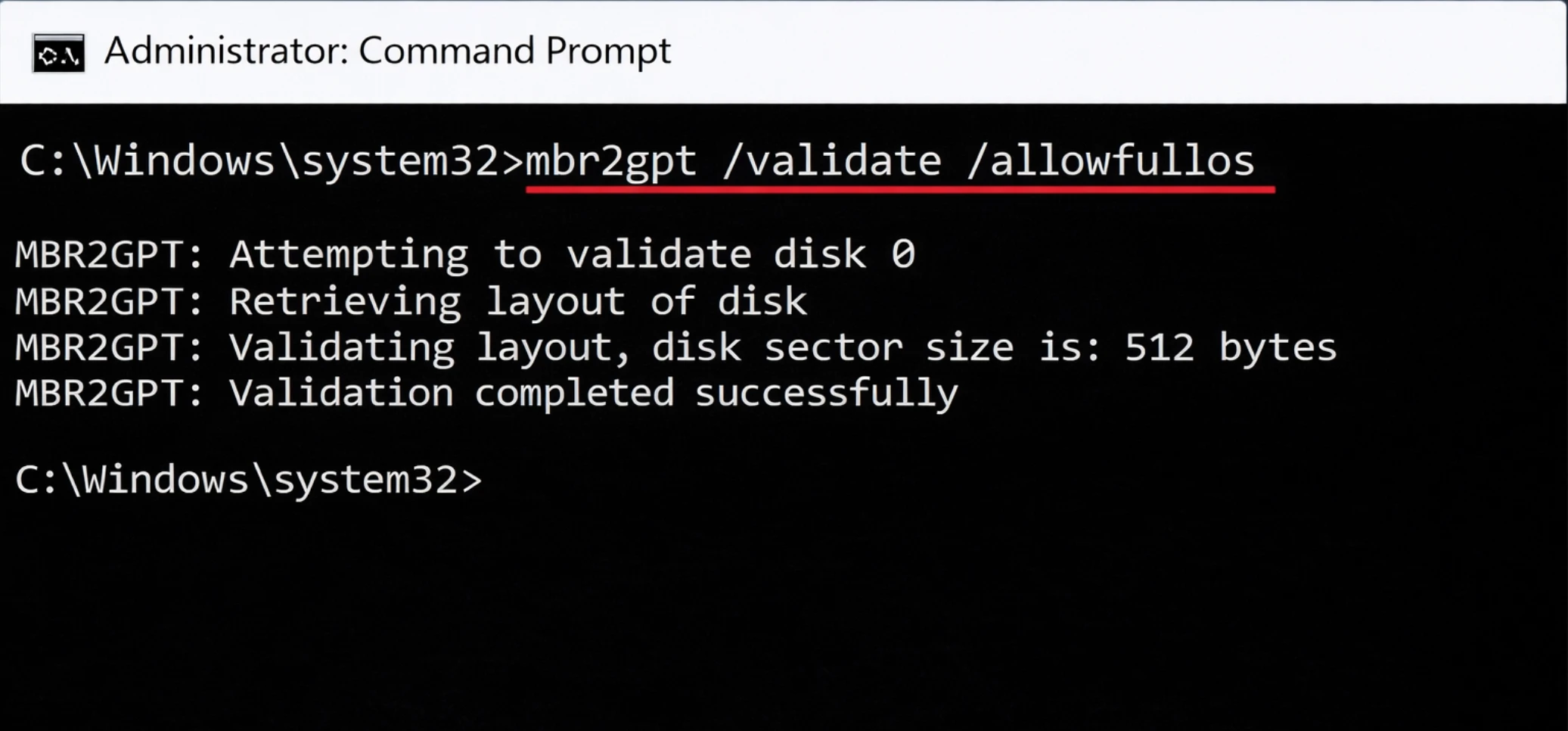
Step 1: Validate Disk Structure
First, open Command Prompt as administrator and run:
mbr2gpt /validate /allowFullOS
The /allowFullOS parameter is used if you are not in Windows Preinstallation Environment.
This step checks whether the disk meets all requirements. If the validation fails, you should fix the reported issue before moving forward.
Step 2: Start the MBR2GPT Conversion Process
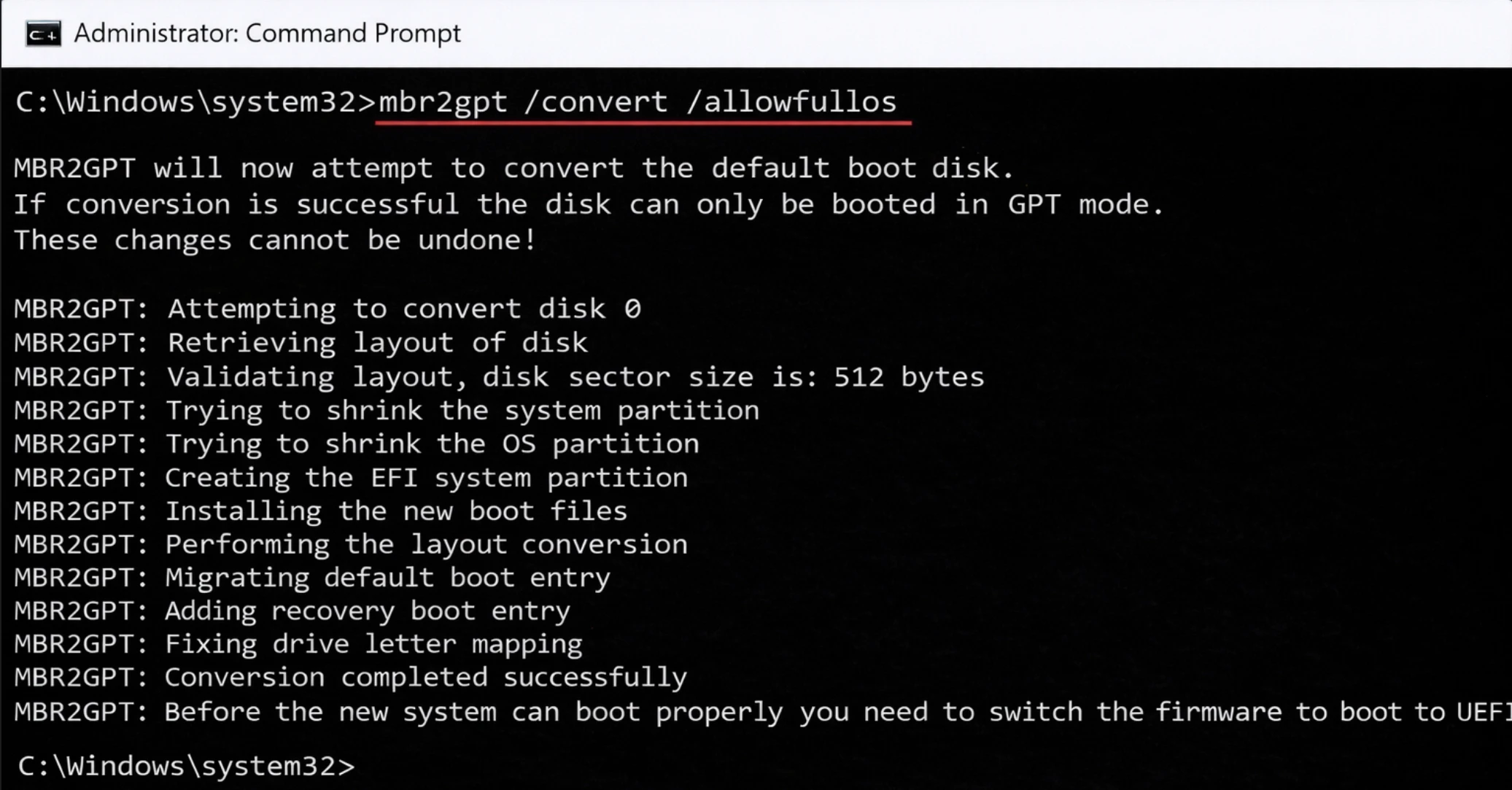
Next, run:
mbr2gpt /convert /allowFullOS
At this stage, the system updates the partition table. Meanwhile, your existing data remains unchanged.
Step 3: Switch to UEFI Mode after running MBR2GPT
After the process finishes:
- Restart your computer
- Enter BIOS settings
- Change boot mode to UEFI
Finally, save the changes and reboot. As a result, your system will boot using the new disk format.
Alternative Way to Complete MBR2GPT Conversion More Easily
Although the command-line method works reliably, it may feel complex for beginners. Therefore, many users prefer tools with graphical interfaces.
These tools simplify the workflow and reduce the chance of mistakes. In addition, they often provide clearer feedback during the process. However, reliability still matters. Choosing an unstable solution may lead to disk damage.
Comparison: Built-in Tool vs Traditional Methods
Feature | Built-in Tool | Traditional Conversion |
Data Safety | Keeps data | Requires formatting |
Ease of Use | Moderate | Complex |
Speed | Fast | Slower |
Risk Level | Low | Higher |
Clearly, the built-in approach offers a more balanced solution. In contrast, older methods often require full data removal.
Common Problems During Disk MBR2GPT Conversion
Errors may occur if the disk does not meet requirements. For example, insufficient space for the EFI partition can block conversion. If you see validation errors, check partitions and retry. Using correct commands prevents potential disk issues during MBR2GPT conversion.
Disk Validation Failed
This issue occurs when the disk layout does not meet the required structure.
System Partition Not Found
This usually indicates missing or damaged system partitions.
Insufficient Space
The system needs free space to create the EFI partition.
Therefore, preparing your disk in advance can significantly reduce these problems.
Tips for a Successful MBR2GPT Conversion
- Always backup data before conversion
- Use system restore points
- Verify disk integrity with
chkdsk - Ensure UEFI firmware is enabled
These precautions minimize risks and ensure MBR2GPT works correctly.
What If Data Is Lost During the MBR2GPT Conversion?
In theory, the process should not remove files. However, unexpected situations can still cause issues.
For example:
- Sudden power loss
- System freezing
- Incorrect command execution
As a result, partitions may become inaccessible or corrupted.
Recover Lost Data After MBR2GPT Conversion Failure
If data loss occurs, acting quickly is important. Instead of trying risky manual fixes, using a professional recovery solution is safer. One practical option is Magic Data Recovery:
Key Advantages
- Restores lost partitions after conversion errors
- Detects RAW or corrupted disks
- Performs deep scans to locate hidden files
- Supports HDD, SSD, and external storage
Example Scenario
For instance, if a power outage interrupts the process, the disk may become unreadable. In this case, the tool can scan the disk and recover important files efficiently.
Why It Stands Out
Compared with manual recovery attempts, this solution reduces risk and saves time. Moreover, it prevents further damage caused by repeated operations.
Conclusion
Overall, mbr2gpt provides a reliable way to convert MBR to GPT without reinstalling the system. It simplifies the upgrade process while preserving existing data.
However, real-world risks still exist. System instability, sudden power loss, or incorrect operations may lead to unexpected data issues.
Therefore, preparing a recovery plan is essential. Magic Data Recovery stands out because it handles partition loss, supports deep scanning, and works across multiple scenarios.
If you want both safety and efficiency, combining mbr2gpt.exe with a reliable recovery solution is a smart approach.
Supports Windows 7/8/10/11 and Windows Server
FAQ About MBR2GPT
Can MBR2GPT convert a disk without losing data?
Which Windows versions support MBR2GPT?
What errors can occur during MBR2GPT conversion?
Do I need UEFI firmware for MBR2GPT?
How long does the MBR2GPT conversion take?
Can I undo MBR2GPT conversion?
Is it necessary to backup before using MBR2GPT?

Vasilii is a data recovery specialist with around 10 years of hands-on experience in the field. Throughout his career, he has successfully solved thousands of complex cases involving deleted files, formatted drives, lost partitions, and RAW file systems. His expertise covers both manual recovery methods using professional tools like hex editors and advanced automated solutions with recovery software. Vasilii's mission is to make reliable data recovery knowledge accessible to both IT professionals and everyday users, helping them safeguard their valuable digital assets.