
The Ultimate Guide to Fixing RAW File System Errors (2026 Edition)
Have you ever plugged in your hard drive or USB flash drive only to see a dreaded message:
“You need to format the disk in drive X: before you can use it”?
If you attempt to open a drive and see a “format disk” warning, your device likely has a raw file system. This error indicates that Windows cannot recognize the drive’s internal structure. Consequently, you must act carefully to save your files with a proper data recovery tool like Magic Data Recovery.
Supports Windows 7/8/10/11 and Windows Server
Table of Contents
What Is a RAW File System?
Understanding File Systems
A file system is the organizational method an operating system uses to store and locate data on a storage device. Common types include:
When a drive turns RAW, it means the file system structure is either missing, damaged, or unreadable — leaving the OS unable to access files.
What RAW File System Actually Means
RAW isn’t a real file system — it’s a state.
It indicates that your hard drive or partition has lost its format recognition, so it appears as unallocated space or “Unknown” in Disk Management.
Why Does a Drive Become RAW?
Common Causes of RAW File System Errors
- Unsafe ejection of external drives
- Sudden power loss during data transfer
- Virus or malware attacks corrupting the partition table
- Bad sectors on the physical disk
- Interruption during formatting or partitioning
- Hardware failure or aging drives
Devices Commonly Affected
- USB flash drives
- External HDDs and SSDs
- SD memory cards
- Laptop or desktop internal drives
How to Identify RAW File System Problems
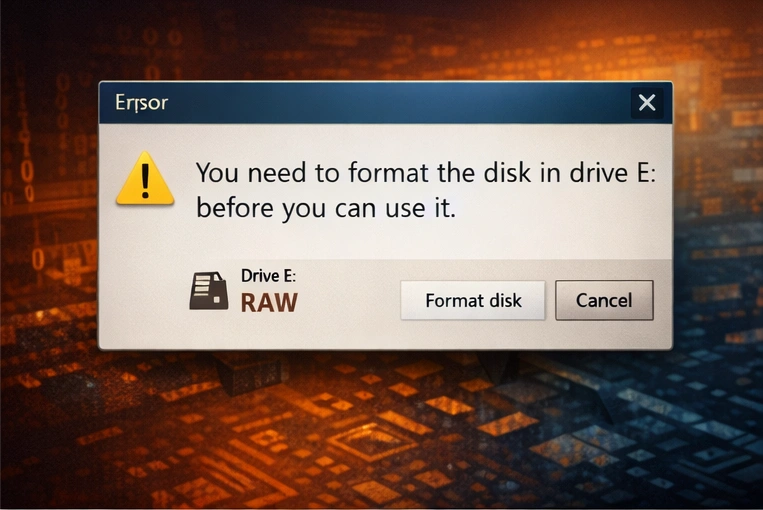
When your disk becomes RAW, you might see:
- “The volume does not contain a recognized file system.”
- “You need to format the disk before you can use it.”
- “File or directory is corrupted and unreadable.”
Check in Disk Management
- Right-click This PC → Manage → Disk Management
- Locate the affected drive
- Under the File System column, you’ll see RAW
If you see “RAW,” it confirms that the file system is unrecognized.
Risks and Consequences of a RAW Drive
Unreadable Files and Data Loss
All data remains physically on the drive, but Windows cannot interpret it. Attempting to open the drive may result in an error message or freezing.
Formatting Risk
If you click “Format,” the OS overwrites file system metadata — drastically reducing recovery chances.
System Instability
A corrupted drive can slow system boot times, cause crashes, or make backups fail.
Solutions to RAW File System Errors
Solution 1: Repair the RAW File System via CHKDSK
First, you should try the built-in Windows repair tool. Although it has limitations, it sometimes fixes minor errors.
- Open the command prompt as an administrator.
- Type
chkdsk G: /f(replace G with your drive letter). - Press Enter to begin the repair process.
Note: If you see “CHKDSK is not available,” your raw file system requires professional recovery.
Solution 2: Recover Data from a RAW File System (Recommended)
Because manual repairs often fail, you should prioritize data extraction. Magic Data Recovery effectively bypasses the corrupted layer to read your files directly.
- Scan: Launch the tool and select your drive with the raw file system.
- Preview: You can browse photos and documents before the actual recovery.
- Recover: Save your files to a different, healthy storage device.
Pro Tip: This software allows you to recover 500MB of data for free to verify results.
Solution 3: Rebuild the Drive after Fixing the RAW File System
After you safely back up your data, you can finally format the drive to make it usable again.
- Right-click This PC → Manage → Disk Management.
- Right-click the partition showing the raw file system.
- Choose NTFS or exFAT and perform a quick format.
Precautions Before Repairing a RAW Drive
Backup and Disk Imaging
Before any repair attempt, clone or image your RAW drive using tools like Clonezilla or Macrium Reflect to avoid irreversible loss.
Avoid Writing to the Drive
Do not create, copy, or modify files on a RAW disk. This prevents overwriting valuable data blocks.
Common Mistakes to Avoid During RAW Recovery
Mistake #1: Immediate Formatting
Formatting overwrites metadata and makes advanced recovery harder. Always recover first, then format later.
Mistake #2: Running Multiple Repair Tools
Each tool may alter partition information differently, worsening corruption.
Mistake #3: Saving Recovered Files to the Same Drive
Always recover to a separate, healthy storage device.
How to Prevent RAW File System Errors
Proper Ejection
Always use “Safely Remove Hardware” before unplugging drives.
Regular Health Monitoring
Use tools like CrystalDiskInfo or Hard Disk Sentinel to monitor drive health and temperature.
Keep Software Updated
Install the latest OS patches and antivirus software to reduce file corruption risks.
Professional Recovery Solution: Magic Data Recovery
About Magic Data Recovery
When your drive turns RAW, Magic Data Recovery is a powerful, user-friendly software designed to scan and recover lost files from corrupted or unrecognized partitions.

It supports NTFS, FAT, exFAT, RAW, and more — perfect for recovering data from hard drives, SSDs, USBs, and SD cards.
Key Advantages
- Deep sector-by-sector scanning
- Supports all storage media types
- AI-powered file structure reconstruction
- Easy for beginners with a clean interface
Step-by-Step Recovery Process
- Download and install Magic Data Recovery
Supports Windows 7/8/10/11 and Windows Server
2. Select your RAW drive from the list
3. Choose Full Analysis to scan deeply
4. Preview found files and select what you need
5. Save recovered files to a different storage location
Why It’s the Best Choice for RAW Drive Repair
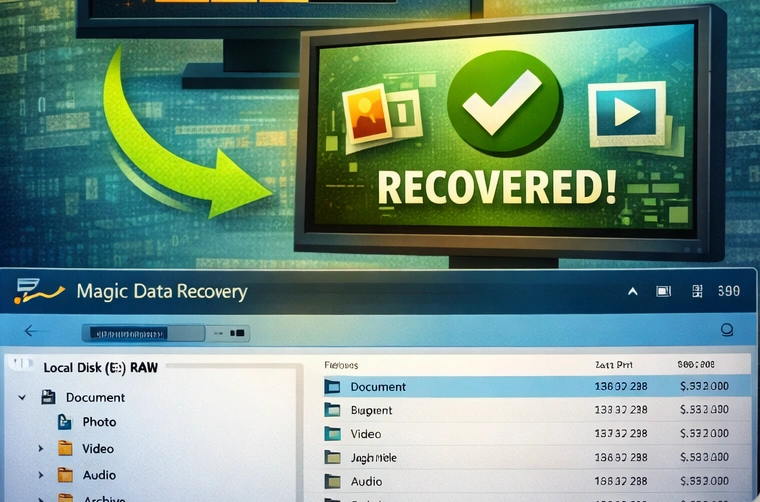
Unlike manual repair commands, Magic Data Recovery:
- Recovers files without formatting
- Restores original file names and structure
- Works on Windows 7–11
- Offers a free preview before purchase
🔗 Official Website: Magic Data Recovery
Conclusion: Protect Your Data, Recover with Confidence
A RAW file system doesn’t mean the end of your data — it’s a signal to act carefully.
Avoid formatting, perform a full recovery using Magic Data Recovery, and then reformat the drive for safe reuse.
By understanding the causes and taking preventive steps, you can keep your drives healthy and your data safe — always.
Supports Windows 7/8/10/11 and Windows Server
FAQs
Can I convert a raw file system to NTFS without losing my files?
Why does my external hard drive suddenly show a raw file system?
Is it possible for CHKDSK to fix a raw file system error?
How does Magic Data Recovery handle a raw file system differently?
Will formatting a raw file system drive fix the underlying hardware problem?
Can a virus cause my USB drive to display a raw file system?
How much does it cost to fix a raw file system professionally?

Jason is a data recovery and technical support specialist with over 15 years of hands-on experience. He has worked extensively with frontline users, troubleshooting difficult data loss cases and providing practical recovery solutions for accidental deletion, formatted drives, damaged file systems, lost partitions, system failures, and other recovery emergencies. His expertise also includes backup and restoration, file repair, and disaster recovery, with a strong emphasis on safe, reliable, and technically accurate guidance.