
Undelete Files in Windows Guide
Losing important data can instantly disrupt your busy daily workflow. Whether you accidentally used the Shift + Delete shortcut, formatted a local drive, or witnessed a sudden system crash, the disappearance of your documents feels overwhelming. Fortunately, when you delete a file on your computer, the operating system does not immediately erase the actual data packets. Instead, it simply marks that specific storage space as available for new information. As long as you take action before new data overwrites that space, you can successfully undelete files.
This comprehensive guide will show you exactly how to execute a successful Windows undelete files process. We will explore free built-in system tools, discuss critical hardware factors, and introduce a highly reliable professional solution like Magic Data Recovery to recover your deleted files seamlessly.
Supports Windows 7/8/10/11 and Windows Server
Table of Contents
The Golden Rules Before You Try to Undelete Files
When you realize data is missing, your immediate actions will directly determine the success rate of the recovery process. Therefore, to maximize your chances to undelete files, you must follow these two strict industry best practices.
- Stop Using the Affected Drive Immediately: Every new file you save, web page you cache, or software update you install can overwrite the exact sectors where your old data still resides.
- Avoid Self-Overwriting: Never download or install any data recovery tools onto the same partition where the missing items were located. For example, if you lost photos on your C: drive, you should install your recovery software on an external USB drive or a secondary D: drive.
Method 1: Use Native Tools for Windows Undelete Files Tasks
Before purchasing specialized software, you should always check the built-in utilities provided by Microsoft. Consequently, these free options solve many common, everyday data loss scenarios quite effectively.
Undelete Files from Windows Recycle Bin
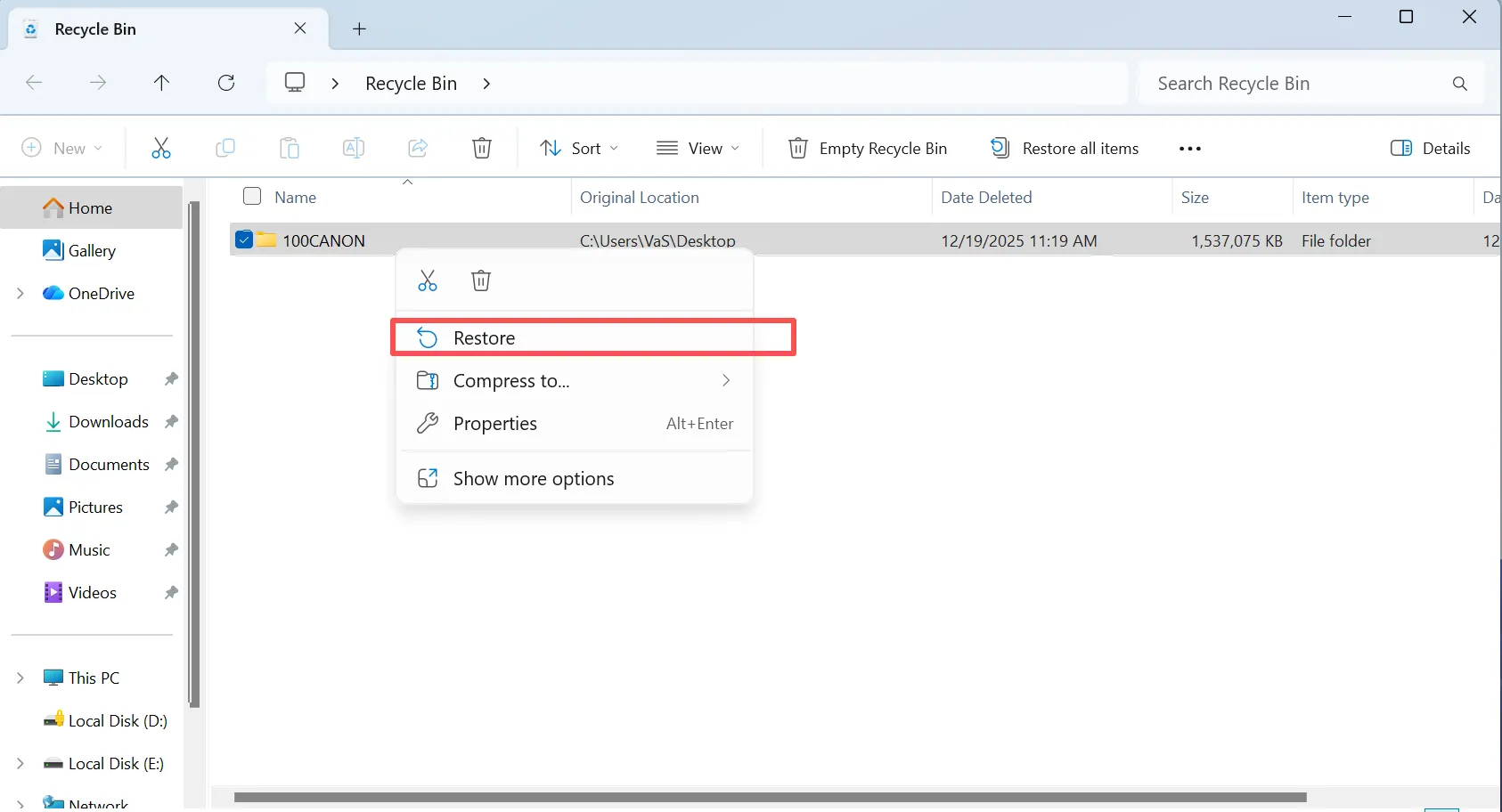
The simplest way to undelete files is by opening the Recycle Bin. Unless you used a permanent deletion command, Windows temporarily holds your files here. Simply open the bin, locate your item, right-click it, and select “Restore.”
Restore via Windows File History
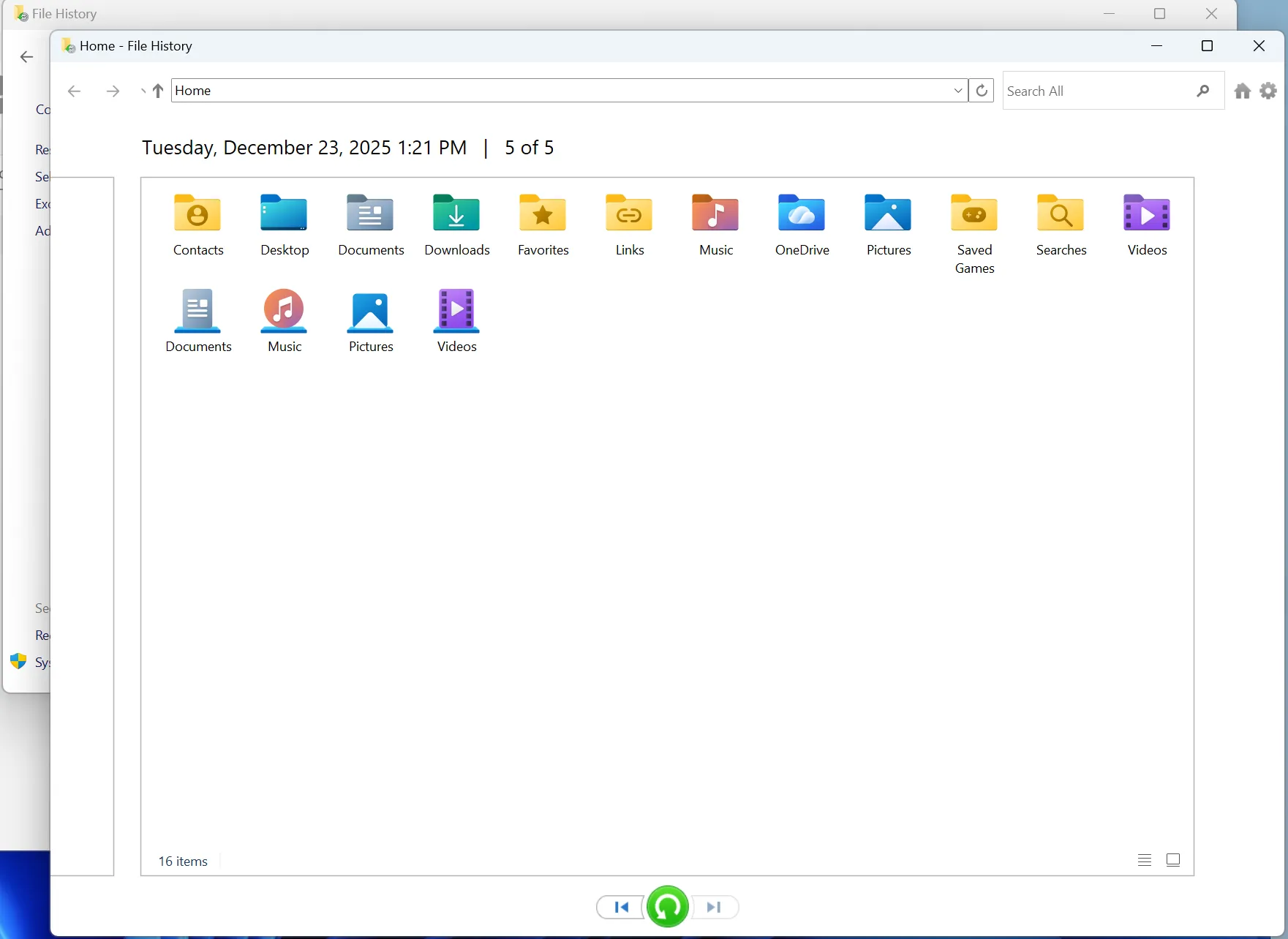
If you previously configured the native backup system, you can use File History to recover permanently lost items.
- Open the Start menu and type Control Panel.
- Navigate to System and Security and click on File History.
- Select Restore personal files from the left-hand menu.
- Browse through the available time backups, select your folder, and click the green Restore button.
Limitations of Built-In Windows Methods
While native tools provide a quick fix, they have severe limitations. If you regularly empty your Recycle Bin or fail to set up an external backup drive for File History, these native methods cannot help you. When built-in features fall short, a dedicated data recovery software solution becomes necessary.
Method 2: The Best Solution to Undelete Files via Magic Data Recovery
When standard system tools fail, you need a more robust approach to handle complex data loss. This is where a professional utility can bridge the gap between accidental deletion and successful retrieval.
If you are looking for a highly efficient solution, you should try Magic Data Recovery. Developed as a comprehensive tool to handle challenging storage mishaps, this software specializes in deep-level partition scanning. It successfully simplifies the entire Windows undelete files workflow for everyday users.
Key Features of Magic Data Recovery
- Advanced Scanning Algorithms: The software utilizes high-end scanning logic to reconstruct fragmented files, even after a full drive formatting event.
- Broad System Compatibility: It works flawlessly across Windows 11, 10, 8, and 7, while fully supporting NTFS, FAT32, and exFAT file structures.
- Risk-Free Visual Preview: Users can view verifiable previews of images, documents, and compressed archives before committing to the final recovery process.
- Comprehensive File Support: The tool easily identifies hundreds of file formats, including vital office documents, professional raw images, and high-definition video files.
Typical Everyday Use Cases
Imagine a scenario where a photographer accidentally formats a card full of client work, or an office employee permanently deletes a crucial quarterly report. In both situations, standard Windows features offer no remedy. Magic Data Recovery solves these exact problems by bypassing the operating system’s restricted view and reading the raw data directly from the storage sectors. It proves far more reliable than old, unmaintained freeware because its codebase receives constant updates to match modern storage security protocols.
Step-by-Step Guide to Undelete Files
Step 1: Download and Install Magic Data Recovery
Download Magic Data Recovery and install the software on a partition different from the drive where your data loss occurred. This careful approach prevents accidental overwriting and protects your lost data during the setup process.
Supports Windows 7/8/10/11 and Windows Server
Step 2: Select the Target Partition to Scan
Launch the program on your computer. Then, from the intuitive main interface, choose the specific local drive partition where your files were deleted and start the scanning process.

Step 3: Scan the System Drive for Deleted Files
The software automatically performs an Advanced Scan on the designated area. Meanwhile, it systematically lists all recoverable files in real-time as the deep scan progresses.

Step 4: Preview Deleted Files Before Recovery
Next, utilize the built-in preview function to confirm the exact content of your documents or images. This practical step ensures you recover only the specific files you actually need.

Step 5: Recover Files to a Safe Location
Finally, select your target files and save them securely to a completely separate drive or secondary storage partition. Never restore data back to the same source drive, because doing so risks immediate data corruption.

Advanced Technical Insight: How SSD TRIM Affects Windows Undelete Files Success
Understanding your hardware is vital when attempting to undelete files on modern computers. Traditional Hard Disk Drives (HDDs) keep your deleted data intact until new data takes its place. However, modern Solid-State Drives (SSDs) operate differently due to a built-in system command called TRIM.
When you erase an item on an SSD, the Windows TRIM command tells the drive to actively wipe those sectors during idle times to maintain optimal writing speeds. Consequently, executing a Windows undelete files process on an SSD requires absolute speed. If you delay, the drive might permanently erase the background blocks. Utilizing an optimized tool like Magic Data Recovery immediately after a loss gives you the best chance to extract the remaining metadata before the automated TRIM cycle executes.
Conclusion
Successfully managing data loss requires a mix of quick thinking and correct methodology. While checking the Recycle Bin or using File History should always be your first steps, those tools cannot handle formatted drives or permanent deletions.
For critical situations where data integrity is paramount, relying on specialized data recovery software is the safest path forward. We highly recommend Magic Data Recovery because it combines deep scanning capabilities with a highly intuitive user interface. This balance ensures that both beginners and advanced users can retrieve their deleted assets without risking further data corruption.
Supports Windows 7/8/10/11 and Windows Server
FAQs About Undeleting Files
Can I undelete files after emptying the Recycle Bin?
Yes, you can absolutely do this. Emptying the Recycle Bin merely removes the file directory pointer while leaving the raw data temporary intact on your hard drive sectors. Therefore, using professional scanning software can quickly find and rebuild these files before new data overwrites them.
Is it possible to recover files deleted by Shift + Delete?
Yes, this process is entirely possible. The Shift + Delete command forces Windows to bypass the Recycle Bin completely, which prevents native tools from finding them. However, the background data remains completely safe on your storage sectors until new files claim that space.
Where do deleted files go if they bypass the Recycle Bin?
When files bypass the Recycle Bin, the operating system marks their storage cluster as empty space. Consequently, the actual data blocks remain hidden on the drive. They stay completely invisible to the user until a secondary file overwrites that specific storage sector.
Why can I not find my recently deleted files using standard Windows search?
Windows search relies on active file system indexes to locate documents. When you delete a file, the system instantly removes its index entry. As a result, standard search tools cannot see the file, making a dedicated scanning utility necessary to read the raw sectors.
How do I know if my lost data is fully recoverable?
You can easily check the condition of your files by utilizing a visual preview feature during the scanning process. If the utility displays an uncorrupted image or a readable document preview, your data is structurally intact and you can restore it successfully.
Does formatting a hard drive permanently erase all your files?
No, a standard format only recreates the file system structure without erasing the actual data sectors. Your previous files remain on the drive despite appearing completely empty. However, you must avoid writing new data to that drive to ensure a successful recovery.
How does a solid-state drive affect data recovery success?
Solid-state drives utilize a feature called the TRIM command to clear deleted data blocks automatically. Because this command runs in the background, your recovery window is much shorter compared to traditional hard drives. Therefore, you must act immediately to achieve success.

Vasilii is a data recovery specialist with around 10 years of hands-on experience in the field. Throughout his career, he has successfully solved thousands of complex cases involving deleted files, formatted drives, lost partitions, and RAW file systems. His expertise covers both manual recovery methods using professional tools like hex editors and advanced automated solutions with recovery software. Vasilii's mission is to make reliable data recovery knowledge accessible to both IT professionals and everyday users, helping them safeguard their valuable digital assets.