
Windows Data Recovery: Restore Lost Files Safely
Losing critical files happens in a split second. For example, you might accidentally format an important drive, or perhaps you suddenly suffer a catastrophic system crash. Consequently, the immediate panic is real when you permanently delete a vital project folder and urgently need a reliable Windows data recovery method. Fortunately, during these stressful moments, knowing exactly how to handle your storage media can mean the difference between permanent loss and complete success.
If you are currently facing this issue, you must follow the golden rule of data rescue immediately. Specifically, you need to stop using the affected drive right now. Whenever you delete a file, the Windows operating system does not instantly destroy the actual data blocks. Instead, it simply marks that specific space as available for new information. Therefore, continuing to browse the web, install programs, or save new documents can permanently overwrite your missing files.
Fortunately, this comprehensive guide will walk you through the inner workings of storage systems. In addition, we will evaluate standard solutions and help you choose the best file recovery software, such as Magic Data Recovery, to retrieve your data on hard drives safely.
Supports Windows 7/8/10/11 and Windows Server
Table of Contents
Understanding Windows Data Loss: How Windows Data Recovery Works
Before you attempt to download any tool, you need to understand how Windows data recovery works behind the scenes. In fact, the success rate of your rescue attempt depends heavily on your drive type and how the operating system handles deletion.
Mechanical HDDs vs. Modern SSDs
Traditional Hard Disk Drives (HDDs) are highly forgiving. When a file is erased, the physical data remains intact on the magnetic platters until new data replaces it. On the other hand, modern Solid-State Drives (SSDs) use a command called TRIM. This feature automatically clears unused data blocks to maintain fast write speeds. As a result, performing Windows data recovery on an SSD after a long period can be significantly more challenging than on an older mechanical drive. Consequently, acting quickly is essential for SSD survival.
File System Metadata
Windows relies on file systems like NTFS or exFAT to organize your storage. For instance, think of a file system as a book index. Deleting a file merely removes its entry from the index, while the actual chapters remain hidden in the background. Therefore, specialized retrieval software can scan the deep sectors of your storage. By doing so, it can reconstruct these orphaned chapters based on unique file signatures.
The Official Free Route: Using Windows Data Recovery via Microsoft Tools
Microsoft provides a native solution for users who want a completely free method. Available on the Microsoft Store, this official command-line utility serves as a basic built-in option for Windows data recovery.
The Reality Check
Although the tool is entirely free, it completely lacks a graphical user interface (GUI). Because of this design, users must type complex command lines into a terminal window to initiate a scan.
Pros and Cons of the Official Tool
- Pros: It is fully authentic, regularly updated by Microsoft, and costs nothing.
- Cons: The learning curve is steep. Non-technical users often find the syntax confusing. More importantly, typing an incorrect drive letter can accidentally cause further data corruption.
Step-by-Step Command Example
To use this tool, you must open Command Prompt as an administrator. After that, you must input a specific string:
winfr C: E: /regular /n \Users\<username>\Documents\
Because this rigid structure leaves no room for error, many individuals search for a more intuitive graphical solution. If you prefer a visual approach that avoids dangerous command entries, moving to a dedicated software solution is highly recommended.

Selecting the Best File Recovery Software for Windows Data Recovery
Not all recovery applications are created equal. When your photos, financial records, or work assets are on the line, you should evaluate third-party tools using strict criteria to find the best file recovery software.
- Scanning Success Rate: First, the application must possess advanced deep-scanning algorithms. As a result, it needs to accurately reassemble fragmented files, such as large 4K videos or multi-page PDF documents.
- Safety and Read-Only Operations: Second, a trustworthy utility must never alter your source drive during a scan. Therefore, you should look for tools that enforce a strict read-only process to guarantee total safety.
- Storage Device Compatibility: Finally, your chosen program should seamlessly handle corrupted partition structures, unreadable RAW drives, and standard internal storage arrays.
The 5 Best Alternatives for Windows Data Recovery
To help you make an informed decision, we analyzed and compared the top choices currently available on the market for Windows data recovery.
Magic Data Recovery
Magic Data Recovery delivers an exceptional balance between advanced data reconstruction algorithms and everyday ease of use. Specifically, it solves the primary frustration found in most tools, such as overly complex settings that confuse regular users.
Key Advantage: If you are dealing with a drive that suddenly turned into an unreadable RAW format or suffered severe partition damage, Magic Data Recovery specializes in deep structural reconstruction. It completely bypasses corrupted file system headers to locate the raw data beneath.
- Pros: The clean, ad-free interface offers an effortless process. In addition, the utility provides 100% accurate visual previews for photos and documents before you buy a license. Furthermore, it runs on a strictly safe, active read-only engine.
- Cons: The free evaluation version allows you to scan and preview everything, but saving the recovered files requires upgrading to the full version.

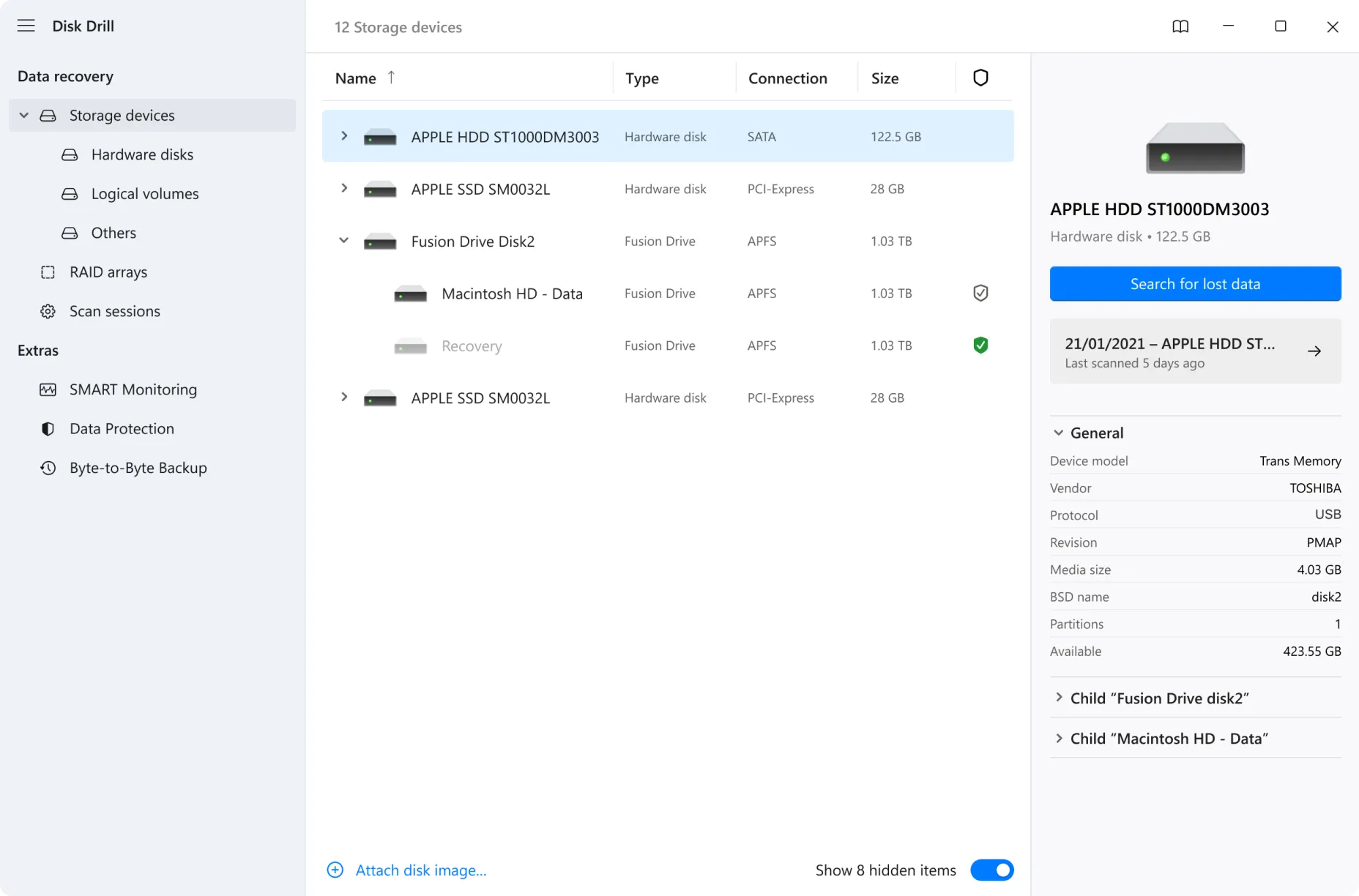
Disk Drill
Disk Drill is a well-known, feature-rich commercial option. For example, it includes extra data protection utilities alongside its standard scanner.
- Pros: The visual layout looks sleek and modern. Besides, it covers a vast array of file signatures.
- Cons: The scanning process demands heavy system resources, which can slow down older computers. Additionally, phone support is unavailable if you encounter an issue.
Recuva
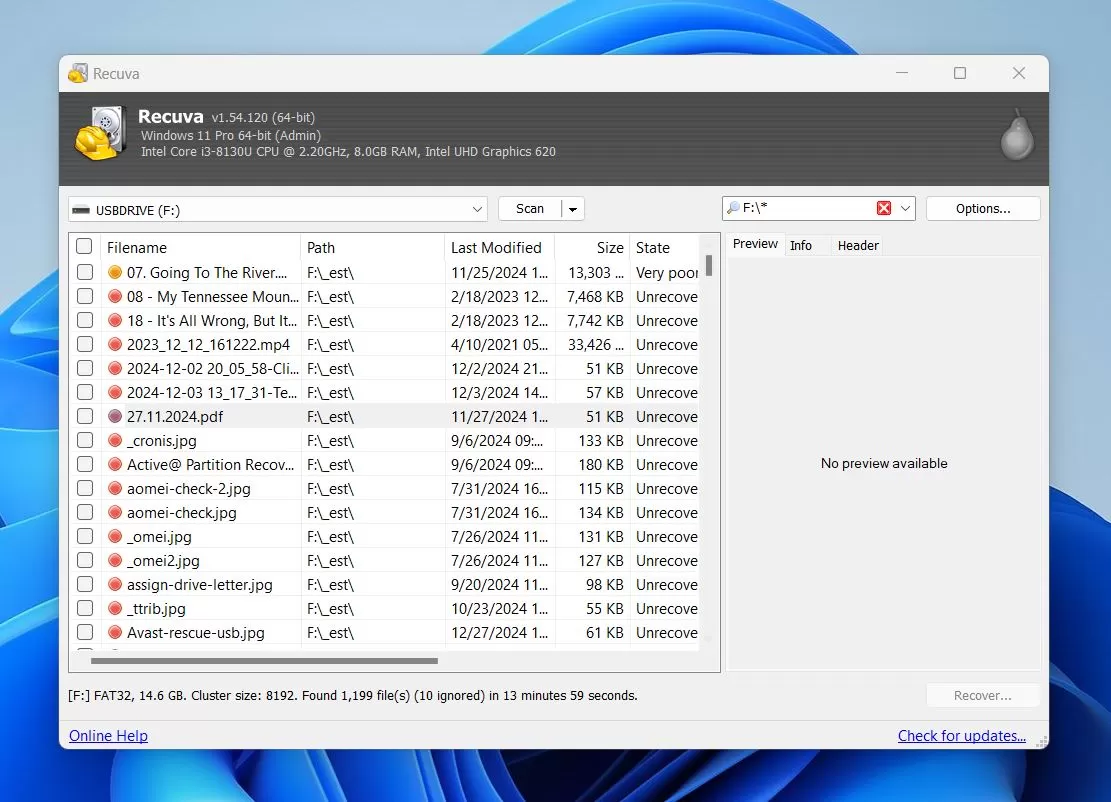
Recuva represents one of the oldest names in the industry, widely recognized for its completely free unlimited tier.
- Pros: It is lightweight, fast, and completely free for basic undelete tasks.
- Cons: However, the core scanning engine has not received major architectural updates in years. As a result, it struggles significantly with modern large storage devices and advanced structural damage.
R-Studio
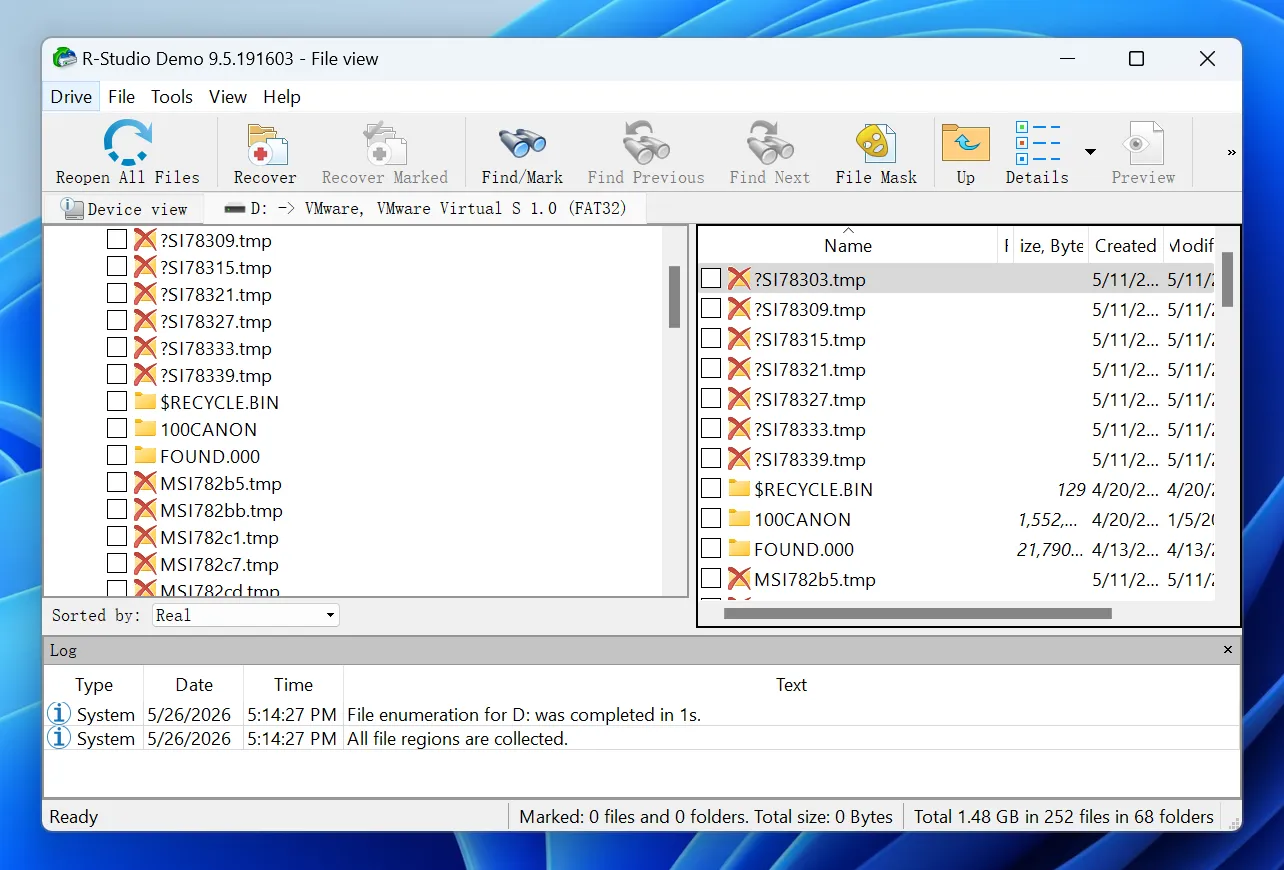
R-Studio caters explicitly to IT administrators, data centers, and advanced system engineers who need alternative solutions.
- Pros: It packs highly technical features, including hex editors and manual parameter tweaking.
- Cons: On the other hand, the interface is incredibly intimidating for regular consumers. For instance, a single incorrect click in the advanced settings can ruin your chances of retrieving data.
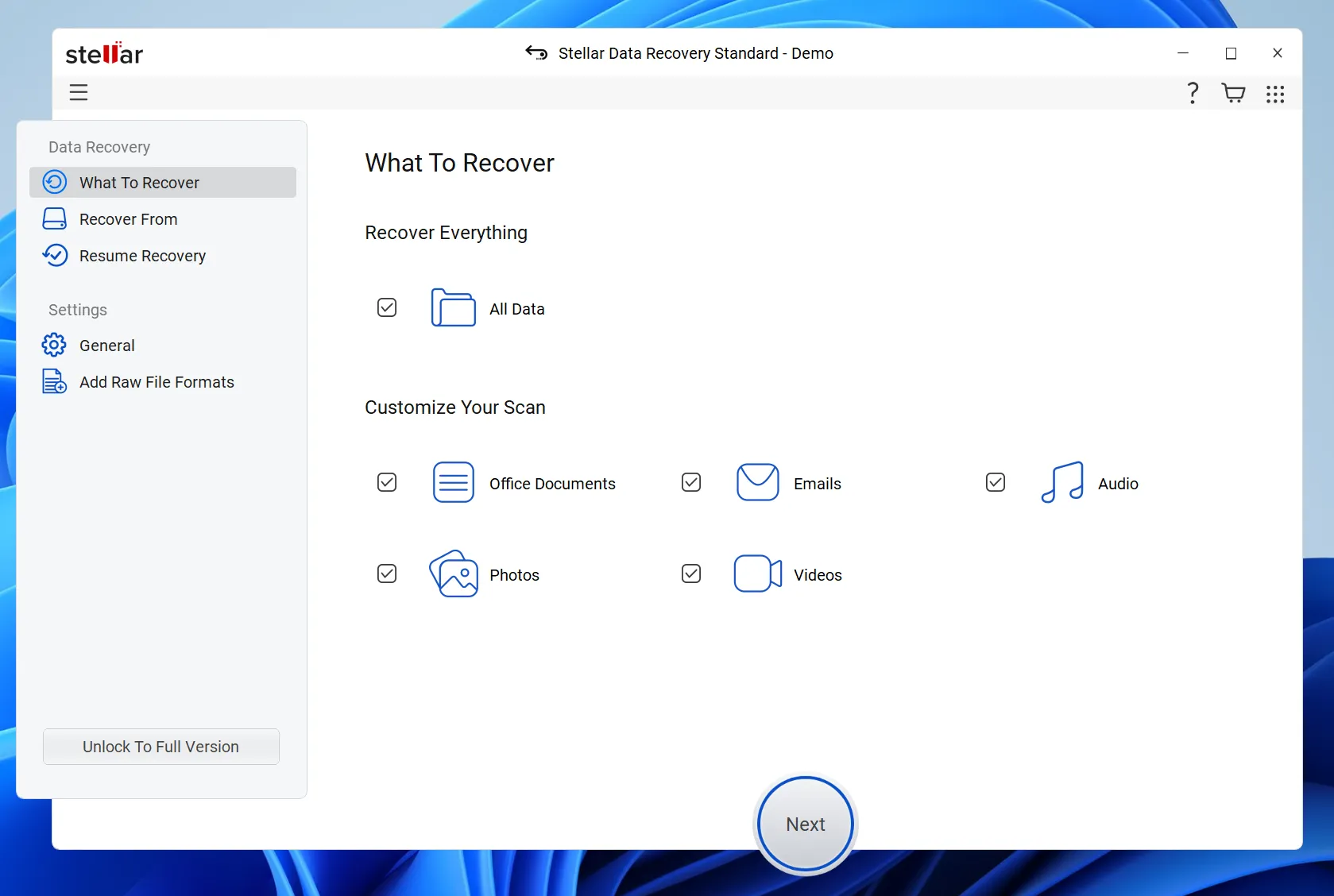
Stellar Data Recovery
Stellar is a long-standing corporate platform that provides tiered options based on user needs.
- Pros: It features solid scanning options and can repair corrupted video files after retrieving them.
- Cons: Nevertheless, the software uses a highly rigid pricing structure. Furthermore, users frequently report long waiting times during deep scans of large storage arrays.
Comparative Evaluation of Top Windows Data Recovery Tools
Software Name | Target Audience | Primary Strength | Scanning Depth | Recommendation |
Magic Data Recovery | Everyday Users & Pros | Deep RAW structural scanning | Excellent | ⭐⭐⭐⭐⭐ |
Disk Drill | General Users | Extra backup features | Good | ⭐⭐⭐⭐ |
Recuva | Budget Users | Free basic undelete | Shallow | ⭐⭐⭐ |
R-Studio | System Administrators | Manual hex editing | Maximum | ⭐⭐⭐⭐ |
Stellar Recovery | Enterprise Users | Video repair modules | Good | ⭐⭐⭐⭐ |
Step-by-Step Guide
If you want an efficient, reliable solution without dealing with complicated configurations, using Magic Data Recovery is your best path forward. Here is exactly how to navigate the retrieval process safely.
Step 1: Download and Install Magic Data Recovery
First, download the official setup file from Amagicsoft. When installing Magic Data Recovery, you must choose a partition or storage location that is completely separate from the drive containing your lost data.
Supports Windows 7/8/10/11 and Windows Server
Step 2: Select the Specific Storage Drive to Scan
Launch the program to open the clean main user dashboard. Then, from the comprehensive interface listing, identify and choose the specific partition or local drive volume where your important files were previously stored. After that, initiate the scanning sequence.

Step 3: Scan the Target Drive
The utility will automatically implement its proprietary Advanced Scan engine to inspect your storage sectors deeply. Meanwhile, as the scan progresses steadily in the background, the interface updates in real-time. Consequently, it organizes and lists every recoverable item it uncovers.

Step 4: Preview Files Before Recovery
Once the scanning process unearths your hidden data, make use of the built-in preview function to examine individual documents, photos, or audio tracks. Therefore, checking the items beforehand ensures that you spend time restoring only the actual files you truly need.

Step 5: Recover Files to a Safe Location
Finally, mark the checkboxes next to your targeted folders and authorize the extraction process. However, you must always direct the software to save these retrieved files onto an entirely different local drive or an independent alternate storage medium. This step is critical because restoring data directly to the original drive risks immediate file corruption.

Crucial Tips to Prevent Permanent Data Loss
While having access to the best file recovery software provides an excellent safety net, maintaining smart habits will protect your computer long-term.
- Automate Your Backups: First, utilize built-in Windows features like File History or cloud storage services to create redundant copies of your vital data automatically.
- Avoid Over-the-Counter Repair Hacks: Second, do not run disk checking utilities like CHKDSK immediately after losing files. Because these tools focus on fixing the file system structure, they often involve deleting orphaned files permanently.
- Check the Health of Your Storage: Finally, use diagnostic tools to monitor the status of your hard drives regularly. As a result, replacing a failing drive early prevents catastrophic hardware data loss.
Conclusion
Successfully navigating a data loss crisis requires the right approach and reliable tools. While Microsoft’s command-line tool offers a free alternative, its high complexity makes it risky for general users. Similarly, heavy corporate landing页 often push overly expensive plans without offering clear technical substance.
Therefore, we highly recommend Magic Data Recovery for your daily Windows data recovery needs. This tool approaches the problem from a practical perspective because it delivers professional-grade algorithmic depth wrapped in an intuitive layout. If you are looking for an efficient hard drive solution to bring your valuable files back to life today, you should definitely give this tool a try.
Supports Windows 7/8/10/11 and Windows Server
FAQs - Windows Data Recovery
Does windows data recovery work after formatting a drive?
Yes, windows data recovery works excellently after a quick format. This process only deletes the file index table while leaving your actual file contents intact on the storage sectors. Therefore, as long as you avoid saving new data onto that partition, specialized software can easily scan, locate, and fully rebuild your missing files.
Can I recover data from a RAW partition using the best file recovery software?
Absolutely. A drive becomes RAW when the Windows operating system can no longer read its corrupted file system structure. However, the best file recovery software can bypass this broken outer layer completely. Tools like Magic Data Recovery scan the raw storage sectors directly to identify and reconstruct files by their unique data signatures.
Is it safe to run free data recovery software downloaded online?
You must exercise extreme caution because many unverified free tools contain hidden malware or intrusive advertising. Therefore, for maximum safety during your Windows data recovery attempt, you should always download verified software directly from trusted developers like Amagicsoft to protect your system from secondary security threats.
Why should I avoid installing the software on the same drive?
If you install software on the same drive, the installation process will write new data to the storage sectors. Consequently, this action can permanently overwrite the very files you want to rescue. For this reason, always choose a completely different partition or an independent storage device for the installation.
How does the preview feature help before saving files?
The preview feature allows you to verify the integrity of your documents or images before performing the final extraction. Thus, it saves you valuable time and storage space. More importantly, it gives you concrete proof that the file is fully intact and completely recoverable before you finalize the process.
Can Windows data recovery software retrieve files deleted via Shift + Delete?
Yes, tools specialized in windows data recovery can easily retrieve files deleted via Shift + Delete. This command bypasses the Recycle Bin but does not erase the actual data from the disk immediately. Instead, the sectors are marked as free space, allowing recovery software to find them easily.

Vasilii is a data recovery specialist with around 10 years of hands-on experience in the field. Throughout his career, he has successfully solved thousands of complex cases involving deleted files, formatted drives, lost partitions, and RAW file systems. His expertise covers both manual recovery methods using professional tools like hex editors and advanced automated solutions with recovery software. Vasilii's mission is to make reliable data recovery knowledge accessible to both IT professionals and everyday users, helping them safeguard their valuable digital assets.