
How to Remove Recovery Partition Safely in Windows (Step-by-Step Guide)

Many Windows users notice a small, hidden partition labeled “Recovery” when checking Disk Management. It often takes up valuable disk space and cannot be used for files. Naturally, this leads to one common question: how to remove recovery partition safely without breaking the system or losing important data.
The challenge is that a recovery partition plays a specific role in Windows system recovery. Removing it without preparation can cause unexpected problems, including failed system resets or accidental data loss. That is why this guide focuses not only on remove recovery partition steps, but also on understanding risks, real-world scenarios, and reliable solutions if something goes wrong.
In this article, you will learn when it makes sense to delete a recovery partition, how to do it step by step, and what to do if data is lost during the process. We will also explain how tools like Magic Data Recovery can help recover data from deleted or damaged partitions when mistakes happen.
Supports Windows 7/8/10/11 and Windows Server
Table of Contents
What Is a Recovery Partition in Windows?
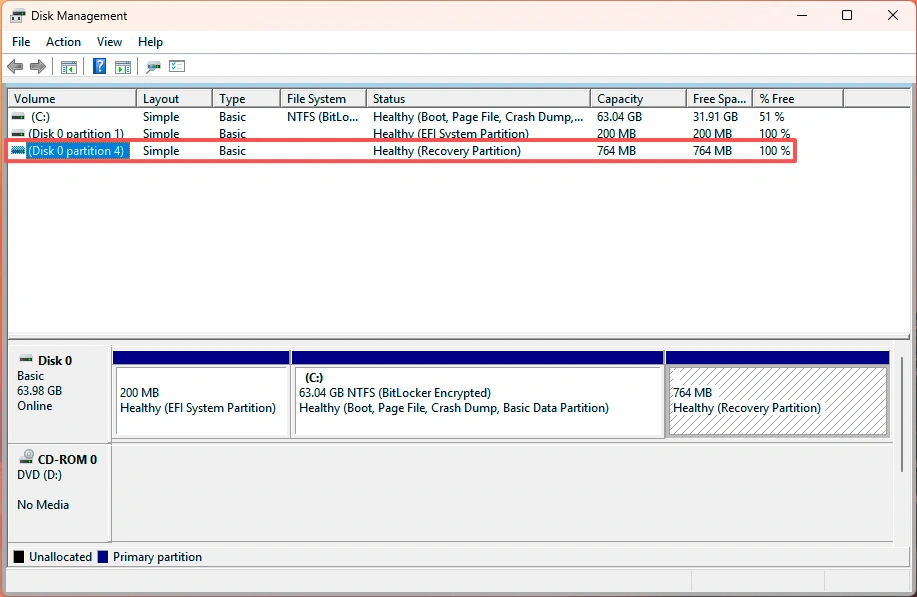
A recovery partition is a special section of your hard drive created by Windows or the device manufacturer. It stores recovery tools that help repair, reset, or reinstall Windows when serious system problems occur.
Unlike normal partitions, recovery partitions:
- Do not have a drive letter
- Are hidden from File Explorer
- Cannot be easily deleted using standard options
Windows uses this partition to launch recovery options such as Startup Repair, Reset this PC, or system troubleshooting.
Types of Recovery Partitions
Not all recovery partitions are the same. In practice, users usually encounter two types:
- Windows Recovery Partition (WinRE)
Created automatically during Windows installation or major updates.
- OEM Recovery Partition
Added by manufacturers like Dell, HP, or Lenovo, often containing factory restore images.
Understanding which type exists on your system helps you decide whether removing it is safe.
Why You Might Want to Remove a Recovery Partition
There are several practical reasons why users search for remove recovery partition solutions.
1. Free Up Disk Space
On smaller SSDs, even a few hundred megabytes can matter. Recovery partitions sometimes consume several gigabytes that remain unused in daily work.
2. Extend the C Drive
Many users want to extend the system drive but find that the recovery partition blocks disk space expansion.
3. System Migration or Disk Reorganization
When cloning a system disk or reorganizing partitions, recovery partitions may cause layout issues.
4. Redundant Recovery Options
If you already created a Windows recovery USB or use cloud backups, the local recovery partition may no longer be essential.
However, removing it without preparation can limit built-in recovery features. That risk should always be considered first.
Important Things to Do Before Removing a Recovery Partition
Before you proceed with how to remove recovery partition steps, take these precautions.
Create a Recovery Drive
Windows allows you to create a recovery USB drive. This ensures you can still access recovery tools after deletion.
Back Up Important Data
Partition operations always carry some risk. A sudden interruption or wrong selection may affect nearby partitions.
Understand the Risk
Once removed, the recovery partition does not regenerate automatically. Re-creating it later is not simple.
These steps reduce risk and improve overall safety.
How to Remove Recovery Partition in Windows (Step-by-Step)
Below are the most common and reliable ways to remove recovery partition. Choose the method that fits your situation.
Method 1: Remove Recovery Partition Using Disk Management
This method works only if Windows allows deletion.
Steps:
- Press Win + X and select Disk Management
- Locate the recovery partition (usually labeled “Recovery”)
- Right-click the partition
- Select Delete Volume if available
Limitations:
- Often, the delete option is disabled
- Windows protects many recovery partitions
If deletion is blocked, use the DiskPart method instead.
Method 2: How to Remove Recovery Partition Using DiskPart (Recommended)
DiskPart is a built-in command-line tool with more control.
Steps:
- Press Win + S, type cmd, right-click and choose Run as administrator
- Enter the following commands one by one:
diskpart
list disk
select disk X
list partition
select partition Y
delete partition override
Replace X with your disk number and Y with the recovery partition number.
Why this works:
The override command bypasses Windows protection and allows forced deletion.
Important warning:
Selecting the wrong partition may delete important data. Double-check numbers before confirming.
Method 3: Using Third-Party Partition Tools
Some users prefer graphical tools that reduce manual input errors. These tools simplify partition deletion and resizing, especially for beginners.
This option works well when Disk Management and DiskPart feel too risky.
What Happens After You Remove the Recovery Partition?
After removal, the space becomes Unallocated.
You can then:
- Extend the C drive
- Create a new data partition
- Merge space with another volume
Windows Disk Management can usually handle these actions safely.
However, if something goes wrong during this stage, data loss may occur. This is where recovery solutions become essential.
What If You Delete the Wrong Partition or Lose Data?
Accidental deletion is one of the most common problems users face when attempting to remove recovery partitionmanually. A wrong click or command can result in:
- Missing partitions
- Unreadable drives
- Lost personal files
How Magic Data Recovery Helps in These Situations

Magic Data Recovery is a professional data recovery solution designed to recover lost files from complex scenarios, including:
- Deleted partitions
- Formatted drives
- File system errors
- Accidental DiskPart operations
Instead of relying on risky manual fixes, the software scans the disk at a deep level to locate recoverable data.
Key Advantages of Magic Data Recovery
- Supports multiple loss scenarios
Works after deletion, formatting, or partition errors.
- User-friendly interface
Designed for general users without technical expertise.
- Wide compatibility
Supports HDDs, SSDs, USB drives, and memory cards.
- Reliable recovery logic
Focuses on data integrity instead of quick, incomplete scans.
Real-World Use Case
Imagine deleting the recovery partition and accidentally selecting the system partition. Instead of panicking, Magic Data Recovery can scan the affected drive and restore critical files before permanent damage occurs.
If you are looking for a more reliable solution after partition mistakes, Magic Data Recovery offers a practical and controlled recovery approach.
Supports Windows 7/8/10/11 and Windows Server
Conclusion
Removing a recovery partition can help free space and improve disk layout, especially on smaller drives. However, the process requires careful planning, accurate steps, and a backup strategy.
This guide showed how to remove recovery partition safely, explained common risks, and highlighted what to do if mistakes happen. When data loss occurs due to partition deletion or file system errors, relying on a dependable recovery solution matters.
Magic Data Recovery stands out as a practical choice because it addresses real recovery scenarios without unnecessary complexity. If you want a safer way to handle unexpected data loss during partition operations, it is worth considering.
If you are planning disk changes and want peace of mind, preparing both a recovery drive and a reliable partition recovery tool is the smartest approach.
FAQs
Can you delete a recovery partition?
Is it safe to disable WinRE?
Can I delete a Dell recovery partition?
How to move recovery partition to the end?
Is recovery partition necessary?
How to get rid of EFI and recovery partitions?
Why do I have so many healthy recovery partitions?
Is recovery folder safe to delete?

Jason is a data recovery and technical support specialist with over 15 years of hands-on experience. He has worked extensively with frontline users, troubleshooting difficult data loss cases and providing practical recovery solutions for accidental deletion, formatted drives, damaged file systems, lost partitions, system failures, and other recovery emergencies. His expertise also includes backup and restoration, file repair, and disaster recovery, with a strong emphasis on safe, reliable, and technically accurate guidance.