
File Fragmentation Guide: Causes and Fixes
If your computer feels slower than it used to, you might assume the hardware is outdated. However, the real reason is often simpler. On many Windows PCs—especially those still using traditional hard drives—the hidden cause is file fragmentation.
When data gets stored in scattered pieces, your system must work harder to open the same files. As a result, apps launch slower, boot times increase, and large folders take longer to load.
In this guide, you will learn what file fragmentation means, why it happens, and how to fix it safely. More importantly, you will also learn what to do if files go missing during disk cleanup or optimization—because that is exactly when a reliable recovery tool becomes necessary.
Table of Contents
What Is File Fragmentation?
File fragmentation happens when a single file is saved in multiple separate locations on a storage drive instead of being stored in one continuous block.
In other words, the file becomes split into smaller parts. Each part is called a file fragment. Your operating system can still read the file, but it must collect those scattered fragments first.
This is normal behavior for most file systems. Still, once fragmentation becomes excessive, the drive spends more time searching and less time performing.
How File Fragments Are Created
Fragmentation usually appears through everyday usage.
For example:
- You download a large video file.
- Later, you delete it.
- Then you install several smaller programs.
- Finally, you save another large file.
At first, the disk has enough free space. However, after many installs and deletions, the free space becomes scattered. Therefore, when the system saves a large file again, it splits it across multiple gaps. Over time, this pattern creates more file fragments and reduces storage efficiency.
File Fragmentation vs Free Space Fragmentation
These two concepts are related but not identical:
- File fragmentation means one file is split into pieces.
- Free space fragmentation means empty storage is broken into many gaps.
Although both reduce performance, file fragmentation usually creates the most noticeable slowdown, especially on HDDs.
How File Fragmentation Affects Performance
Many users do not notice fragmentation immediately. However, as the disk becomes more scattered, performance drops become harder to ignore.
Why Fragmentation Slows Down HDDs
HDDs rely on spinning platters and a mechanical read/write head.
When file fragmentation occurs, the head must physically move across the disk to collect every part of the file. That movement increases seek time. As a result, the drive needs longer to open the same data.
Common symptoms include:
- slower Windows startup
- delayed app launches
- longer game loading screens
- slow file searches
- lag when opening large folders
Does Fragmentation Affect SSDs?
SSDs have no moving parts. Instead, they access data electronically.
Therefore, fragmentation has a much smaller impact on SSD speed. However, SSDs still require good maintenance. Modern operating systems use TRIM and optimization tools to manage deleted blocks. That is why manual defragmentation is not recommended for SSDs.
Signs Your Drive May Be Fragmented
If you suspect file fragmentation, look for these warning signs:
- your PC boots slower than before
- apps take longer to open
- file explorer freezes when browsing folders
- games stutter during loading
- the HDD makes frequent clicking or spinning noises
Of course, similar symptoms can also indicate failing hardware. So, if problems keep getting worse, you should check disk health as well.
How to Check File Fragmentation on Windows, Mac, and Linux
Before fixing anything, you should confirm that fragmentation is the real cause.
Windows: Use Optimize Drives
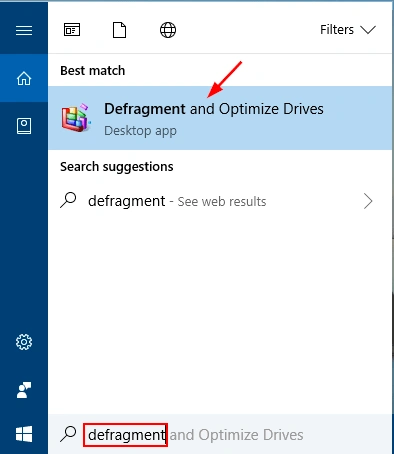
Windows includes a built-in tool called “Defragment and Optimize Drives.”
Follow these steps:
- Press Windows + S
- Search for Defragment and Optimize Drives
- Select your drive (usually C:)
- Click Analyze
- Review the fragmentation percentage
If the percentage is high, optimization will likely help.
macOS: Usually Not a Major Issue
Most modern Macs use APFS, which handles file placement efficiently. In most cases, macOS reduces fragmentation automatically.
However, low storage space can still slow the system down. Therefore, cleaning up storage is often more useful than worrying about defragmentation.
Linux: Better Resistance, Still Possible
Linux file systems such as ext4 and XFS are designed to reduce fragmentation. Still, fragmentation can happen on heavily used systems, especially servers storing VM images or large databases.
In those cases, admins often reorganize storage or migrate data to a cleaner partition.
How to Prevent File Fragmentation Long-Term
Once you fix fragmentation, prevention becomes easier than repair. With a few habits, you can keep your computer responsive for years.
Keep Enough Free Space
Free space helps the file system store data in fewer pieces. As a result, it creates fewer scattered blocks and fewer file fragments.
Store Large Files Strategically
Large files fragment more easily. Therefore, it helps to store them wisely.
For example:
- keep videos on an external drive
- store backups on another disk
- use a separate partition for games
This reduces constant rewriting on your main system drive.
Avoid Frequent Install/Uninstall Cycles
Frequent software changes create uneven gaps. Over time, this increases file system fragmentation.
If you test software often, consider using a separate drive or virtual machine. That way, your main disk stays cleaner.
Enable Automatic HDD Optimization
Windows can automatically optimize HDDs weekly. This simple setting prevents fragmentation from growing without manual effort.
File Fragmentation vs Defragmentation: What’s the Difference?
Many users confuse these terms:
File fragmentation is the problem: files become split into scattered blocks.
Defragmentation is the fix: the system reorganizes those blocks into a more efficient structure.
In other words, fragmentation slows HDD performance, while defragmentation helps restore it.
What If You Lose Files While Fixing Fragmentation?
Disk maintenance is usually safe. However, real-world mistakes happen, especially when users delete files to free up disk space.
For example, users may:
- remove the wrong folder during cleanup
- format the wrong partition
- lose files after a system crash during optimization
- experience file loss after file system corruption
If this happens, stop using the drive immediately. Otherwise, the system may overwrite deleted content and reduce recovery chances.
That is why professionals often recommend having a recovery plan ready before doing major disk maintenance.
How to Recover Lost Files with Magic Data Recovery
If you lose important files during cleanup, optimization, or disk maintenance, Magic Data Recovery can help restore deleted or missing data.
Unlike basic recycle bin recovery, it scans deeper disk structures and searches for recoverable traces. Therefore, it can help even when files no longer appear in Windows Explorer.
The Core Problem It Solves
After disk maintenance, users often realize too late that an important file is gone. That missing data may include:
- business documents
- school assignments
- family photos
- videos and project archives
Since deleted files may be overwritten quickly, recovery needs to happen as soon as possible.
Unique Selling Points of Magic Data Recovery
Magic Data Recovery offers practical features that make recovery easier:
- supports HDDs, SSDs, USB drives, and memory cards
- works with many file types, including documents, photos, videos, and archives
- provides deep scan mode for difficult recovery cases
- simple interface designed for everyday users
Real Use Case Example
Imagine you free up disk space before optimizing your drive to reduce file system fragmentation. Later, you realize you deleted a folder containing work documents.
In this situation, Magic Data Recovery can scan the drive and help you recover the missing folder before the system overwrites it.

Conclusion
File fragmentation is one of the most common reasons HDD-based computers slow down over time. As more file fragments accumulate, the drive needs extra time to read scattered blocks, which reduces overall performance.
Fortunately, you can reduce file system fragmentation by freeing disk space, using built-in Windows optimization tools, and maintaining smart storage habits. At the same time, you should avoid manual defragmentation on SSDs. Most importantly, disk cleanup and optimization sometimes lead to accidental deletion or file system errors. Because of that, having a reliable recovery option matters.
If you want a safer way to restore missing files after disk maintenance, Magic Data Recovery is a practical solution worth considering.
Supports Windows 7/8/10/11 and Windows Server
FAQ
What is a file fragmentation?
What is file defragmentation?
How to fix file fragmentation?
What are the four types of fragmentation?
How to fix data fragmentation?
What is an example of fragmentation?
What is the difference between fragmentation and defragmentation?

Vasilii is a data recovery specialist with around 10 years of hands-on experience in the field. Throughout his career, he has successfully solved thousands of complex cases involving deleted files, formatted drives, lost partitions, and RAW file systems. His expertise covers both manual recovery methods using professional tools like hex editors and advanced automated solutions with recovery software. Vasilii's mission is to make reliable data recovery knowledge accessible to both IT professionals and everyday users, helping them safeguard their valuable digital assets.